

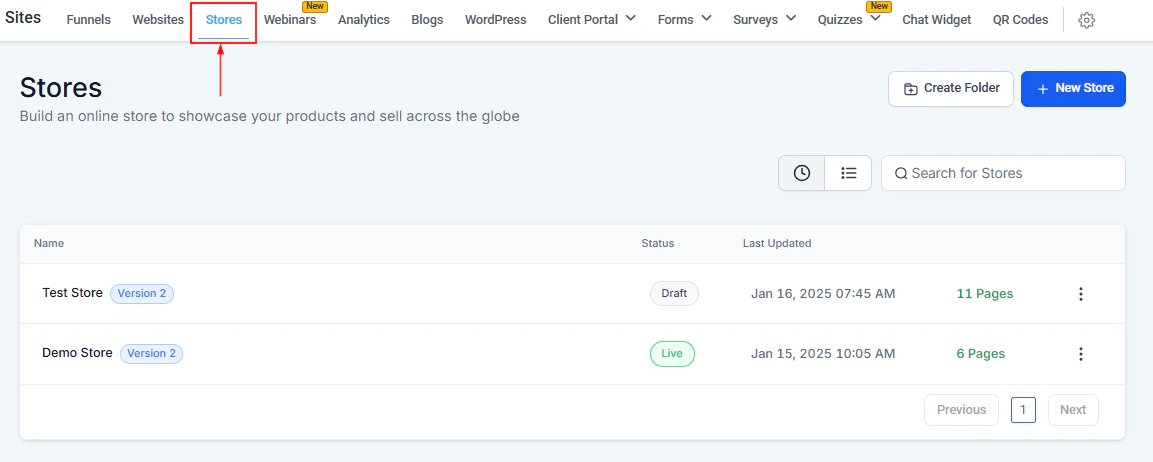
Stores list in Sites
Three ways to create a store
From the Stores tab (standalone store)
From the Stores tab (standalone store)
Navigate to Sites > Stores and click + New Store. Choose from a blank canvas or a prebuilt store template, then click Create. This creates a fully standalone e-commerce store.
Add a store element to a website
Add a store element to a website
Inside the website builder, click the + icon to open Add Elements, then find and click Store > + Add to site. This automatically generates the essential store pages (Product List, Product Details, Cart, Checkout, Thank You) while maintaining your website’s existing style.
Add a product list element to a page
Add a product list element to a page
Drag a Product List element onto any page and click Manage Products. This routes you to Payments > Products to connect your catalog to that specific page without generating a full store.
Setting up a store from scratch
1
Navigate to Sites > Stores
Click Sites in the left sidebar, then select Stores. Click + New Store.
2
Choose a template or start blank
Select a prebuilt store template or start from blank. Click Create. The builder generates the required store pages automatically.
3
Add and manage products
Click the Product List element, then Manage Products. This opens Payments > Products. For each product, toggle Include in online store to add it to your storefront. Fill in the description, pricing, and any variants, then click Save.
4
Customize store pages
Navigate through each auto-generated page — Product List, Product Details, Cart, Checkout, and Thank You — and customize the layout, colors, and content in the builder.
5
Connect a payment integration
Ensure a payment method is connected under Settings > Payment Integrations (e.g. Stripe). The store checkout uses this to process live transactions.
6
Connect a domain and publish
Assign a custom domain in the store’s Settings tab and click Publish when the store is ready to go live.
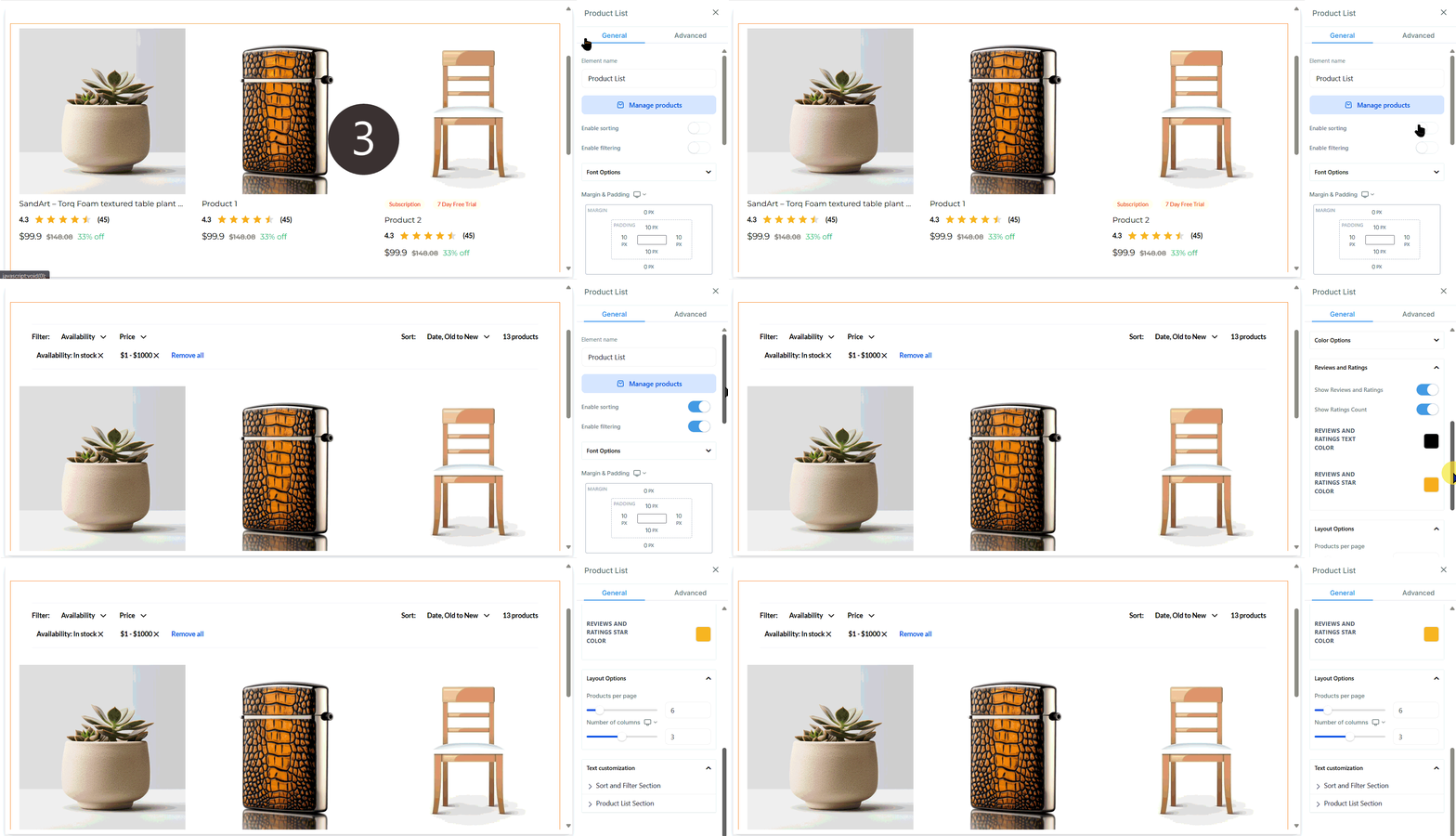
Setting up an e-commerce store — from template selection through product connection and publish
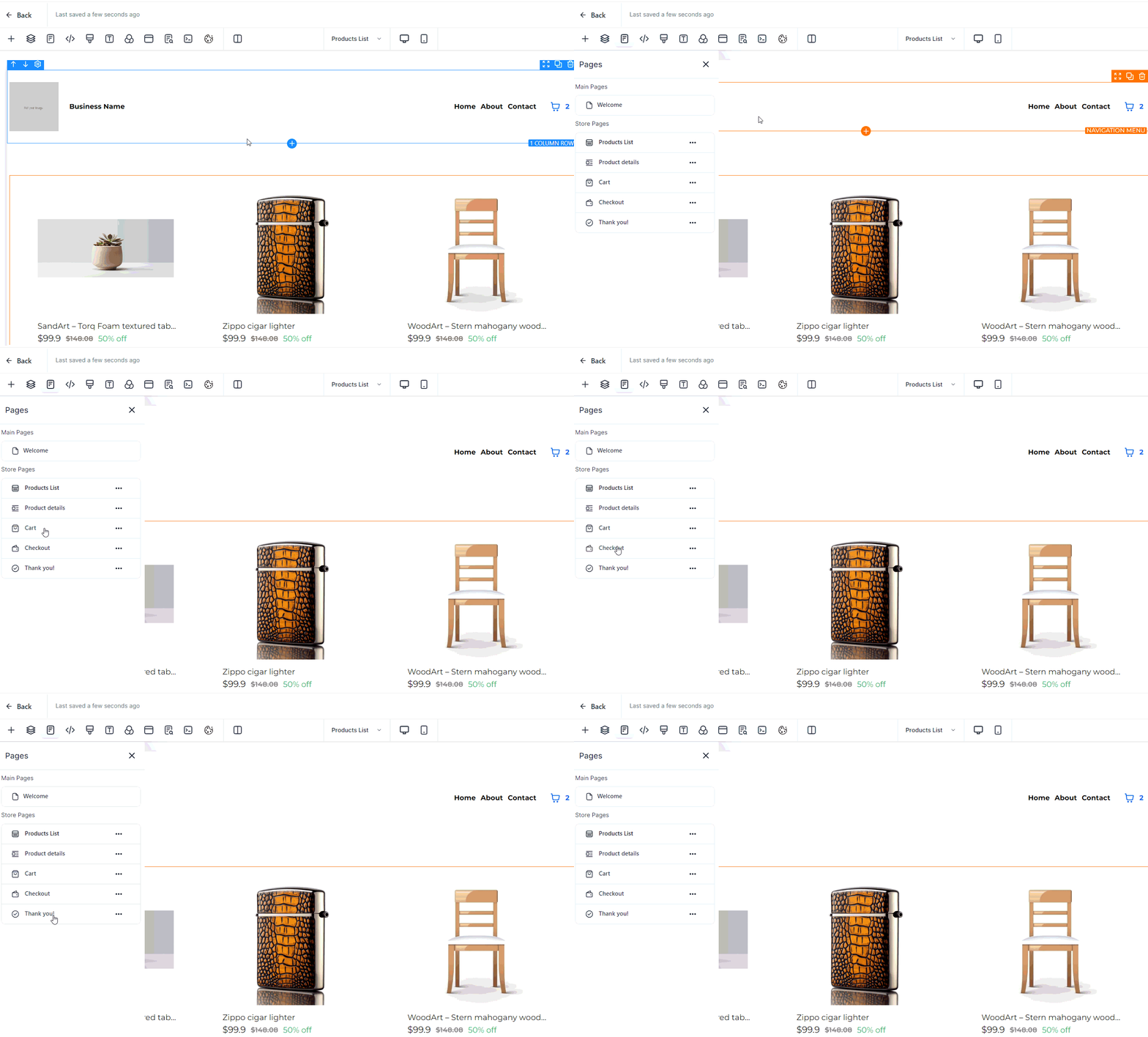
Store pages — auto-generated Product List, Product Details, Cart, Checkout, and Thank You pages
Store pages
A complete store includes these auto-generated pages:Product catalog
Products in the Hoop platform support:- One-time purchases — standard product price
- Recurring subscriptions — weekly, monthly, or annual billing cycles
- Payment plans — split a purchase into installments
- Digital and physical products — physical products can include shipping fees
- Product variants — size, color, or other options
Order management
When a customer completes a purchase:- An Order is created in Payments > Orders.
- The customer’s contact record is created or updated automatically.
- Configured automation triggers fire (e.g. send confirmation email, add tag, start fulfillment workflow).

Store tabs — Pages, Products, Sales, Stats, Settings, and Security inside each store
Store tabs
Inside each store you will find:Stores share the same page builder as funnels and websites. All builder elements — custom CSS, tracking codes, brand boards, and saved sections — are available on store pages.