

The built-in image editor currently supports PNG and JPEG files only. Other image formats (WebP, SVG, GIF) must be converted before they can be edited with this tool. The editor is available on desktop and is not yet accessible in the HoopAI mobile app.
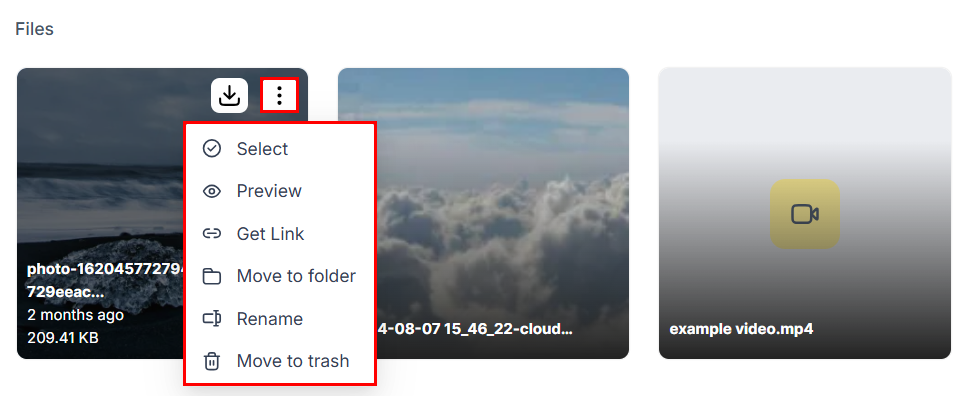
The three-dot action menu on a file provides quick access to Edit, Get Link, and other options
Opening the image editor
- Open Media Storage from the left sidebar
- Hover over the image you want to edit
- Click the three-dot icon that appears on the image
- Select Edit
Editing tools
Crop
Click Crop to trim the image to a specific area. You can:- Drag the crop handles freely to define a custom region
- Choose a preset aspect ratio (1:1 for square, 4:3, 16:9, 9:16 for portrait) from the toolbar to constrain the crop to a standard proportion
- Zoom in on the crop preview to check fine details before applying
Rotate and flip
- Rotate left / Rotate right — rotate the image 90 degrees at a time
- Flip horizontal — mirror the image left-to-right
- Flip vertical — mirror the image top-to-bottom
Filters
Apply a one-click filter to change the overall look and feel of the image. Available filters include presets similar to photo editing software: matte, vivid, faded, grayscale, and others. Filters are non-destructive within the editor session — you can switch between them or remove them before saving.Adjustments
Fine-tune the image using manual sliders:
Drag each slider left or right to decrease or increase the effect. The preview updates in real time.
Text
Click Text to add a text layer on top of the image. Options include:- Font family — choose from available system fonts
- Font size — set the size in points
- Alignment — left, center, or right
- Font color — pick from the color palette or enter a hex code
- Background color — add a solid color fill behind the text block
- Line spacing — adjust the vertical space between lines
Stickers
Click Sticker to overlay an emoji or geometric shape on the image. For each sticker you can adjust:- Opacity — make the sticker transparent or fully opaque
- Color — for shapes, change the fill color
- Size and position — drag and resize the sticker on the canvas
Brush
Click Brush to draw freehand directly on the image. Adjust:- Hardness — a soft brush feathers the edges; a hard brush produces crisp lines
- Size — brush diameter in pixels
- Color — pick any color from the palette
Undo and redo
Use Undo (or Ctrl+Z / Cmd+Z) to reverse the last action, and Redo to reapply it. The undo history is maintained for the duration of your editing session.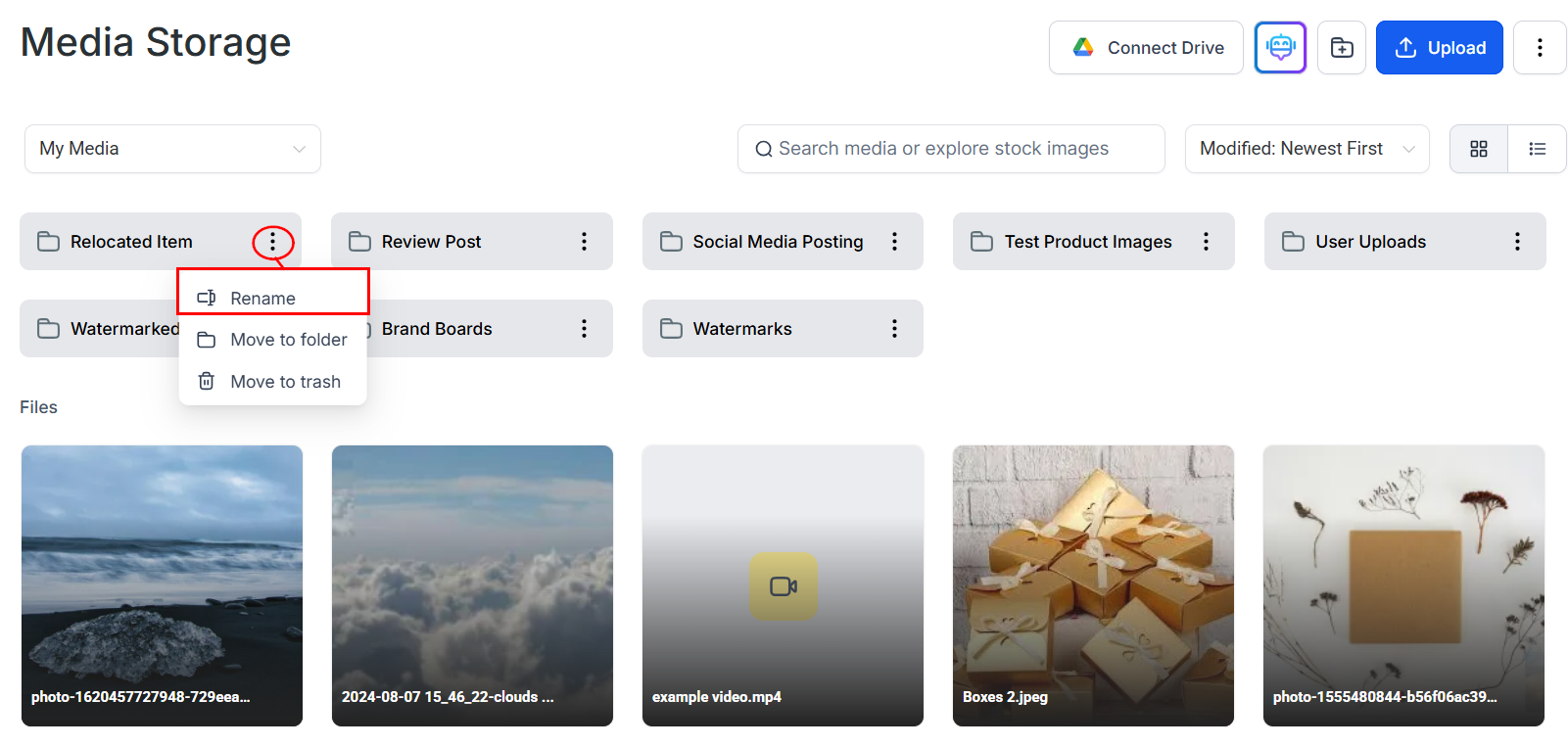
Managing files in the media library with folder organization and quick actions
Saving an edited image
When you are satisfied with your edits:- Click Save in the editor toolbar
- A dialog appears prompting you to name the new image file
- Optionally choose a destination folder from the Save to Folder dropdown
- Click Save to confirm
Editing images from within a builder
The image editor is also accessible while you are working inside the funnel builder, email builder, or social planner. When you open the media picker from one of these tools:- Hover over the image you want to edit
- Click the Edit option
- Make your changes in the editor modal
- Save — the edited image is added to your media library and automatically selected for the element you were configuring
Limitations
- Supported formats: PNG and JPEG only. WebP, GIF, SVG, and TIFF images cannot be edited with the built-in editor.
- Bulk editing: Images must be edited one at a time. There is no batch-edit mode.
- Mobile: The image editor is not available in the HoopAI mobile app.
- Non-destructive layers: Text, stickers, and brush strokes are permanently merged into the image on save. They cannot be repositioned or removed in a future editing session.
FAQs
Does editing an image replace the original file?
Does editing an image replace the original file?
No. The editor always saves the result as a new file. Your original image remains in the library unchanged. If you want to use only the edited version, delete the original manually.
Can I crop an image to an exact pixel dimension?
Can I crop an image to an exact pixel dimension?
The crop tool works visually using drag handles and preset aspect ratios. There is no numeric input for setting exact pixel dimensions in the crop dialog. To get a specific pixel size, crop to the correct aspect ratio and then resize the saved image using an external tool before re-uploading, or size your crop relative to the image dimensions shown in the preview.
Can I edit a WebP or SVG file?
Can I edit a WebP or SVG file?
Not directly. Convert the file to PNG or JPEG first using a conversion tool such as Squoosh, then upload the converted file and edit it with the built-in editor.
Is there a way to remove the background from an image?
Is there a way to remove the background from an image?
Background removal is not a built-in feature of the image editor. Use an external tool such as remove.bg to remove backgrounds, then upload the resulting transparent PNG to Media Storage.