Browse and use free royalty-free stock images from Pixabay directly inside the Hoop platform.
Media Storage offers a built-in Pixabay integration, giving you access to a vast library of royalty-free stock media. With just a few clicks, you can browse and use professional images at no extra cost.
Click Media Storage in the left navigation sidebar.
2
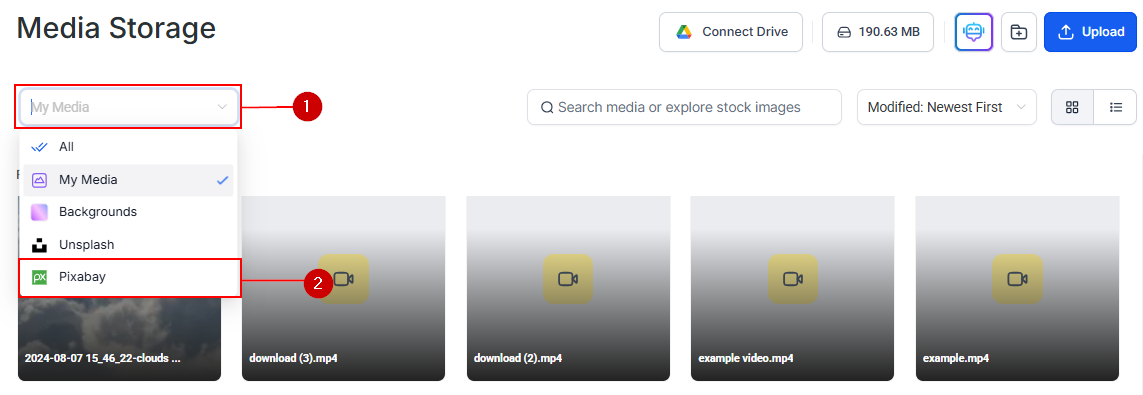
Select Pixabay from the dropdown
In the filter dropdown, select Pixabay. The library switches to display Pixabay’s content catalog.
Pixabay filter option in Media Storage dropdown
3
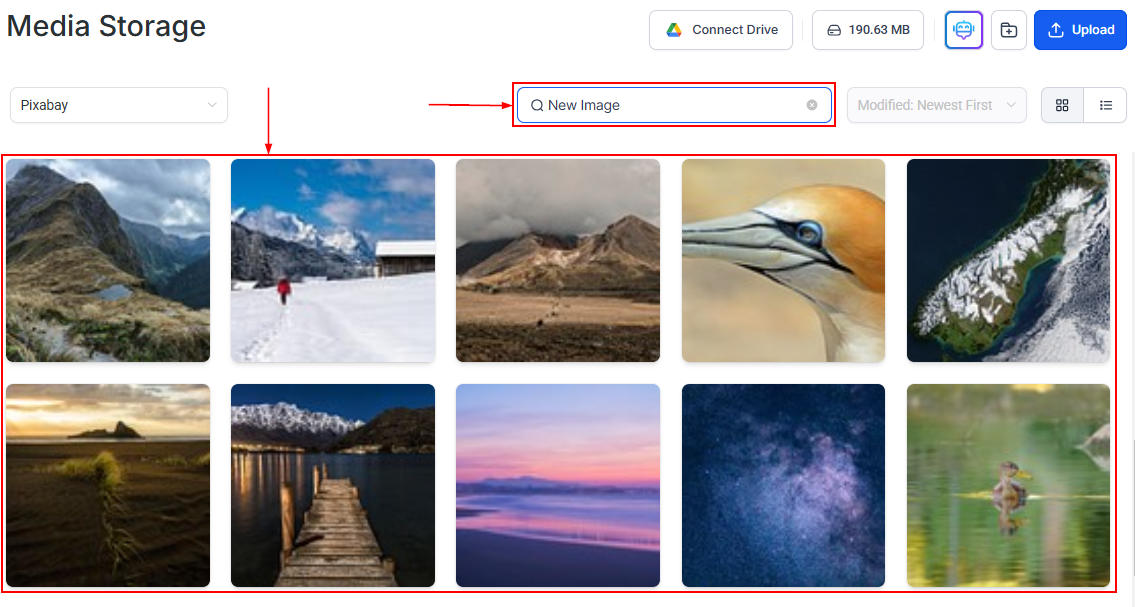
Search for images
Once the Pixabay option is selected, a search bar appears. Search for imagery that fits your project.
Pixabay search results within Media Storage
4
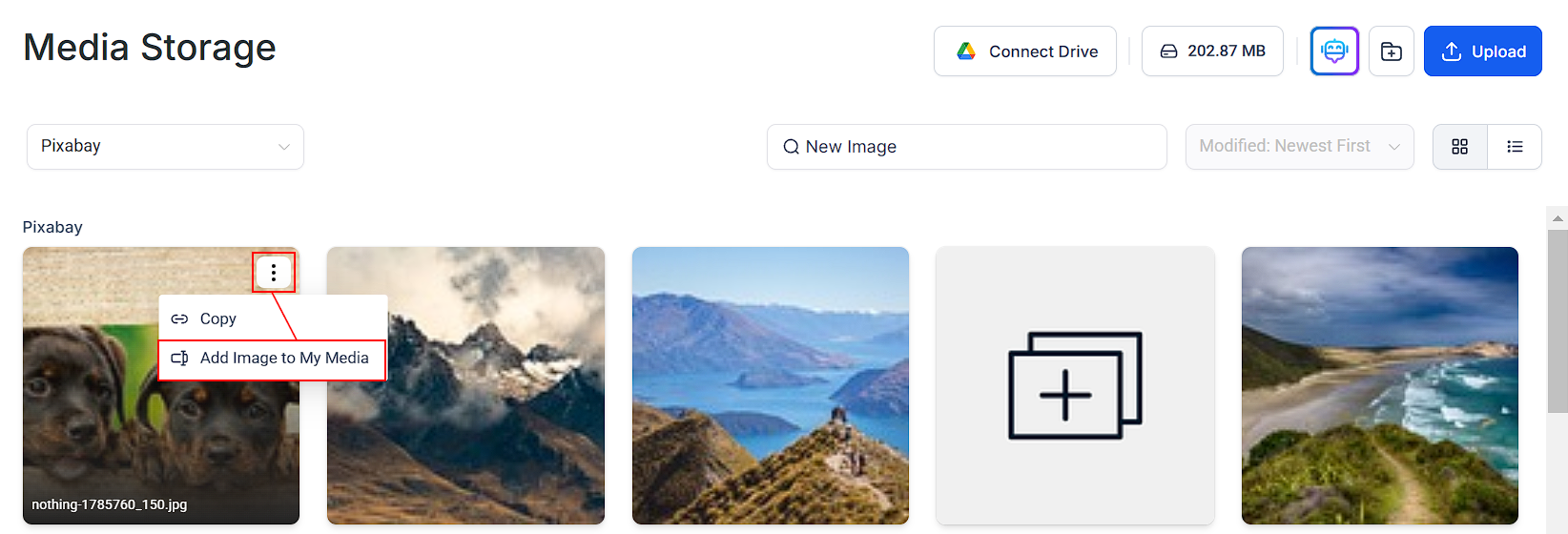
Select and use an image
Click an image to preview it. Use Add Image to My Media to save it to your personal media library, or insert it directly into your content.
Pixabay image options including Add Image to My Media
When you select an image from Pixabay, a copy is stored on Hoop’s servers to ensure it remains accessible even if the original is removed. Images will only appear in My Media if you manually save them using Add Image to My Media; otherwise, they stay hidden to keep your library clutter-free. This ensures your images remain intact across funnels, blogs, and emails without broken links.
All Pixabay content is released under the Pixabay License, which permits free commercial use with no attribution required. You may crop, resize, and edit images freely.
Use Pixabay’s vector and illustration categories for clean, scalable graphics that look great at any size on your landing pages and social posts. Vectors scale without quality loss, unlike photographs.