


Quiz builder — scored multi-choice questions with jump logic and outcome configuration
Creating a quiz
1
Navigate to Sites > Quizzes
Click Sites in the left sidebar, then select Quizzes. Click + Add Quiz.
2
Name the quiz and choose a starting point
Give the quiz a name, then choose Start from Scratch or select a template. Click Create.
3
Add questions
Use the left sidebar to drag and drop question types onto slides:
- Multiple choice — select one or more options
- True / False — binary answer
- Short answer — free-text response
- Essay — longer free-text response
4
Duplicate slides or questions
Click the two-square icon at the top right of any slide or question to duplicate it with all its existing settings.
5
Customize the result page
Scroll to the result page at the bottom of the quiz builder. Customize the content, margins, padding, background color, and layout to match your brand. Preview the result page in the right panel.
6
Save and preview
Click Save, then test the quiz thoroughly before publishing.
7
Distribute the quiz
Share via direct link, embed on a funnel or website, or integrate with an automation workflow triggered by quiz completion.
Quiz list and actions
The Quizzes list shows the quiz name, last-updated date, and the user who made the last edit. From the three-dot Actions menu you can:- Edit — open the quiz builder
- Preview — view the quiz as a participant
- View Submissions — access all completed quiz responses
- Duplicate — copy the quiz with all configurations
- Share — distribute the quiz link
- Move to Folder — organize quizzes into folders
- Delete — permanently remove the quiz (irreversible)
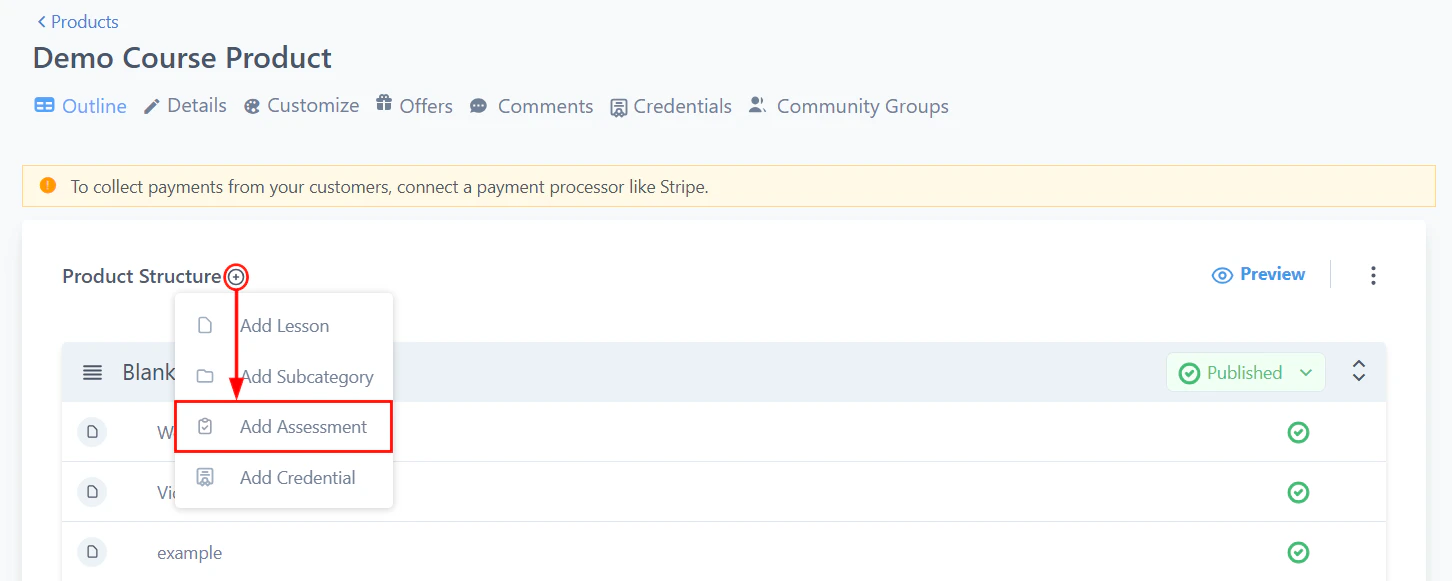
Quiz submissions — view each respondent's answers, scores, and result outcomes
Quiz submissions
Click View Submissions on any quiz to see each respondent’s answers, scores, and result outcomes. Use this data to identify which answers correlate with high-intent leads.Quiz settings
Inside the quiz builder, click Quiz Settings to configure:- Pass / Fail score — set the minimum score required to pass
- Result page behavior — show different content depending on score
- Notification emails — send alerts when a quiz is submitted
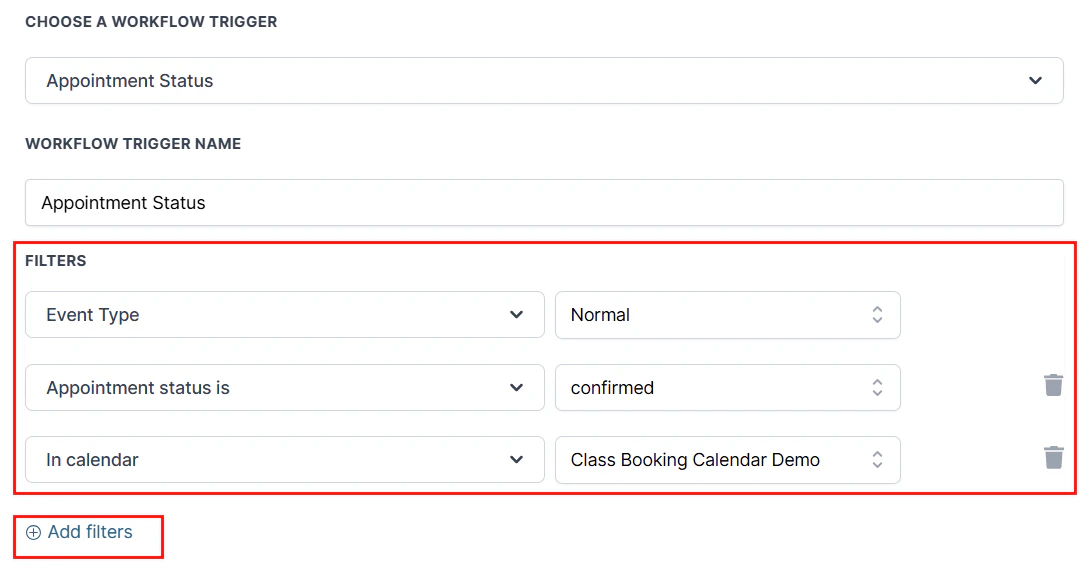
Quiz automation — use the Quiz Submitted trigger with score conditions to route leads into targeted workflows
Automating follow-up based on quiz results
Use the Quiz Submitted trigger in Automations to send targeted follow-up based on quiz scores:- Create a new workflow in Automation.
- Set the trigger to Quiz Submitted and select the quiz.
- Add conditions based on the score or specific answers.
- Add email, SMS, or tag actions to route leads into the right sequence.
Use cases
Use cases
- Education and training — assess student knowledge with pass/fail scoring
- Product recommendations — suggest products or services based on quiz results
- Certification programs — issue certificates based on performance
- Lead segmentation — tag contacts based on their answers and route them into the right automation
Branching logic
Branching logic
Enable the Jump To feature on any answer option to send respondents to a different slide based on their choice. This creates a personalized quiz experience that adapts to each respondent.
Embedding a quiz
Embedding a quiz
Click Integrate in the quiz builder to get the embed code. Paste this code into a funnel page, website page, or any external HTML page to display the quiz inline.
Mapping quiz results to custom fields
Mapping quiz results to custom fields
Connect quiz answer values to contact custom fields. This lets you filter your contact list by quiz results and personalize follow-up messaging based on specific answers.
FAQs
Does the quiz builder support branching logic?
Does the quiz builder support branching logic?
Yes. Enable the Jump To feature on any answer option to send respondents to a different slide based on their choice, creating a personalized quiz experience.
How do I analyze quiz results?
How do I analyze quiz results?
Click View Submissions on any quiz to see detailed analytics including each respondent’s answers, scores, and outcome. Use this data to track performance and engagement.
Can I automate follow-ups based on quiz scores?
Can I automate follow-ups based on quiz scores?
Yes. Use the Quiz Submitted trigger in Automations to set up automated follow-up emails or SMS messages. Add score conditions to send different content to high scorers and low scorers.
Can I use quizzes for certification exams?
Can I use quizzes for certification exams?
Yes. Define pass/fail criteria in Quiz Settings and configure the result page to display a certificate or next steps based on the participant’s score.