

How access works
Access to membership content is controlled at the offer level. An offer is a bundle of one or more courses and communities paired with a pricing model. A member can only view content that belongs to an offer they have been granted access to. Content in other offers remains hidden from their portal — they will not even see it exists unless you explicitly show them a teaser. The access workflow follows this pattern:1
Content is attached to an offer
You create an offer and select which courses and communities belong to it. You set the price (free, one-time, subscription, or payment plan) and publish the offer.
2
A member triggers the grant action
Access is granted either automatically (via a purchase trigger in an automation) or manually (from the contact record or the Members tab).
3
The portal updates immediately
As soon as access is granted, the member’s portal refreshes and the included content appears. They can log in and begin immediately.
4
Access is revoked when conditions are met
For subscriptions, access can be revoked automatically when a payment fails or the subscription cancels. For one-time purchases, access is permanent unless you manually remove it.
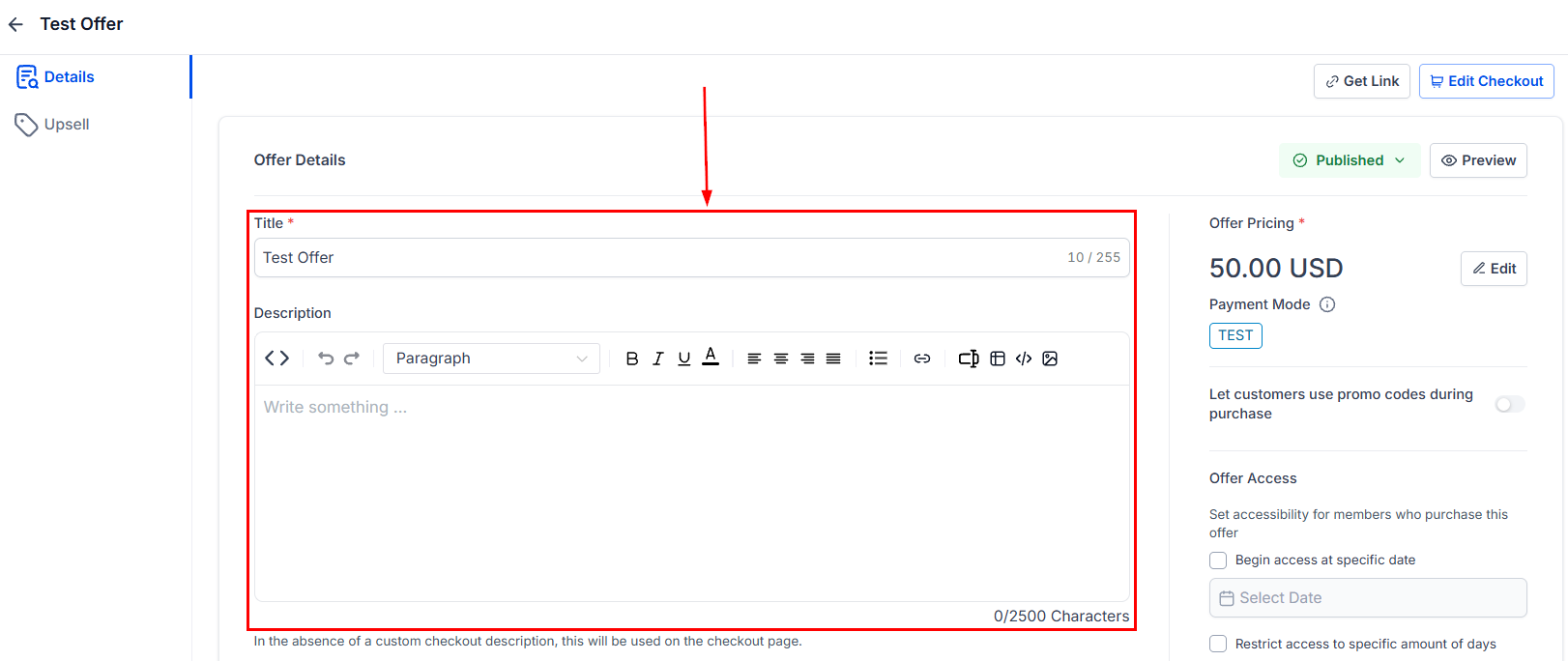
Published offers list showing active membership and course offers
Free access
Free offers grant access without requiring payment. Use a free offer to:- Give all logged-in members access to a welcome course or orientation module
- Open a community group to everyone who creates a portal account
- Provide a free sample lesson to prospects who have not yet purchased
Paid access
Paid offers require a payment before access is granted. Supported payment models include:
When a contact completes checkout, the HoopAI platform can automatically trigger a Grant Membership Access action in an automation. Set the trigger to Payment Received or Order Form Submitted and select the relevant offer in the action step.
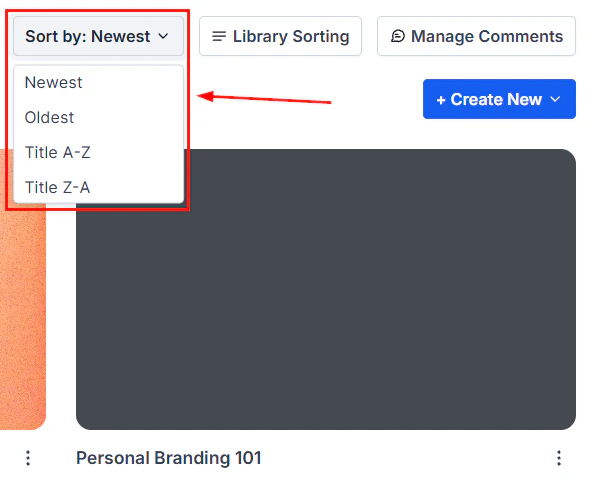
Product content access settings controlling which courses and communities are included
Tier-based access
Tier-based memberships give different members access to different levels of content. For example:
To build a tiered structure:
- Create a separate offer for each tier, adding the appropriate courses and communities to each.
- Create a separate checkout page or funnel for each offer, each at the appropriate price point.
- Build an automation for each tier. Use Payment Received as the trigger, filter by the specific offer or product, and add a Grant Membership Access action selecting that tier’s offer.
- Optionally, use contact tags (e.g.
tier-starter,tier-pro,tier-vip) to segment members in your CRM for targeted email campaigns and reporting.
Granting access manually
To grant a single member access to an offer without a purchase:- Navigate to Contacts and open the contact’s record.
- Click the Actions tab and select Client Portal.
- Click Grant Offer Access, choose the offer, and confirm.
Revoking access
To remove a member’s access to an offer:- Manual revocation — go to the contact record, open the Client Portal tab, and click Revoke Access next to the relevant offer.
- Subscription cancellation — configure the offer’s Offer Access settings to define what happens on cancellation: revoke immediately or revoke at the end of the billing period.
- Automation — use a Revoke Membership Access action in a workflow triggered by subscription cancellation, payment failure, or a tag being removed.
Revoking access removes the offer from the member’s portal instantly. Any progress the member has made in the course (completed lessons, quiz scores) is retained in your analytics and can be restored if access is re-granted.
Access and the client portal
Members see only the courses and communities included in their active offers when they log in. If they have multiple active offers (for example, a free starter offer plus a paid advanced offer), all included content appears on their portal dashboard side by side. The portal URL is the same for all members — access is enforced server-side based on each member’s grant records, so there is no need to create separate portal URLs per tier.Frequently asked questions
Can I give a member access to just one lesson instead of an entire course?
Can I give a member access to just one lesson instead of an entire course?
Access is granted at the offer level, which includes full courses and communities. You cannot restrict a member to a single lesson within a course they have been granted. To achieve granular gating, structure your content as separate courses (each in its own offer) or use drip scheduling to control when individual lessons unlock after enrollment.
What happens to a member's progress if I revoke and then re-grant access?
What happens to a member's progress if I revoke and then re-grant access?
Progress data (completed lessons, quiz scores) is stored separately from the access grant. Revoking access hides the content but does not delete progress. If you re-grant access, the member’s previous progress is restored and they can pick up where they left off.
Can I set an access expiry date on a one-time purchase?
Can I set an access expiry date on a one-time purchase?
Yes. Inside the offer’s Offer Access settings, you can set an access end date — either a fixed calendar date or a number of days after the member gains access. After that date, the content is automatically hidden from the member’s portal.
How do I automatically grant access when a form is submitted instead of a purchase?
How do I automatically grant access when a form is submitted instead of a purchase?
Use an automation with the Form Submitted trigger. Add the form submission condition, then add a Grant Membership Access action and select the relevant offer. This works well for free opt-in offers or gated lead magnets.
Can a member belong to multiple tiers at the same time?
Can a member belong to multiple tiers at the same time?
Yes. A member can hold active access to multiple offers simultaneously. Each offer’s content appears in their portal. This is useful if you want to grandfather members into an old tier while also giving them access to new content, or if you run a temporary promotion for existing subscribers.
Magic links for passwordless access
Magic links provide a frictionless login experience — members click a unique link in their email and are logged into the portal instantly, without entering a password or OTP.How magic links work
- A unique, time-limited URL is generated for each member.
- The link is included in an email (welcome email, course access notification, or manual send).
- The member clicks the link and is authenticated directly into their portal session.
- The link expires after a set period or after first use, preventing unauthorized access.
Sending magic links
Magic links can be included in emails through automation:- Create an automation with the appropriate trigger (e.g., Payment Received, Offer Granted, or Manual Trigger).
- Add a Send Email action.
- In the email body, insert the magic link custom value or merge field — the platform generates a unique link for each contact.
- The member receives the email and clicks the link to access their content.
Use cases
- Welcome emails — new members click one link and immediately access their courses without a separate login step
- Re-engagement campaigns — send a magic link to inactive members to bring them back with zero friction
- VIP access — grant temporary access to a specific course or community by sending a magic link that authenticates and redirects to the content