

Creating a post
Members and admins create posts from inside any Feed channel:- Click inside the Write something… text box at the top of the feed.
- Type the post content.
- Use the toolbar to add formatting, media, or extras:
- Bold, italic, and underline — basic text formatting
- Images — upload one or more photos to the post
- Video — upload or embed a video clip
- GIFs — search and insert animated GIFs from the built-in GIF library
- File attachments — share a downloadable PDF, spreadsheet, or other file
- Poll — create a multiple-choice poll for members to vote on
- Tags — tag specific members using
@usernameto notify them
- Click Post to publish.
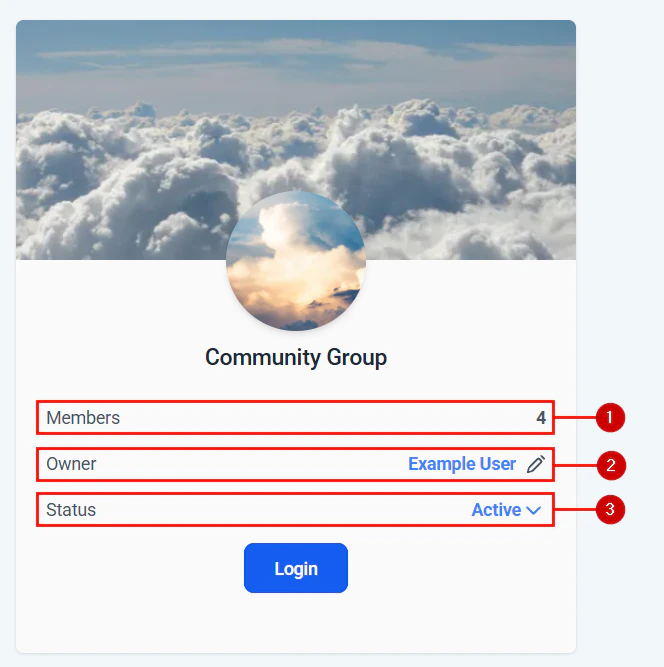
Creating a new post in a community feed channel with formatting and media options
Post types
Reactions
Members react to posts and comments with emoji reactions. The reaction counts appear beside each post and provide social proof that content is valued. Common reactions include like, love, celebrate, and insightful — available from the reaction picker beneath each post. Admins can see reaction totals in the content moderation panel when reviewing community activity.Comments and threads
Each post has a comment section. Members click Comment beneath a post to open the reply field. Comments support:- Plain text — type a response and press Enter to publish
- @mentions — tag another member to send them a notification
- Emoji reactions — react to individual comments in addition to the parent post
- Nested replies — reply directly to a specific comment to keep conversations threaded
Chat channels
Chat channels offer a more conversational, real-time experience compared to feed channels. In a chat channel:- Messages are shorter and appear in a continuous thread without the full-post card format
- Members see a running chronological log of messages
- Threads can be started off a single message for side conversations
- Members are shown as online or offline when active
- New messages appear live without needing to refresh the page
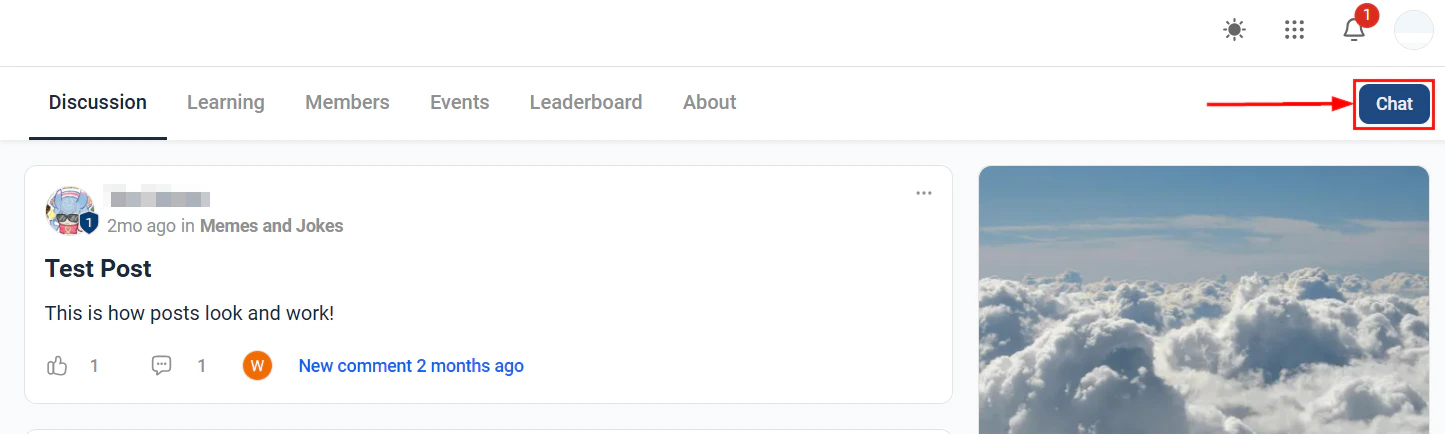
Real-time chat channel in a community group
Post visibility and moderation
Post approval queue
Enable the Post Approval moderation setting on a group to hold all new member posts in a queue for review before they are visible to others:- Open the group settings.
- Enable Require Post Approval.
- Any new post from a member lands in the Pending Posts queue in your admin panel.
- Approve or decline each post. Approved posts go live immediately; declined posts are removed and the member can be notified with a reason.
Pinning posts
Pin important posts to keep them at the top of the feed:- Click the … (more options) menu on any post.
- Select Pin Post.
- The post moves to the top of the feed and stays there until unpinned.
Deleting posts and comments
To remove a post or comment:- Click the … menu on the post or comment.
- Select Delete.
- Confirm the deletion.
Muting and banning members
If a member is violating community guidelines:- Mute — prevents the member from posting or commenting for a set period without removing them from the group
- Ban — permanently removes the member from the group and prevents them from rejoining
- Report — flag the post or member for admin review (members can also report content using the report function on any post)
Tagging and mentions
Use the @ symbol followed by a member’s username to tag them in a post or comment. Tagged members receive an in-app notification and an optional email notification (depending on their preferences) directing them to the post. Tagging is a powerful way to:- Draw a specific member’s attention to a relevant discussion
- Welcome new members publicly
- Credit someone for their contribution
#marketing-tips, #accountability) so members can filter and discover posts by subject.
Embedding media from third-party platforms
In post and comment editors, you can embed content from external platforms by pasting the URL directly into the post body. Supported embed sources include YouTube, Vimeo, Spotify, and other standard oEmbed-compatible platforms. The embedded player appears inline — members can watch or listen without leaving the community feed.Frequently asked questions
Can members schedule posts to publish at a future time?
Can members schedule posts to publish at a future time?
At this time, post scheduling is available to admins and moderators, not standard members. Admins can queue up announcements, weekly prompts, or challenge posts in advance so they publish automatically at the right time without manual intervention.
Can I allow members to post in some groups but not others?
Can I allow members to post in some groups but not others?
Yes. Set a group to Read-only to prevent standard members from posting — only admins and moderators can create content in that group. This is useful for announcement-only channels where you do not want member replies cluttering the feed.
How do reactions affect the leaderboard?
How do reactions affect the leaderboard?
Reactions members receive on their posts and comments contribute to their community points total, which feeds into the gamification leaderboard. Encouraging high-quality posts by reacting to them helps surface active members and rewards valuable contributions. See Gamification for full details.
Can I search for posts within the community?
Can I search for posts within the community?
Yes. Use the search icon in the community interface to search post content, comments, and member names across all groups you have access to. Admins can search across all groups; members only see results from groups they belong to.
Can I export community post data?
Can I export community post data?
Community post and engagement data (post counts, reaction totals, active members) is available in the community analytics panel. Full post content export (a dump of all posts and comments) is not available through the standard interface. Contact support if you need a data export for compliance or migration purposes.