

How gamification works
When members take actions inside your community — posting, commenting, reacting, attending events — they earn points. Points accumulate on each member’s profile and feed into a community-wide leaderboard that ranks members by total points. Badges are separate visual rewards you award for specific achievements, and they appear permanently on a member’s profile. Together, points, badges, and the leaderboard create a visible recognition system that rewards consistent participation and encourages members to contribute more.
Community leaderboard ranking members by total points earned
Points
Points are awarded automatically when members complete qualifying actions inside the community. You configure the point value for each action type.Point-earning actions
Configuring point values
- Navigate to Memberships and Communities > Communities and open the community.
- Go to Settings > Gamification.
- Adjust the point values for each action type.
- Click Save. Changes apply to new actions — existing points already earned are not retroactively recalculated.
Point values are community-wide settings. All members earn points using the same rules; you cannot set different point values per group or per member.
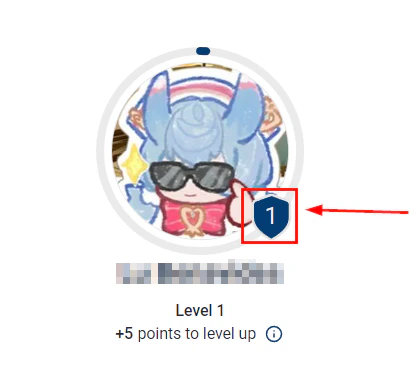
Badges displayed on member profiles as visual achievement markers
Badges
Badges are image-based visual credentials that appear on a member’s community profile. Unlike points (which accumulate continuously), badges mark specific achievements and are issued once.Creating a badge
1
Navigate to Communities settings
Go to Memberships and Communities > Communities, open your community, and click Settings > Badges (or find badges within the Gamification settings panel).
2
Click Add Badge
Click + Add Badge or + New Badge to open the badge editor.
3
Design the badge
Upload a badge icon image (PNG or SVG recommended; square format works best). Enter a badge name (e.g. “Community Champion”, “30-Day Streak”, “Top Contributor”) and write a short description explaining what the badge represents.
4
Set badge levels (optional)
Some badges support multiple levels or tiers — for example, a “Contributor” badge could have Bronze, Silver, and Gold levels based on escalating point thresholds. Configure the levels and the criteria for advancing from one to the next.
5
Save the badge
Click Save. The badge is now available to issue.
Issuing badges
Badges can be awarded in two ways: Manually — Navigate to the member’s profile inside the community or their contact record in the CRM, click Award Badge, and select the badge to issue. Use this for one-off recognition (e.g. selecting a “Member of the Month” winner). Automatically via automation — Set up a workflow with a relevant trigger (e.g. Course Completed, Lesson Completed, or a point threshold reached) and add a Grant Badge action. The badge is awarded automatically without any manual step.
Badge creation form with icon upload, name, description, and level settings
Badge levels configuration with Bronze, Silver, and Gold tier thresholds
Where badges appear
Earned badges display on the member’s community profile, visible to all other community members. This public recognition motivates recipients and signals to others what achievements are possible — encouraging them to earn the same badges.Leaderboard
The leaderboard ranks members by their total point accumulation and is visible to all community members. Seeing their name on the leaderboard motivates members to stay active, and seeing others ahead of them encourages catching up.Viewing the leaderboard
The leaderboard is accessible from the community sidebar or from within any group. It shows:- Rank — the member’s position from first to last
- Display name and avatar — the member’s profile information
- Total points — cumulative points earned across all actions
- Badge count — total number of unique badges earned
Leaderboard time periods
Depending on your gamification configuration, the leaderboard can display rankings for:- All time — total points since the member joined
- This month — points earned in the current calendar month
- This week — points earned in the current week
Gamification best practices
Announce the leaderboard publicly — Post the top 5 or 10 members each week in the community feed. Seeing their name in a post is a powerful motivator and drives others to post more. Tie badges to meaningful milestones — “First Post”, “30-Day Member”, and “Course Completer” badges mark genuine progress and are more motivating than arbitrary thresholds. Run point challenges — For one week each month, double the points for comments (or any other action) and announce it to the community. Engagement spikes consistently during challenge periods. Keep point values proportional — Creating a post should be worth more than reacting to one, because creating takes more effort. If reactions are worth more, members optimize for easy actions rather than valuable contributions.Frequently asked questions
Can I reset the leaderboard at the start of each month?
Can I reset the leaderboard at the start of each month?
If you use a monthly leaderboard view, the rankings reset automatically at the start of each calendar month, giving all members a fresh start. The all-time leaderboard never resets — it reflects cumulative points since the community launched.
Can I manually award points to a specific member?
Can I manually award points to a specific member?
Manual point adjustment is not available through the standard interface — points are earned exclusively through qualifying community actions. If you need to reward a member for an off-platform activity, issuing a badge (which you can award manually) is the recommended approach.
Do points carry over if a member leaves and rejoins the community?
Do points carry over if a member leaves and rejoins the community?
If a member is removed and then re-added to the community, their point history depends on whether their community profile was retained. Contact HoopAI support if you need to restore a member’s historical points after a re-admission.
Can I hide the leaderboard from members?
Can I hide the leaderboard from members?
Yes. You can disable the leaderboard display in the community gamification settings. Some community operators prefer recognition without public rankings, in which case badges and point totals visible only on individual profiles provide recognition without the competitive pressure of a ranked list.
Can I award a badge to multiple members at once?
Can I award a badge to multiple members at once?
Batch badge awards are done through automations. For example, a workflow triggered by a specific tag being added to a contact can issue a badge to any number of members simultaneously. For manual batch awards, you would need to award the badge to each member’s profile individually.
How does gamification interact with course completion?
How does gamification interact with course completion?
Course actions (completing a lesson or finishing a course) can earn community points if you configure those triggers in the gamification settings. You can also use a Course Completed automation trigger to award a badge — linking the learning experience to community recognition in a visible way.