Browse and use free high-resolution stock photography from Unsplash directly in the Hoop platform.
Media Storage integrates with Unsplash, a royalty-free stock media platform, giving you direct access to an expansive collection of high-quality visuals at no additional cost.
Click Media Storage in the left navigation sidebar.
2
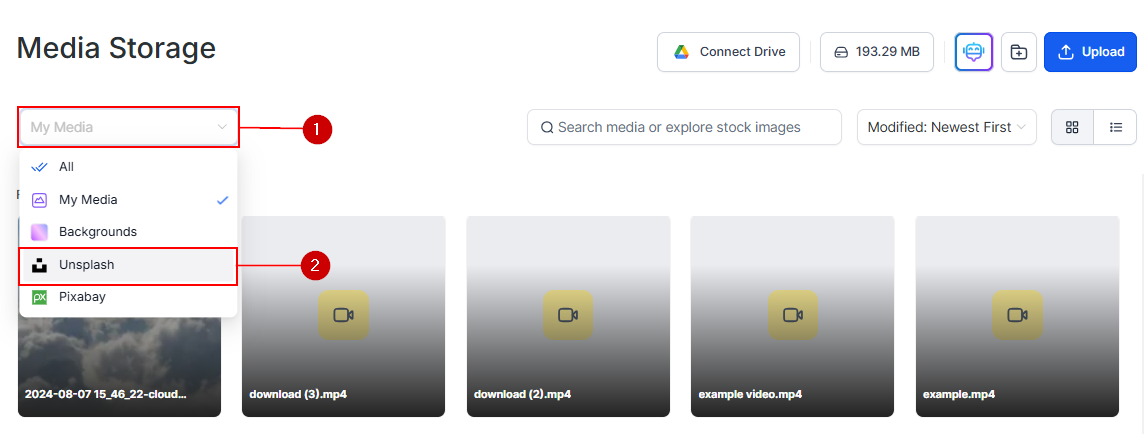
Select Unsplash from the dropdown
In the filter dropdown, select Unsplash. The library switches to the Unsplash photo catalog.
Unsplash filter option in Media Storage dropdown
3
Search for images
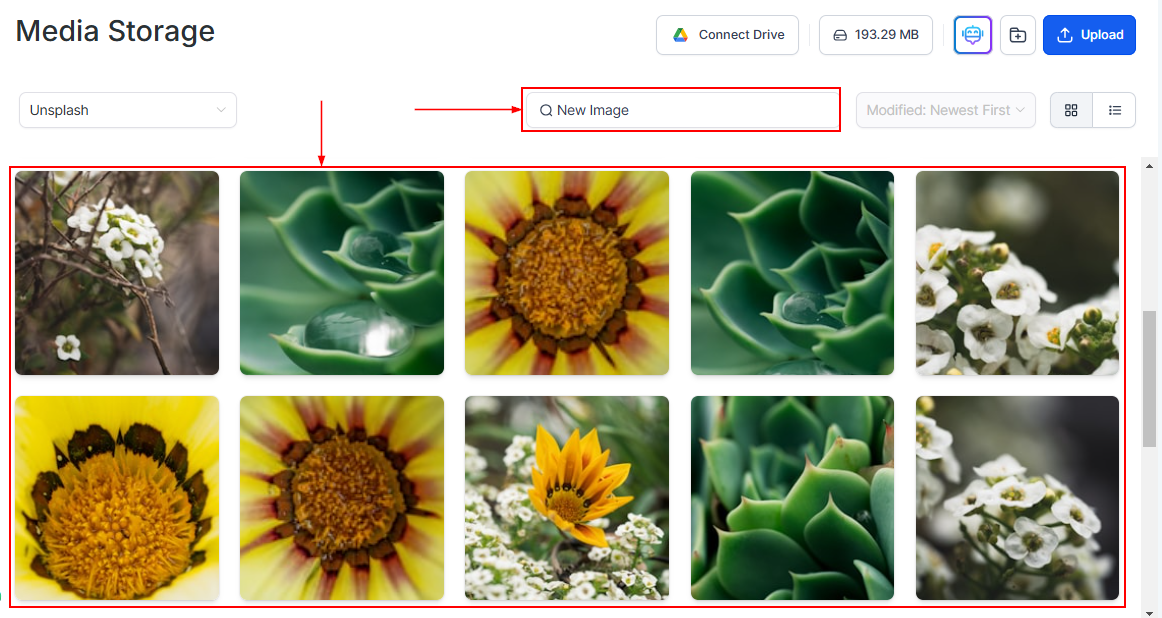
Once you have selected the Unsplash option, a search bar appears. Use it to find images that align with the tone and vision of your project.
Unsplash search results within Media Storage
4
Select and use an image
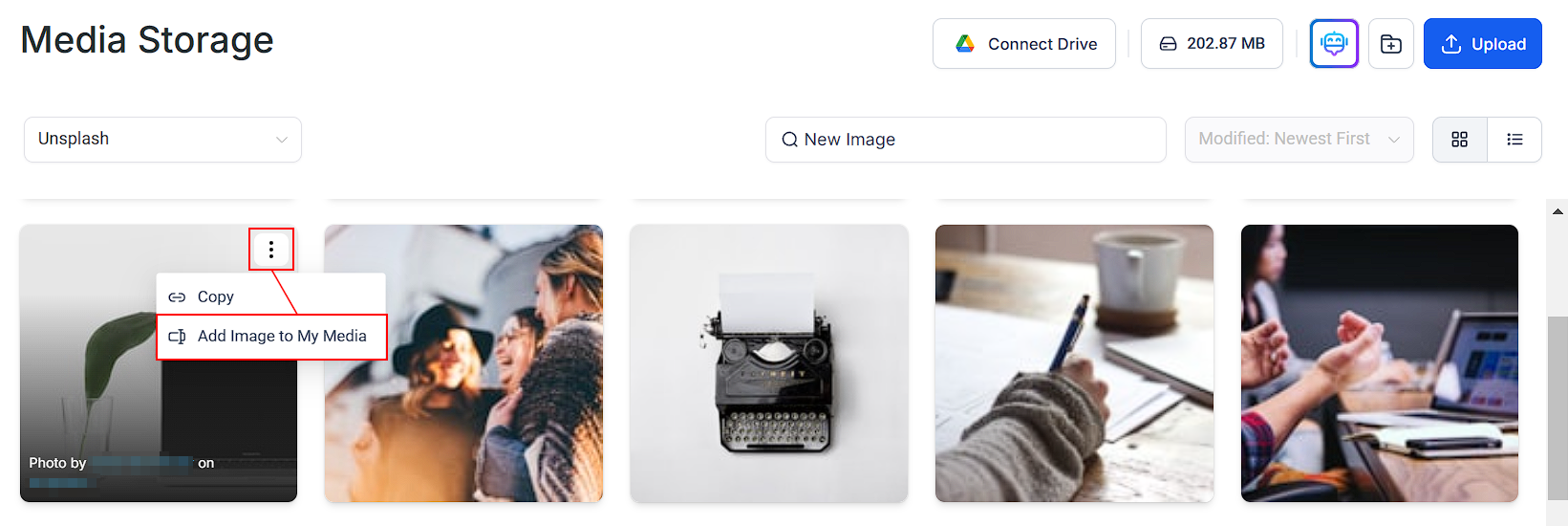
Click an image to preview it. Use Add Image to My Media to save it to your personal media library, or insert it directly into your content.
Unsplash image options including Add Image to My Media
Images from Unsplash are stored on Hoop’s servers when selected, ensuring they remain available even if removed from the original source. These images are only added to My Media if manually saved via Add Image to My Media; otherwise, they remain hidden to keep your library organized. This prevents broken images and enhances reliability across funnels, blogs, and emails.
All Unsplash photos are available under the Unsplash License, which allows free use for commercial and non-commercial purposes. Modification — including cropping, resizing, and adding overlays — is permitted. Attribution is encouraged but not required.
Instead of “office,” try “productive morning” or “focused work.” Unsplash responds well to contextual and emotional search terms.
Check resolution before using as a hero image
Ensure the downloaded image is at least 1920 px wide for use as a full-width hero background.
Choose images with open space for text overlays
For landing page hero backgrounds, choose photos with large empty areas — sky, walls, or open space — where you can overlay text without readability issues.
Both Unsplash and Pixabay are available simultaneously. Use Unsplash for editorial-quality photographs and Pixabay for illustrations, vectors, and a wider variety of media types.