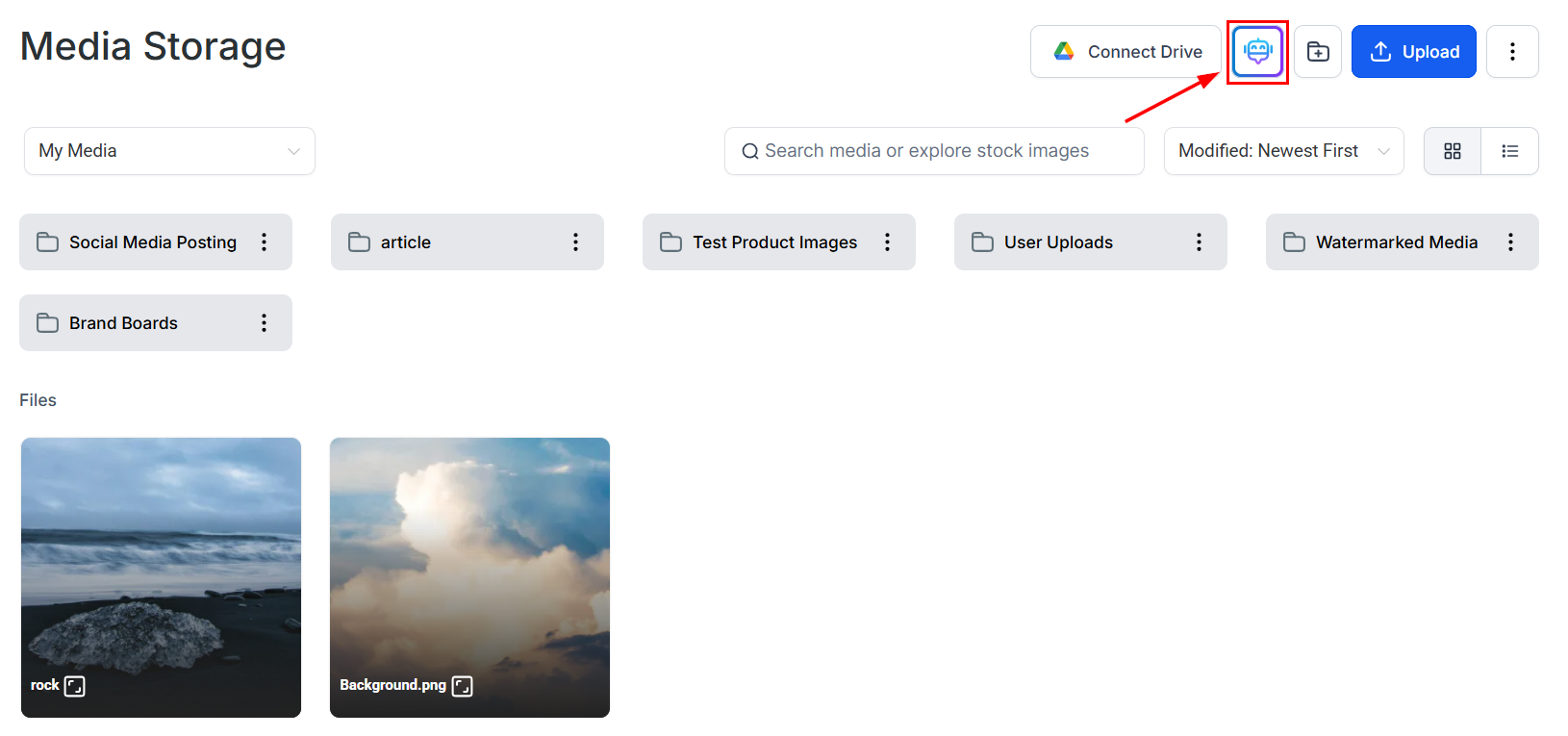
Generate unique image files with HoopAI’s Content AI tool directly inside Media Storage for funnels and campaigns.
Creating visually stunning images using AI can elevate your marketing materials and streamline content creation. With the Content AI feature in Hoop, you can generate unique images tailored to your needs directly inside Media Storage.
This feature is a paid service and will incur charges based on usage. Images created using Content AI can be used across funnels, websites, social media, and more.
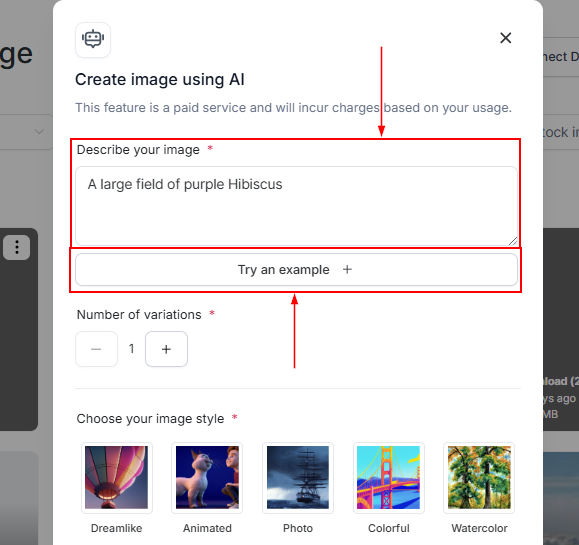
Type a description of the image you want to create. AI will generate samples based on your description. Click Try an example to see a generated sample and understand how the AI interprets prompts.
Image description field with example prompt
2
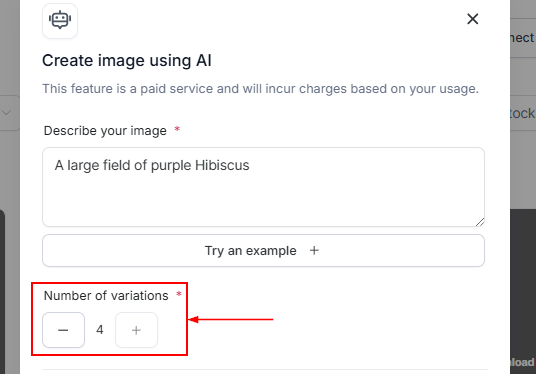
Choose the number of variations
Select how many variations you want Content AI to generate. The maximum is four (4) variations per generation.
Variation count selector
3
Select an image style
Choose a style for your image. Available styles include:
Photography — realistic photo-style images
Digital Art — illustrated, graphic-style artwork
Fine Art — painterly or artistic renderings
After selecting a style, click Generate to create your images.
4
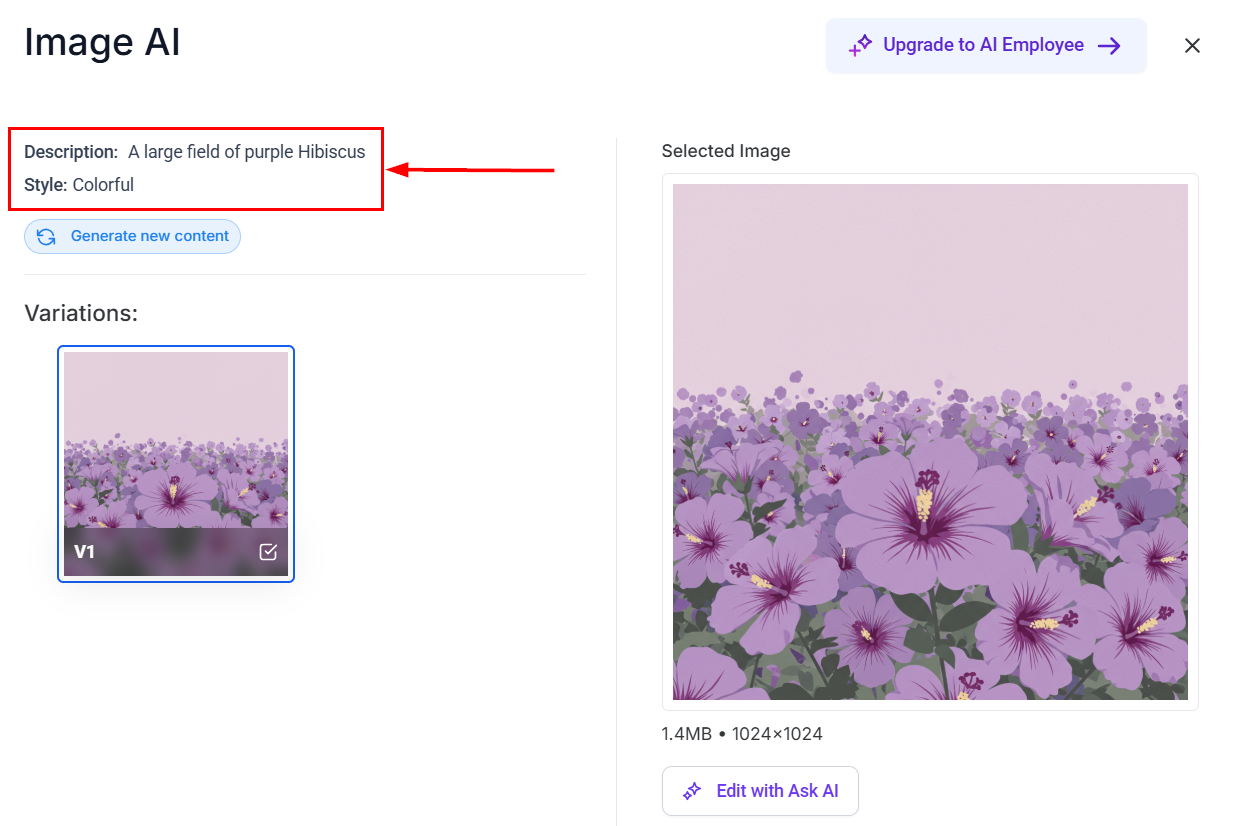
Review generated images
Content AI displays all generated image variations. The description and style you chose appear in the top-left corner of the popup. Click any image to preview it on the right side — especially useful when you have generated multiple variations.
Generated image variations displayed for selection
5
Refine with Ask AI (optional)
Use the Edit With Ask AI tool to refine your selected image without starting over. Enter a prompt in conversational style to completely change the image or modify specific elements such as color, composition, or background.Ask AI preserves your session history for seamless iterative improvements. Click Use this image to send the final edited image back to the Content AI modal.
Edits made with Ask AI are tied to the specific image variation you started from.
Provide feedback using the thumbs up or down buttons, and save the image to your media library or copy it to your clipboard using the icons provided.
6
Save the image
After selecting your preferred image, rate the content and click Continue to save it to Media Storage. The Ask AI image will be clearly tagged among the available variants.Click Cancel to discard your selection.
The quality of the generated image depends heavily on the prompt. Use these techniques:
Be specific
Instead of “a photo of a building,” write “a modern glass office building in a city downtown, shot from street level, golden hour lighting, photorealistic.”
Specify the style explicitly
Add the style as a keyword: “flat vector illustration,” “oil painting,” “3D render,” “watercolor,” “photorealistic,” “corporate stock photo.”
Reference well-known visual styles
Use style references like “in the style of a lifestyle brand,” “minimal and clean,” “bold and colorful,” or “professional and corporate.”
Once saved to your media library, AI-generated images are available in:
The page builder (funnel and website image elements)
Email templates
Social post scheduler
Blog post editor
Course lesson content
Use AI image generation for custom hero images, blog post feature images, social media graphics, and course thumbnails — situations where you need unique visuals but do not have professional photography.