

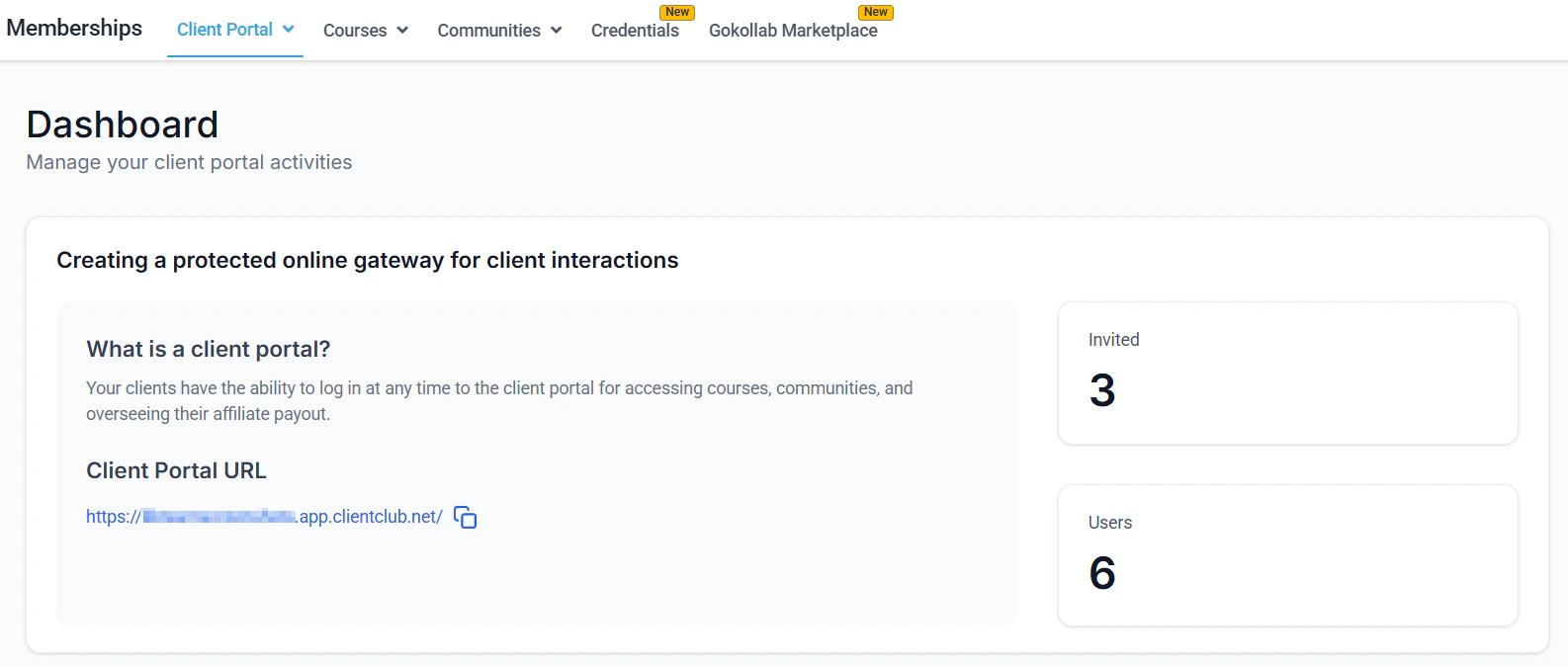
Client portal dashboard showing enrolled courses and progress indicators
Progressive Web App (PWA)
A Progressive Web App is a website that installs on a member’s phone home screen and behaves like a native app — without requiring submission to the App Store or Google Play. Members tap the app icon to open the portal directly, with no browser chrome visible.Enabling the PWA
1
Navigate to Membership Settings
Go to Memberships and Communities > Courses > Settings and click the App Settings tab.
2
Enable the PWA toggle
Turn on Enable PWA. This activates the install prompt for members who visit your portal on a mobile browser.
3
Configure app details
Fill in the PWA metadata:
- App Name — the full name displayed below the icon on the home screen (e.g. “HoopAI Academy”)
- Short Name — the abbreviated name used when the full name does not fit (e.g. “Academy”)
- Description — a one-sentence summary of the app shown in browser install prompts
4
Upload app icons
Upload icon images at the recommended sizes:
- 192×192 px — used by Android for the home screen icon
- 512×512 px — used for the app drawer, splash screen, and high-DPI displays
5
Save and test
Click Save. Open your portal URL on a mobile device and look for the browser install prompt (“Add to Home Screen”) to verify the PWA configuration is working.
How members install the PWA
On iPhone (Safari):- Open the portal URL in Safari.
- Tap the Share button (box with an arrow).
- Scroll down and tap Add to Home Screen.
- Edit the name if desired and tap Add.
- Open the portal URL in Chrome.
- Tap the browser menu (three dots) or wait for the install banner.
- Tap Add to Home Screen or Install.
- Confirm and the icon appears on the home screen.
Mobile navigation in the member portal
The HoopAI member portal is fully responsive and adapts to mobile screen sizes. On mobile, members access the same content as on desktop:- Course library — browse all enrolled courses, see progress indicators on each course card
- Lesson player — watch videos, read text lessons, submit quizzes, and mark lessons complete
- Community — post in feeds, chat in channels, browse events, and react to content
- Certificates — view and download earned certificates
- Account settings — update password, notification preferences, and profile information
- Swipe navigation — swipe left and right to move between lessons in sequence
- Progress indicators — the completion percentage and lesson count update in real time as lessons are marked complete
- Offline-friendly video — members on low-bandwidth connections can continue playing video at a lower quality setting without losing their progress

App branding settings for configuring the PWA name, icon, and appearance
Branded mobile app
For organizations that want a fully native app experience with custom branding in the App Store and Google Play, the HoopAI platform offers a Branded Mobile App. This is a separate setup process from the PWA.What the branded app includes
- Your name, icon, and branding displayed in the App Store and Google Play Store listings
- Push notifications sent directly to members’ devices
- Native navigation optimized for iOS and Android
- Access to all courses, communities, and certificates — the same content as the web portal
Setting up the branded app
The Branded Mobile App setup involves:- Providing your app name, description, icons, and branding assets to HoopAI or configuring them in the Client Portal > Branded Mobile App settings.
- Connecting your Apple Developer account and Google Play developer account so the app can be published under your brand.
- Submitting the app for review through both stores (Apple and Google review typically take 1–7 business days).
- Once approved, the app listing is live and you can direct members to download it.
Push notifications on mobile
The Branded Mobile App supports push notifications — alerts that appear on the member’s lock screen or notification tray without the member needing to have the app open. Push notifications can be sent for:- New course content unlocking (drip notifications)
- New community posts or replies in groups the member follows
- Upcoming live events within 24 hours
- Course completion milestones and certificate issuance
Mobile-friendly content tips
Since many members access courses on mobile devices, optimize your course content for small screens:- Keep video lesson thumbnails clear — titles and key visuals should be legible at small sizes
- Use short paragraphs in text lessons — long blocks of text are hard to read on mobile; break content into scannable chunks with frequent headings
- Ensure downloadable PDFs are mobile-readable — use large fonts and avoid small multi-column layouts that are difficult to zoom and scroll on phones
- Test quizzes on mobile — verify that multiple-choice options are large enough to tap comfortably without accidental mis-selection
Frequently asked questions
Is the PWA free, or does it require an additional plan?
Is the PWA free, or does it require an additional plan?
The PWA feature is included in the HoopAI platform without an additional fee. Enable it in Membership Settings > App Settings. The Branded Mobile App (native App Store/Google Play listing) may require a specific plan tier — contact HoopAI support to confirm availability for your account.
Do members need to re-login when they open the PWA?
Do members need to re-login when they open the PWA?
The PWA stores the member’s login session locally. Members typically stay logged in until they explicitly log out or clear their browser storage. On iOS, session storage has a seven-day limit in Safari, after which the member may be prompted to log in again.
Can I send push notifications through the PWA?
Can I send push notifications through the PWA?
Web push notifications work on Android Chrome PWAs natively. On iOS, web push support requires iOS 16.4 or later with the member having specifically granted notification permissions after installing the PWA. The Branded Mobile App provides more reliable push notification delivery across both iOS and Android.
Can members download videos for offline viewing?
Can members download videos for offline viewing?
Members can enable Download for video files if you have turned on the download option in Membership Settings > Builder Settings. Downloaded videos are saved to the member’s device and can be viewed without an internet connection. Streaming video embedded from YouTube or Vimeo does not support offline download.
Does the mobile experience support all content types, including quizzes?
Does the mobile experience support all content types, including quizzes?
Yes. All lesson content types — video, text, audio, PDF, and quiz — are fully supported on mobile. The quiz interface is touch-optimized with large tap targets for multiple-choice options.