

Client Portal setup in Sites
Setting up the client portal
1
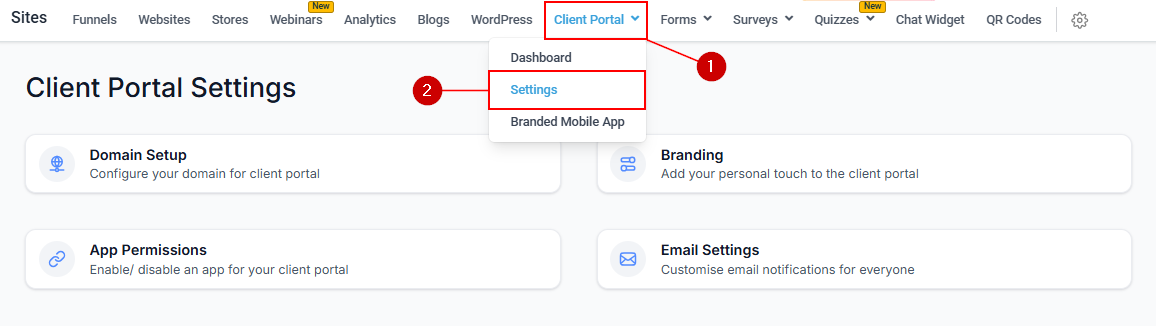
Navigate to Sites > Client Portal
Click Sites in the left sidebar and select Client Portal, or access it from Memberships and Communities.
2
Configure domain setup
Go to Settings > Domain Setup. Choose a Subdomain (your account ID is used as the prefix by default) or enter a Custom Domain. Click Update Domain to save.For a custom domain, add these DNS records at your domain registrar:
- A record:
162.159.140.166 - CNAME record:
clientportal.ludicrous.cloud
3
Configure branding
Go to Settings > Branding to set:
- Portal Name — displayed on the portal
- Portal Description — a brief summary visible to clients
- Brand Color One — used for buttons, headings, and highlights
- Brand Color Two — secondary color
- Favicon — 16×16 px, SVG/PNG/JPG
- Portal Image — square image up to 720×720 px
- Logo — 1:1 ratio, up to 200×200 px
- Support Email — contact address for portal support
- Copyright — your company copyright line
- Advanced — custom code for further customization Click Save Settings to apply changes.
4
Configure app permissions
Go to Settings > App Permissions. Toggle each app or feature on or off. Disabled apps are hidden from clients even if they access the portal URL directly.
5
Set the default landing page
In Settings, choose the default landing page from the dropdown. This is the first page clients see when they log in. Click Save Settings.
Client portal dashboard
The Dashboard shows:- Invited Users — number of contacts invited to the portal
- Joined Users — number of contacts who have successfully logged in
- Client Portal URL — the live URL to share with clients
- Generate Magic Link — create a direct-access link for a specific contact, bypassing the login screen
- Invite to Client Portal — send invitation emails to existing contacts or new email addresses
- Send Login Email — send a login button email to a contact for one-click portal access
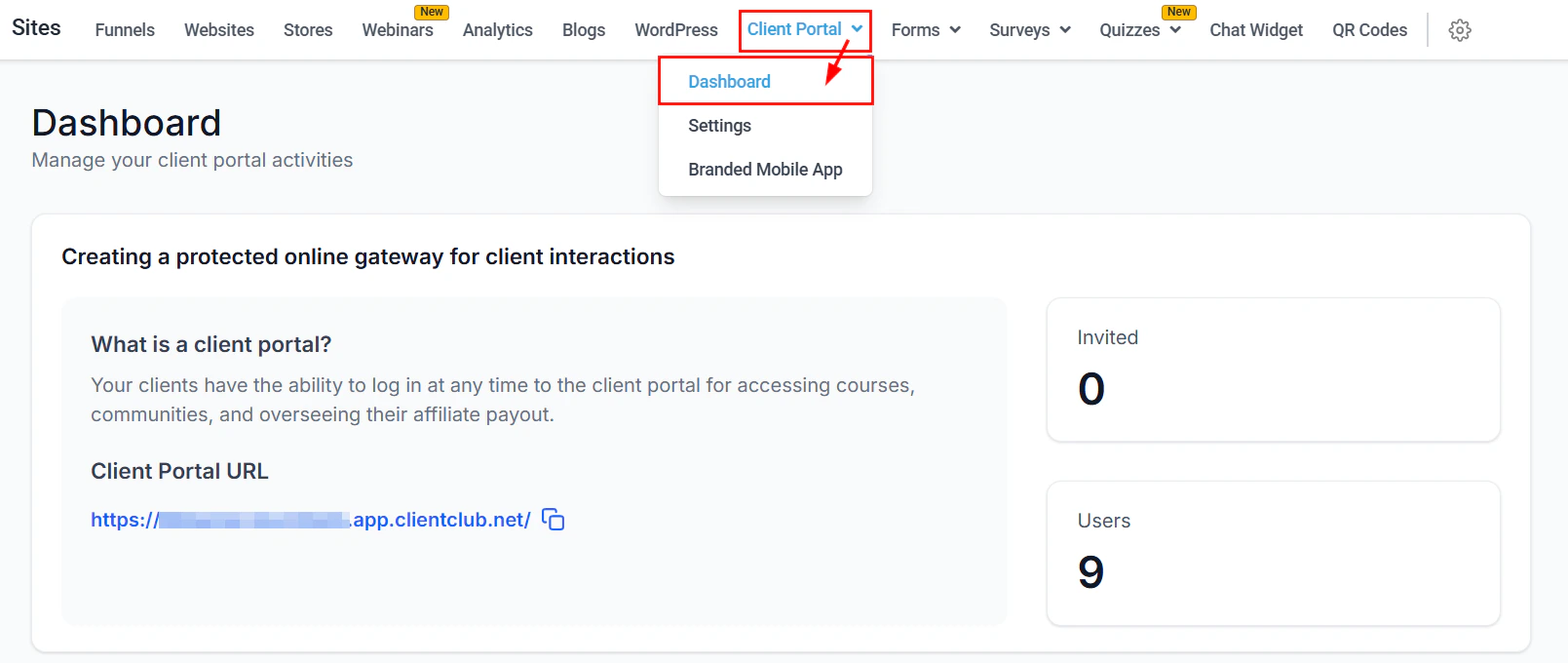
Client Portal Dashboard
Client portal vs memberships
Both features work together: courses and communities built in Memberships are accessed by clients through the Client Portal.
Branded Mobile App
The Branded Mobile App lets you publish a branded iOS and Android app for your portal. To get started: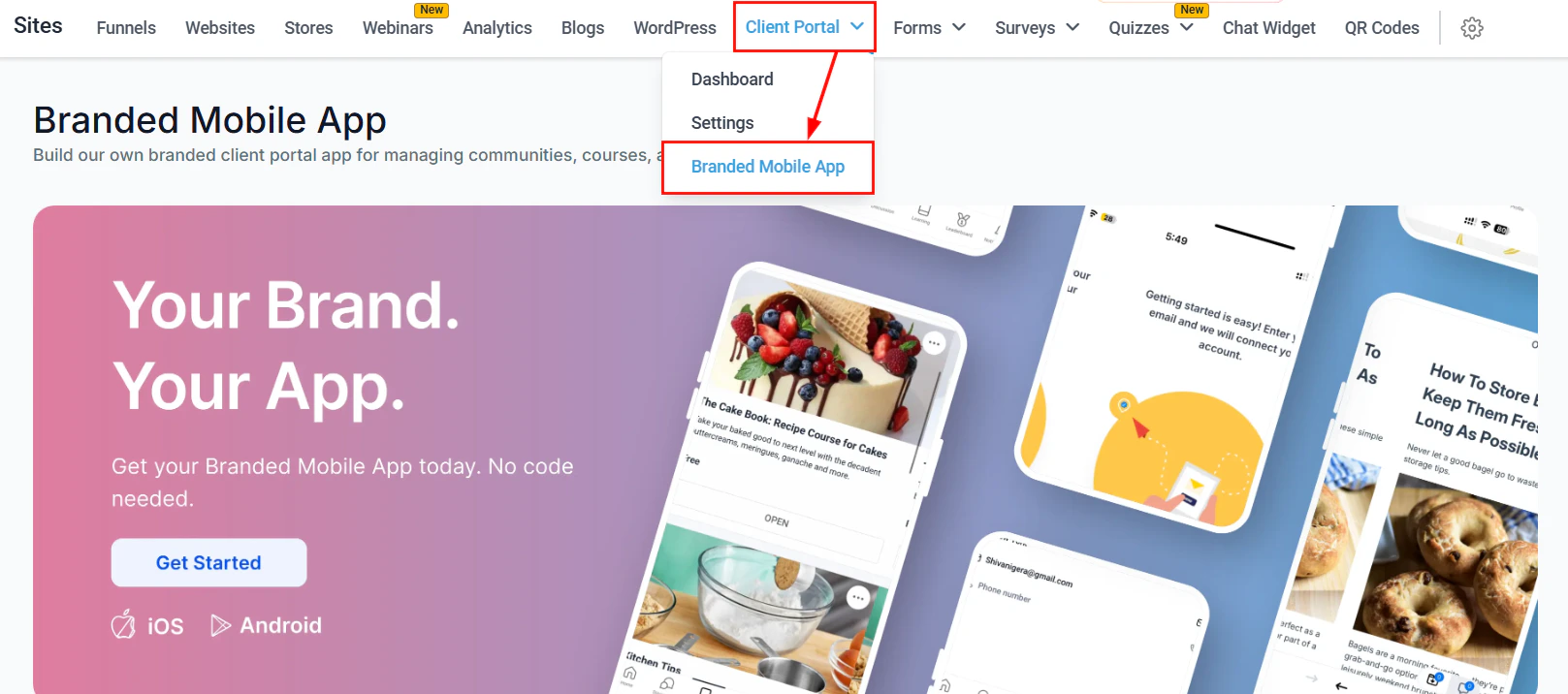
Branded Mobile App setup
1
Subscribe
Click Get Started and complete the purchase. Allow 3–4 weeks for processing after all required data is submitted.
2
Complete branding
Upload your mobile app icon and carousel images. Add a Play Store banner. Navigate to the Profile tab to enter personal information, app details (name, description, terms/privacy URLs), and developer credentials (Google and Apple).
3
Submit for review
Click Submit. Details are reviewed within 5 business days. You will be notified if any further action is needed.
4
Complete 2FA verification
Schedule a slot to receive a 2FA authentication code required to proceed with app processing.
5
App live
After store approval (up to 2 weeks), the app goes live and you can share the download links with your portal users.
Once submitted, the branding and profile details for the Branded Mobile App cannot be modified. Review everything carefully before clicking Submit.