

Pricing models
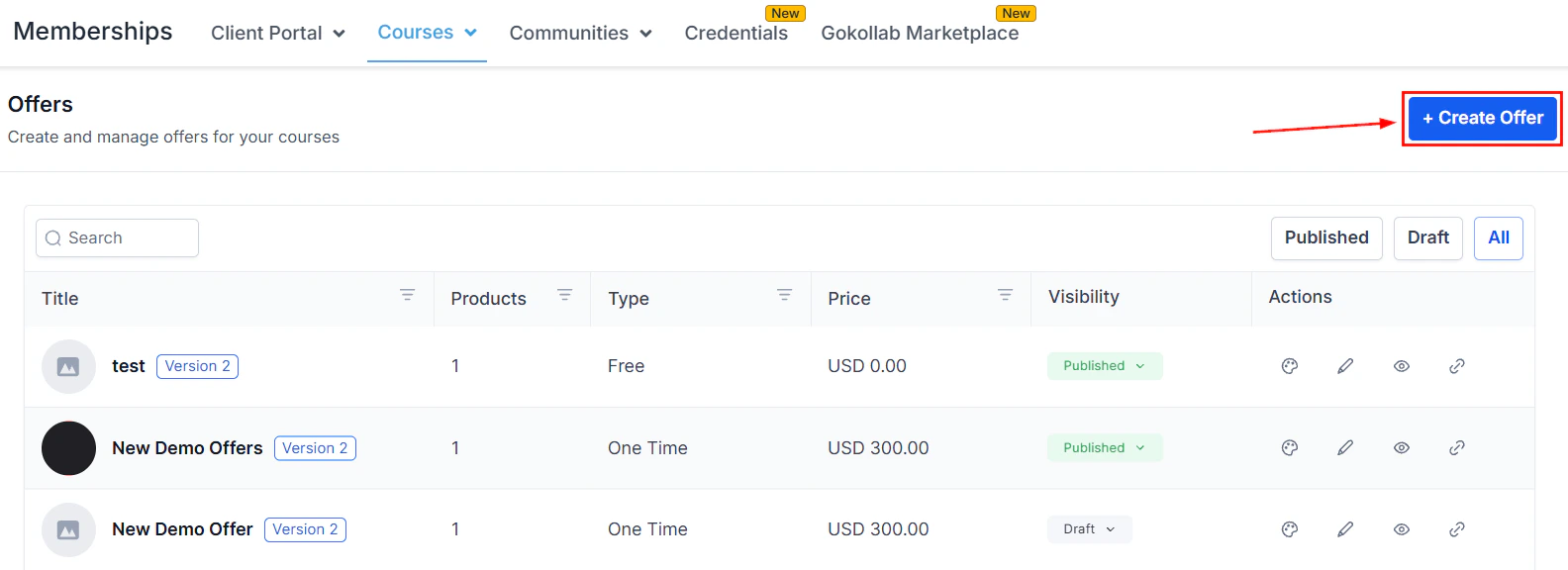
Create offer form with name, products, and payment type configuration
Creating a paid offer
1
Go to the Offers tab
Navigate to Memberships and Communities > Courses and click the Offers tab. Click + Create Offer.
2
Name the offer
Enter a clear, descriptive offer title (e.g. “Pro Membership — Monthly” or “Email Marketing Masterclass — Lifetime Access”). This name is visible during checkout.
3
Add products
Click + Add Products and select the courses and/or communities to include in this offer. You can bundle multiple items into a single offer — members who purchase gain access to everything included.
4
Choose the payment type
Select One-time, Subscription, or Payment Plan and enter the price.
- One-time — enter the total price (e.g. $297)
- Subscription — enter the recurring amount and choose the billing interval: monthly or annually
- Payment plan — enter the number of payments, the amount per payment, and the interval between payments
5
Add a free trial (optional)
Toggle on Free Trial and enter the trial length in days. Members can access all offer content during the trial. At the end of the trial, the first payment is charged automatically.
6
Save and publish the offer
Click Save. Toggle the offer status to Published to make it available for purchase. Copy the offer link using Get Link to share it directly or embed it in a funnel.
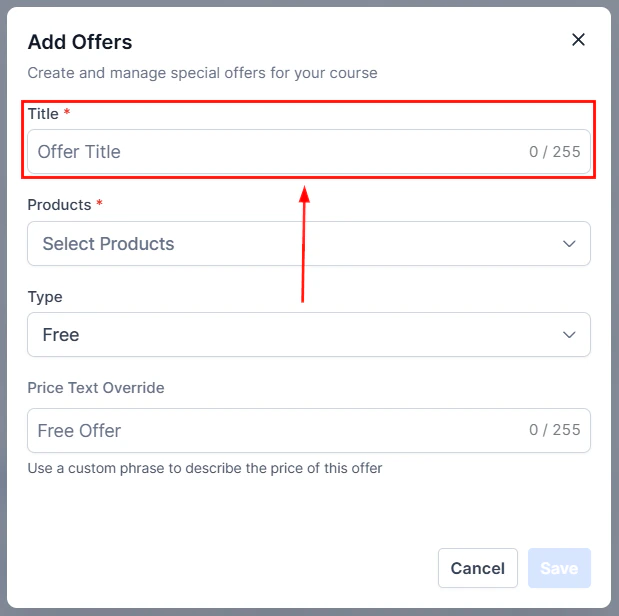
Pricing type selection showing free, one-time, subscription, and payment plan options
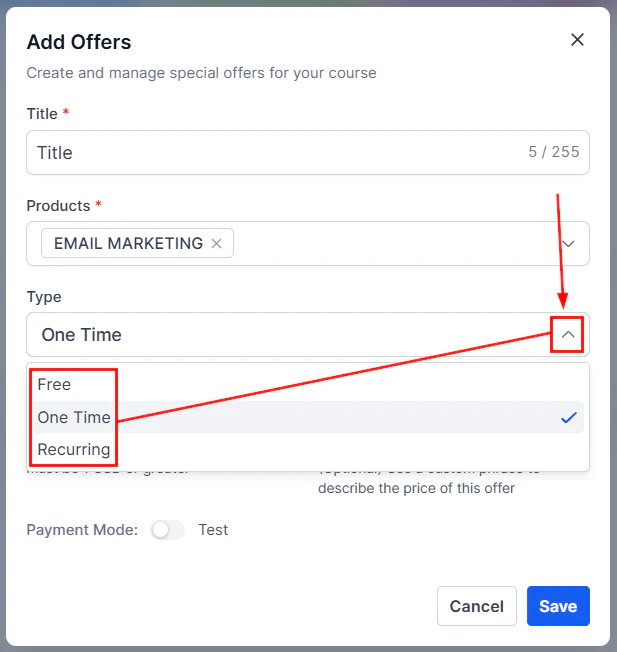
Payment options including trial period and billing interval configuration
Subscription pricing
When you select Subscription as the payment type:- Billing interval — choose Monthly or Annually
- Trial period — optionally add a free or paid trial period before the first full charge
- Access on cancellation — configure whether access ends immediately on cancellation or at the end of the current billing period (set in Offer Access settings)
Payment plans
Payment plans split a total course price into equal instalments:- Set the number of payments (e.g. 3)
- Set the amount per payment (e.g. $100)
- Set the interval between payments (e.g. 30 days)
Free trials
Free trials let prospects experience your content before committing to a paid plan. To add a trial:- In the offer pricing settings, enable Free Trial.
- Enter the number of trial days (e.g. 7 days or 14 days).
- The member enters their payment details at checkout but is not charged until the trial expires.
- At the end of the trial, billing begins automatically unless the member cancels.
Bundling multiple courses
An offer can include any combination of courses and communities, making it simple to package related content together:- A core course + a bonus course + a community group
- A video library of 10 courses sold as a bundle
- A monthly membership that unlocks a new course each month (combined with drip access)
Upsells at checkout
You can add an upsell offer that appears immediately after a member completes checkout:- Inside the offer settings, click Add an Upsell.
- Select the upsell type (one-click upgrade or redirect to another checkout page).
- Choose the offer to present as the upsell (e.g. a premium tier or a related course).
Checkout page customization
Each offer has its own checkout page. Click Edit Checkout on the offer to:- Add a headline and video to explain the offer value
- Edit the checkout copy and bullet points
- Add extra contact fields (e.g. phone number, company name)
- Attach a Terms and Conditions agreement members must accept before purchasing
- Set a custom post-purchase redirect URL
Connecting a payment gateway
All paid offers require a connected payment gateway. The HoopAI platform supports Stripe and PayPal (PayPal for one-time payments). Connect your payment gateway under Settings > Payments > Integrations before publishing paid offers.Frequently asked questions
Can I offer the same course at multiple price points?
Can I offer the same course at multiple price points?
Yes. Create multiple offers containing the same course — for example, a monthly subscription offer, an annual subscription offer, and a one-time lifetime offer. Each offer has its own checkout link and payment settings. Members who purchase any of the three offers all access the same course content.
Can I create a coupon or discount code for an offer?
Can I create a coupon or discount code for an offer?
Yes. Coupons are created under Payments > Coupons in the HoopAI platform. Create a coupon with a percentage or fixed-amount discount and then apply it to specific offers. Share the coupon code in your marketing and members enter it at checkout.
What happens when a subscription payment fails?
What happens when a subscription payment fails?
The HoopAI platform retries failed subscription payments on a schedule determined by your payment gateway settings. Use a Payment Failed trigger in an Automation to send the member a notification with a link to update their payment method before access is affected.
Can I change the price of an offer after members have already purchased?
Can I change the price of an offer after members have already purchased?
Yes. You can update the price on an offer at any time. The new price applies only to future purchases. Existing members retain their original pricing — their subscription or payment plan amount does not change unless you manually update individual subscription records through your payment gateway.
Can a member purchase multiple offers?
Can a member purchase multiple offers?
Yes. A contact can hold multiple active offer grants simultaneously. Each offer’s content appears in their member portal. This allows you to sell add-ons or bonus content to existing members without requiring them to re-enrol in their current offer.
How do I make an offer free for existing contacts without a checkout?
How do I make an offer free for existing contacts without a checkout?
Use the Grant Membership Access action in an Automation or grant access manually from the contact record. Navigate to the contact, click the Actions tab, select Client Portal, and click Grant Offer Access. Choose the offer and confirm — no checkout required.
In-app upsell
After a member purchases an offer, you can present an in-app upsell within the member portal:- In the offer settings, enable In-App Upsell.
- Select the upsell offer to display (e.g., a premium tier, a bonus course, or a coaching add-on).
- Configure the upsell message — a banner or modal that appears in the member portal after the initial purchase.
- Members can accept the upsell and complete payment without leaving the portal.
One-click upsell in memberships
One-click upsells charge the member’s card on file without requiring them to re-enter payment details:- In the offer settings, click Add an Upsell.
- Select One-Click as the upsell type.
- Choose the upsell offer and set the price.
- After the initial purchase, the upsell page appears with “Yes, add this” and “No thanks” buttons.
- Clicking “Yes” charges the card used for the original purchase and grants access to the upsell offer immediately.
One-click upsells require the initial payment to be processed through Stripe. PayPal one-time payments do not support one-click upsells because the card is not stored on file.
Offer duration (expiry and start dates)
Control when members can access the content in an offer:
To configure offer duration:
- Open the offer settings and navigate to Offer Access.
- Set the Access Start and Access End dates or durations.
- When access expires, the content is hidden from the member’s portal automatically.