Schedule when course modules and lessons become available to members using drip content in the Hoop platform.
Drip content lets you control when individual modules or lessons unlock for a member after they enroll in a course. Instead of giving members access to everything at once, you pace the release of content to maintain engagement, guide the learning journey, and protect the perceived value of your course.
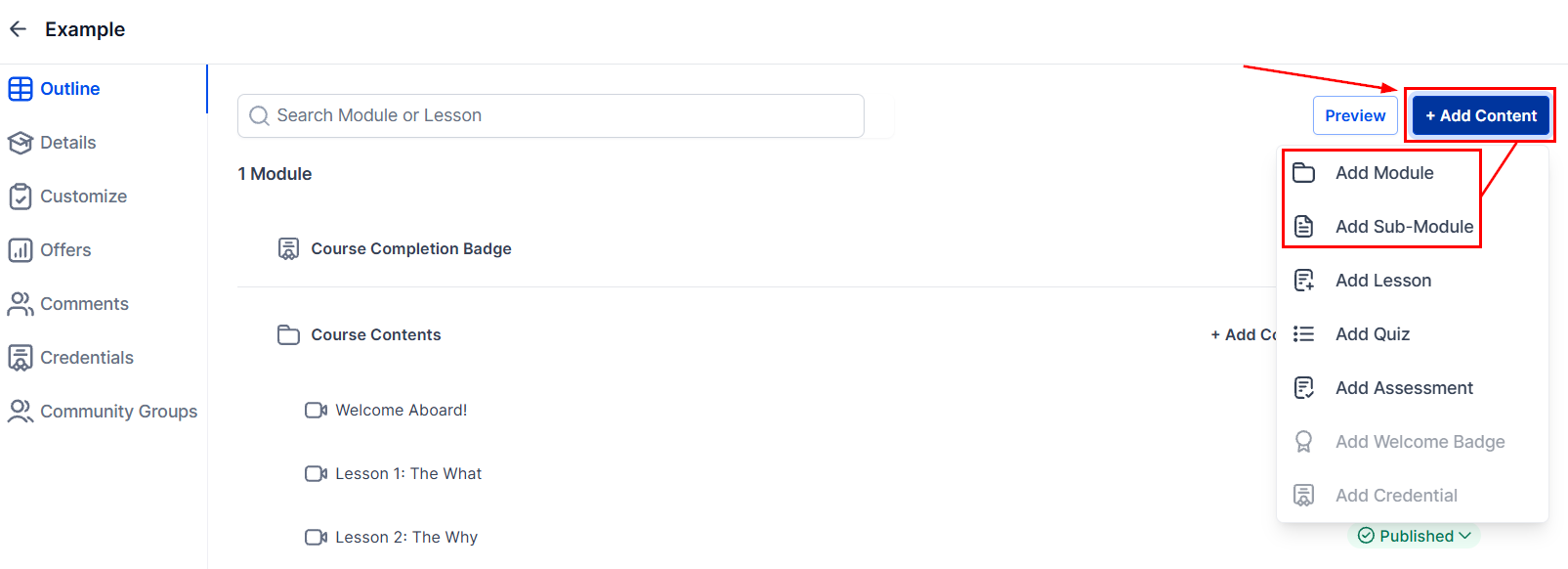
Navigate to Memberships and Communities > Courses, select the course you want to configure, and open the course builder.
2
Select the module or lesson to schedule
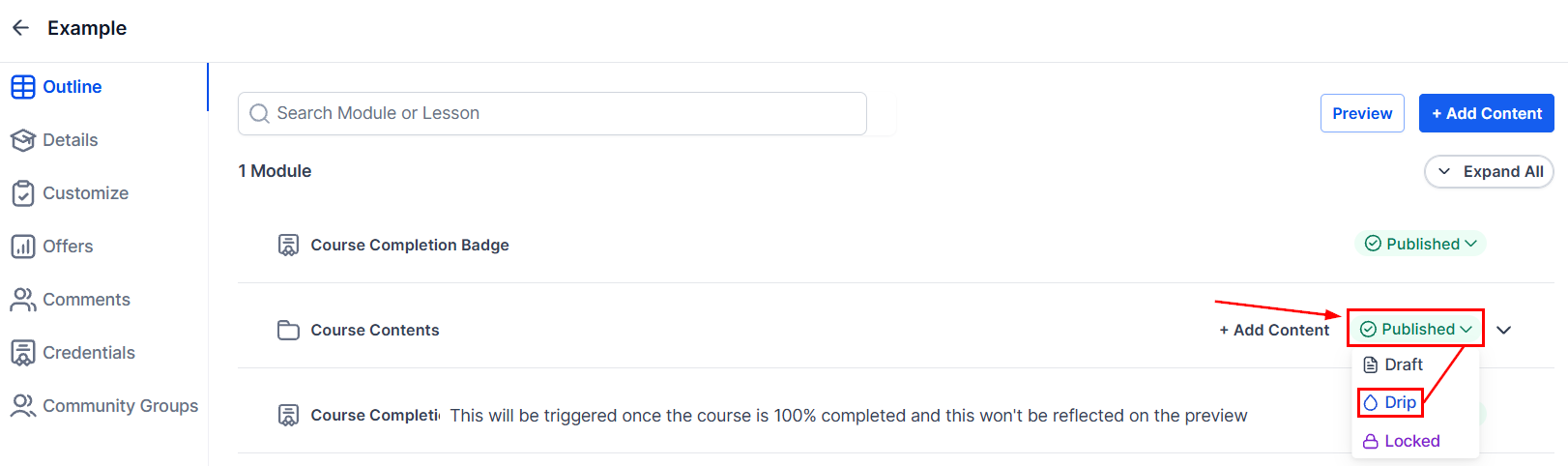
Click the module or lesson you want to drip. Open its settings panel on the right.
Drip content settings — configuring when lessons become available
3
Enable the drip schedule
Toggle on Drip Content (or Schedule) for the selected module or lesson.
4
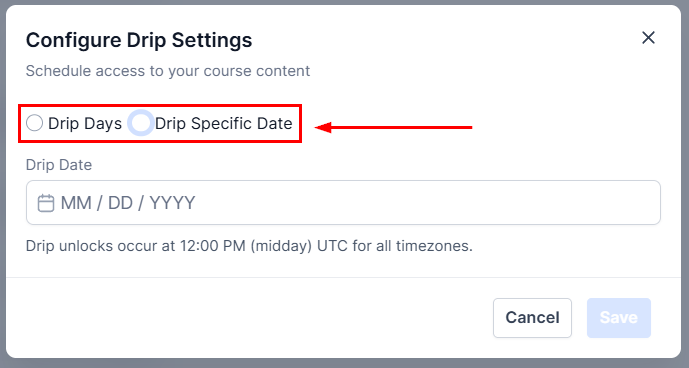
Choose the trigger type
Select either Days after enrollment or Specific date.
Drip delay options — setting days after enrollment for content to unlock
Drip date trigger — scheduling content release on a specific date
5
Set the delay or date
For Days after enrollment: enter the number of days (e.g. 7 to unlock one week after joining)
For Specific date: use the date picker to choose the exact unlock date and time
6
Repeat for each module or lesson
Apply drip settings to each module and lesson in sequence. You can drip at the module level (all lessons inside unlock together) or at the lesson level (each lesson unlocks independently).
7
Save and publish
Click Save. Drip settings take effect immediately for all existing and future enrollees.
When new content unlocks for a member, you can send an automated notification:
Navigate to Memberships and Communities > Memberships > Settings > Email Settings.
Enable New Course Materials Unlocked — this sends a system email when drip content becomes available.
For a custom notification, build an Automation with the Drip Content Unlocked trigger and a Send Email action using your branded template.
In your unlock notification email, include a direct link to the newly available module using the custom value Course Login URL. This removes friction and increases the chance the member immediately engages with the new content.
Can I drip at the lesson level instead of the module level?
Yes. You can apply drip settings to individual lessons independently of their parent module. This lets you release one lesson per day within the same module, or stagger content at any granularity you choose.
What does a member see when content is dripped?
Locked modules and lessons are visible in the course outline but appear greyed out with a lock icon and the scheduled unlock date displayed. Members know exactly what is coming and when, which encourages them to return.
Can I turn off drip for a specific member?
Drip schedules apply at the course level and cannot be overridden per individual member from within the course builder. To give a specific member early access, you can manually grant them access to the relevant content or adjust the course-wide schedule.
Does drip work with payment plans?
Yes. Drip content is independent of payment status — it is calculated from the enrollment date. If a member is on a payment plan, they still receive drip content on schedule regardless of whether future payments have been made.
Can I use a fixed date drip for a live cohort launch?
Yes. The Specific date trigger is designed for this. Set all modules to unlock on their scheduled cohort dates. Every enrolled member, regardless of when they joined, will receive access on the same calendar date.