

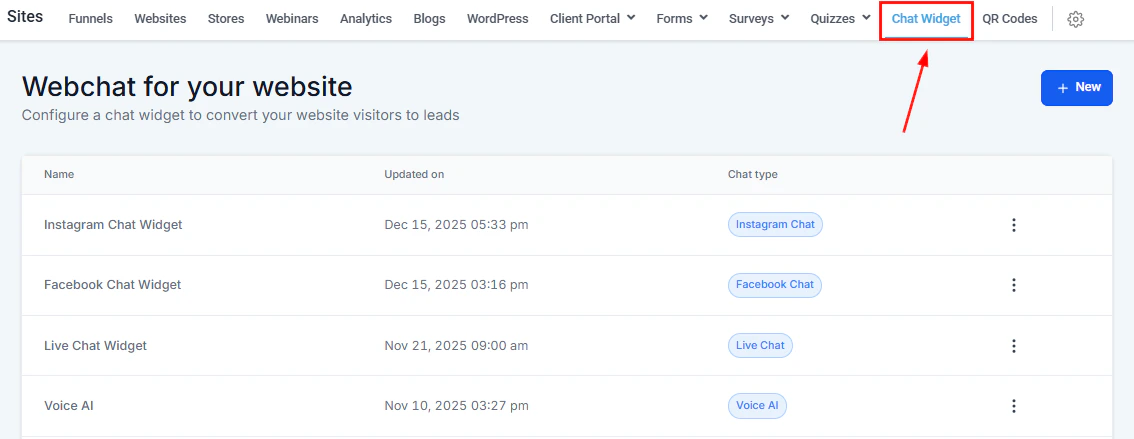
Chat Widget section in Sites
Widget types
All-in-One Chat
All-in-One Chat
Combines multiple conversation channels in a single widget. Best for smaller teams that want to manage all chat types from one place.
SMS / Email Chat
SMS / Email Chat
Collects visitor contact info and creates them as a contact for you to reply to later. Best for teams that cannot respond immediately.
Live Chat
Live Chat
Enables real-time two-way conversation directly in the chat bubble. Best for larger teams with someone available to respond instantly.
Facebook
Routes conversations through Facebook Messenger from your website. Messages are delivered to your connected Facebook Page.
Instagram
Routes conversations through Instagram Direct from your website. Messages are delivered to your connected Instagram Business account.
WhatsApp
Routes conversations to WhatsApp. Requires a WhatsApp number connected in Settings.
Voice AI
Voice AI
Connects visitors to a Voice AI Agent for audio-based inquiries — a great option for smaller teams that receive frequent call requests.
Creating a chat widget
1
Navigate to Sites > Chat Widget
Click Sites in the left sidebar, then select Chat Widget. Click + New.
2
Select the widget type
Choose from SMS/Email, Live Chat, All-in-One, Facebook, Instagram, WhatsApp, or Voice AI.
3
Customize the Style tab
Configure the chat prompt, chat icon, color theme, welcome message, return visitor message, avatar image, widget position on the page, and widget dimensions.
4
Customize the Chat Window tab
Set the title, intro message, contact form fields, call-to-action redirects, prefilled message text, notification sounds, and HIPAA consent checkbox. For Live Chat, configure assigned/closed messages and business hours.
5
Customize the Messaging tab
Set the widget language and configure acknowledgment messages, feedback messages, and the chat-ended message. Customize the acknowledgment icon and placeholder color.
6
Save
Click Save. Changes are applied immediately to any live instances of the widget already installed on websites.
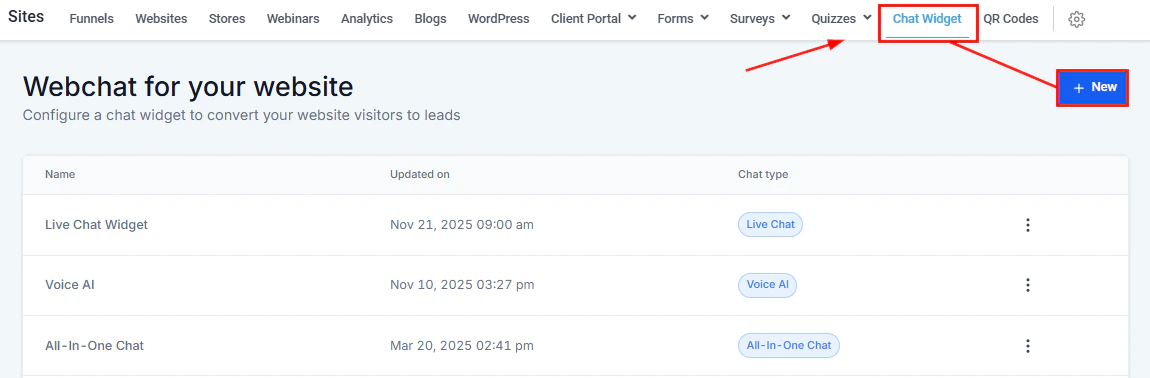
Creating and customizing a chat widget
Installing the chat widget
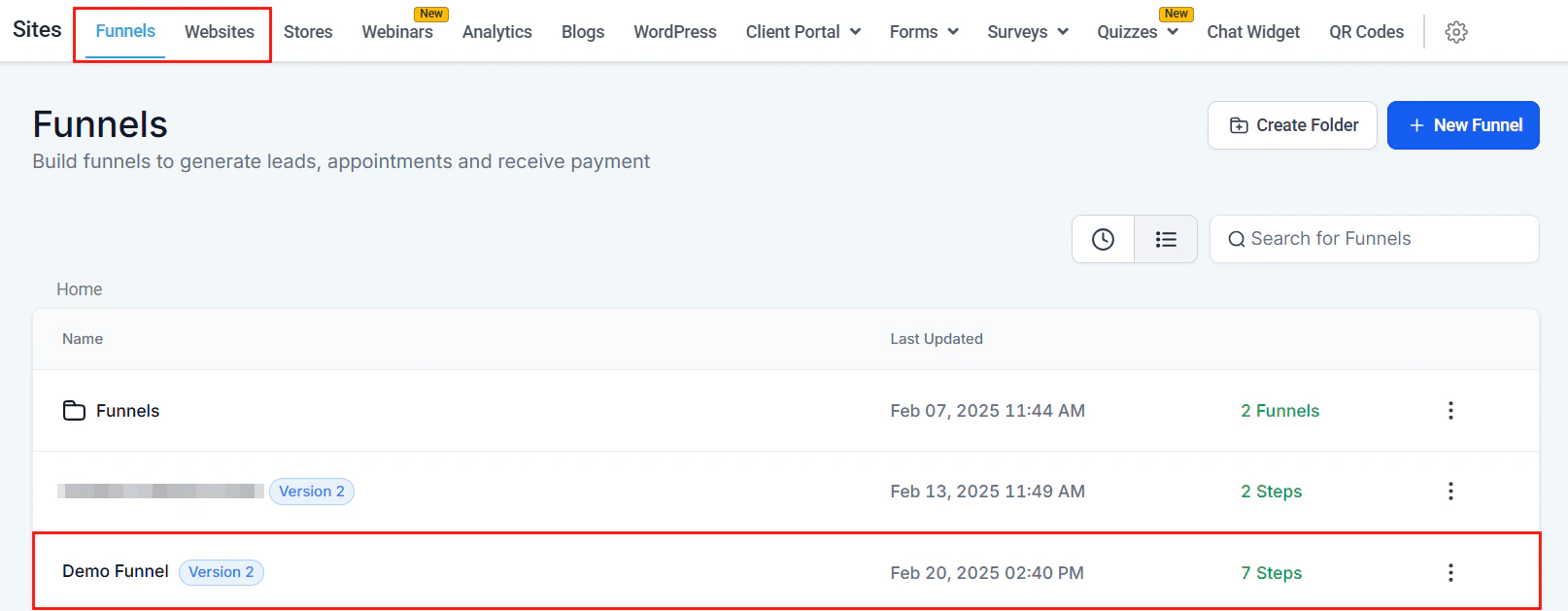
Installing the chat widget on a funnel or website
Add to all pages of a funnel or website
Add to all pages of a funnel or website
Open the funnel or website in Sites, go to the Settings tab, select your chat widget from the Chat Widget dropdown, and click Save. This adds the widget to every page.
Add to a specific page
Add to a specific page
Click the three-dot icon on your widget and select Edit. Click Get Code in the top-right corner. Copy the code and paste it into the Footer Tracking section of the specific funnel step or website page’s Tracking Code settings.
Add to an external website
Add to an external website
Copy the widget code (as above) and paste it into your external site’s header or footer. For Squarespace, GoDaddy, and similar platforms, use the Custom Code / HTML embed section.
Add to WordPress via plugin
Add to WordPress via plugin
In WordPress, go to Plugins > Add New and search for HoopAI. Install and activate the plugin. Click HoopAI in the left menu and sign in to your account. Your chat widgets will be available automatically.
The chat widget only loads after a visitor has accepted the cookie consent prompt on your funnel or website. Make sure cookie consent is configured if you use the widget for lead capture.
Widget management
Use the three-dot icon on any widget in the Chat Widget list to:- Edit — modify the widget’s settings, style, and messages
- Clone — create an identical copy of the widget including all images and settings
- Delete — permanently remove the widget (this cannot be undone)