

Built-in email notifications
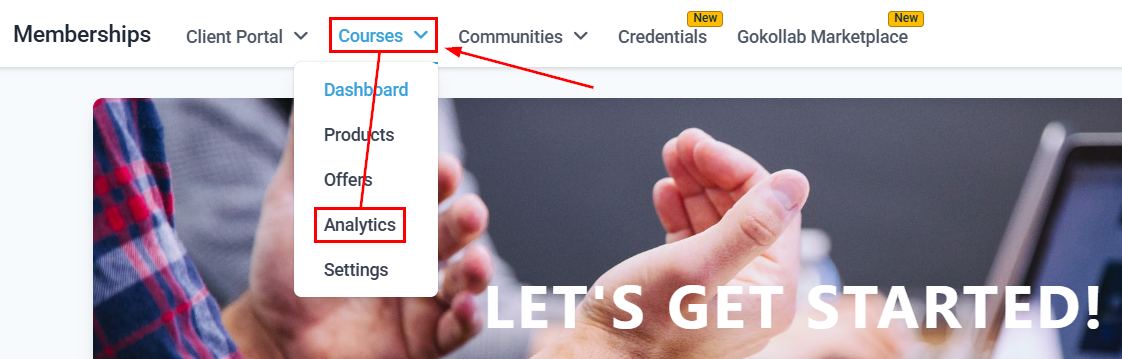
The HoopAI platform includes a set of default membership email notifications that can be enabled or disabled per account. These are configured in Memberships and Communities > Courses > Settings > Email Settings.
To enable or disable any of these, navigate to Courses > Settings > Email Settings and toggle each option on or off.
Email notification settings for membership courses including welcome messages and drip alerts
Customizing the welcome email
The default welcome email is functional but generic. To replace it with a branded template:1
Create a welcome email template
Navigate to Marketing > Emails and build a new email template. Include your logo, a warm welcome message, and a login link using the custom value Login Url (Magic Link) under the Membership Contacts custom value group. This value generates a one-click sign-in link personalized for each member.
2
Open email settings
Go to Memberships and Communities > Courses > Settings and click the Email Settings tab.
3
Replace the default template
Next to Send Welcome Message, click Default Template and select your new branded template from the dropdown. Click Edit to preview or modify it, then click Save.
Drip content unlock notifications
When a drip-scheduled lesson or module unlocks, you can notify members automatically. Two approaches are available:Built-in drip notification
Enable New Course Materials Unlocked in the Email Settings tab. When content unlocks, the platform sends a standard system email to the member notifying them that new content is ready.Custom automation drip notification
For a branded, personalized experience:1
Create a new automation
Navigate to Automation and click + New Workflow.
2
Set the trigger
Select Drip Content Unlocked as the trigger. Choose the specific course and module or lesson to monitor.
3
Add a Send Email action
Add a Send Email action using your branded email template. In the email body, include:
- The name of the unlocked module
- A direct login link using the Course Login URL custom value
- A short description of what the member will learn in the new content
4
Activate the workflow
Toggle the workflow to Active. Members will receive the notification each time that content unlocks.
Courses dashboard showing performance metrics and member activity
Lesson completion notifications
You can send a follow-up message each time a member completes a lesson — useful for reinforcing key takeaways or directing them to a related resource. Trigger: Lesson Completed Useful actions to pair with this trigger:- Send an email with a summary, reflection prompt, or bonus resource
- Add a tag to track completion in the CRM
- Send an SMS reminder if the member has not started the next lesson within 48 hours
Course completion notifications
When a member finishes all lessons in a course, use a Course Completed trigger to:- Send a congratulations email
- Issue a certificate using the Grant Certificate action
- Unlock a bonus course or community using Grant Membership Access
- Post a notification in a Slack channel (via a webhook action)
In-app notifications
Beyond email, the HoopAI member portal also supports in-app notifications. Members who are logged into the portal can receive browser notifications for:- New comments on lessons they have participated in
- New content unlocking in their enrolled courses
- Community posts and replies (if enabled in community settings)
SMS notifications for course events
Combine email notifications with SMS for time-sensitive reminders:- Send an SMS when a drip module unlocks, encouraging immediate action
- Send a reminder SMS to members who enrolled more than 7 days ago but have 0% completion
- Send an SMS when a live event is 24 hours away (see Live Events)
Using custom values in notification emails
Personalize every notification with dynamic merge fields:
Access these values in the email builder under Custom Values > Memberships.
Frequently asked questions
Can I turn off the default welcome email and rely entirely on my own automation?
Can I turn off the default welcome email and rely entirely on my own automation?
Yes. In Courses > Settings > Email Settings, disable Send Welcome Message. Then build your own automation using the Membership Access Granted trigger with a Send Email action pointing to your branded template. This gives you full control over timing, content, and design.
Can I send a notification to myself (or a team member) when someone enrolls?
Can I send a notification to myself (or a team member) when someone enrolls?
Yes. In your enrollment automation, add an internal notification action — either Send Email to a team email address, a Send SMS to a team phone number, or a Slack Notification via webhook. This keeps your team informed of new enrollments in real time.
Can I send a re-engagement email to members who have not logged in recently?
Can I send a re-engagement email to members who have not logged in recently?
Yes. Use a Wait step followed by a filter condition that checks the contact’s last login date or lesson completion progress. If the condition is not met within your wait period, branch to a Send Email re-engagement action reminding them to return. Tag the contact as “inactive” to track re-engagement campaigns.
What is the difference between the built-in email notification and an automation-based notification?
What is the difference between the built-in email notification and an automation-based notification?
Built-in notifications use the platform’s default email template and are sent automatically without any workflow setup. Automation-based notifications use your own branded templates, allow you to set delays, add conditions, include dynamic content, and chain multiple actions together. For a professional member experience, automation-based notifications are recommended.
Can I notify a member when a new lesson is added to a course they are already enrolled in?
Can I notify a member when a new lesson is added to a course they are already enrolled in?
Yes. Enable New Course Materials in the Email Settings tab to use the built-in notification. Alternatively, build an automation that triggers when a new lesson is published in a specific course, then send a Send Email action to all enrolled members using a contact list filter.