

Course structure overview
Every course follows a three-level hierarchy:- Course — the top-level container with a title, description, and thumbnail (e.g. “Social Media Strategy Masterclass”)
- Module — a themed chapter or week within the course (e.g. “Module 3: Instagram Growth”)
- Lesson — a single piece of content inside a module (e.g. “Lesson 2: Choosing the right hashtags”)
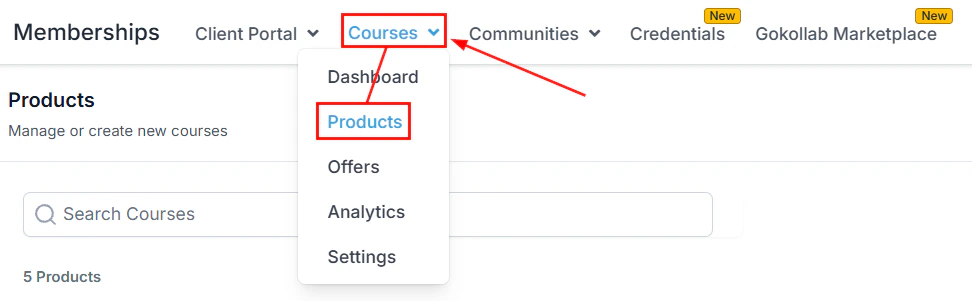
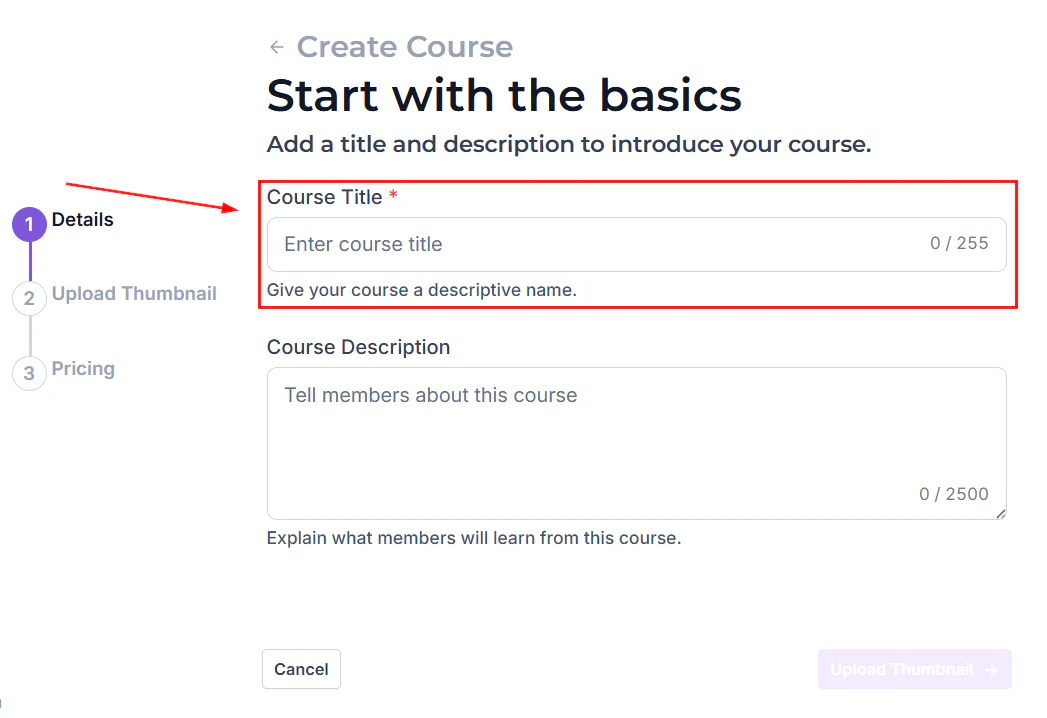
Creating a new course with title, description, and thumbnail
Opening the course builder
1
Navigate to Courses
Go to Memberships and Communities > Courses in the left sidebar. Click the Products tab to see all courses.
2
Create or open a course
Click + New Course to start from scratch, or click the name of an existing course to open it in the builder.
3
Enter course details
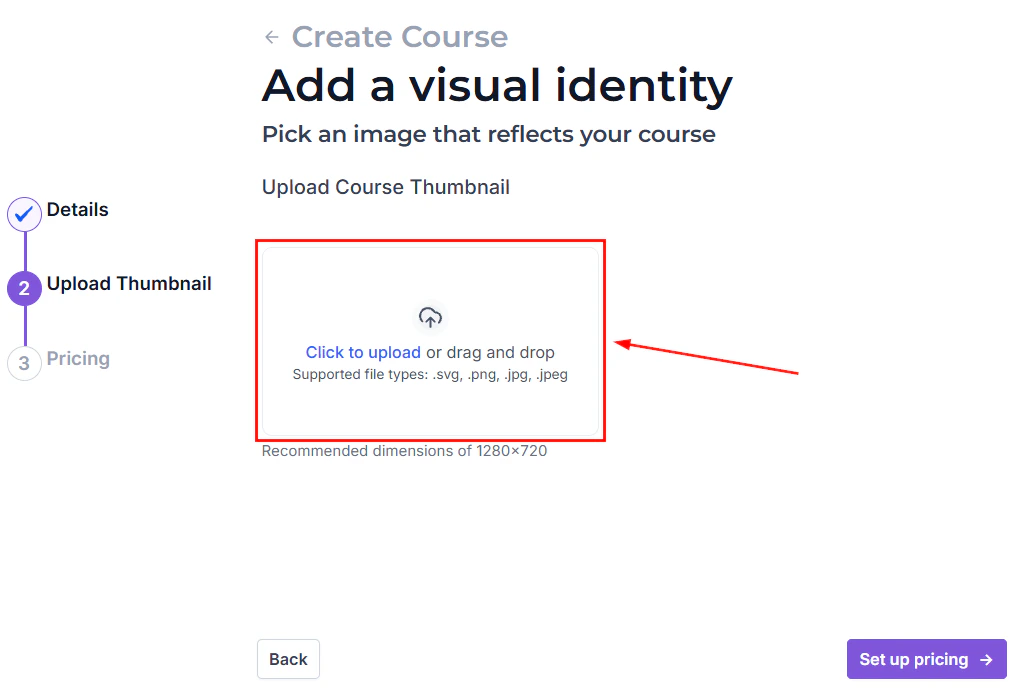
Fill in the course title, description, and upload a thumbnail image. The thumbnail appears on the course card in the member portal and on the GoKollab marketplace if you list the course there. Click Save to proceed to the builder canvas.
Adding modules
Modules organize lessons into logical sections or weeks.- In the course builder sidebar, click + Add Module.
- Enter the module title (e.g. “Week 1: Foundations”).
- Optionally add a short module description that members see before entering the module.
- Drag and drop modules to reorder them at any time.
Adding a new module section to organize course lessons
Adding lessons
Inside each module, click + Add Lesson to create a new lesson. Enter the lesson title and then choose the content type.Lesson content types
You can combine content types within a single lesson — for example, a video at the top followed by a text summary and a downloadable PDF worksheet.
Video lessons
When you select Video as the content type, you have two options: Upload directly — drag and drop your video file into the upload area. The platform hosts and streams the video securely. Supported formats include MP4, MOV, and AVI. Embed from an external platform — paste a URL from YouTube, Vimeo, or Wistia. The video is embedded and plays inside the lesson page without the member leaving the portal.Video settings
- Lesson thumbnail — choose a specific frame from the video to use as the lesson preview thumbnail, or upload a custom image.
- Closed captions — upload an SRT caption file or enable automatic caption generation for the video.
- Download — enable or disable the ability for members to download the original video file. This setting is found in Membership Settings > Builder Settings.
- Completion percentage — set the percentage of the video a member must watch before the lesson is marked complete (e.g. 80%).
The lesson editor where you add video, text, files, and quiz content
Quiz lessons
Quizzes assess a member’s understanding before they move on.1
Add a quiz lesson
Inside a module, click + Add Lesson and select Quiz as the content type.
2
Add questions
Click + Add Question. Choose from three question types:
- Multiple choice — one or more correct answers from a list of options
- True / False — a binary correct or incorrect response
- Short answer — a free-text response (not auto-graded; reviewed manually)
3
Set the passing score
Enter the minimum percentage required to pass the quiz (e.g. 70%). Members who fall below this score are shown a failure message and can optionally retake the quiz.
4
Configure retake behaviour
Choose whether to allow unlimited retakes, limit retakes to a set number, or prevent retakes entirely. You can also choose to lock subsequent lessons until the member passes the quiz.
Lesson completion criteria
For each lesson, you decide how it is marked complete:
Setting quiz-based or video-based completion prevents members from skipping through content without engaging with it.
Reordering content
Drag and drop modules and lessons to change their order at any time. The new order takes effect immediately for members — they will see the updated sequence on their next portal visit.Lesson visibility settings
Each lesson can be set to:- Published — visible to enrolled members
- Draft — hidden from members while you finish building it
- Drip scheduled — hidden until a specific day after enrollment or a fixed calendar date (see Drip Content)
Publishing a course
When the course is ready:- Click Publish in the top-right corner of the builder.
- The course status changes from Draft to Published.
- The course now appears in the member portal for any member who has been granted access via the appropriate offer.
Publishing a course to make it available in the member portal
Course settings
Inside each course, the Settings panel lets you configure:- Course title and description — edit the public-facing details
- Thumbnail — replace the cover image shown on the course card
- Instructor — add the instructor’s name and bio displayed on the course page
- Completion actions — define what happens when a member completes all lessons (e.g. redirect to a custom page, trigger an automation)
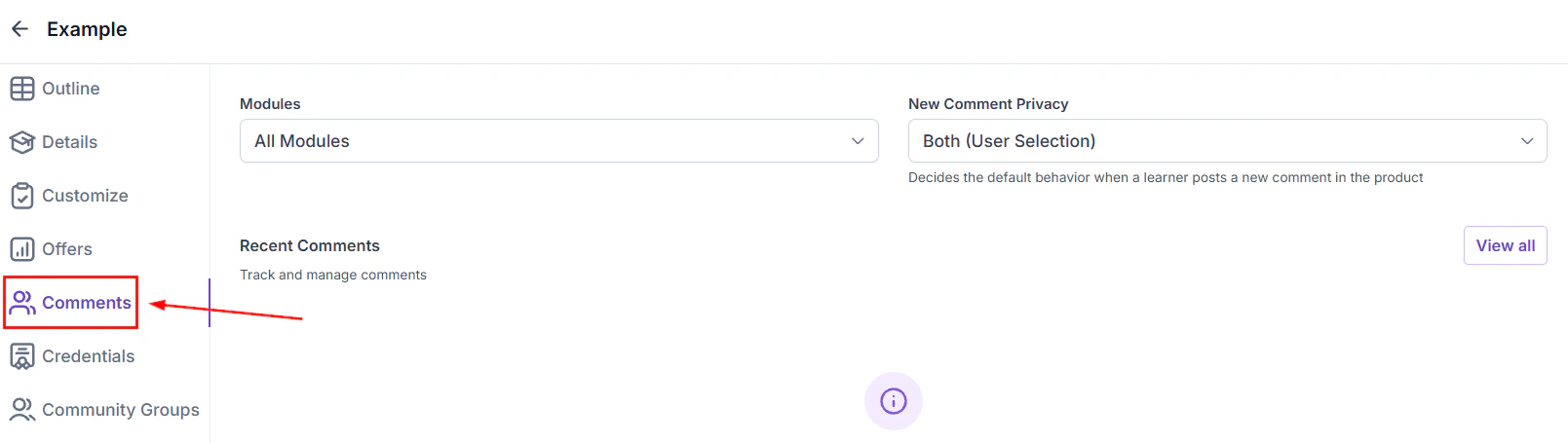
- Comments — enable or disable lesson-level comments for member discussion
Frequently asked questions
Can I add multiple content types inside a single lesson?
Can I add multiple content types inside a single lesson?
Yes. The lesson editor supports multiple content blocks in sequence. You can combine a video embed, a text explanation, and a downloadable PDF worksheet all within one lesson page. Add each content block using the editor toolbar and arrange them in the order you want members to experience them.
Is there a limit on video file size or length?
Is there a limit on video file size or length?
File size and length limits depend on your HoopAI plan. For large video libraries, using an external host (YouTube unlisted, Vimeo, or Wistia) and embedding the URL is an efficient alternative to direct uploading.
Can I prevent members from jumping ahead to later lessons?
Can I prevent members from jumping ahead to later lessons?
Yes. Set each lesson’s completion criteria to Quiz passed and configure the quiz to lock subsequent lessons until the member passes. This enforces sequential progression through the module.
Can I copy an existing lesson to use in another module?
Can I copy an existing lesson to use in another module?
Yes. Right-click or use the lesson’s options menu to duplicate the lesson. The duplicate appears in the same module; drag it to the destination module.
How do closed captions work on uploaded videos?
How do closed captions work on uploaded videos?
When uploading a video lesson, you can attach an SRT subtitle file in the video settings. The captions appear as an overlay on the video player. Automatic caption generation (where available) produces captions directly from the audio without requiring a separate file.
What happens to enrolled members when I unpublish a course?
What happens to enrolled members when I unpublish a course?
Unpublishing hides the course from the member portal, but enrolled members retain their progress data. When you republish, they can continue from where they left off. Unpublishing does not revoke offer access — the course simply becomes invisible until it is published again.