A comprehensive guide to the HoopAI drag-and-drop page builder for funnels and websites.
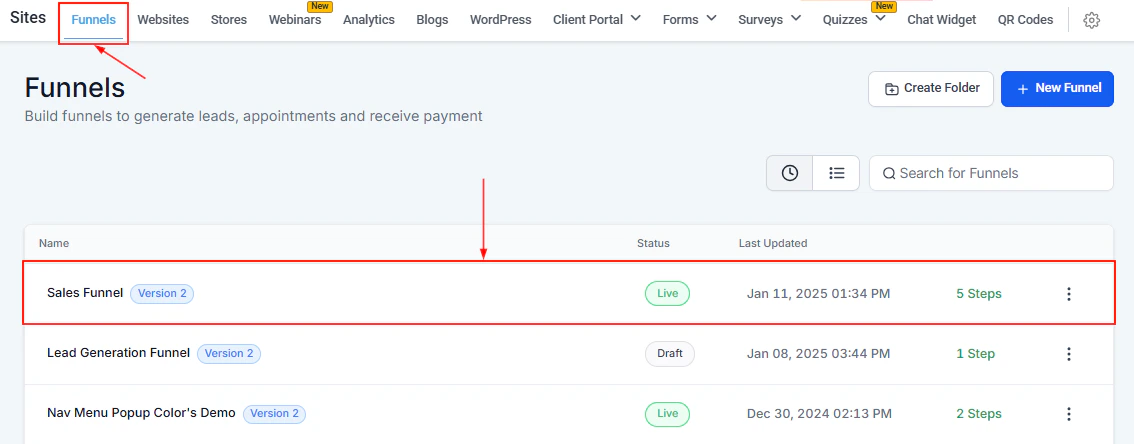
The Funnel / Website Builder is the heart of the Sites section. It gives you a drag-and-drop canvas where you can design landing pages, multi-step funnels, and full websites — without writing code.
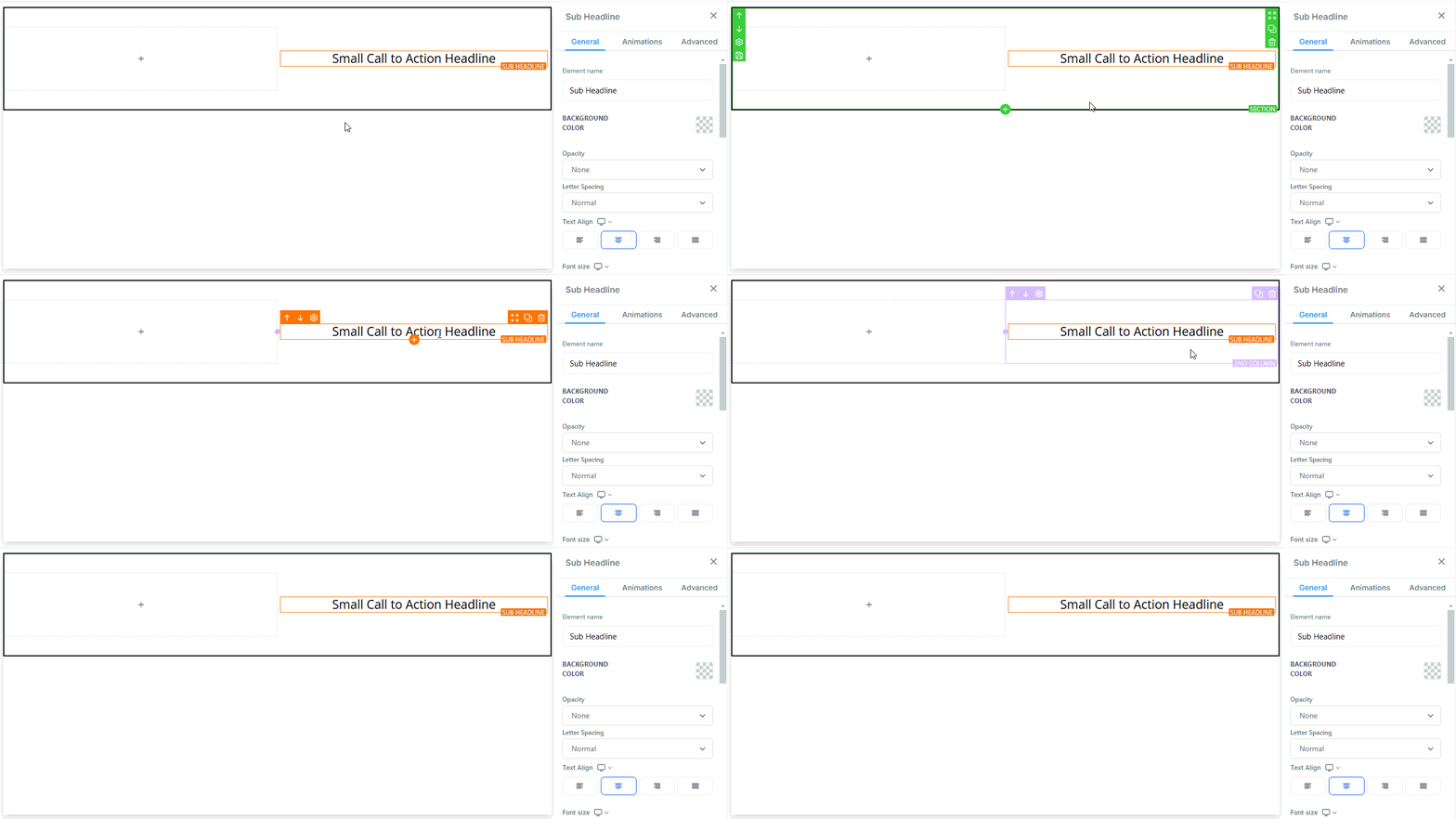
Every page is built from a hierarchy of four element types:
Sections (green)
Sections are the largest building blocks of a page. Each section spans the full width of the canvas and typically represents a distinct visual region such as a hero, features block, or footer.
Rows (blue)
Rows live inside sections and organize content horizontally. A section can contain multiple rows stacked vertically.
Columns (lilac)
Columns divide a row into vertical lanes. Use them to create side-by-side layouts — for example a text block next to an image.
Elements (orange)
Elements are the individual content pieces you place inside columns: text, images, buttons, videos, forms, timers, and more.
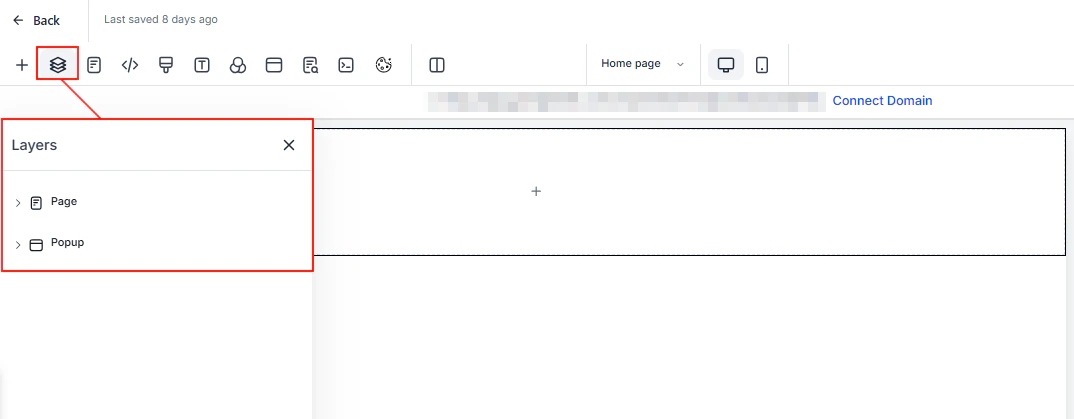
The Layers panel shows the complete structure of your current page, organized as a nested tree of sections, rows, columns, and elements. Use it to select, rearrange, or hide elements quickly. You can also switch between the Page layer and any Popup layers.
Paste header or footer code (e.g. Google Analytics, Facebook Pixel) into the dedicated Tracking Code popup. The code is injected into every page load.
Custom CSS
Add custom CSS rules that apply to the current page. Useful for fine-grained style overrides beyond the visual editor.
Typography
Change the default text and link colors and adjust the global font size for headlines and body content.
Background
Set the page background to a solid color, gradient, or image. Enter a custom hex code if the color picker does not have the exact shade you need.
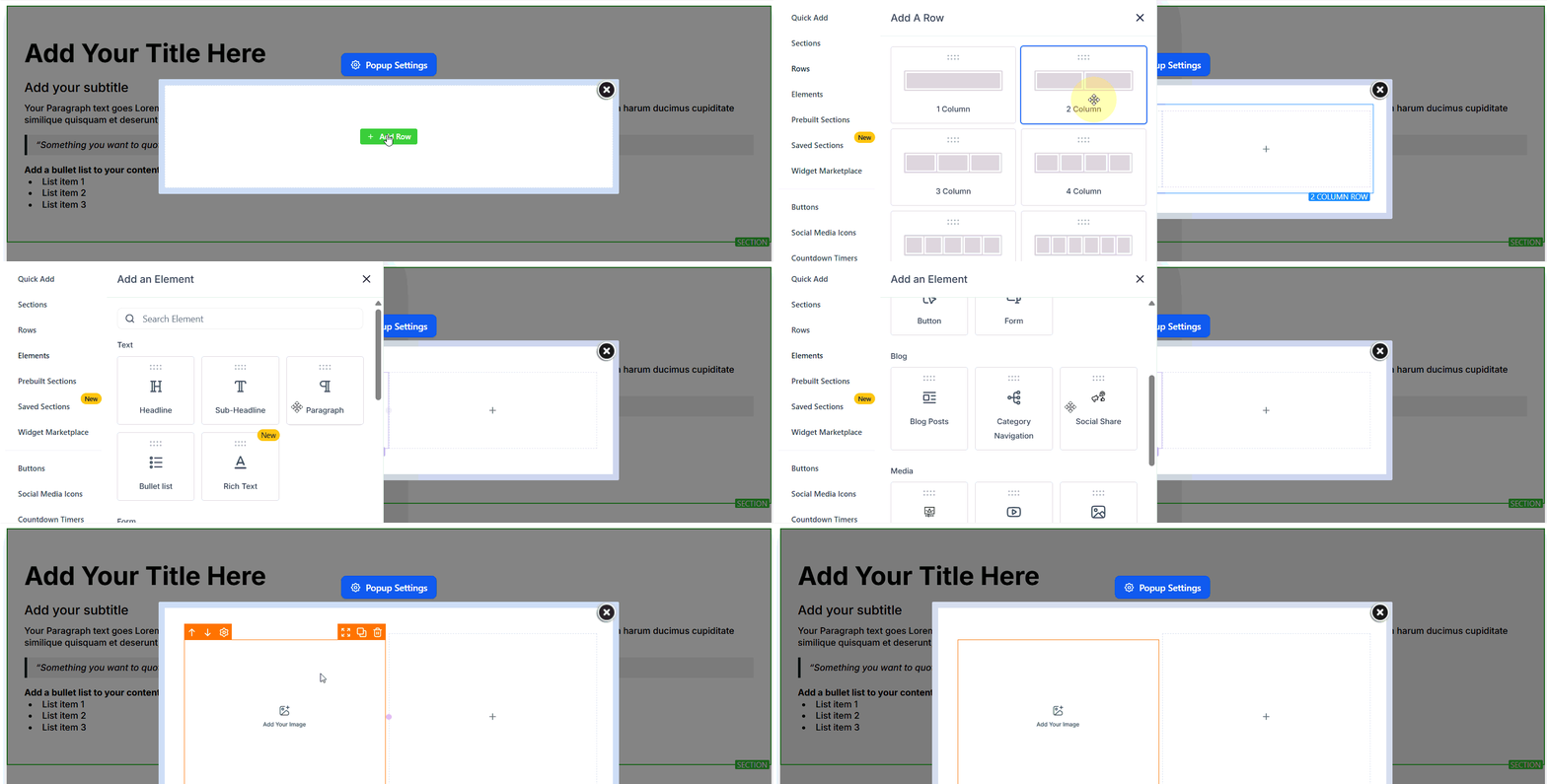
Popup
Add an overlay popup to the page. Click Open Popup Settings to control trigger behavior, timing, and appearance.
Page popup — add an overlay popup and configure trigger, timing, and layout
SEO meta data
Configure the page title, meta description, keywords, author, social share image, canonical URL, and language. An SEO preview shows how the page will appear in search results.
Cookie consent
Add a GDPR/CCPA-compliant cookie consent banner so visitors are informed about data collection before interacting with the page.
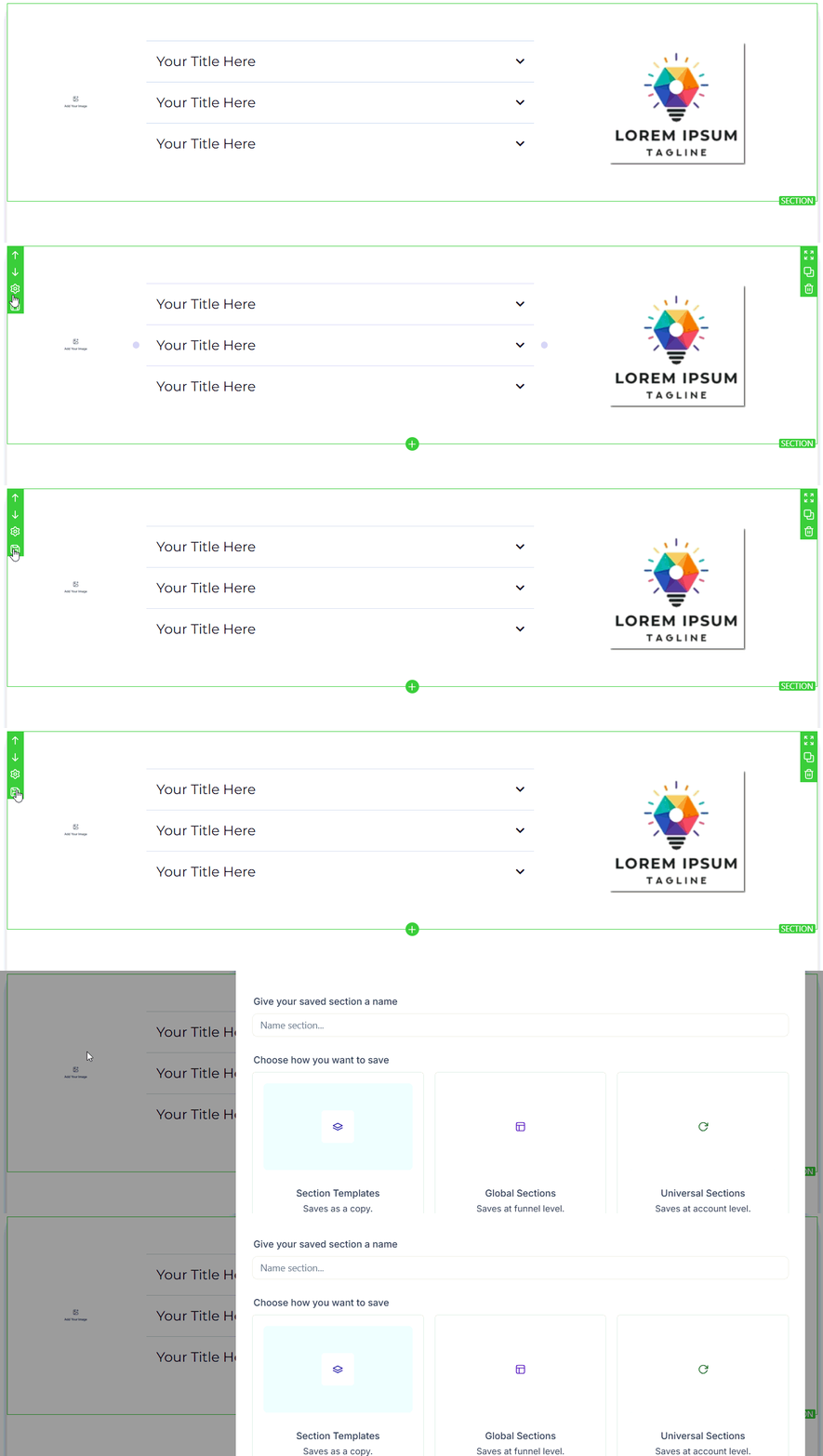
Global sections are saved once and referenced across multiple pages within the same funnel or website. Editing the global section updates every page that uses it. Universal sections work the same way but can be shared across multiple funnels and websites in your account.
Global sections — edit once and update every page that uses the section automatically
Block editor
The block editor offers a structured, template-based editing approach inside a section. It is particularly useful for landing pages where you want a consistent grid layout.
Brand boards
Brand boards let you store your color palette and typography presets. When you apply a brand board to a funnel or website, all compatible elements update to match your brand instantly.
Content AI
Ask AI to generate or rewrite copy for any text element directly inside the builder. Select a text element and click Ask AI to open the prompt interface.
Prebuilt section templates
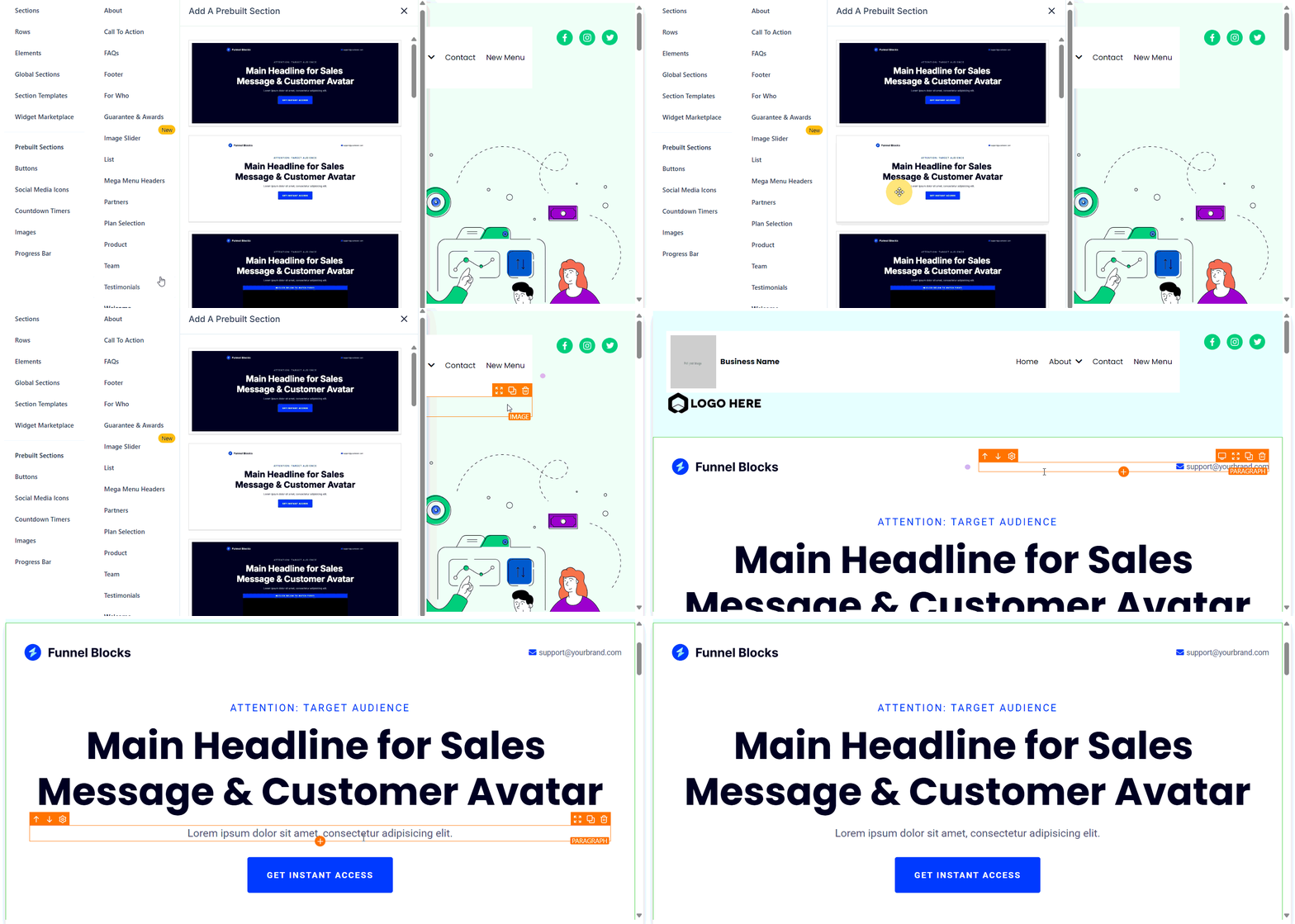
Browse a library of professionally designed section templates and insert them into any page with one click. Prebuilt sections cover common use cases such as hero banners, feature grids, testimonials, pricing tables, and CTAs.
Prebuilt section templates — add professionally designed sections with one click
Keyboard shortcuts
The builder supports keyboard shortcuts for common actions. Open the shortcuts reference from the help icon in the top toolbar.
Use Saved Sections for repeating elements like headers and footers. Update the saved section once and it propagates to every page.
Always click Save before closing the builder, then Publish to make changes visible to visitors. Saving without publishing keeps the changes in draft state.
The Versions feature only shows states that were previously saved. Unsaved changes cannot be recovered from Versions.