

media.yourbrand.com instead of the platform default — you can configure a custom CDN domain. This keeps your brand consistent in shared file URLs, email image links, and embedded media across all your pages.
Custom CDN domain configuration is an advanced feature typically used by businesses that require full branded presentation. If you only need branded funnel and website URLs, configure those through your site’s domain settings rather than the media CDN domain.
Why use a custom CDN domain
A custom CDN domain affects every URL generated for files in Media Storage. Using your own domain provides several advantages:- Consistent branding — file URLs shown in email clients, social posts, and browser address bars use your domain name rather than the platform’s
- Improved email deliverability — some email filters flag images loaded from shared hosting domains; serving images from your own domain can improve inbox placement
- Client-facing professionalism — if you manage client accounts, their media files appear to be hosted on infrastructure you control
- SEO signals — images served from a domain with established authority may contribute marginally better signals to image search
Prerequisites
Before configuring a custom CDN domain, you need:- Access to your domain’s DNS records (through your domain registrar or DNS provider)
- A subdomain reserved for media delivery (for example,
media.yourbrand.comorassets.yourbrand.com) - Admin-level access in the HoopAI platform (this setting is configured at the account level and applies to accounts you manage)
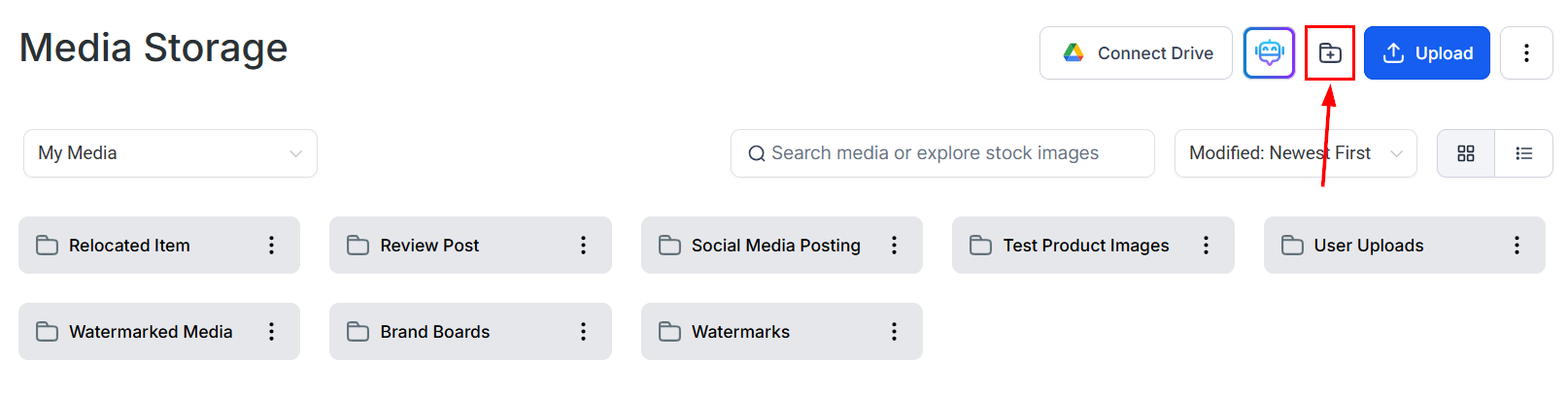
Media Storage files with direct URLs that can be served from a custom domain
Setting up the custom CDN domain
Step 1: Choose a subdomain
Select a subdomain specifically for media delivery. Common conventions are:media.yourdomain.comassets.yourdomain.comcdn.yourdomain.comfiles.yourdomain.com
yourdomain.com) or your primary www subdomain for this purpose. Subdomains are required.
Step 2: Create a CNAME record in your DNS
Log in to your DNS provider (Cloudflare, GoDaddy, Namecheap, Route 53, etc.) and add a new DNS record:
Save the record. DNS propagation typically takes between a few minutes and 48 hours, depending on your provider and existing TTL values.
Step 3: Enter the custom domain in your account settings
- Log in to your HoopAI admin account
- Navigate to Account Settings (or Settings at the account level)
- Find the Media CDN Domain or Custom Domain field under the Media Storage or Branding section
- Enter your full subdomain:
media.yourdomain.com - Click Save
Step 4: Verify propagation
After saving, test that the custom domain is resolving correctly:- Open a file in Media Storage and click Get Link to copy its URL
- Check that the copied URL begins with
https://media.yourdomain.com/(or your chosen subdomain) - Paste the URL into a browser to confirm the file loads
SSL and HTTPS
The CDN automatically issues and renews an SSL certificate for your custom domain once the CNAME record is in place and propagation completes. All media files are served over HTTPS automatically — you do not need to manage certificates. If you see a certificate error when testing your custom domain shortly after setup, wait a short period for the SSL certificate to be issued and retry.Impact on existing file URLs
When you enable a custom CDN domain, new file URLs generated from that point forward will use your custom domain. URLs that were previously copied or embedded using the old default domain will typically still resolve because the underlying CDN infrastructure recognizes both domains. For a fully consistent migration, update embedded image URLs in your funnels, email templates, and other tools after switching to the custom domain. This ensures all media references use your branded URL going forward.Disabling or changing the custom CDN domain
To remove a custom CDN domain, clear the custom domain field in your account settings and save. File URLs will revert to the platform’s default domain. To switch to a different subdomain, update the CNAME target in your DNS and enter the new subdomain in account settings.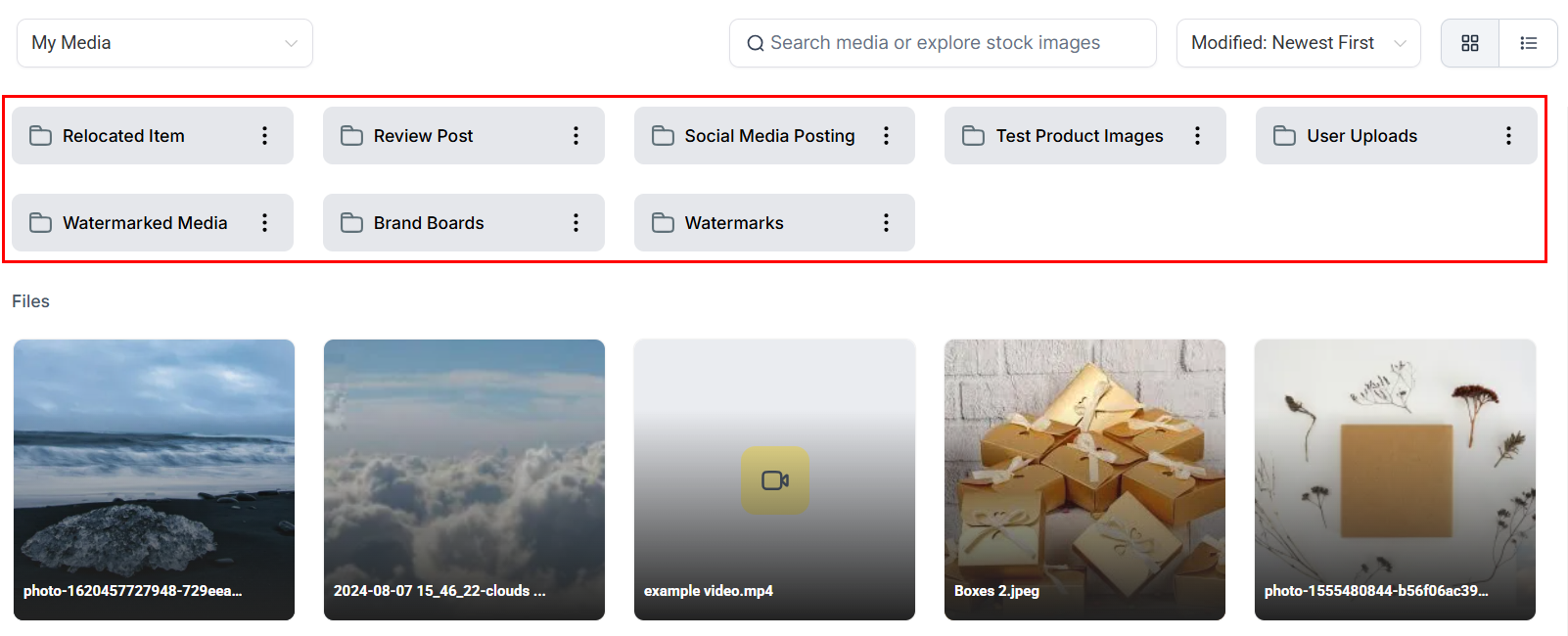
Folder structure in Media Storage helps organize files served through your custom domain
Troubleshooting
FAQs
Does the custom CDN domain apply to all accounts?
Does the custom CDN domain apply to all accounts?
The custom CDN domain is configured at the account level and applies to media files across all accounts managed by your account. Individual accounts cannot set their own separate custom CDN domains independently.
Can I use a root domain instead of a subdomain?
Can I use a root domain instead of a subdomain?
No. CDN configuration requires a subdomain (CNAME record). Root domains use A records and cannot be pointed to a CDN target using a CNAME. Use a subdomain such as
media.yourdomain.com.Will setting up a custom CDN domain affect my funnel or website URLs?
Will setting up a custom CDN domain affect my funnel or website URLs?
No. The custom CDN domain only affects the URLs of files served from Media Storage. Funnel and website page URLs are configured separately through your site’s domain settings.
Is there an additional cost for using a custom CDN domain?
Is there an additional cost for using a custom CDN domain?
No. Custom CDN domain configuration is included as part of your plan. There are no additional fees for using your own domain for media delivery.
How do I find the correct CNAME target value?
How do I find the correct CNAME target value?
The exact CNAME target value is displayed in your account settings in the Media CDN Domain configuration section. Copy it exactly as shown — do not modify the value.