

How video hosting works
When you upload a video to Media Storage, the platform processes it through a transcoding pipeline:- The raw video file is uploaded to your media library
- The platform transcodes the file into multiple quality levels (480p, 720p, 1080p)
- The encoded versions are stored on CDN infrastructure for global delivery
- When a viewer plays the video, the player automatically selects the appropriate quality based on the viewer’s connection speed (adaptive streaming)
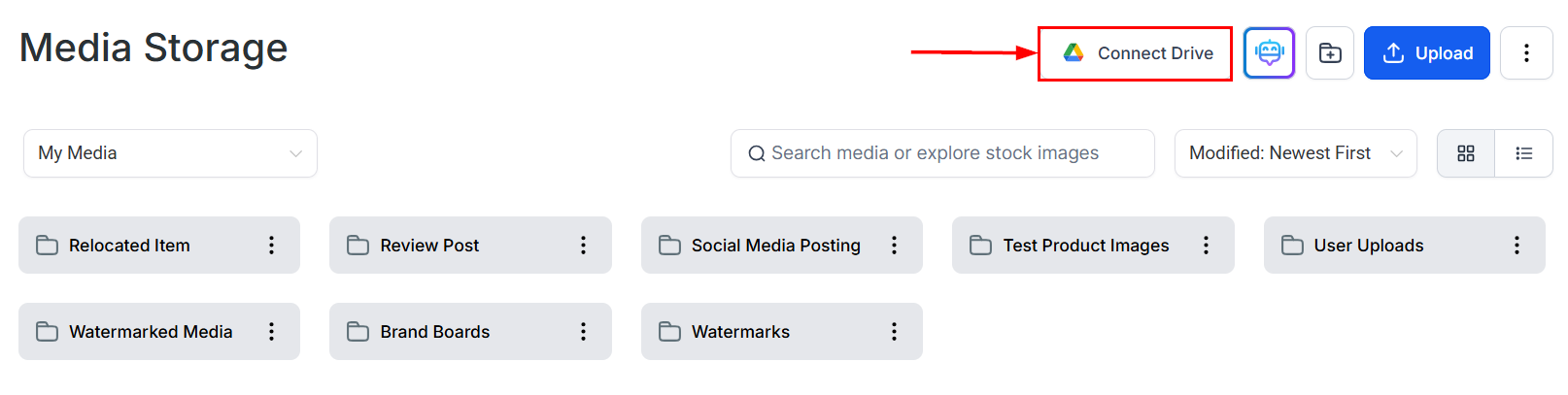
Media Storage library showing uploaded video and image files
Supported video formats and size limits
The following video formats are accepted for upload:
The maximum upload size for video files is 4 GB. Course lesson videos support up to 5 GB, though standard uploads through the Media Library are capped at 4 GB.
Using videos in funnels and websites
To add a hosted video to a funnel or website page:1
Open the page builder
Navigate to your funnel or website, open the page, and click Edit.
2
Add a video element
Drag a Video element onto the canvas from the elements panel on the left.
3
Select the video type
In the element settings panel on the right, find the Video Type dropdown and select Hosted Video.
4
Choose your video
Click Select Video to open the media library picker. Select the video file you uploaded.
5
Configure playback options
Adjust the player settings (see below) and save the page.
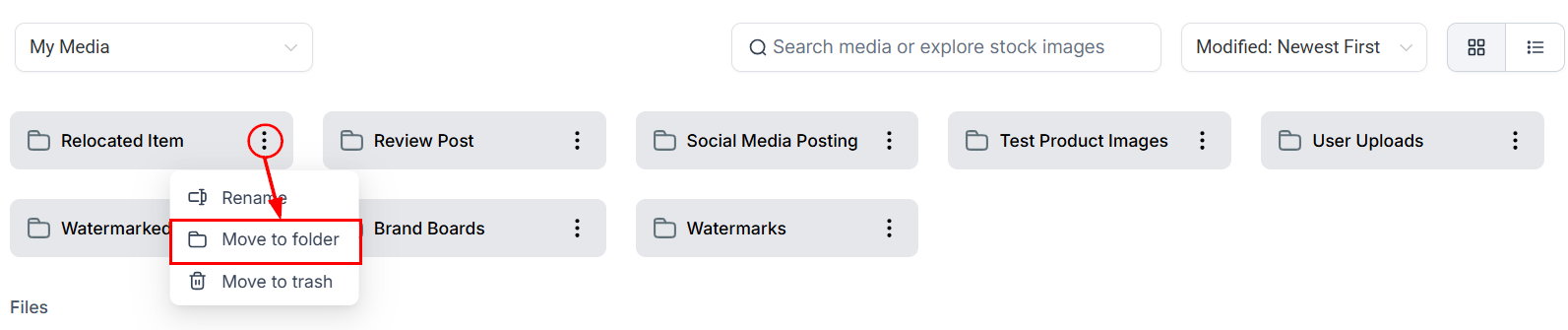
Organizing media files into folders for easy access
Playback settings
After selecting a hosted video, the following settings are available in the video element’s options panel:Autoplay with sound is blocked by all major browsers (Chrome, Firefox, Safari, Edge) regardless of player settings. Videos set to autoplay will start muted. Viewers must manually unmute the video.
Quality and adaptive playback
Hosted videos are automatically transcoded into multiple resolutions: 480p, 720p, 1080p, and Auto. When a viewer plays a video:- Auto mode (the default) selects the best quality the viewer’s connection can handle and adjusts dynamically during playback
- Viewers can manually override the quality level using the player’s settings menu
Using videos in courses and memberships
Course lesson videos are uploaded directly within the Memberships module (not through Media Storage), but the same underlying video infrastructure handles storage, transcoding, and delivery. The maximum video size for course lessons is 5 GB. Within the course editor, you can:- Set a custom thumbnail — upload an image or select a frame from the video to use as the lesson thumbnail displayed on the course dashboard
- Use the current frame as thumbnail — pause the video at any frame and set it as the thumbnail with one click
Embedding videos from external platforms
If you prefer to host a video on YouTube, Vimeo, or another external platform, you can embed it using the Video element in the page builder:- Add a Video element to your page
- In the Video Type dropdown, select the appropriate external type (YouTube, Vimeo, or Custom URL)
- Paste the video URL
Picture-in-picture
The built-in video player supports picture-in-picture mode on browsers that allow it (Chrome, Edge, Safari). Viewers can pop the video into a floating overlay while scrolling the rest of the page or switching browser tabs.Video download by viewers
Hosted videos are streamed directly and do not present a visible download button to viewers by default. The raw video file URL is not exposed in the player interface, providing a basic level of protection for your video content. For stronger content protection in courses (access control by enrollment, drip scheduling), use the Memberships module rather than a raw media link.FAQs
How long does video transcoding take?
How long does video transcoding take?
Transcoding time depends on file size and platform load. A 100 MB video typically encodes in a few minutes. A 2–4 GB video may take 15–30 minutes or longer. The video will appear in your library immediately after upload, but it won’t be playable in the builder or on published pages until encoding finishes.
Can I replace a video without changing the embed on my page?
Can I replace a video without changing the embed on my page?
No. Swapping the video file requires re-selecting the video in the page builder element settings. The hosted video player is linked to the specific file you selected, not to a slot. Select the new file and republish the page.
Do hosted videos work on mobile devices?
Do hosted videos work on mobile devices?
Yes. The hosted video player is compatible with mobile browsers. Autoplay behavior follows each mobile platform’s own browser policies — iOS and Android browsers require a user gesture before a video plays with sound.
Can I add captions or subtitles to hosted videos?
Can I add captions or subtitles to hosted videos?
Caption support varies by platform feature. For course lesson videos in the Memberships module, closed caption files can be added. For funnel-page hosted videos, built-in caption upload is not currently available — consider burning captions into the video file before upload if captions are required.
Is video hosting included in all plans?
Is video hosting included in all plans?
Yes. Hosting and streaming video files through Media Storage is available on all paid HoopAI plans. There are no per-video or per-stream fees for standard hosted video playback.