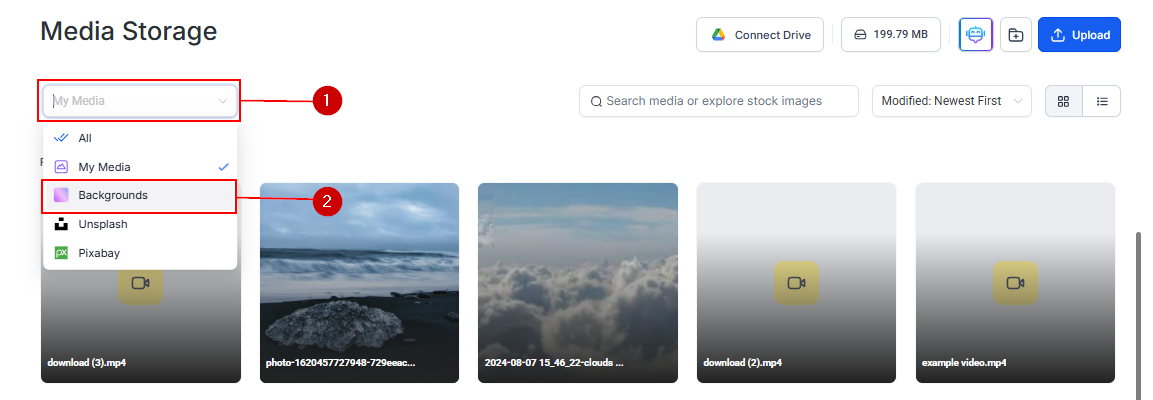
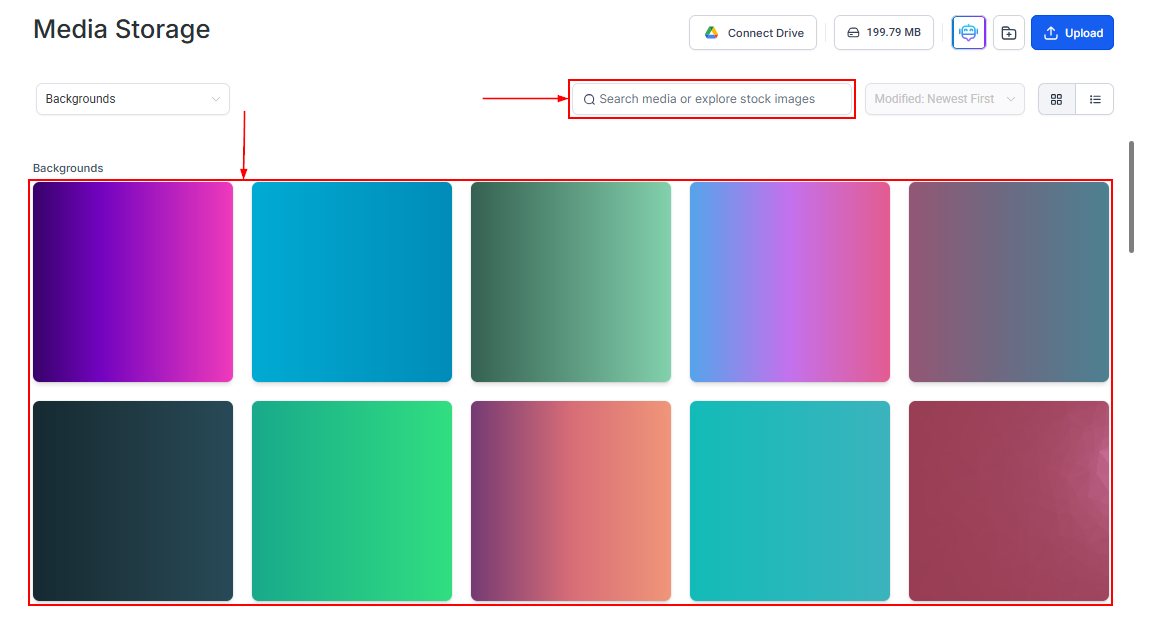
Browse HoopAI’s curated background image library to apply professional illustrations to your funnels and websites.
With the Backgrounds feature in Media Storage, you can explore and apply professionally designed background illustrations to elevate your site’s design and reflect your brand’s identity.
When placing text over a background image, add a semi-transparent overlay to ensure sufficient contrast. Most page builder sections support a background color overlay with adjustable opacity.
Use backgrounds selectively
Reserve background images for hero sections and key call-to-action areas. Using busy backgrounds on every section creates visual fatigue. Plain color backgrounds work better for content-heavy sections.
Preview on mobile
Background images behave differently on mobile screens. Preview your pages in mobile view after applying a background to ensure the focal point remains visible and text stays readable.
Gradient and abstract backgrounds are the most versatile choices for section backgrounds. They add depth and visual interest without competing with text or images placed on top of them.