The Hoop platform tracks each member’s progress through every course they are enrolled in. As an admin, you can see completion rates, quiz scores, last activity dates, and revenue data — all from the Courses analytics dashboard and individual member records.

What is tracked

Data pointWhere to find it
Lessons completed vs totalMembers tab in Courses
Completion percentageMembers tab in Courses
Last active dateMembers tab in Courses
Quiz scoresAnalytics > Assessments
Revenue generatedAnalytics > Revenue
Member activity dataAnalytics > Member Data

Viewing progress in the Courses dashboard

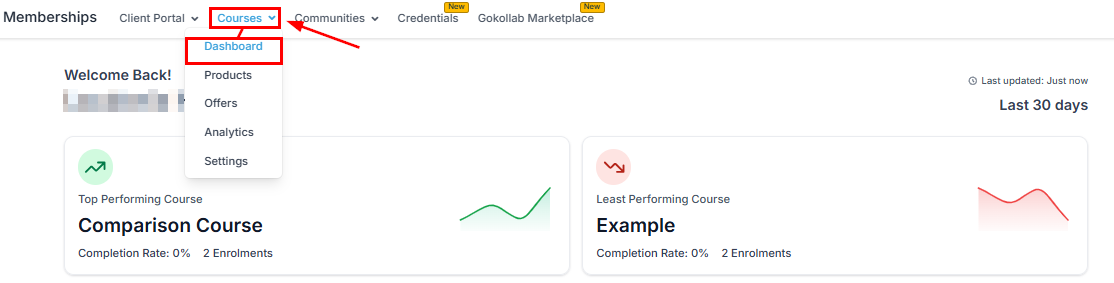
The Courses dashboard gives you a centralized view of performance across all your courses.
Courses dashboard
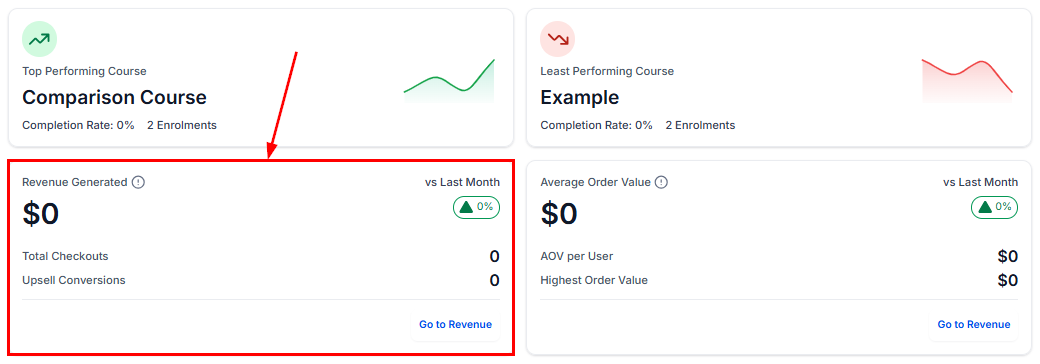
Courses revenue metrics
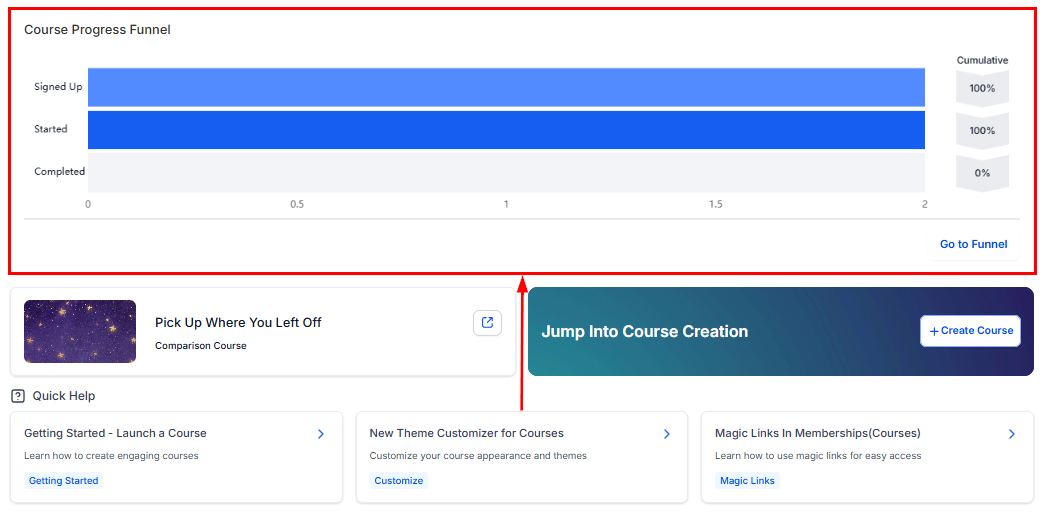
Member progress overview
Navigate to Memberships and Communities > Courses and click the Dashboard tab to access these metrics.

Viewing individual member progress

To see a specific member’s progress:
1

Open the Members tab

Navigate to Memberships and Communities > Courses and click the Members tab.
2

Search for the member

Use the search bar to find the member by name or email address.
3

Review their course progress

The member row shows all courses they are enrolled in, the number of lessons completed, their completion percentage, and their last active date.
4

Drill into a specific course

Click the member’s name to open their detail view and see a lesson-by-lesson breakdown of what they have completed, skipped, or not yet started.

Viewing progress in membership analytics

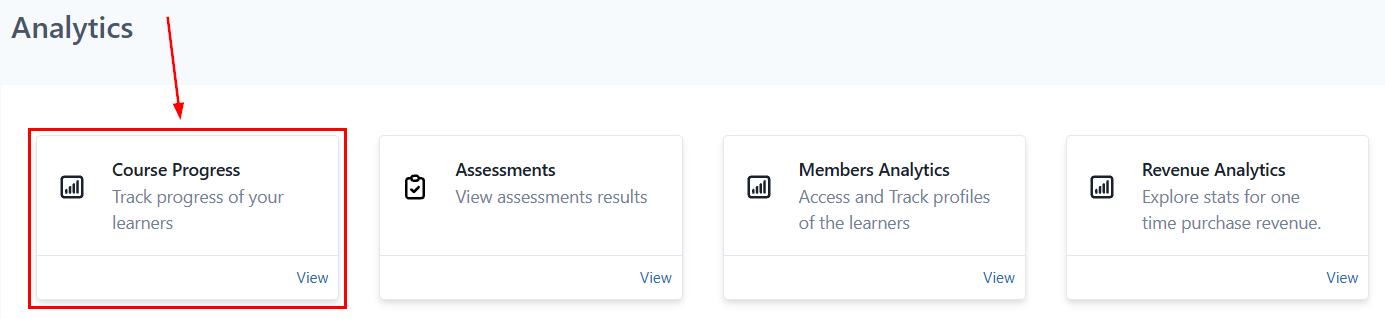
The Analytics section provides deeper reporting across all members and courses.
Membership Analytics revenue
Member progress tracking
Assessment results
Member data tab
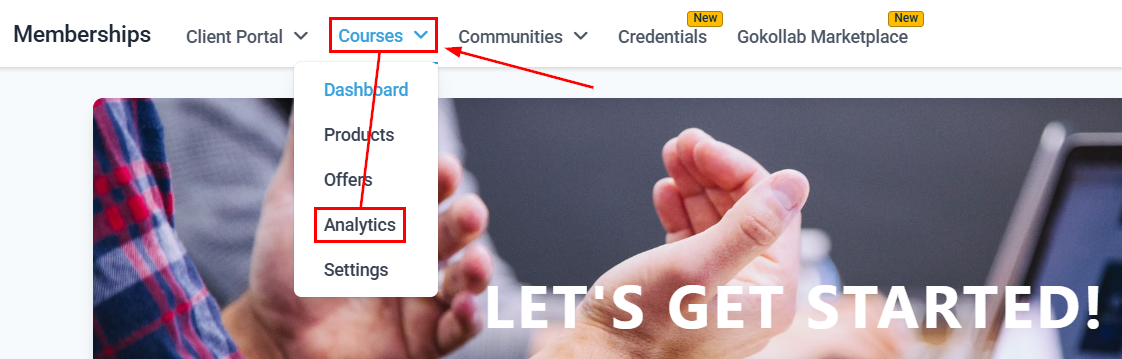
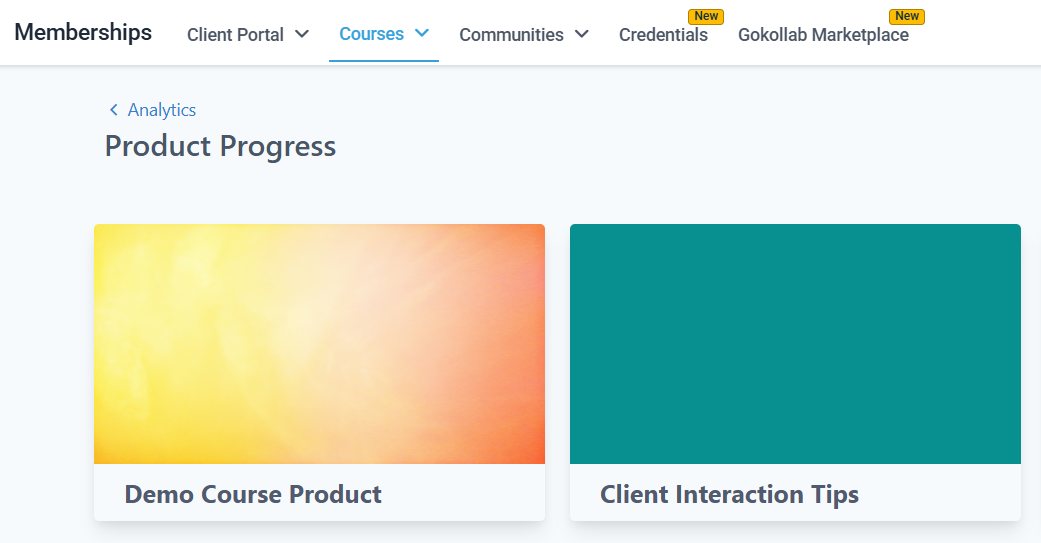
Navigate to Memberships and Communities > Courses > Analytics to access:
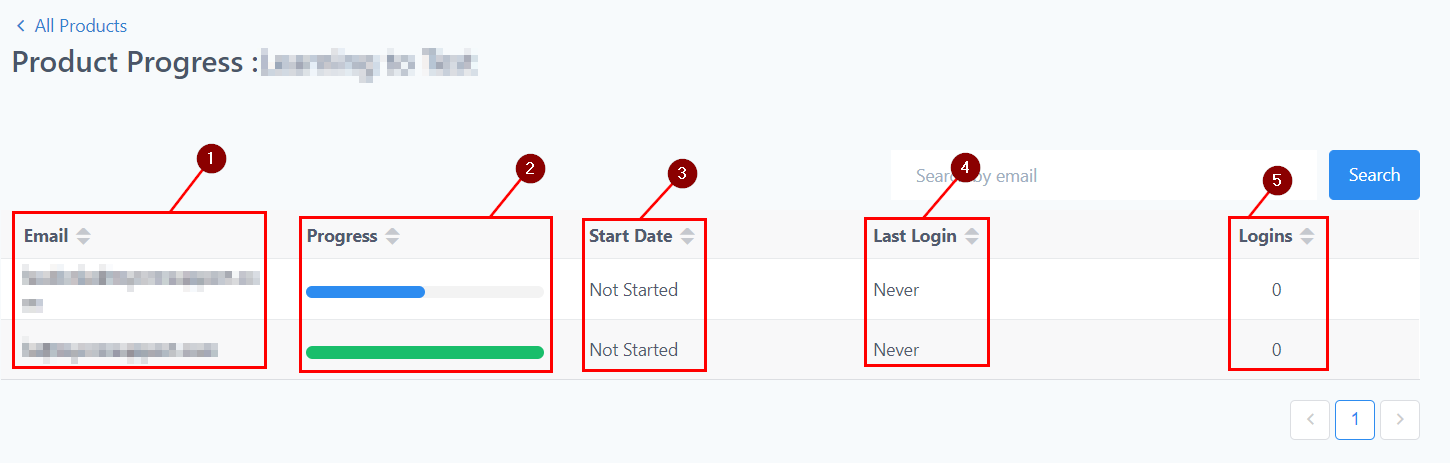
  • Progress — completion rates per course and per member
  • Assessments — quiz scores and pass/fail rates across all members
  • Revenue — revenue generated, broken down by offer and time period
  • Member Data — individual activity records including enrollment date, last login, and lessons completed

Using progress data in automations

Member progress data can trigger automations:
TriggerUse case
Course CompletedIssue a certificate, send a congratulations email, grant access to a bonus course
Lesson CompletedSend a follow-up resource or prompt to complete the next lesson
Assessment PassedUnlock the next module or notify the member of their result
Assessment FailedSend encouragement and a link to review the material before retrying
1

Create a new automation

Navigate to Automation and click + New Workflow.
2

Choose a course progress trigger

Select one of the course-related triggers: Course Completed, Lesson Completed, Assessment Passed, or Assessment Failed.
3

Select the course

Choose the specific course the trigger applies to (and the specific lesson or assessment if relevant).
4

Add your actions

Add actions such as Send Email, Grant Certificate, Add Tag, or Grant Membership Access to respond to the progress event.
5

Activate the workflow

Toggle the workflow to Active.

Re-enrolling or resetting a member’s progress

To reset a member’s progress and allow them to restart a course:
  1. Go to the member’s contact record in Contacts.
  2. Click the Actions tab and select Client Portal.
  3. Find the course and select the option to reset or re-enroll the member.
Resetting progress removes all completed lesson marks and quiz scores for that member in the selected course. This action cannot be undone.

Exporting member progress data

To export progress data as a CSV:
  1. Navigate to Memberships and Communities > Courses > Analytics > Member Data.
  2. Apply any filters (date range, specific course, completion status).
  3. Click Export to download the data.
The CSV includes enrollment date, last active date, lessons completed, completion percentage, quiz scores, and revenue attributed to each member.

Frequently asked questions

Yes. Click the member’s name in the Members tab to open their detail view. This shows a lesson-by-lesson breakdown including which lessons are completed, in progress, or not yet started, along with the date each lesson was marked complete.
Yes. Members see a progress bar on every course card in their portal showing how many lessons they have completed. Individual lesson thumbnails display a checkmark when completed. Members can also view their quiz scores and certificate status from their portal.
A course is considered complete when all lessons have been marked as complete — either by the member clicking Mark as Complete (manual), by watching the required percentage of a video, or by passing a quiz (depending on how each lesson’s completion criteria is configured).
Yes. The Courses dashboard shows aggregate completion data across all courses. Navigate to the Dashboard tab to see best and worst performing courses, average completion rates, and revenue data for the last 30 days.
Yes. All quiz scores are stored and visible in the Assessments tab of the Analytics section. You can see scores per member, per quiz, and filter by course or date range.
Last modified on March 4, 2026