

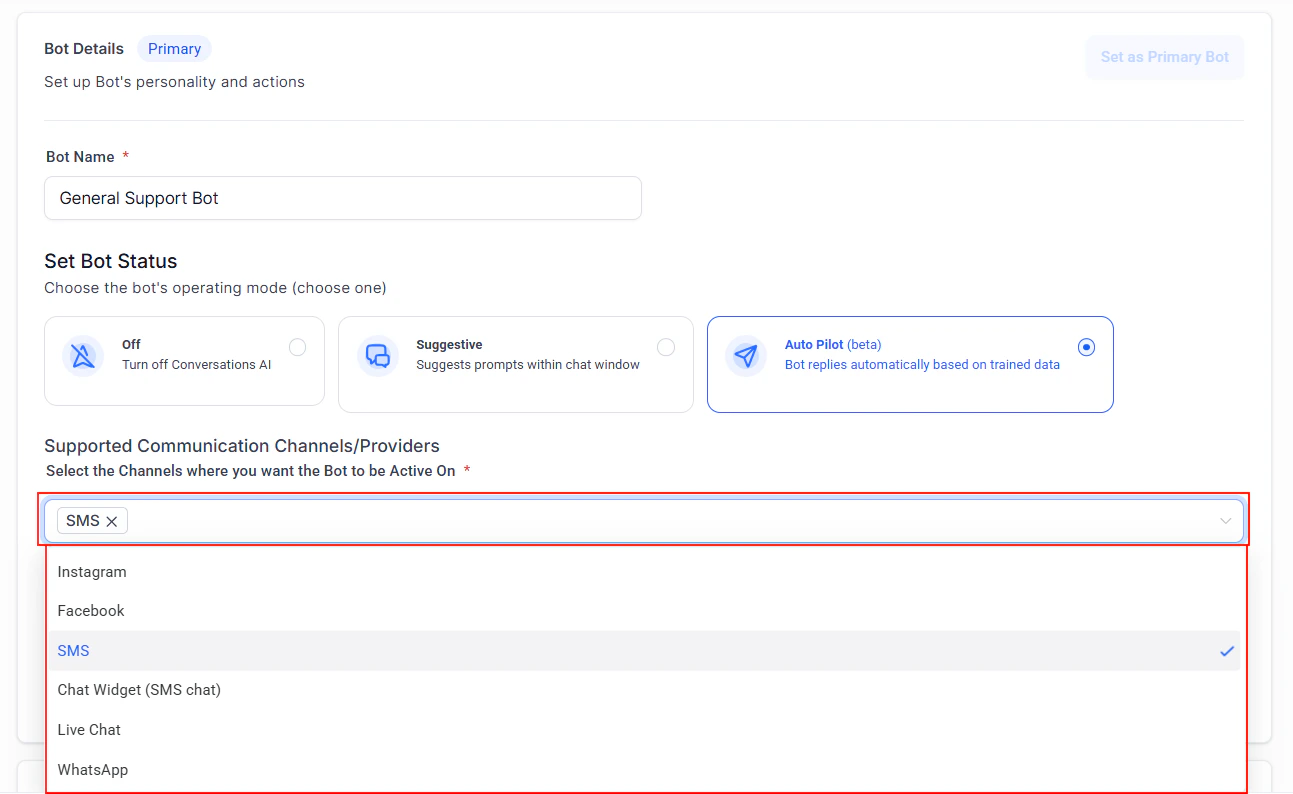
Channel assignment settings for your Conversation AI bot
How channel assignment works
Every Conversation AI bot is assigned to one or more communication channels. When a message arrives on a given channel, HoopAI routes it to the bot that is assigned to that channel. If no bot is assigned to a channel, inbound messages on that channel will not trigger any AI response. To assign channels:1
Open bot settings
Navigate to Settings > Conversation AI and select the bot you want to configure. See bot settings for a full walkthrough.
2
Select channels
In the Channels section, toggle on the channels you want this bot to handle. Available channels include SMS, Facebook Messenger, Instagram DM, WhatsApp, Web Chat, Google My Business, and Email.
3
Save and verify
Click Save and send a test message on each channel to confirm the bot responds as expected.
Each channel can only be assigned to one bot at a time. If you need different bots for different channels, see multi-bot orchestration.
Auto follow-up action
The auto follow-up action lets your bot automatically re-engage contacts who have gone silent. This is particularly useful for multi-channel deployments where leads may drop off mid-conversation.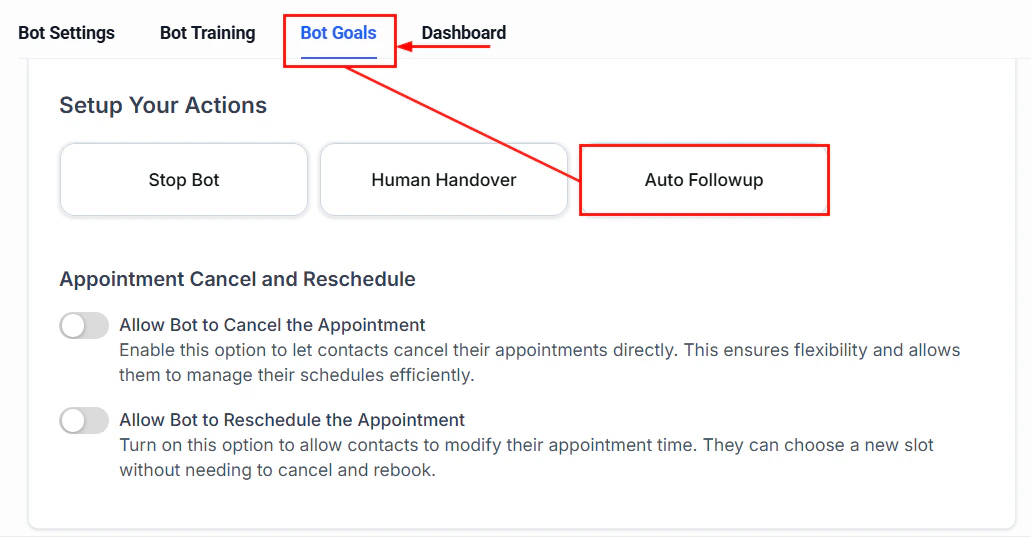
Auto follow-up action configuration
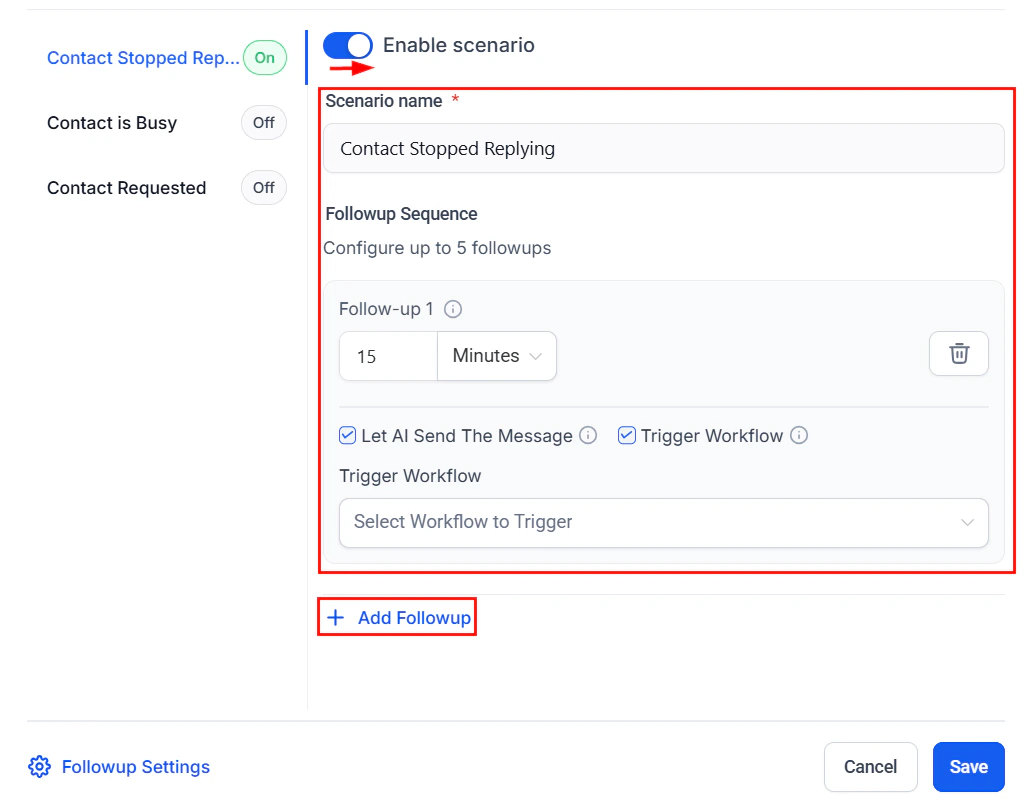
Auto follow-up scenario configuration with timing and message options
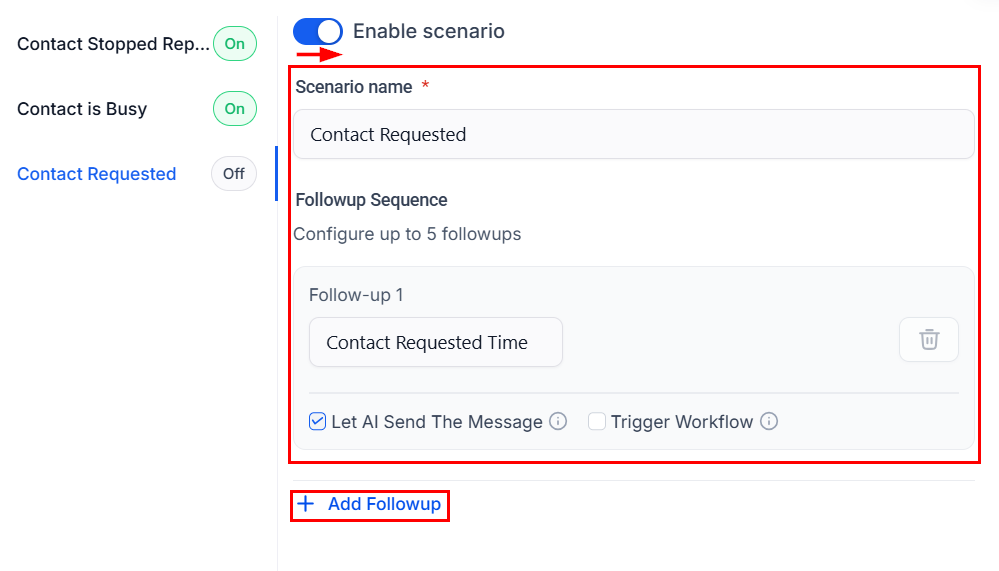
Auto follow-up contact and timing settings
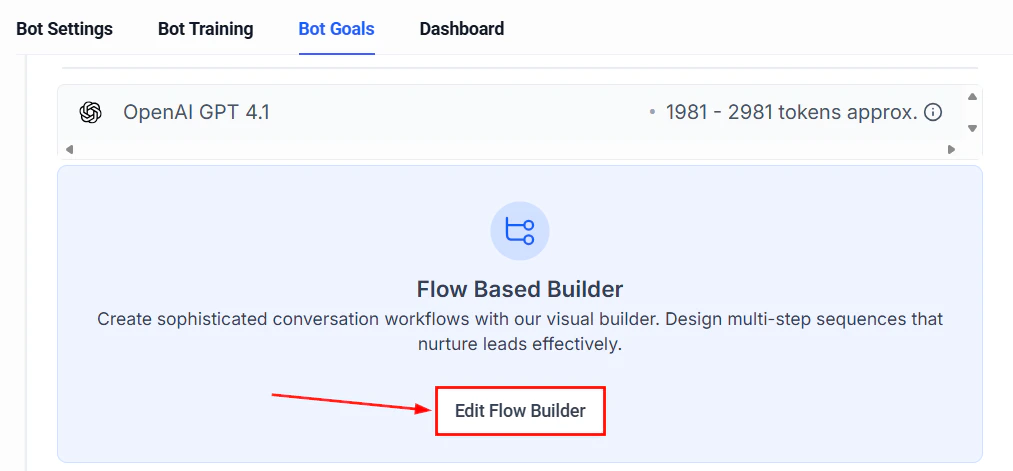
Workflow builder with auto follow-up trigger
Channel-specific setup and best practices
Use the tabs below to jump to the channel you are configuring.- SMS
- Instagram DM
- Facebook Messenger
- WhatsApp
- Web chat
SMS configuration
SMS is often the highest-engagement channel because messages land directly on a customer’s phone. However, SMS has unique constraints you need to plan for.Setup checklist
- Phone number: Ensure you have an active phone number provisioned in HoopAI. Go to Settings > Phone Numbers to confirm.
- A2P 10DLC registration: If you are sending SMS in the United States, you must complete A2P 10DLC registration to avoid carrier filtering.
- Assign the channel: In your bot settings, toggle SMS on under the Channels section.
Best practices
- Keep messages short. SMS messages are limited to 160 characters per segment. Longer messages get split into multiple segments, which increases cost and can feel overwhelming. Instruct your bot in the prompt to keep replies under 300 characters when possible.
- Avoid links in early messages. Carriers often flag messages with URLs as spam, especially from new numbers. Let the bot build rapport before sharing links.
- Handle opt-outs gracefully. HoopAI automatically processes STOP and UNSUBSCRIBE keywords. Make sure your bot prompt includes instructions to never argue with a customer who wants to opt out.
- Use natural language. Avoid overly formal or robotic phrasing. SMS is a casual channel — customers expect quick, conversational replies.
- Set quiet hours. Configure your bot to avoid sending messages late at night or early in the morning. This can be managed through workflow timing or bot scheduling settings.
Prompt tip for SMS
Add a line like this to your bot prompt: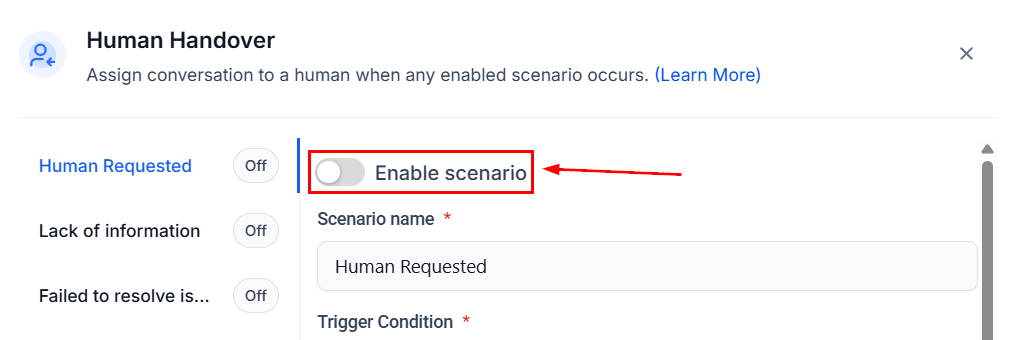
Channel-specific prompt strategies
While each tab above includes a prompt tip, here is a summary of how your bot prompt should adapt by channel. You can include all of these instructions in a single prompt — the bot will automatically detect which channel a conversation is happening on and adjust accordingly.Unified inbox management
When your bot operates across multiple channels, all conversations flow into the HoopAI unified inbox. This means your team can see and manage every interaction in one place regardless of where it originated.Key inbox features for multi-channel bots
- Channel indicator: Each conversation is tagged with the channel it came from (SMS, IG, FB, WhatsApp, Web Chat), making it easy to identify context at a glance.
- Bot status per contact: You can see whether the bot is active, paused, or stopped for each individual contact. Learn more about bot status management.
- Conversation labels: Use conversation labels to categorise conversations by channel, topic, or priority.
- Assignment rules: Set up conversation assignment rules to route escalated conversations to the right team member based on the originating channel.
- Filters and bulk actions: Use filters to view only conversations from a specific channel, making it easy to audit bot performance by channel.
Handling cross-channel contacts
A single contact may reach out on multiple channels. HoopAI merges these interactions into one contact record, so the bot has full context regardless of channel. Keep these tips in mind:- Consistent information: Make sure your bot provides the same information regardless of channel. Discrepancies can confuse customers.
- Channel preference: If a customer messages on both SMS and web chat, consider which channel to continue the conversation on. You can use workflows to consolidate communication.
- Contact bot status: The bot status is set per contact, not per channel. If the bot is stopped for a contact on SMS, it will also be stopped on other channels unless you use separate bots per channel.
Testing your multi-channel deployment
Before going live across all channels, follow this testing checklist:1
Test each channel individually
Send a test message on each channel and confirm the bot responds with appropriate tone and formatting for that channel.
2
Verify opt-out handling on SMS
Send “STOP” via SMS and confirm the bot does not respond and the contact is properly opted out.
3
Test human handover
Trigger an escalation scenario and verify the conversation is properly handed off to a human agent across each channel.
4
Check the unified inbox
Confirm that all test conversations appear in the conversations inbox with the correct channel labels.
5
Review the dashboard
Check the Conversation AI dashboard to verify that metrics are being tracked for each channel.
Common multi-channel issues
For more detailed troubleshooting, see Troubleshooting Conversation AI.
Next steps
Multi-bot orchestration
Use different bots for different channels, departments, or languages.
Bot settings
Configure primary and non-primary bots and manage channel assignments.
Chat widget overview
Set up and customise the website chat widget for your AI bot.
Conversations overview
Learn how the unified inbox works across all messaging channels.