

Key Benefits of Training Your Bot
- Improved Accuracy: By accessing relevant data sources, your bot can deliver precise responses tailored to customer questions.
- Enhanced Efficiency: Automated responses reduce manual intervention, saving time for both your team and customers.
- Consistency: Ensure customers receive consistent, high-quality information across all interactions.
- Scalability: Support a growing customer base without increasing resource requirements.
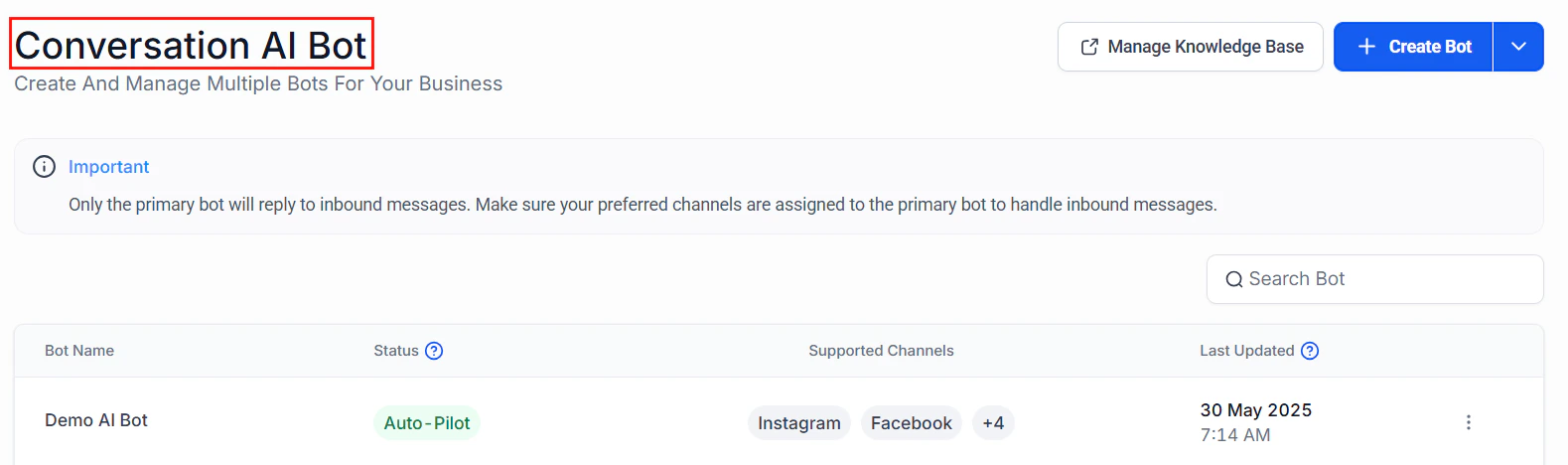
Screenshot
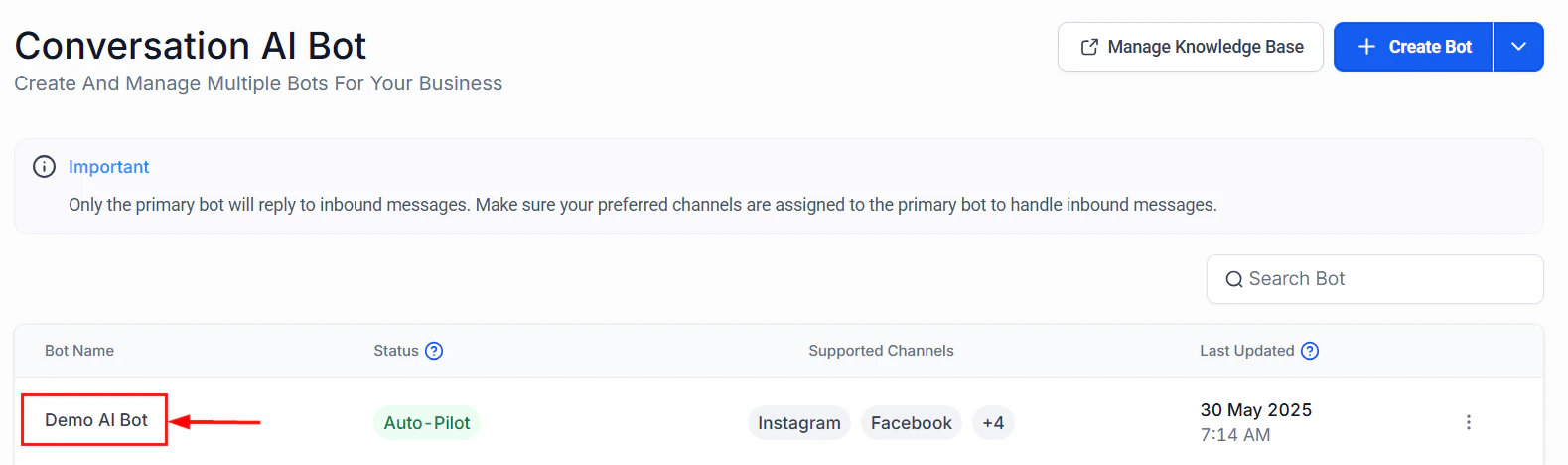
Screenshot
Bot Training
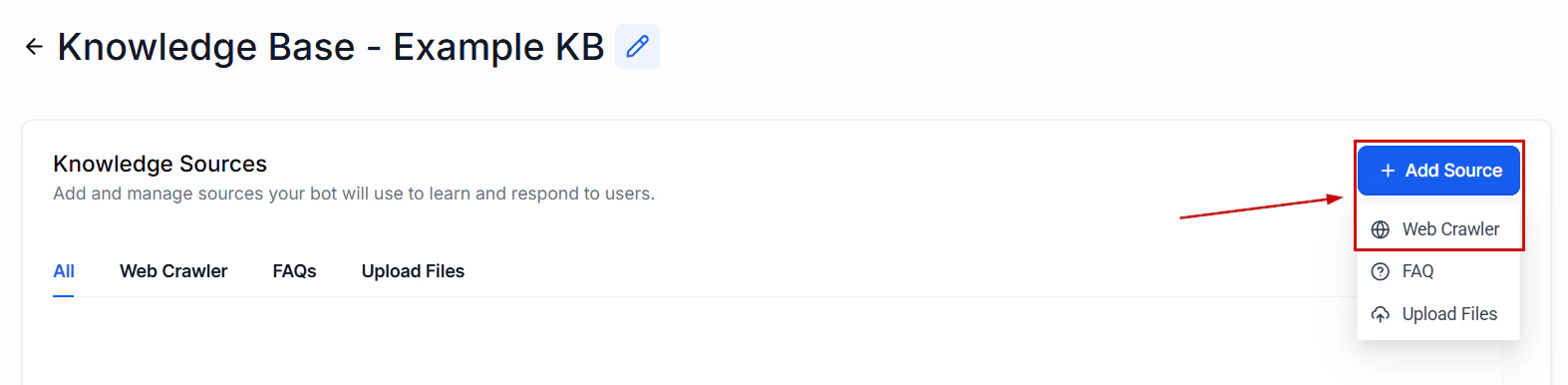
Switch to the Bot Training tab to train your AI bot, ensuring it delivers accurate and relevant responses. Here, you can choose whether to select up to 7 knowledge bases from the dropdown or create a new knowledge base. For step-by-step instructions on how to create a knowledge base, refer to the “How to Create a Knowledge Base” article.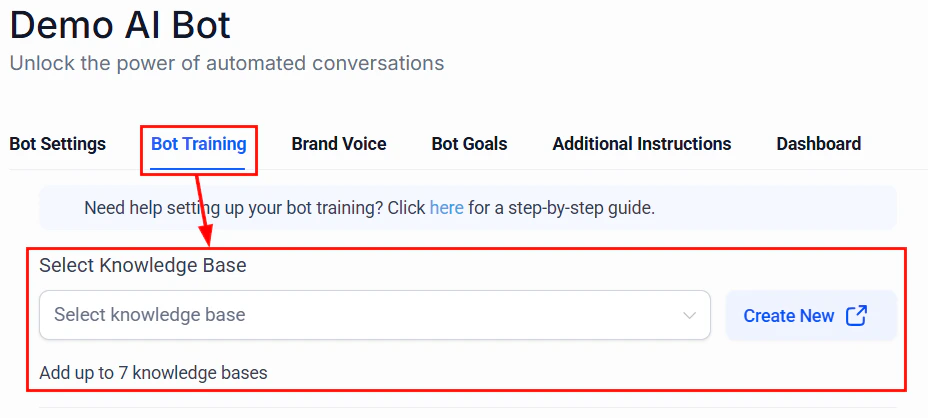
Screenshot
Web Crawler
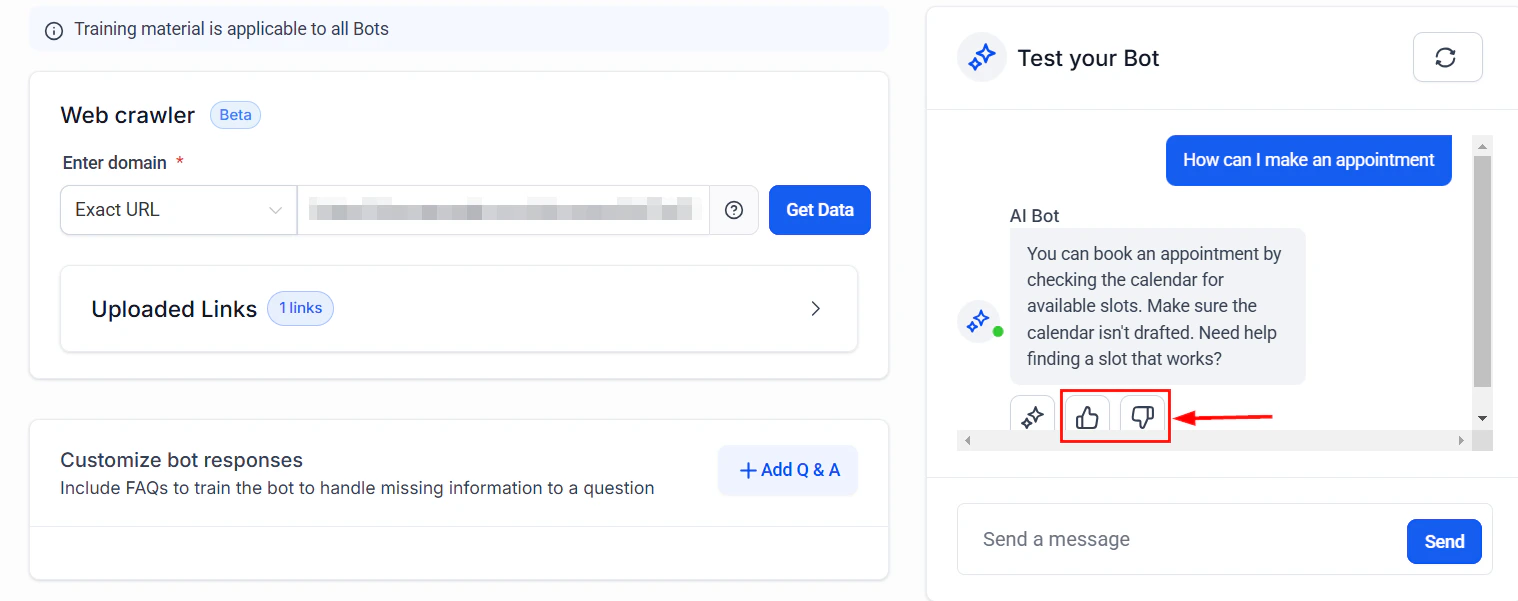
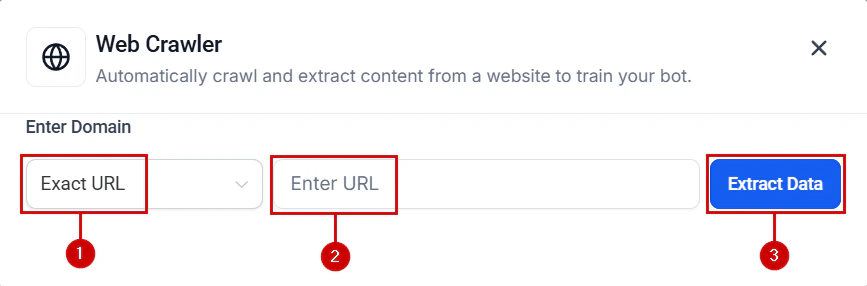
The Web Crawler enables you to train your bot using publicly available information from websites, helping ensure it delivers accurate and contextually relevant responses. You can configure the Web Crawler to extract data from specific URLs, site paths, entire domains, or even public Google Docs. By default, any links added to the knowledge base will be processed and displayed here.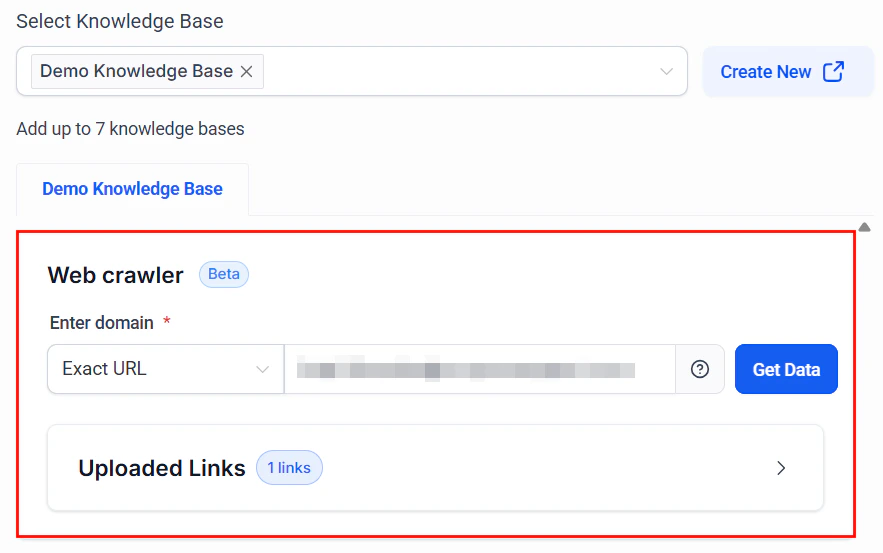
Screenshot
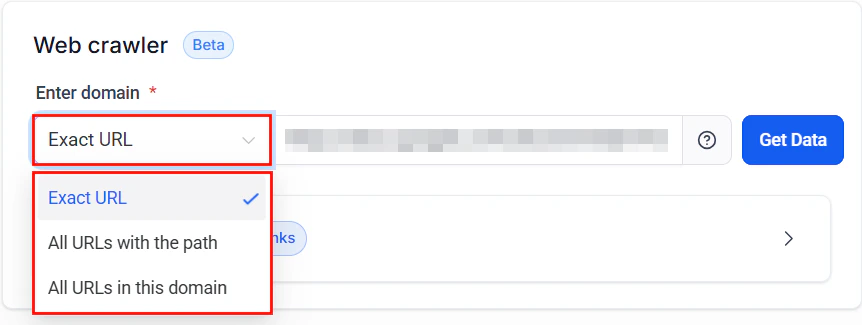
Screenshot
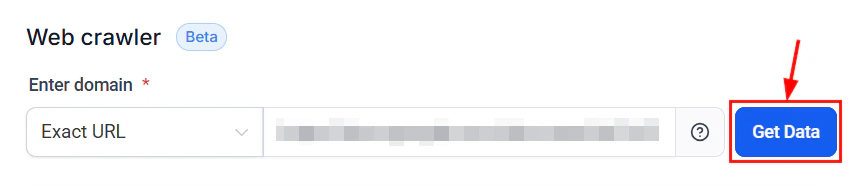
Screenshot
Custom Bot Responses (FAQs)
Custom Bot Responses allow you to define precise answers for frequently asked questions, ensuring the bot provides consistent and accurate information, particularly for critical customer queries.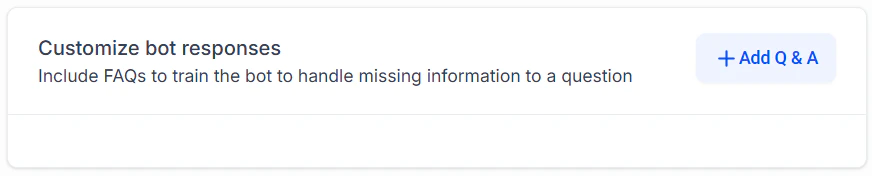
Screenshot
Best Practices for Custom Bot Responses:
- Keep responses clear and concise.
- Anticipate variations of commonly asked questions.
- Regularly update responses to match evolving customer needs.
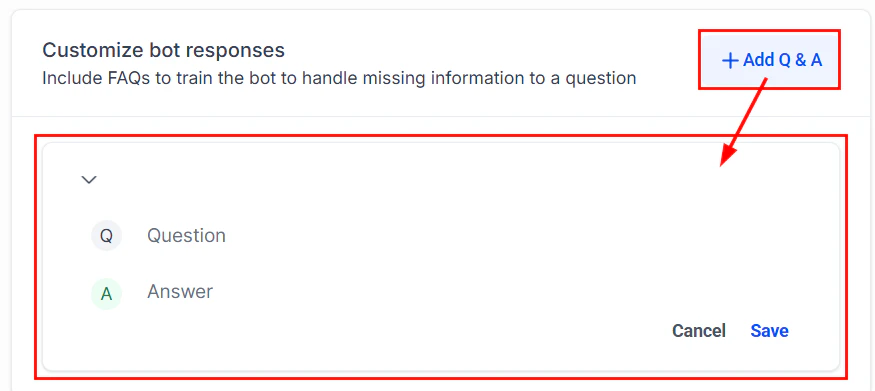
Screenshot
Screenshot
Frequently Asked Questions
How often should I update my bot's training data?
How often should I update my bot's training data?
Updating your bot’s training data quarterly or following major service updates ensures it remains accurate and relevant.
Can I use multiple URLs for training the bot?
Can I use multiple URLs for training the bot?
Yes, combining various types of URLs (Exact, Path-specific, and Domain-level) can help create a more comprehensive knowledge base. Simply redo the steps listed in the Web Crawler section to train the bot using multiple URLs.
How can I ensure my bot's responses are accurate?
How can I ensure my bot's responses are accurate?
Use the feedback system, regularly test your bot by simulating customer queries, and frequently update your FAQs.
What happens if my bot cannot answer a question?
What happens if my bot cannot answer a question?
The bot may request clarification or escalate the query to a human agent based on its configuration.
What types of information work best for Custom Bot Responses?
What types of information work best for Custom Bot Responses?
Provide precise, critical information like pricing, policies, and instructions to effectively address common customer inquiries.
Training with Google Docs
Leveraging Google Docs for training your Conversation AI bot offers numerous benefits, including efficient training processes, real-time corrections, and expanded training options. This integration provides a streamlined approach to enhancing your bot’s conversational abilities, making it easier to ensure accurate and relevant interactions. Follow these steps to utilize Google Docs in your bot training and take advantage of its versatile capabilities.Benefits
- Efficient Training: Google Docs provides a straightforward and effective platform for enhancing your bots’ conversational abilities, streamlining the training process.
- Real-time Corrections: This integration allows for the flexibility to make corrections and refine bot responses in real-time, ensuring interactions are accurate and contextually relevant.
- Expanded Training Options: With the addition of Google Docs, users now have an alternative to website URLs for comprehensive bot training, offering more versatility in training materials.
Setting The Knowledge Base
Check Document Permissions
Ensure the Google Docs document is set to public permissions to allow data fetching. Adjust permissions if necessary.Creating The Knowledge Base
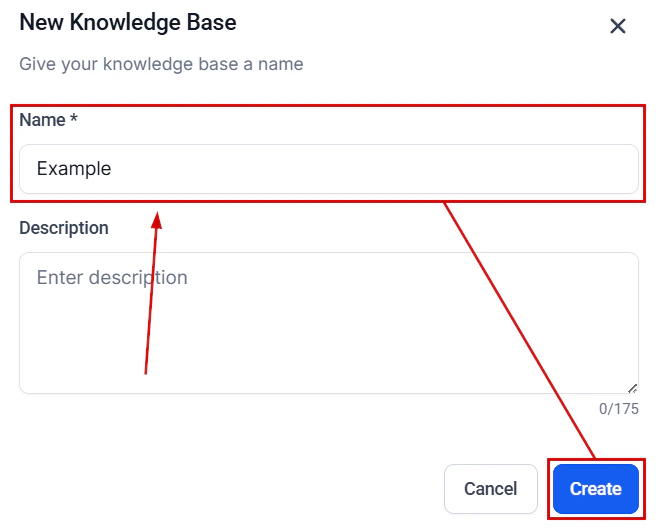
Navigate to the “Knowledge Base” section in your account settings and click ”+ Create Knowledge Base.”
Screenshot
Screenshot
Screenshot
Screenshot
Adding The Knowledge Base
To add it, navigate to the Conversation AI tab and edit or create a bot.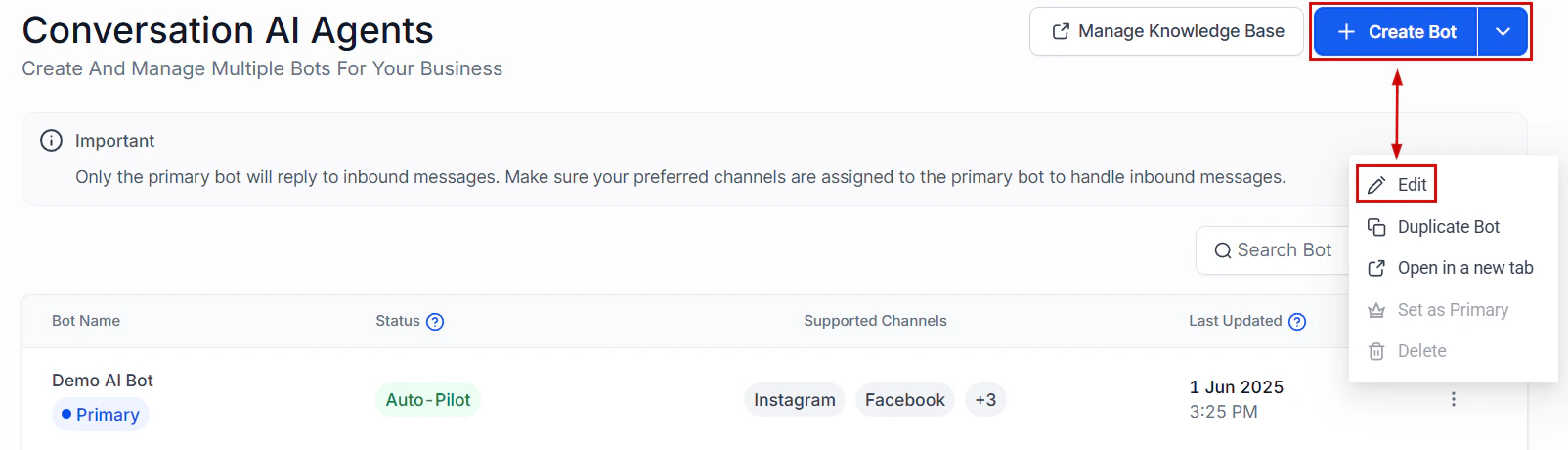
Screenshot
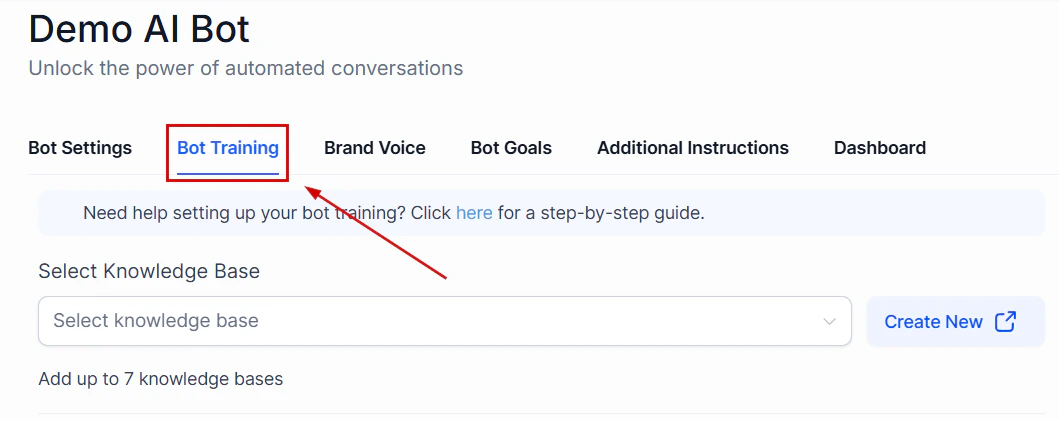
Screenshot
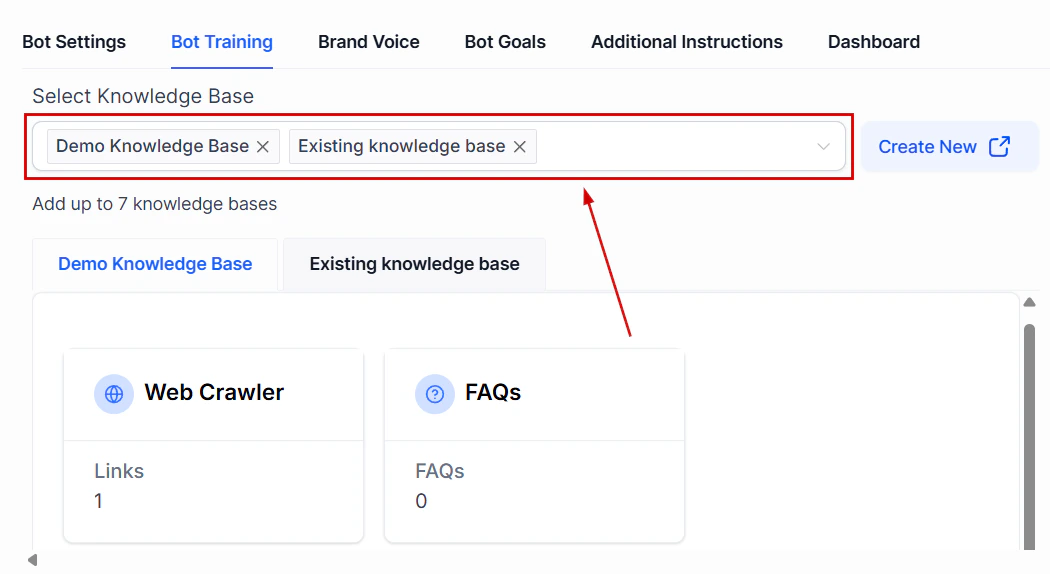
Screenshot
Collecting contact information
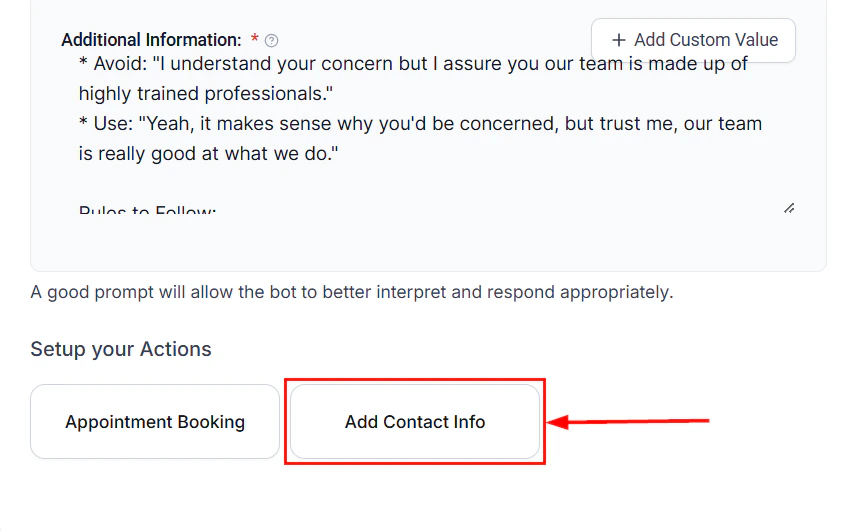
The Add Contact Info feature is designed to help users easily add or update contact information directly through an AI bot. This feature allows for seamless management of contact details, including name, phone number, email, business name, and more. By using this tool, users can ensure that their contact data is always accurate and up-to-date, significantly improving data management processes.How It Works
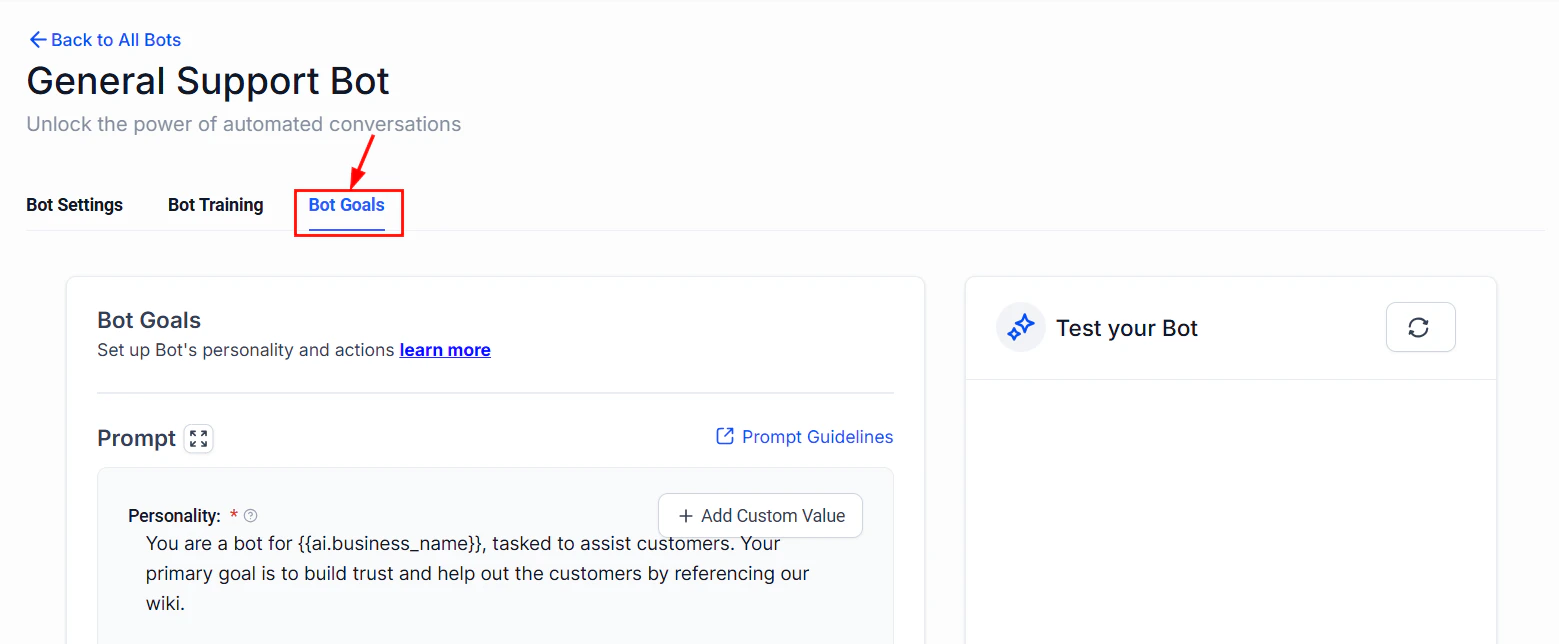
Access the Add Contact Info Feature
Navigate to the Conversation AI settings in your account, then edit an existing bot, or create a new one.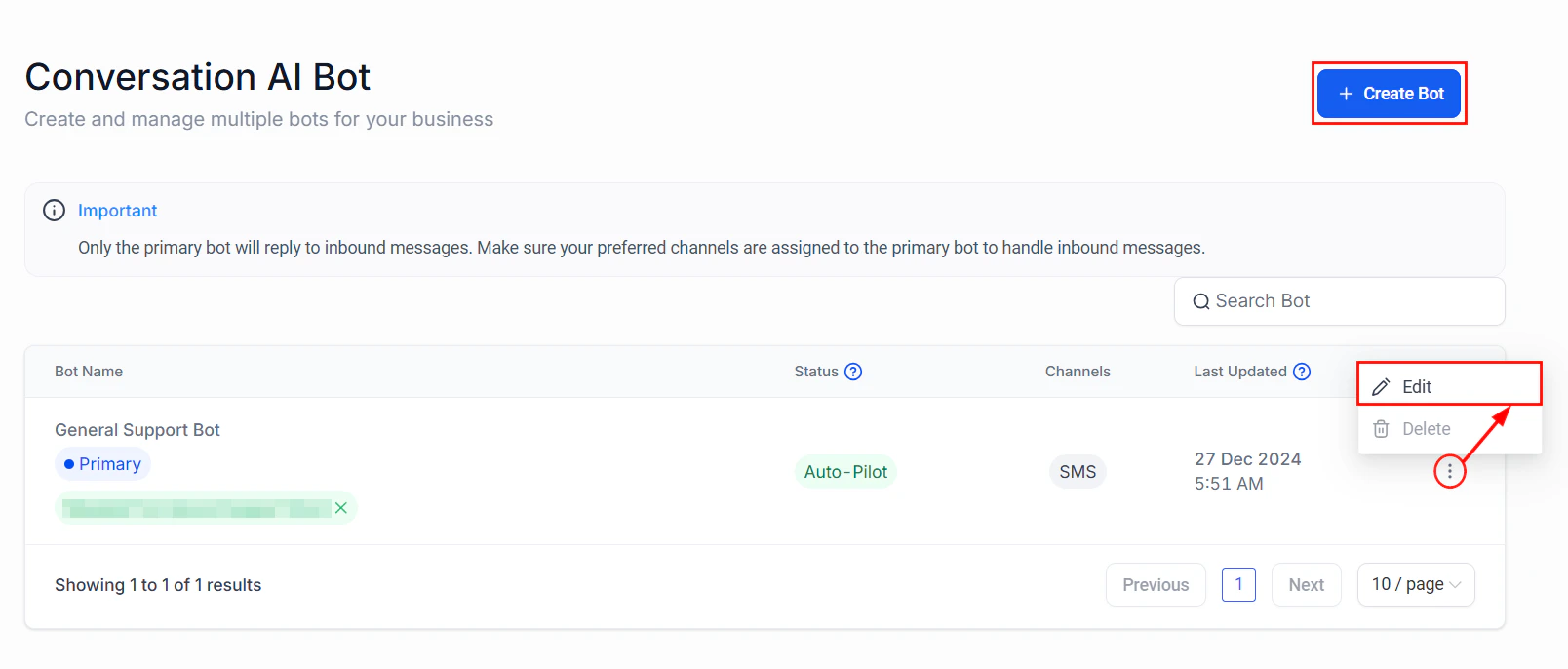
Screenshot
Screenshot
Screenshot
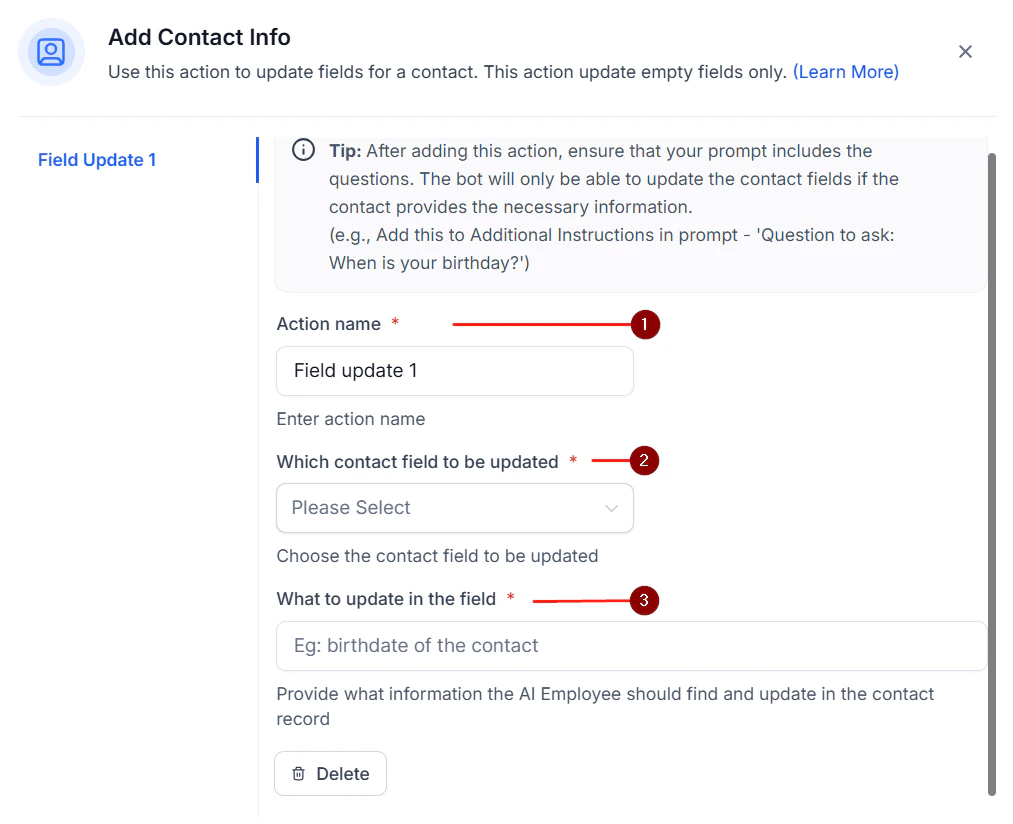
Set Up the Fields
- Action Name: Assign an action name to clearly identify the update. For example, “Contact’s Date of Birth.”
- Select Field: Choose the specific field you wish to update, such as name, phone number, email, business name, or date of birth.
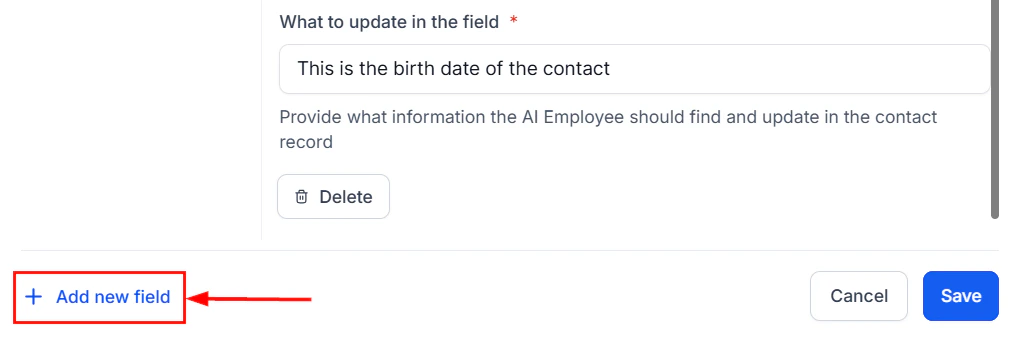
- What to Update: Provide a brief description of the update. For instance:
- For Date of Birth: “This is the birth date of the contact.”
- For Business Name: “This is the business name of the contact.”
Screenshot
Screenshot
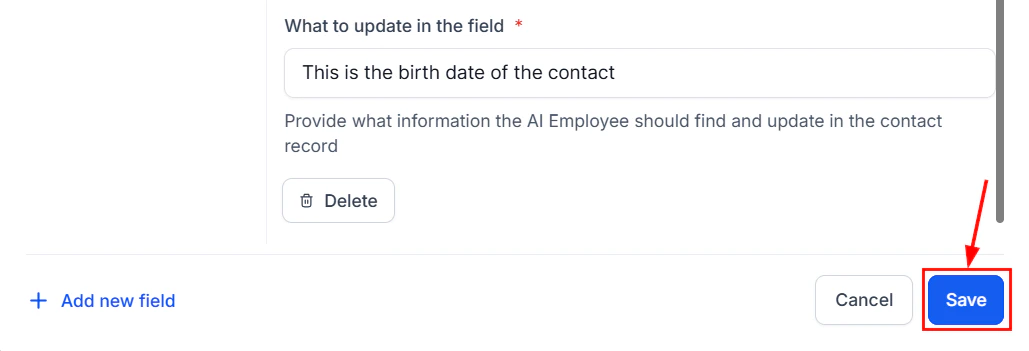
Screenshot
Output Example (Optional)
Include an example of the updated information in the additional information section for clarity (e.g., “5th Jan 1990”).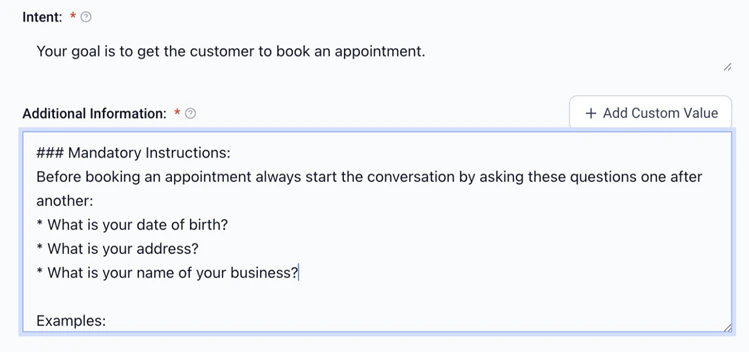
Screenshot
✍️Important Notes
- The bot will only update fields that are empty in the contact information.
- Email and phone numbers are automatically updated and do not require manual input through this feature.
Best Practices for Bot Prompts
After saving or updating contact information, it is essential to provide explicit instructions in the bot’s prompt for collecting customer details. For example: “Ask the customer for their date of birth.” Without this instruction, the bot will not prompt for the required information, and the field will remain unfilled.Example Prompt for Collecting Contact Information:
Before booking an appointment, always ask the following questions in order:- Ask for the customer’s name.
- Ask for the customer’s email.
- Ask for the customer’s phone number.
- Ask for the customer’s date of birth.
- Ask for the customer’s business name.