

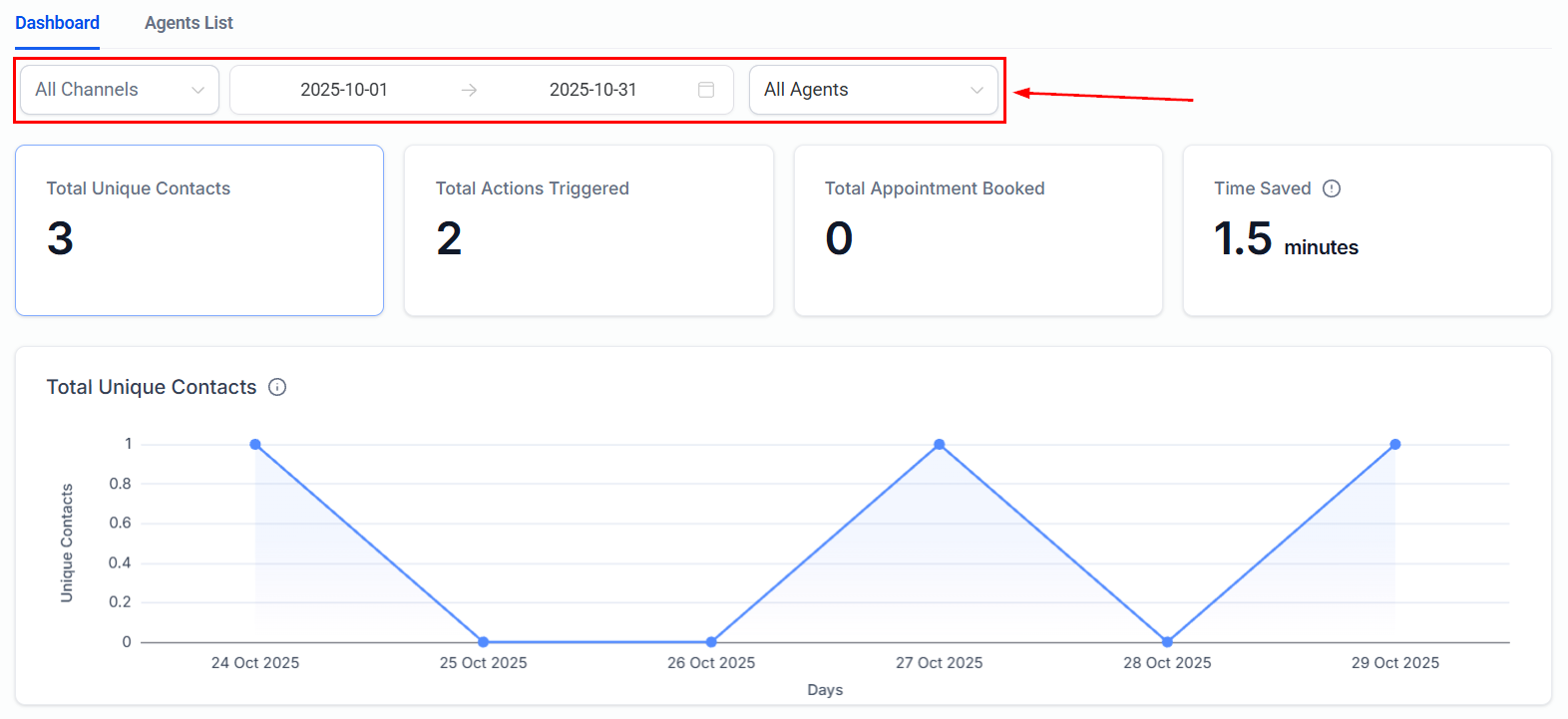
The Conversation AI dashboard where you diagnose bot performance issues
Common issues and solutions
Bot does not respond to messages
Bot does not respond to messages
This is the most frequently reported issue. If your bot is not responding to inbound messages, work through these checks in order.
Check 1: Bot status
The most common cause is that the bot is turned off or set to Suggestive mode instead of Auto-Pilot.- Navigate to Settings > Conversation AI and select your bot.
- Confirm the Bot Status is set to Auto-Pilot. If it is set to Suggestive, the bot will only suggest responses in the inbox — it will not send them automatically.
- If the status is Off, toggle it to Auto-Pilot and save.
Check 2: Channel assignment
The bot only responds on channels that are explicitly assigned to it.- In your bot settings, check the Channels section.
- Confirm that the channel the customer is messaging on (SMS, Facebook, Instagram, WhatsApp, Web Chat) is toggled on.
- If the channel is not assigned, toggle it on and save.
Check 3: Contact bot status
Each contact has an individual bot status that can override the global bot setting.- Open the conversation in the conversations inbox.
- Check the contact details panel for the Bot Status indicator.
- If the status shows Stopped or Paused, the bot will not respond to this specific contact even if the bot is globally active.
- Re-enable the bot for this contact manually or via a workflow.
Check 4: Primary bot assignment
If you are using multiple bots, make sure the correct bot is designated as the primary bot.- Go to Settings > Conversation AI.
- Verify which bot is marked as Primary. The primary bot handles all inbound conversations not assigned to another bot via workflow.
- If no bot is set as primary, inbound messages on unassigned channels will go unanswered.
Check 5: Do Not Disturb
If the contact has Do Not Disturb enabled, no messages (including bot messages) will be sent to them.Check 6: Phone number or integration issues
- For SMS: Verify your phone number is active and properly provisioned in Settings > Phone Numbers.
- For Instagram/Facebook: Verify the integration is connected in Settings > Integrations. Reconnect if the token has expired.
- For WhatsApp: Verify the WhatsApp Business API connection is active.
Bot gives wrong or inaccurate answers
Bot gives wrong or inaccurate answers
If your bot is responding but providing incorrect information, the issue usually lies in the knowledge base or the bot prompt.
Knowledge base issues
- Check training status: Navigate to Settings > Knowledge Base and verify that your knowledge base shows a Trained status. If it shows Pending or Failed, the bot may not have access to the information. See knowledge base for training details.
- Review content accuracy: Open your knowledge base and verify that the information is correct and up to date. Outdated content is a common source of wrong answers.
- Check knowledge base assignment: Make sure the correct knowledge base is assigned to the bot. A bot can only use knowledge bases that are explicitly linked to it.
- Improve content format: Structure your knowledge base content with clear headings, short paragraphs, and explicit Q&A pairs. The AI retrieves information more accurately when content is well-organised.
Prompt refinement
- Add grounding instructions: Include explicit instructions in your prompt like “Only answer questions using information from your knowledge base. If you do not have the information, say so and offer to connect the customer with a team member.”
- Be specific about boundaries: Tell the bot what topics it should and should not discuss. For example: “Do not provide pricing information. Instead, direct the customer to schedule a call.”
- Include example responses: Adding 2-3 example question-and-answer pairs in your prompt helps the bot understand the expected response format and level of detail.
- Test with real questions: After updating the prompt, test with the exact questions that were producing wrong answers.
Hallucination prevention
AI bots can sometimes generate plausible-sounding but incorrect information (known as “hallucination”). To minimise this:- Add a prompt instruction: “Never make up information. If you are unsure about something, clearly state that you do not have that information.”
- Keep knowledge base content factual and avoid ambiguous language.
- Regularly review conversation logs on the Conversation AI dashboard to catch inaccuracies early.
Bot will not stop messaging the contact
Bot will not stop messaging the contact
If the bot keeps sending messages when it should stop, the issue is usually related to the max messages setting or missing stop conditions.
Max messages setting
- Open your bot settings and look for the Max Messages configuration.
- Set a reasonable limit (e.g., 10-15 messages per conversation). Once this limit is reached, the bot will stop responding.
- If max messages is set to unlimited or a very high number, the bot will continue responding indefinitely.
Stop bot action
Configure a Stop Bot action in your bot goals:- Navigate to your bot Bot Goals tab.
- Add a Stop Bot action with clear trigger conditions (e.g., “Stop when the customer says goodbye”, “Stop after the appointment is booked”).
- Test the stop conditions to make sure they trigger reliably.
Workflow-based stop
You can also stop the bot using a workflow:- Create a workflow with an appropriate trigger (e.g., appointment booked, tag added).
- Add a Disable Bot for Contact action.
- This immediately stops the bot from sending further messages to that contact.
Bot cannot book appointments
Bot cannot book appointments
If the bot is supposed to book appointments but fails to do so, check these areas.
Calendar connection
- Navigate to Settings > Calendars and verify that a calendar is connected and active.
- Confirm the calendar is linked to the correct team member or resource.
- If using Google Calendar or Outlook, check that the integration token has not expired.
Bot action configuration
- In your bot Bot Goals tab, verify that a Book Appointment action is configured.
- Check that the correct calendar is selected in the action settings.
- Review the trigger conditions — the bot needs clear instructions on when to offer booking (e.g., “When the customer expresses interest in scheduling a meeting”).
Timezone issues
- Verify the account timezone in Settings > Business Profile.
- Check that the calendar availability is set in the correct timezone.
- If the bot is showing wrong available times, the timezone mismatch is likely the cause.
Availability settings
- Open the calendar that the bot is trying to book on.
- Verify that availability hours are set and not blocked.
- Check for conflicts — if all slots are full, the bot cannot offer any times.
- Make sure the booking buffer and minimum scheduling notice settings are not overly restrictive.
Prompt instructions
Make sure your prompt includes clear instructions for the booking flow:Bot responds too slowly
Bot responds too slowly
If there is a noticeable delay between the customer message and the bot response, consider these factors.
Expected delay
By design, the bot waits approximately 2 minutes after the last customer message before responding when in Auto-Pilot mode. This is intentional — it allows the customer to send multiple messages before the bot responds, creating a more natural conversation flow.If the delay is significantly longer than 2 minutes, continue with the checks below.Knowledge base size
Large knowledge bases take longer to search. If your knowledge base contains hundreds of pages or very long documents:- Break large documents into smaller, focused sections.
- Remove outdated or irrelevant content.
- Use clear headings and structured formatting to help the AI find information faster.
Prompt complexity
Extremely long or complex prompts can slow response generation:- Keep your prompt focused and concise — aim for under 2000 words.
- Remove redundant instructions.
- Use clear, simple language in your prompt rather than complex conditional logic.
Concurrent load
During peak hours, response times may increase slightly due to higher demand on the AI system. This is normal and typically resolves on its own.If you consistently experience slow responses during business hours, consider streamlining your knowledge base and prompt as described above.Bot escalates too often or not enough
Bot escalates too often or not enough
Finding the right balance for human escalation is critical. If the bot escalates too many conversations, it defeats the purpose of automation. If it escalates too few, customers with complex issues get stuck.
Escalation triggers in the prompt
The bot escalation behaviour is primarily controlled by your prompt. Review and adjust these instructions:If the bot escalates too often:- Your prompt may have overly broad escalation triggers. Narrow them down. Instead of “escalate if the customer seems unhappy”, use “escalate only if the customer explicitly requests to speak with a human agent or if the customer expresses strong frustration after two or more attempts to resolve their issue.”
- Make sure the bot has enough information in its knowledge base to handle common questions without escalating.
- Add instructions like: “Try to resolve the issue using your knowledge base before escalating. Only escalate as a last resort.”
- Add explicit escalation triggers to your prompt: “If the customer mentions a legal issue, a safety concern, or requests a refund over $500, immediately escalate to a human agent.”
- Include a catch-all: “If you cannot confidently answer the question after checking your knowledge base, escalate to a human agent.”
- Make sure a human handover action is properly configured in your bot goals.
Monitoring escalation rates
Use the Conversation AI dashboard to track escalation rates over time. A healthy escalation rate depends on your business, but generally:- Under 10%: The bot is handling most conversations well (verify it is not missing cases that should escalate).
- 10-25%: Normal range for most businesses.
- Over 25%: The bot may need a better knowledge base or more detailed prompt instructions.
Bot responds in the wrong language
Bot responds in the wrong language
If your bot is responding in a language different from what the customer expects, address these settings.Or, for multilingual support:
Prompt language specification
The most reliable way to control the bot language is through explicit prompt instructions:Multi-bot language routing
For the best multilingual experience, use separate bots for each language with multi-bot orchestration. This allows each bot to have:- A prompt written entirely in the target language
- A language-specific knowledge base
- Tone and cultural nuances appropriate for that audience
Knowledge base language
If your knowledge base is in English but your prompt tells the bot to respond in Spanish, the bot will translate on the fly — which can introduce inaccuracies. For best results, create separate knowledge bases in each language you support.Bot ignores the knowledge base
Bot ignores the knowledge base
If the bot seems to answer questions from general knowledge rather than your specific knowledge base content, check these areas.
Training status
- Go to Settings > Knowledge Base and find the knowledge base assigned to your bot.
- Check the Status column. It should show Trained.
- If the status is Pending, wait for training to complete. If it shows Failed, delete and re-add the content.
Knowledge base assignment
- Open your bot settings.
- Verify the correct knowledge base is selected in the Knowledge Base section.
- A bot will only reference knowledge bases that are explicitly assigned to it.
Content relevance
The AI searches the knowledge base for content relevant to the question. If the content does not closely match the question, it may not be retrieved.- Use clear, descriptive headings that match how customers ask questions.
- Include FAQ-style content with explicit question-and-answer pairs.
- Avoid jargon unless your customers use it too.
- Keep content concise — long, rambling documents make it harder for the AI to find the right information.
Format issues
- URLs: If you added a URL as a knowledge source, verify the page is publicly accessible and not behind a login wall.
- File uploads: Ensure uploaded files are in a supported format (PDF, DOCX, TXT) and the text is selectable (not scanned images).
- Content length: Very short knowledge base entries (a sentence or two) may not provide enough context. Aim for at least a paragraph per topic.
Grounding instructions in the prompt
Add explicit instructions to force the bot to prioritise the knowledge base:Using dashboard metrics to identify issues
The Conversation AI dashboard provides metrics that can help you proactively identify and diagnose issues before they become widespread.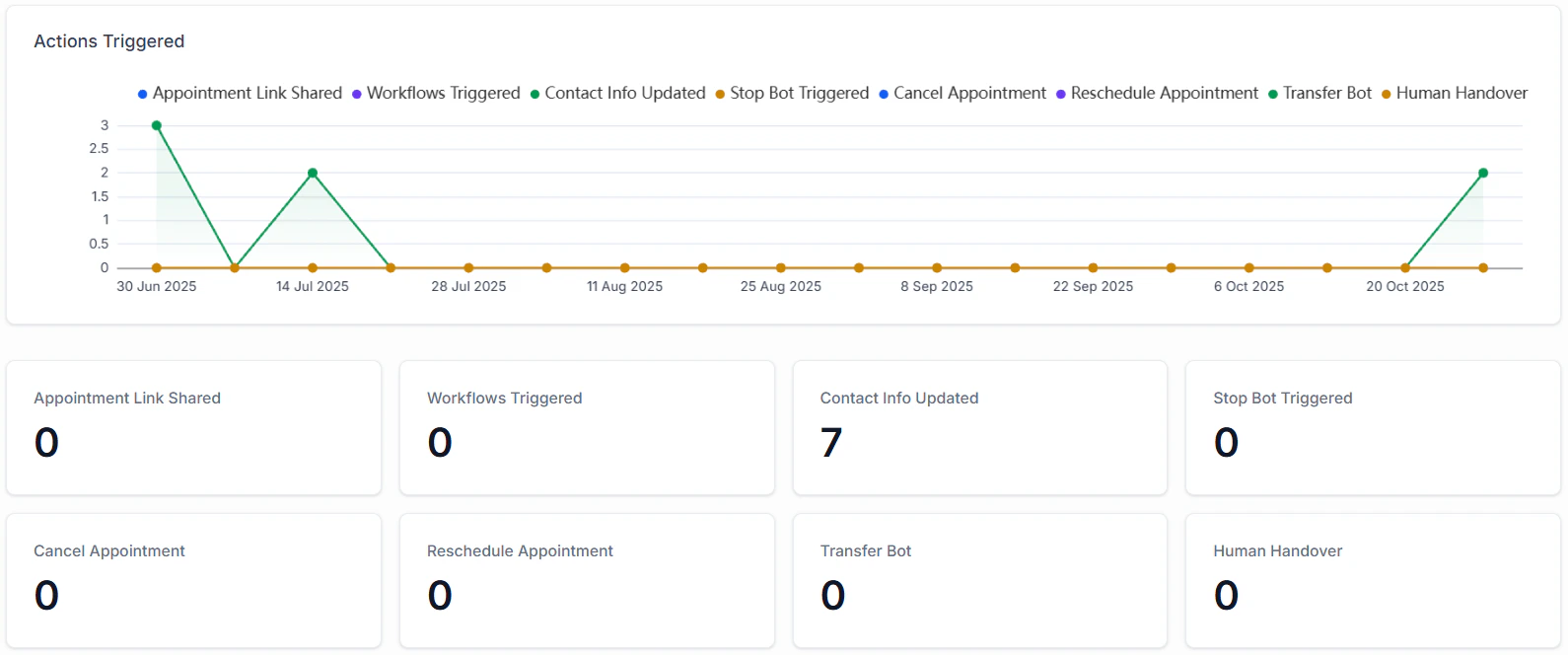
Dashboard analytics view with performance breakdown
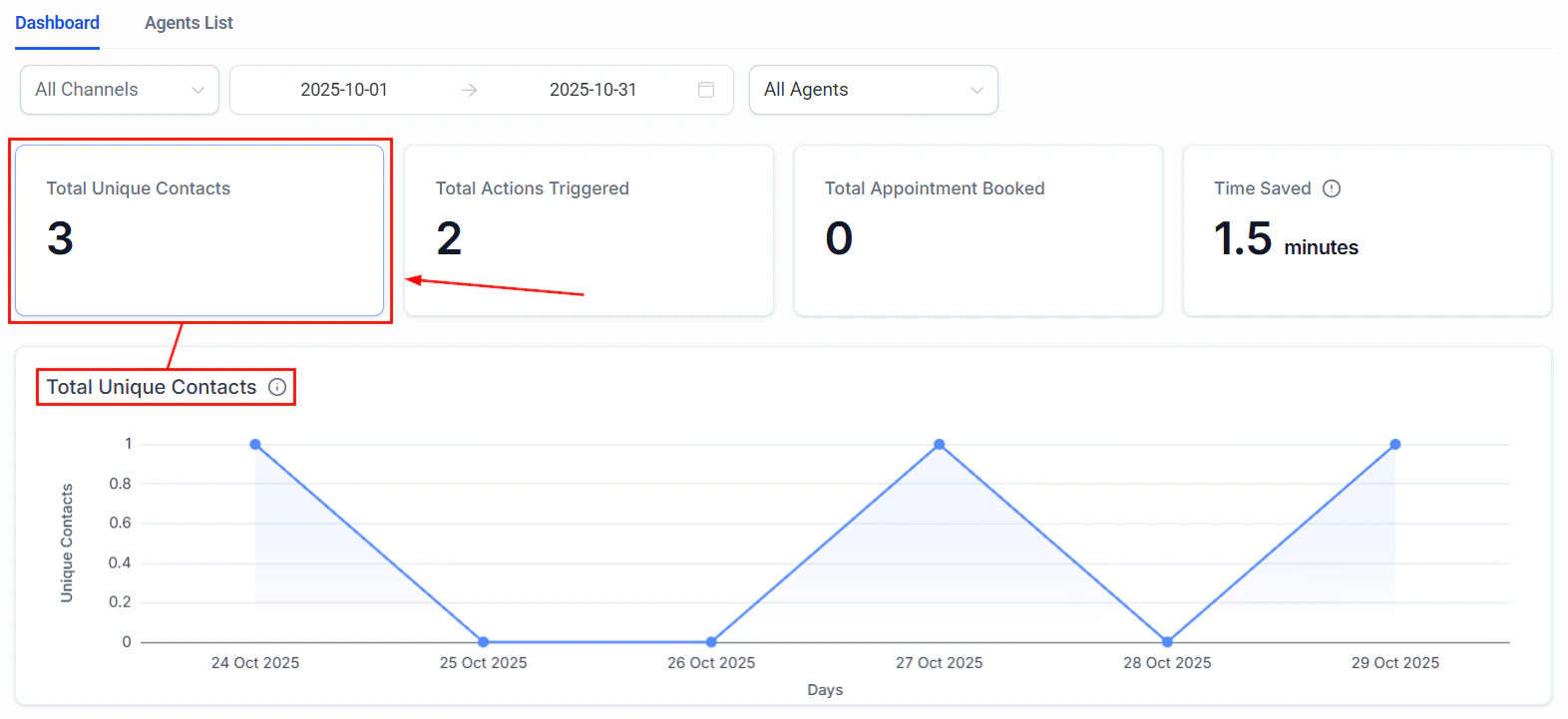
Conversation details view for reviewing individual bot interactions
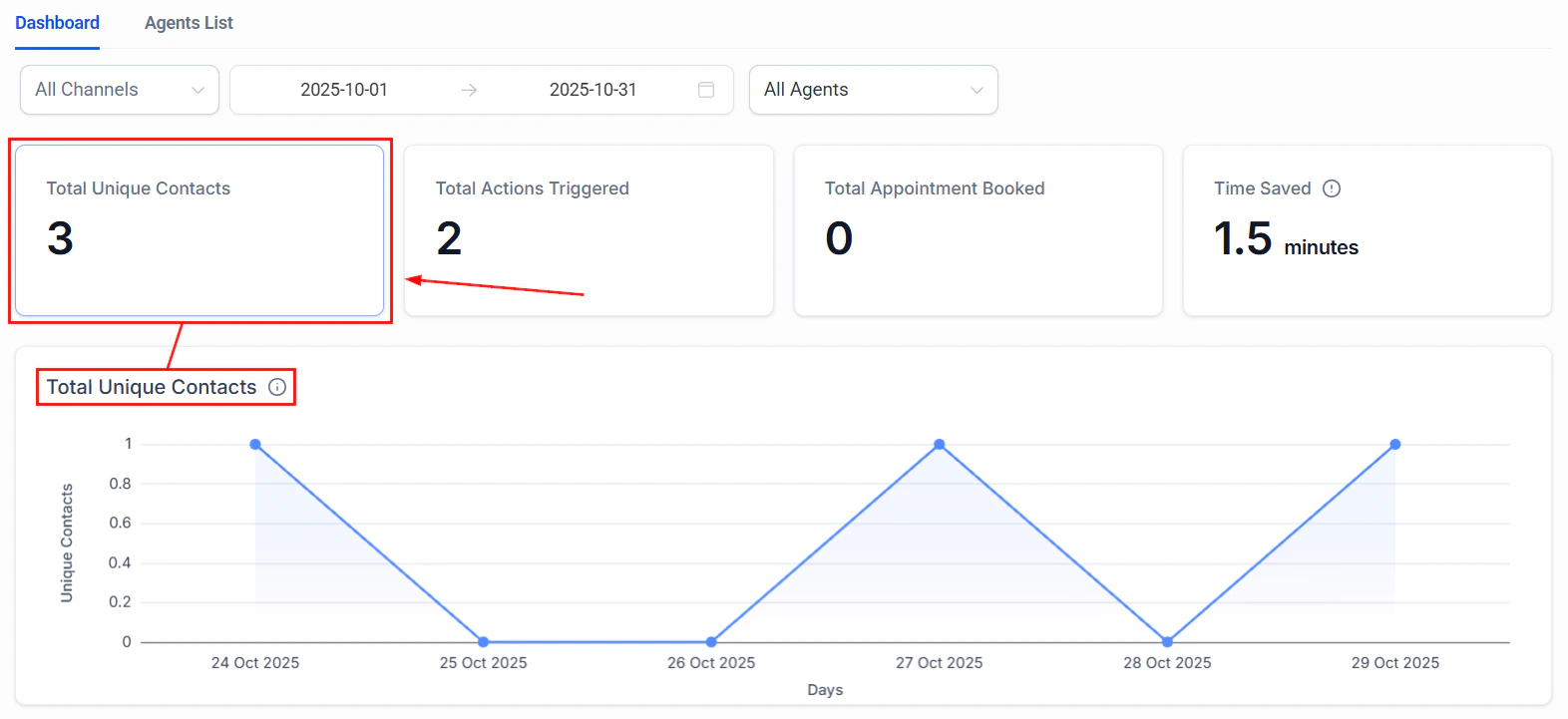
Dashboard detailed analytics view
Key metrics to monitor
Setting up regular reviews
Establish a routine for reviewing bot performance:- Daily: Glance at response rates and escalation rates to catch sudden changes.
- Weekly: Review conversation logs for quality. Read 5-10 random conversations to spot issues the metrics might miss.
- Monthly: Analyse trends, update the knowledge base with new FAQs, and refine the prompt based on observed patterns.
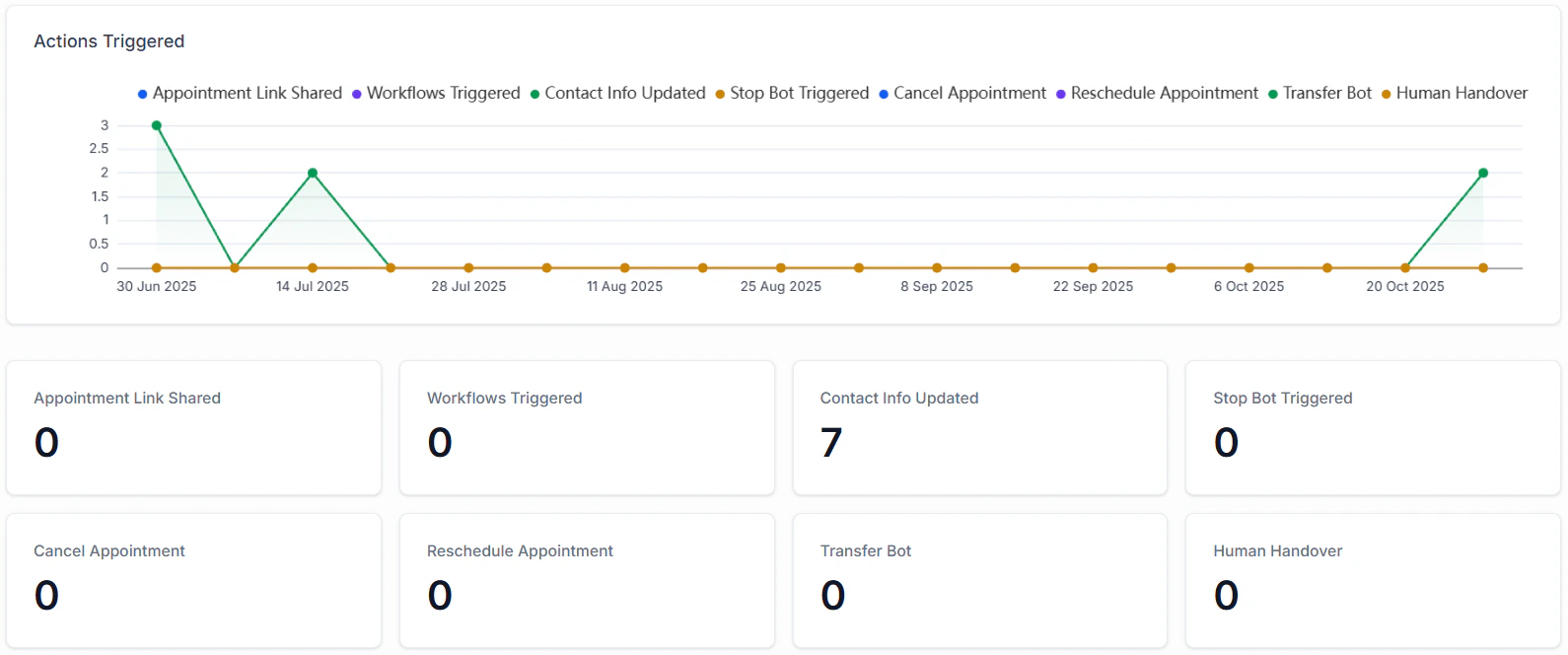
Conversation AI dashboard overview for monitoring bot health
Diagnostic checklist
When troubleshooting any Conversation AI issue, run through this quick checklist:1
Verify bot status
Is the bot set to Auto-Pilot? Is it the primary bot or properly triggered by a workflow?
2
Check channel assignment
Is the affected channel toggled on in the bot settings?
3
Inspect contact bot status
Is the bot active for this specific contact? Check the contact details panel.
4
Review the prompt
Does the prompt clearly instruct the bot on how to handle this type of question or scenario?
5
Check the knowledge base
Is the knowledge base trained, assigned to the bot, and does it contain relevant content?
6
Test with a fresh contact
Create a new test contact and send a message to rule out contact-specific issues.
7
Review the dashboard
Check the Conversation AI dashboard for any unusual metric changes.
When to contact support
If you have worked through all the troubleshooting steps above and the issue persists, it is time to reach out to HoopAI support. When contacting support, provide the following information to speed up resolution:- Bot name and ID: Which bot is affected.
- Channel: Which channel the issue occurs on.
- Contact example: A specific contact or conversation where the issue is visible.
- Steps taken: What troubleshooting steps you have already completed.
- Screenshots: Include screenshots of the bot settings, the conversation, and any error messages.
- Timeline: When the issue first started and whether anything changed around that time (prompt updates, knowledge base changes, integration reconnections).
Next steps
Conversation AI overview
Review bot setup and configuration fundamentals.
Conversation AI dashboard
Monitor bot performance metrics and conversation analytics.
Bot settings
Configure bot status, channels, and primary bot assignment.
Knowledge base
Create and manage the knowledge sources that power your bot.