Let website visitors call your Voice AI agent directly from their browser.
The Voice AI website widget adds a click-to-call button to your website, allowing visitors to start a voice conversation with your AI agent directly from their browser.
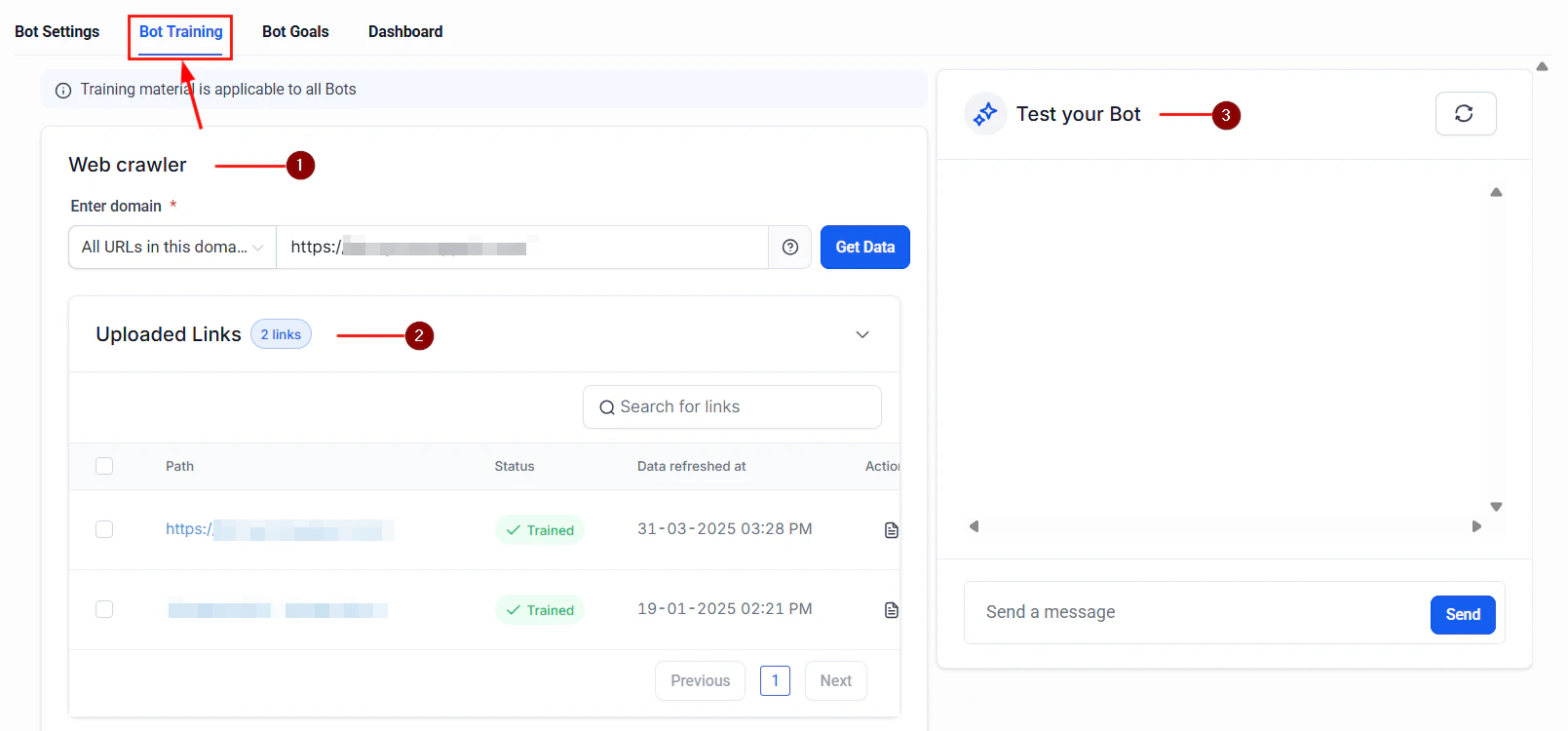
The Conversation AI chat widget that embeds on your website
When a visitor clicks the widget, their browser microphone connects to your Voice AI agent through WebRTC. The visitor speaks naturally, and the AI agent responds in real time, just like a phone call but entirely through the web browser.
In your Voice AI agent settings, navigate to the Channels tab and enable Website Widget.
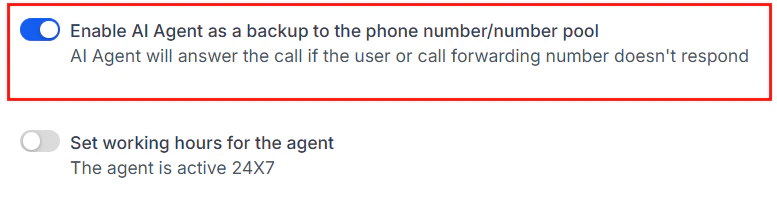
Enable your Voice AI agent before configuring the website widget
2
Customize appearance
Configure the widget appearance:
Button color to match your brand
Position on the page (bottom-right or bottom-left)
Greeting text shown before the visitor starts a call
Agent avatar displayed during the call (optional)
3
Install the embed code
Copy the provided embed code and add it to your website before the closing body tag.
The website widget requires visitors to grant microphone access in their browser. Most modern browsers (Chrome, Firefox, Safari, Edge) support this feature.