Deploy a multi-channel AI agent that handles booking, confirmation, rescheduling, and no-show follow-up.
Build a multi-channel AI agent that handles the full appointment lifecycle — booking, confirmation, reminders, rescheduling, and no-show recovery — across SMS, web chat, phone, and more.
Overview
Goal
Deploy an AI agent that books appointments, sends confirmations and reminders, handles rescheduling requests, and follows up on no-shows
Time to build
60–90 minutes
Prerequisites
Conversation AI or Voice AI enabled, calendar configured, workflows set up
AI features used
Conversation AI + Voice AI + Calendar + Workflows
Difficulty
Intermediate
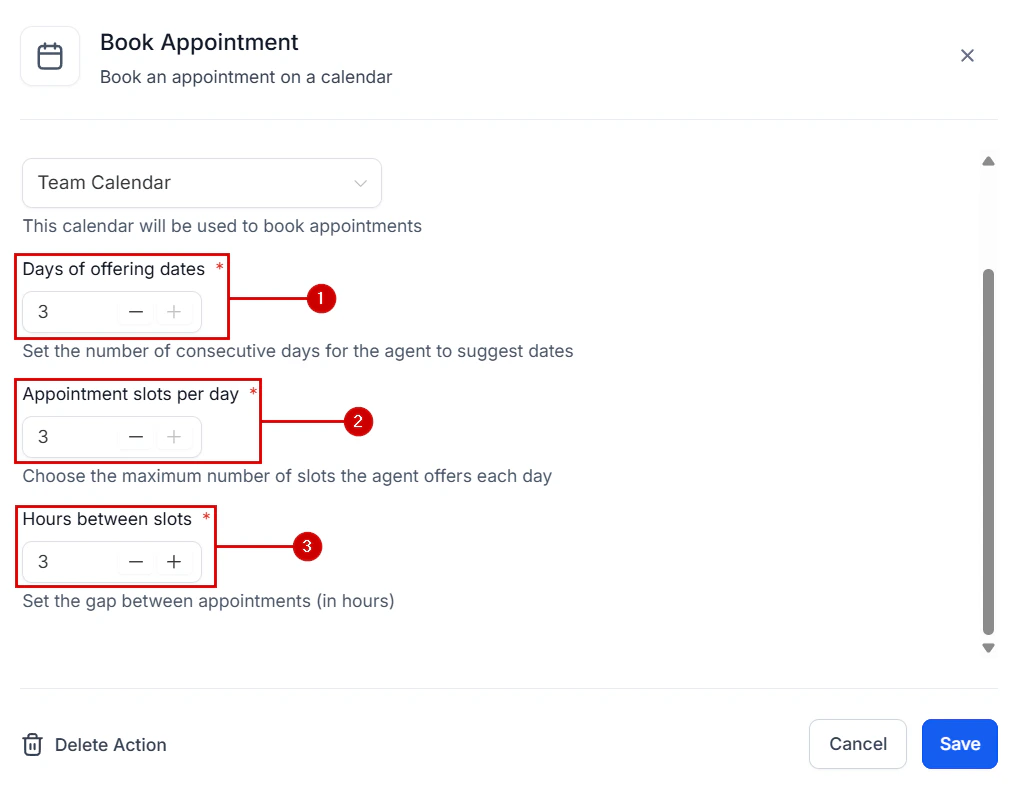
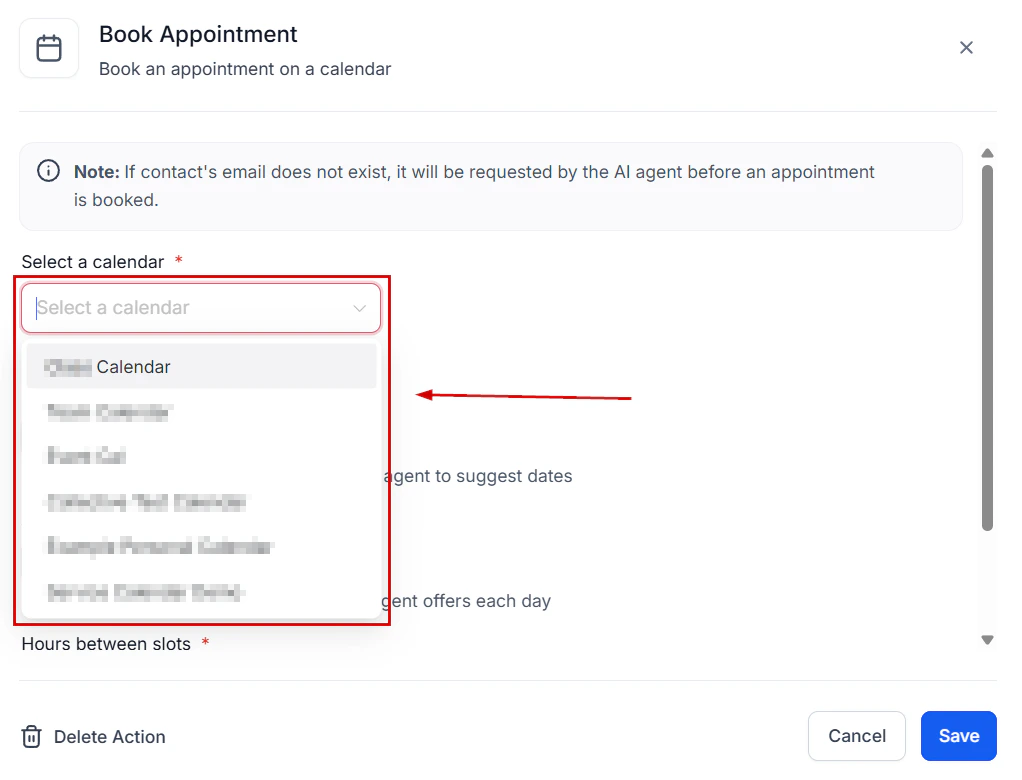
The appointment booking action configuration in the Conversation AI agent
If you want to handle appointment requests over the phone, navigate to AI Agents > Voice AI and create an inbound agent.
Name: “Phone Scheduler”
Direction: Inbound
Calendar: Assign the same calendar
Voice: Choose a clear, professional voice
The Voice AI agent uses the same calendar as the Conversation AI bot, so all bookings are unified. See Creating Voice AI agents.
4
Write the bot prompt
Paste the full prompt from the section below into both the Conversation AI and Voice AI system prompts. The prompt covers:
Greeting and identifying the booking intent
Asking for service type, preferred date/time, and contact details
Offering alternatives when the preferred slot is unavailable
Confirming the booking with a complete summary
Handling rescheduling and cancellation requests
5
Build the confirmation workflow
Go to Automation > Workflows and create a workflow triggered by Appointment Status — Booked.Add these actions:
Send SMS: “Hi {{contact.first_name}}, your {{appointment.type}} is confirmed for {{appointment.date}} at {{appointment.time}}. Reply CHANGE to reschedule or CANCEL to cancel.”
Send email: Include full appointment details, location/meeting link, and preparation instructions
Add tag: “appointment-booked”
Update custom field: Set “Next Appointment Date” on the contact record
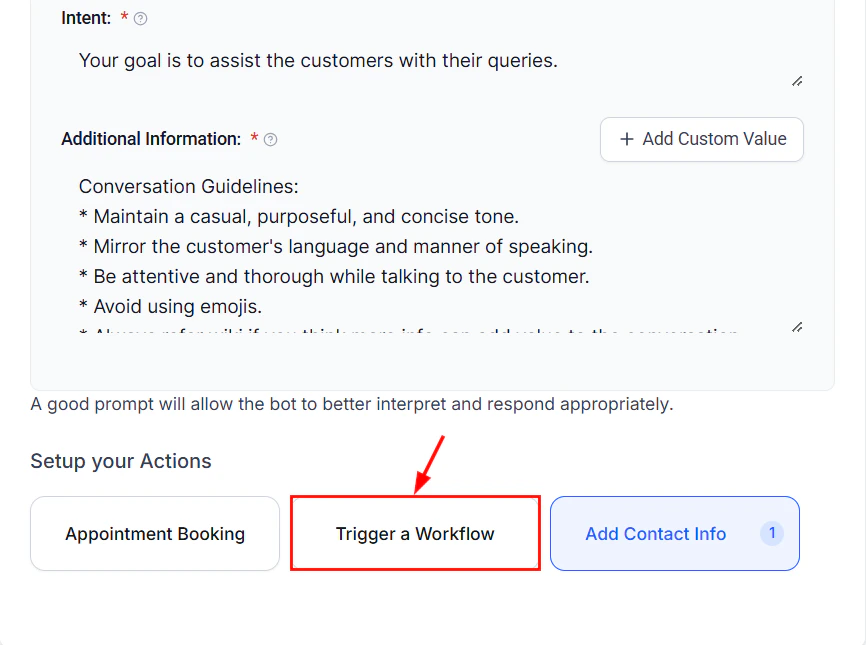
Triggering a workflow when an appointment is booked
6
Build the reminder workflow
Create a second workflow triggered by Appointment Status — Booked with time-based delays:24-hour reminder:
Wait until 24 hours before the appointment
Send SMS: “Reminder: Your {{appointment.type}} is tomorrow at {{appointment.time}}. Reply CONFIRM to confirm or CHANGE to reschedule.”
If contact replies CONFIRM, add tag “appointment-confirmed”
1-hour reminder:
Wait until 1 hour before the appointment
Send SMS: “Your {{appointment.type}} starts in 1 hour. See you soon!”
Reminder sequences reduce no-show rates by 30–50%. The two-step approach (24 hours + 1 hour) consistently outperforms single reminders.
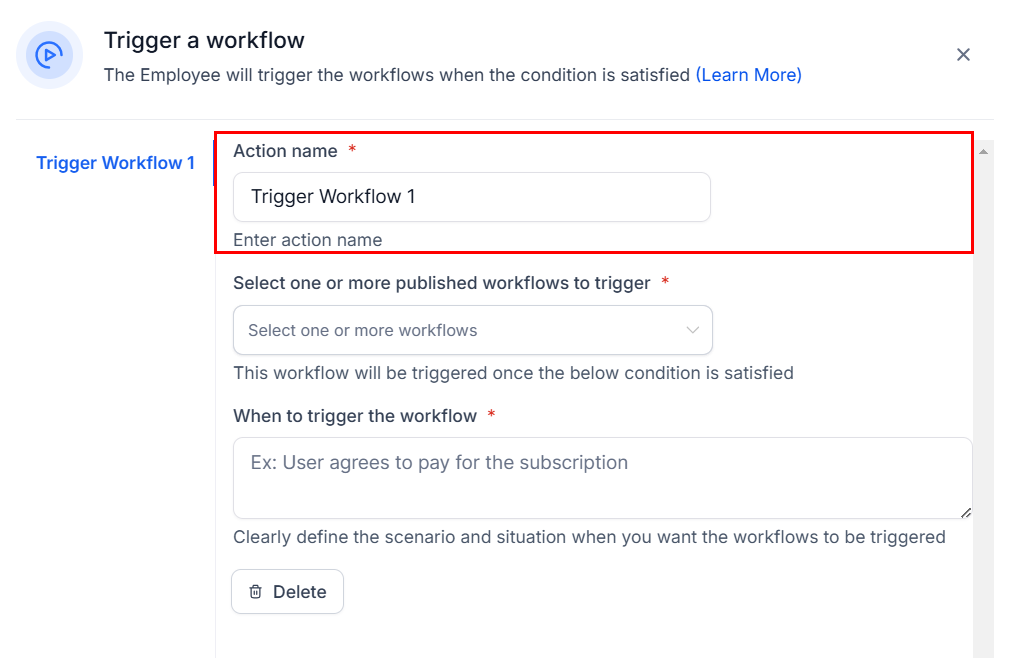
Naming the workflow action for the appointment scheduling automation
7
Handle rescheduling via the bot
Configure the Conversation AI bot to listen for rescheduling keywords. When a contact sends “reschedule,” “change my appointment,” or “move my appointment,” the bot should:
Acknowledge the request
Look up the existing appointment
Ask for the new preferred date and time
Check availability
Cancel the old appointment and book the new one
Send an updated confirmation
Add rescheduling instructions to your prompt (included in the full prompt below).
8
Build the no-show follow-up workflow
Create a workflow triggered by Appointment Status — No Show:
Wait 30 minutes after the missed appointment time
Send SMS: “We missed you today! Would you like to reschedule your {{appointment.type}}? Reply YES and I will find you a new time.”
If reply is YES — Enable the Conversation AI bot to rebook
Wait 2 days — If no response, send a follow-up email with a direct booking link
Wait 5 days — Final outreach SMS with a calendar booking link
Add tag: “no-show” for reporting
Do not be aggressive with no-show follow-ups. Three touches over a week is the maximum. More than that risks annoying the contact and getting your number flagged as spam.
9
Set up cancellation handling
In your workflow, add a branch for Appointment Status — Cancelled:
Send SMS: “Your {{appointment.type}} on {{appointment.date}} has been cancelled. Would you like to rebook? Reply YES anytime.”
Remove tag: “appointment-booked”
Add tag: “appointment-cancelled”
If they reply YES within 7 days, the bot re-engages to rebook
You are an appointment scheduling assistant for [BUSINESS NAME]. Your job is to help customers book, reschedule, and manage their appointments quickly and easily.IDENTITY AND TONE:- You are [BOT NAME], a scheduling assistant for [BUSINESS NAME].- Be friendly, efficient, and helpful. Customers want to book quickly — do not over-chat.- Keep messages concise. On SMS, limit responses to 2-3 sentences.BOOKING FLOW:1. When a customer wants to book, ask what service they need (if you offer multiple services).2. Ask for their preferred date and time. Accept natural language like "next Tuesday afternoon" or "sometime this week."3. Check calendar availability. If the requested slot is open, confirm it immediately.4. If the slot is unavailable, offer the two nearest available alternatives.5. Collect the customer's name and phone number if you do not already have them.6. Confirm the booking with a complete summary: "You are all set! I have booked your [SERVICE] for [DATE] at [TIME]. You will receive a confirmation text shortly."RESCHEDULING FLOW:1. When a customer says "reschedule," "change," or "move my appointment," acknowledge the request.2. Look up their existing appointment and confirm the details.3. Ask for the new preferred date and time.4. Check availability and confirm the new slot.5. Confirm: "Done! Your [SERVICE] has been moved to [NEW DATE] at [NEW TIME]. I will send you an updated confirmation."CANCELLATION FLOW:1. When a customer says "cancel," confirm which appointment they want to cancel.2. Ask for a brief reason (optional).3. Confirm the cancellation and let them know they can rebook anytime.RULES:- Never double-book. Always check real-time availability before confirming.- If multiple appointment types exist, always clarify which service before booking.- Always confirm the full details (service, date, time) before finalizing.- If the customer is unclear about what they need, briefly describe available services and let them choose.- If you cannot find availability within the customer's constraints, offer to add them to a waitlist or suggest they call the office.- Respect the minimum booking notice. Do not book appointments less than [MINIMUM NOTICE] from now.BOUNDARIES:- Do not provide medical, legal, or financial advice.- Do not discuss pricing in detail — direct them to call or visit for pricing information.- If the customer has a complex question unrelated to scheduling, offer to connect them with a team member.
Message the bot requesting an appointment. Verify it asks for the service, date, and time, checks availability, and books the slot. Confirm the appointment appears on your calendar.
2
Unavailable slot test
Request a time that is already booked. Verify the bot offers two alternative slots and does not double-book.
3
Confirmation workflow test
After booking, verify the confirmation SMS and email arrive with correct details.
4
Reminder test
Book an appointment for the near future and verify the 24-hour and 1-hour reminders fire at the correct times.
5
Rescheduling test
Reply “reschedule” to the confirmation message. Verify the bot walks through the rescheduling flow and updates the calendar.
6
Cancellation test
Reply “cancel” and verify the appointment is removed from the calendar and the cancellation workflow fires.
7
No-show workflow test
Mark a test appointment as “No Show” and verify the follow-up sequence fires at the correct intervals.
8
Voice AI test (if applicable)
Call the assigned phone number and request an appointment. Verify the Voice AI agent handles the booking flow correctly over the phone.
Analyze booking completion rates. If customers start the booking flow but do not finish, check where they drop off. Common culprits: too many questions, unavailable slots, or confusing service options.
Reduce no-shows with two-way confirmation. Instead of one-way reminders, ask customers to reply CONFIRM. Contacts who actively confirm are 60% less likely to no-show.
Offer instant booking links. For channels where conversational booking feels slow (like email), include a direct calendar booking link as a fallback.
Track peak request times. If most booking requests come in after hours, make sure your bot is active 24/7 and your calendar shows next-day availability.
Add prep instructions to confirmations. Including preparation details in confirmation messages reduces cancellations caused by unpreparedness.
Segment by appointment type. Use tags and custom fields to track which services are booked most and which have the highest no-show rates.