

Overview
Content AI in the email builder helps you create high-performing emails faster by generating subject lines, body copy, calls-to-action, and complete email drafts. Instead of staring at a blank page, you describe what you need and the AI produces polished content you can use immediately or refine to match your brand. Whether you are building a one-off campaign, a drip sequence, or a transactional email, Content AI accelerates every step of the writing process.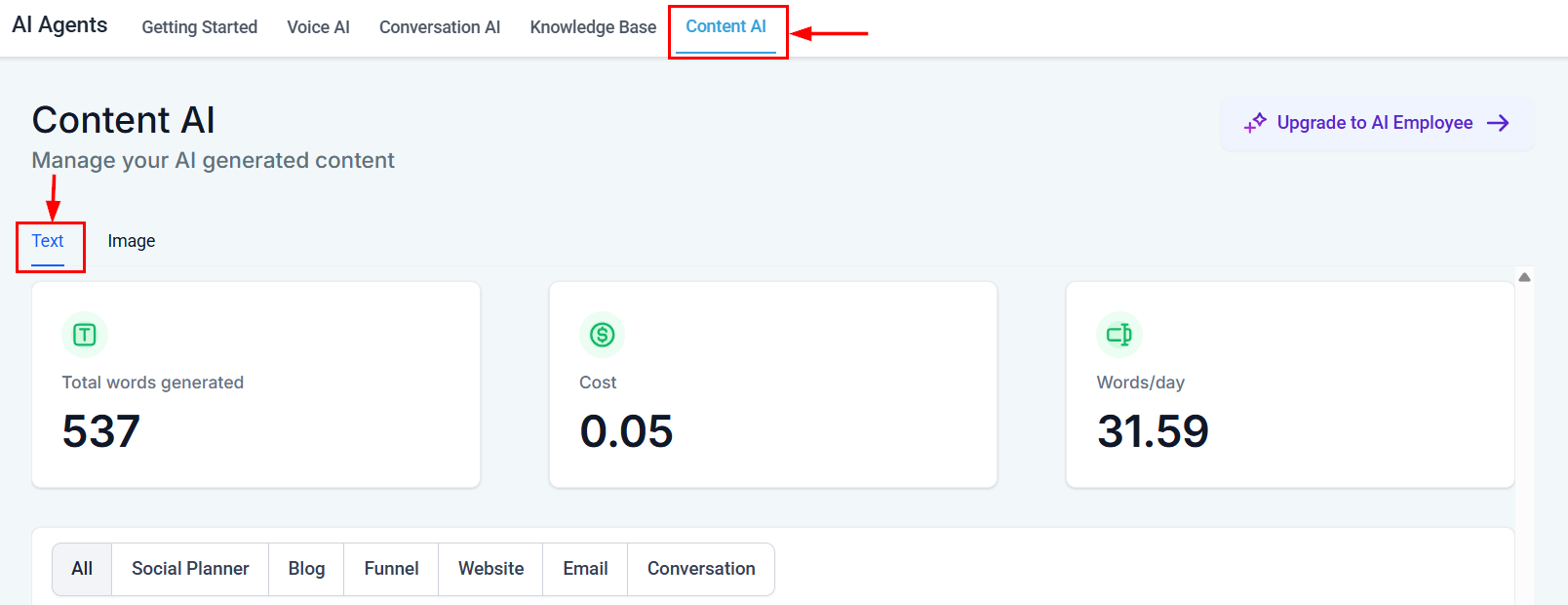
Content AI text dashboard showing total words generated, cost tracking, and content filter tabs
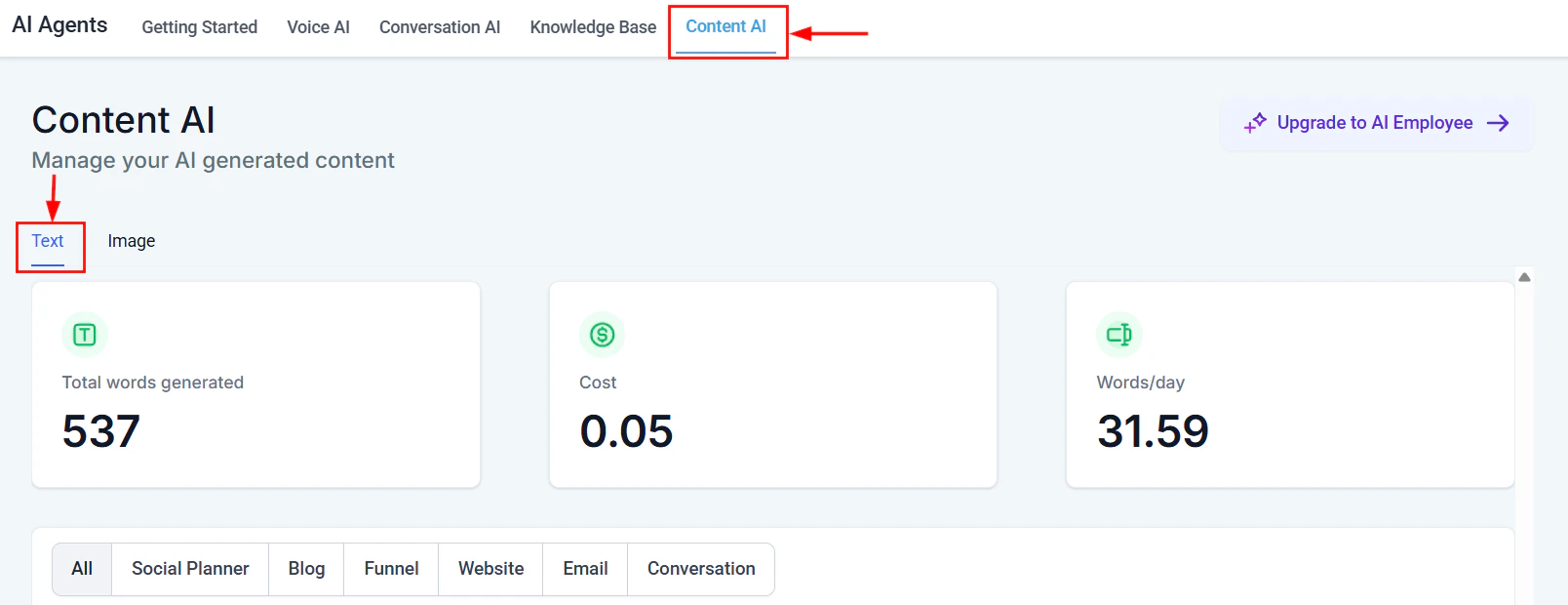
Content AI text generation dashboard showing total words generated and activity across channels
Accessing Content AI in the email builder
Content AI is available anywhere you write text in the email builder:- Open Marketing > Emails and create a new email or edit an existing one
- In the email builder, click on any text element (heading, paragraph, button)
- Look for the AI icon in the text editing toolbar
- Click it to open the Content AI panel
Generating subject lines
Subject lines make or break your open rates. Content AI generates multiple options so you can pick the strongest one.Open the subject line generator
Provide context
- Email topic: What is the main message?
- Audience: Who is receiving this email?
- Tone: Professional, casual, urgent, playful?
- Goal: Opens, clicks, replies?
Generate options
Select or refine
Subject line strategies the AI uses
The AI applies proven email marketing techniques:- Curiosity gap — creates intrigue without being clickbait
- Personalization — incorporates merge fields like
{{contact.first_name}} - Urgency — suggests time-sensitive language when appropriate
- Benefit-focused — leads with what the reader gains
- Question format — engages by asking something relevant
Generating body copy
Content AI can generate complete email body sections or help you expand on bullet points.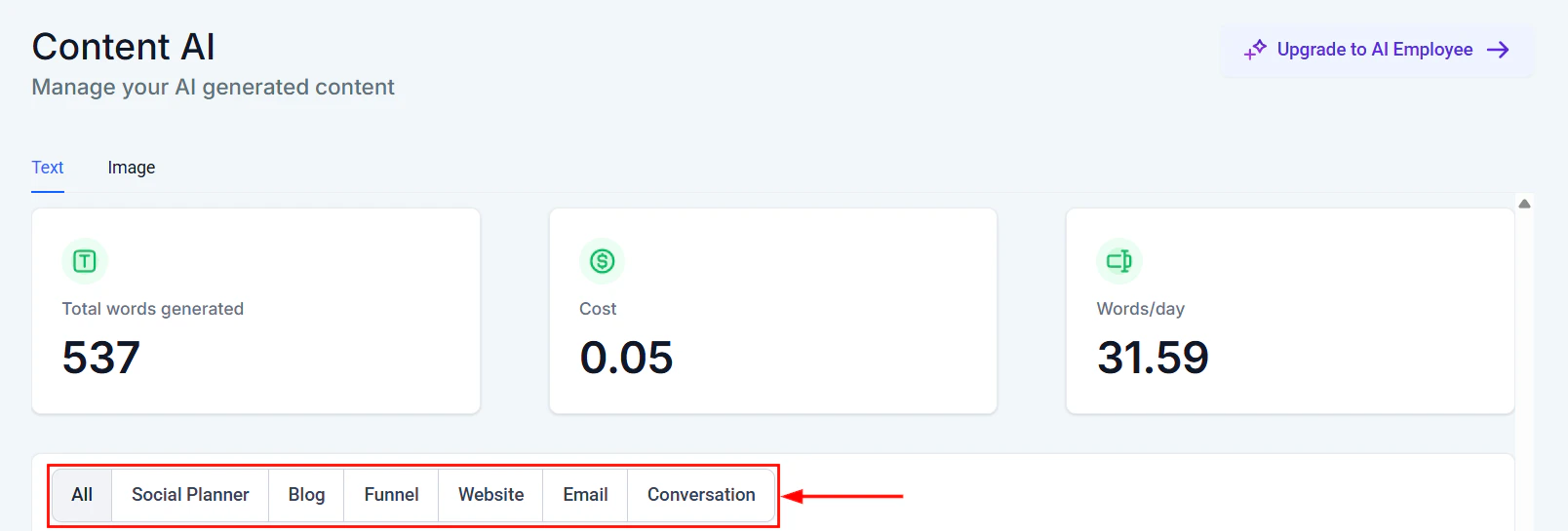
All generated content list showing text outputs across different channels
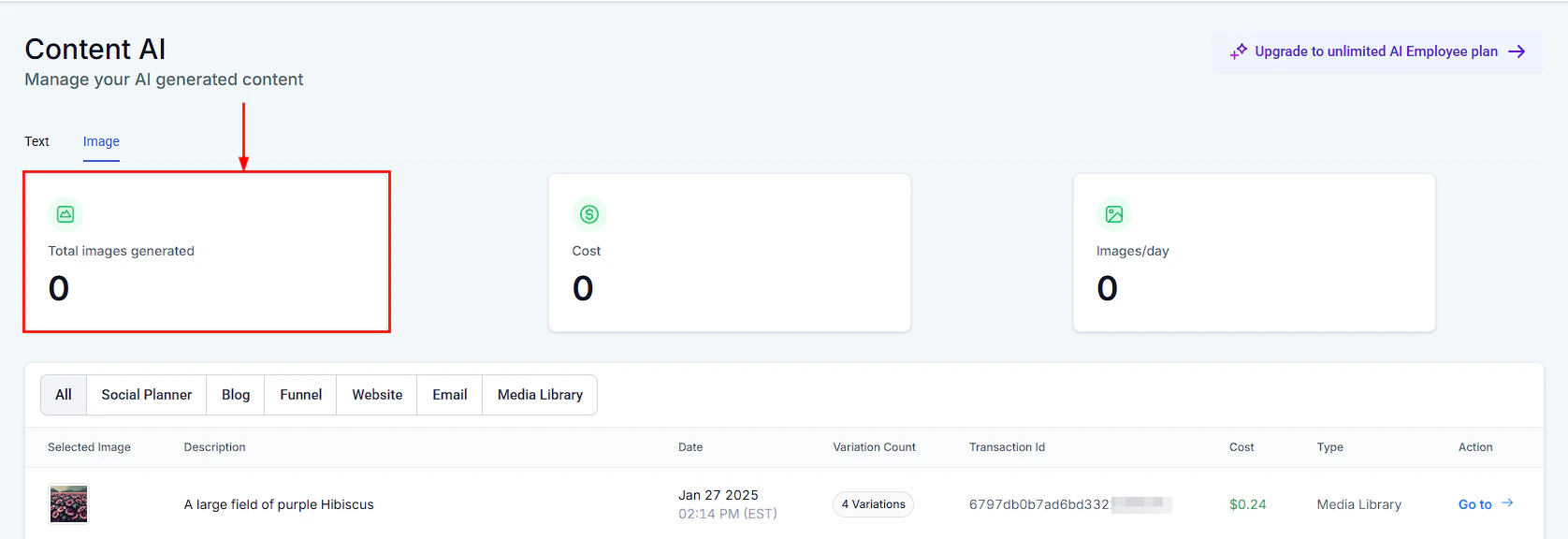
Content AI image generation interface for creating visual content to accompany emails
Full email draft
Provide the AI with:- The purpose of the email (welcome, promotion, follow-up, announcement)
- Key points to cover
- Desired length (short, medium, detailed)
- Tone and style preferences
- Any specific offers, links, or deadlines to include
Section-by-section generation
For more control, generate content one section at a time:Expanding bullet points into paragraphs
If you have an outline but need fleshed-out copy:- Type your bullet points into the text element
- Select the text and click the AI icon
- Choose Expand to turn each bullet into a polished paragraph
- Review and edit the output
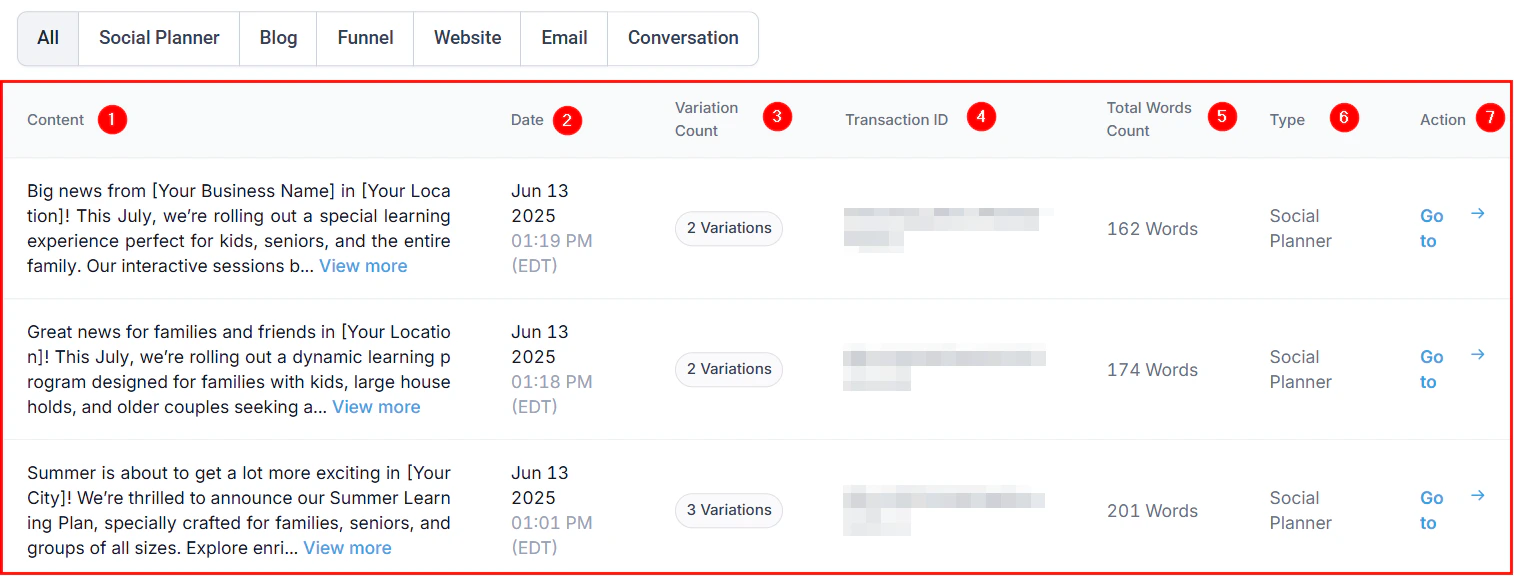
Content detail view showing a specific generated text entry
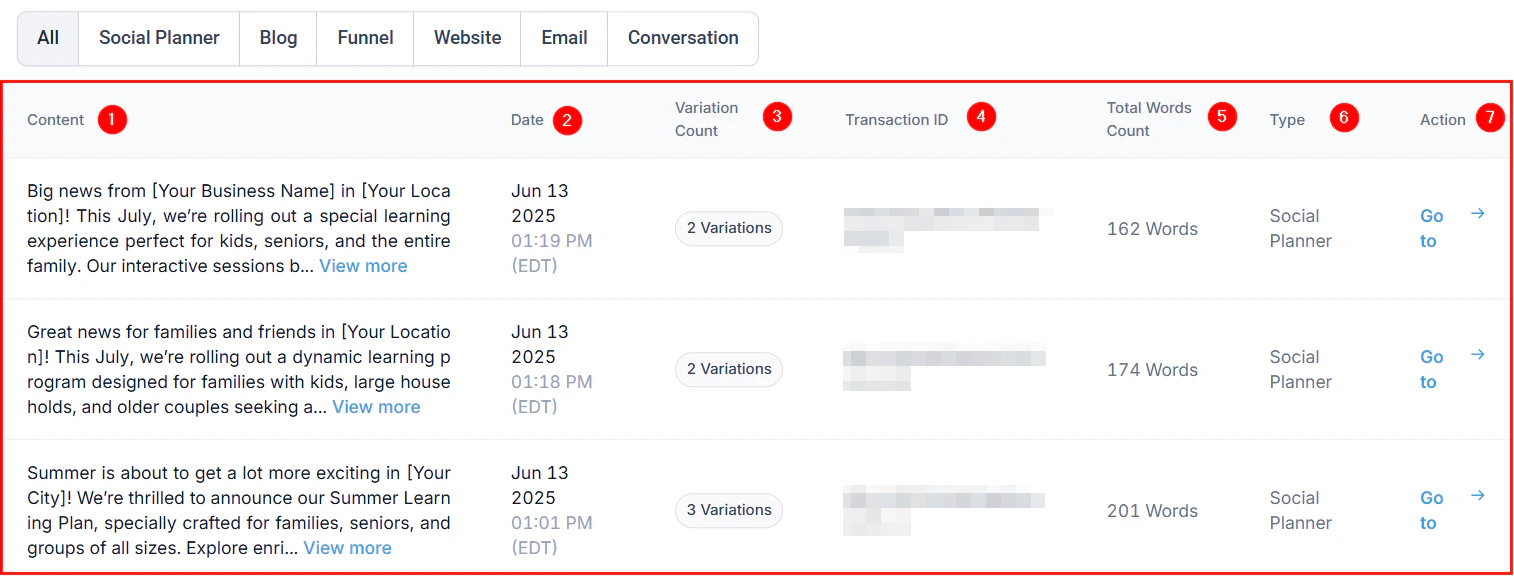
Copying AI-generated content to use in your email campaigns
Generating CTAs
Strong calls-to-action drive clicks. Content AI generates CTA button text and surrounding copy. Input: Tell the AI what action you want the reader to take and what they get in return. Output examples:- “Book your free consultation” (service business)
- “Claim your 20% discount” (e-commerce)
- “See the full case study” (B2B)
- “Reserve your spot — only 12 left” (event)
Personalizing with merge fields and AI
Content AI and merge fields work together to create emails that feel individually crafted at scale.How to combine them
- In your AI prompt: Reference the type of personalization you want. Example: “Write a follow-up email that references the contact’s service interest.”
- In the output: The AI generates copy with natural insertion points for merge fields.
- After generation: Insert the appropriate merge fields where the AI indicated personalization should go.
Example
AI prompt: “Write a re-engagement email for a contact who hasn’t visited in 3 months. Reference their last service.” AI output: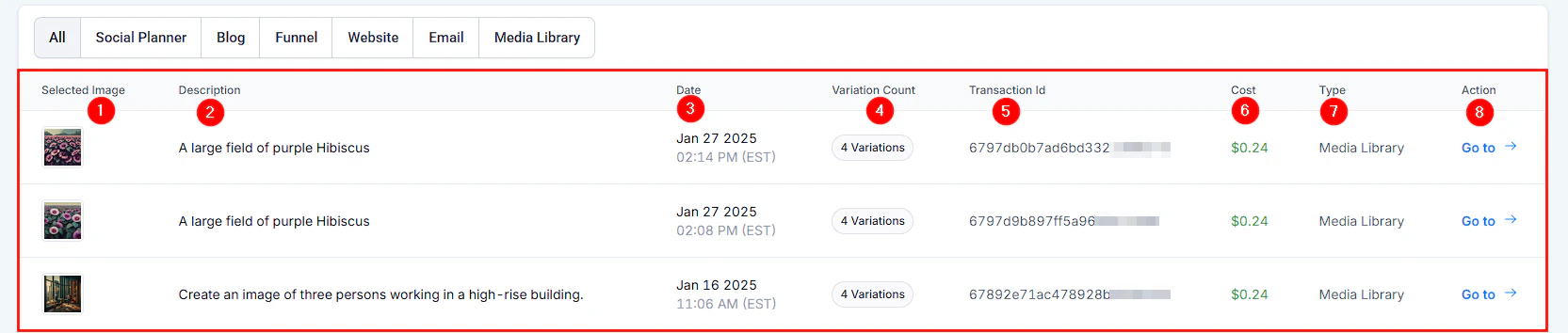
AI-generated image output ready for use in email campaigns
A/B testing AI-generated variants
Content AI is a powerful A/B testing companion. Generate multiple versions of the same email and let data determine the winner.A/B testing workflow
Generate variant A
Generate variant B
Set up the A/B test
Define the winning metric
Launch and learn
What to A/B test with AI
Brand voice consistency
Content AI produces better results when it understands your brand voice.Configuring brand voice
- Navigate to Settings > AI > Brand Voice
- Define your brand’s tone (e.g., professional but approachable, witty but not sarcastic)
- Add example phrases or sentences that represent your voice
- List words or phrases to avoid
- Save your brand voice settings
Manual voice guidance
If you haven’t set up brand voice globally, include voice instructions directly in your AI prompts:Cost tracking and optimization
Understanding credit consumption
Each Content AI generation in the email builder uses word credits:- Subject line generation — minimal credits (short output)
- Section generation — moderate credits (paragraph-length output)
- Full email draft — higher credits (complete email output)
- Regeneration — each regeneration uses additional credits
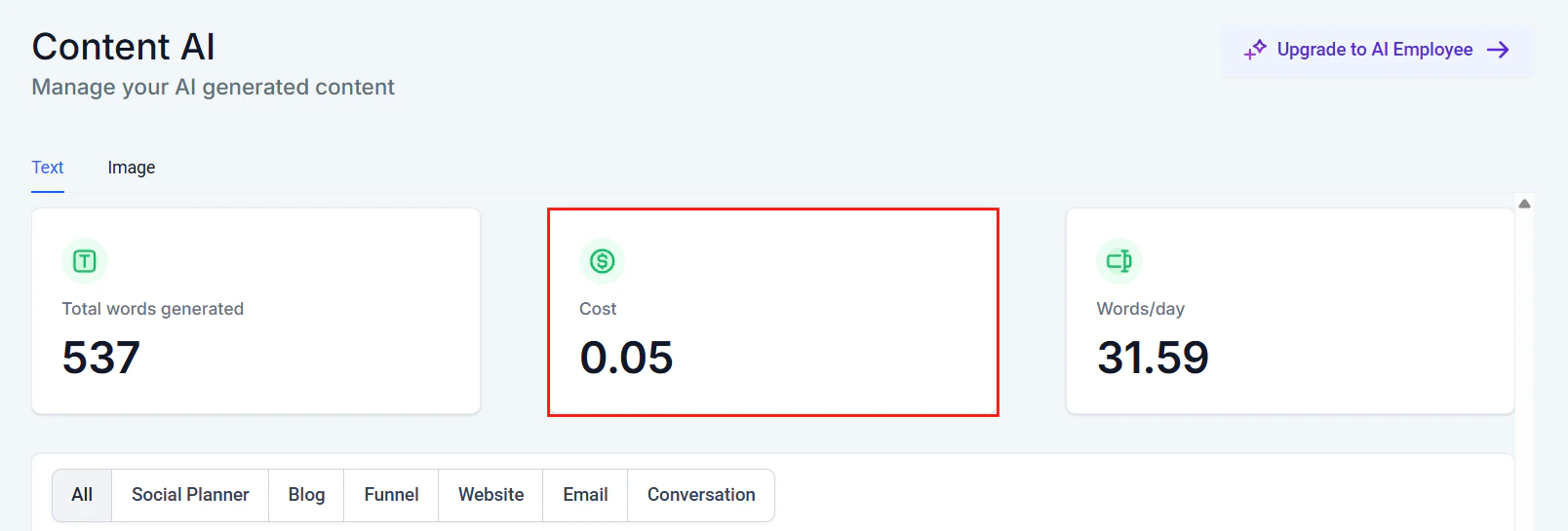
Cost tracking view showing AI credit consumption over time
Tips for minimizing credit usage
- Write outlines and bullet points yourself, then use AI only to polish and expand
- Save effective prompts as templates so you do not waste credits on trial and error
- Use the AI for your first draft, then manually write variations instead of regenerating
- Generate in batches during a dedicated content creation session rather than one-off requests
Tracking usage
Monitor your credit consumption in Settings > AI credits. Set up alerts to notify you when usage reaches a specified threshold so there are no surprises at the end of the billing cycle.Common use cases
Welcome email sequences
Welcome email sequences
Promotional campaigns
Promotional campaigns
Re-engagement campaigns
Re-engagement campaigns
Event invitations
Event invitations