Build and deploy your first HoopAI AI chatbot in under 10 minutes with this step-by-step guide.
This guide walks you through building and deploying your first Conversation AI chatbot in HoopAI. By the end, you will have a working bot that can answer customer questions on your website using your own business information. The entire process takes about 10 minutes.Before you begin, make sure you have an active HoopAI account and have completed the initial account setup. If you are not sure whether Conversation AI is the right feature for you, check the choosing the right AI feature guide first.
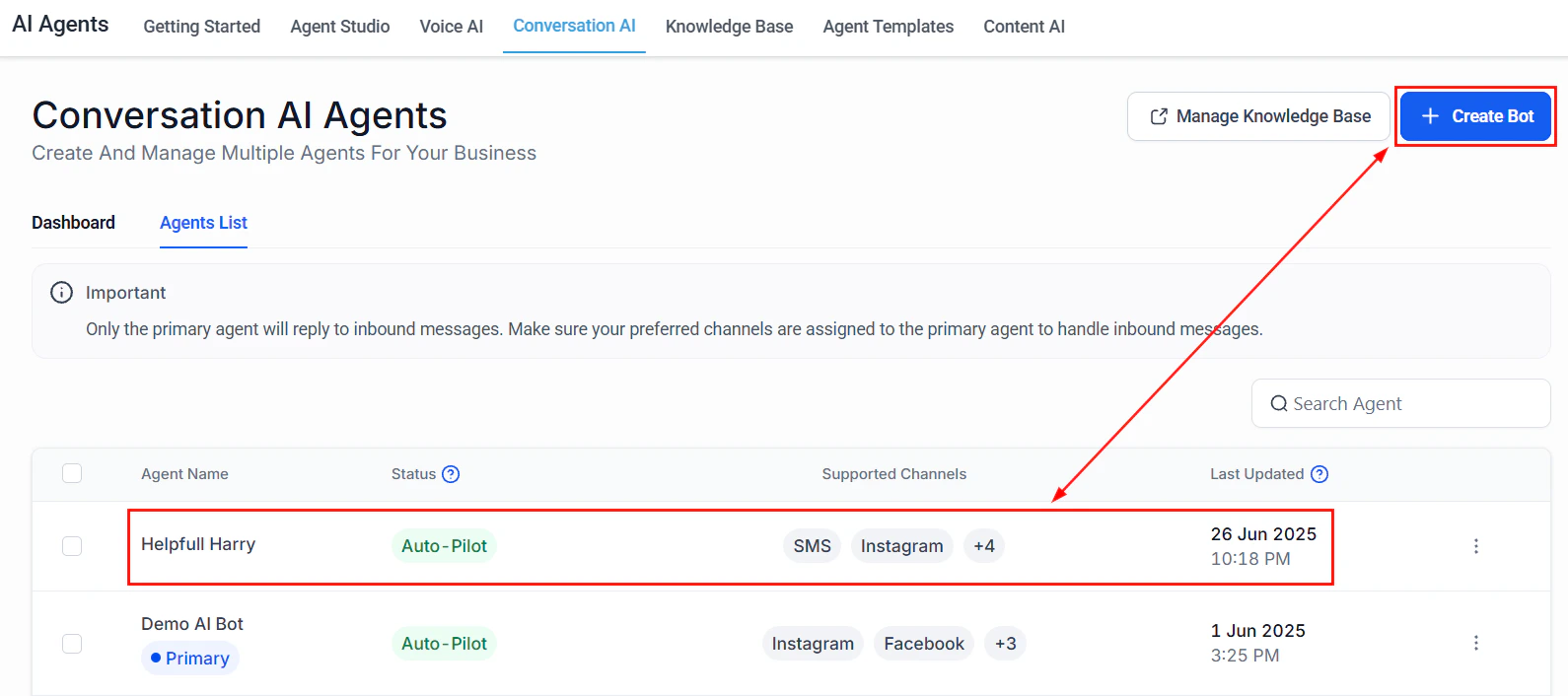
From your HoopAI dashboard, go to Settings in the left sidebar, then select Conversation AI. Click the Create Bot button to start building a new AI agent.If this is your first bot, you will see an empty state with a prompt to create one. Click Create Bot to proceed.
The Conversation AI agents list with the Create Bot button highlighted
2
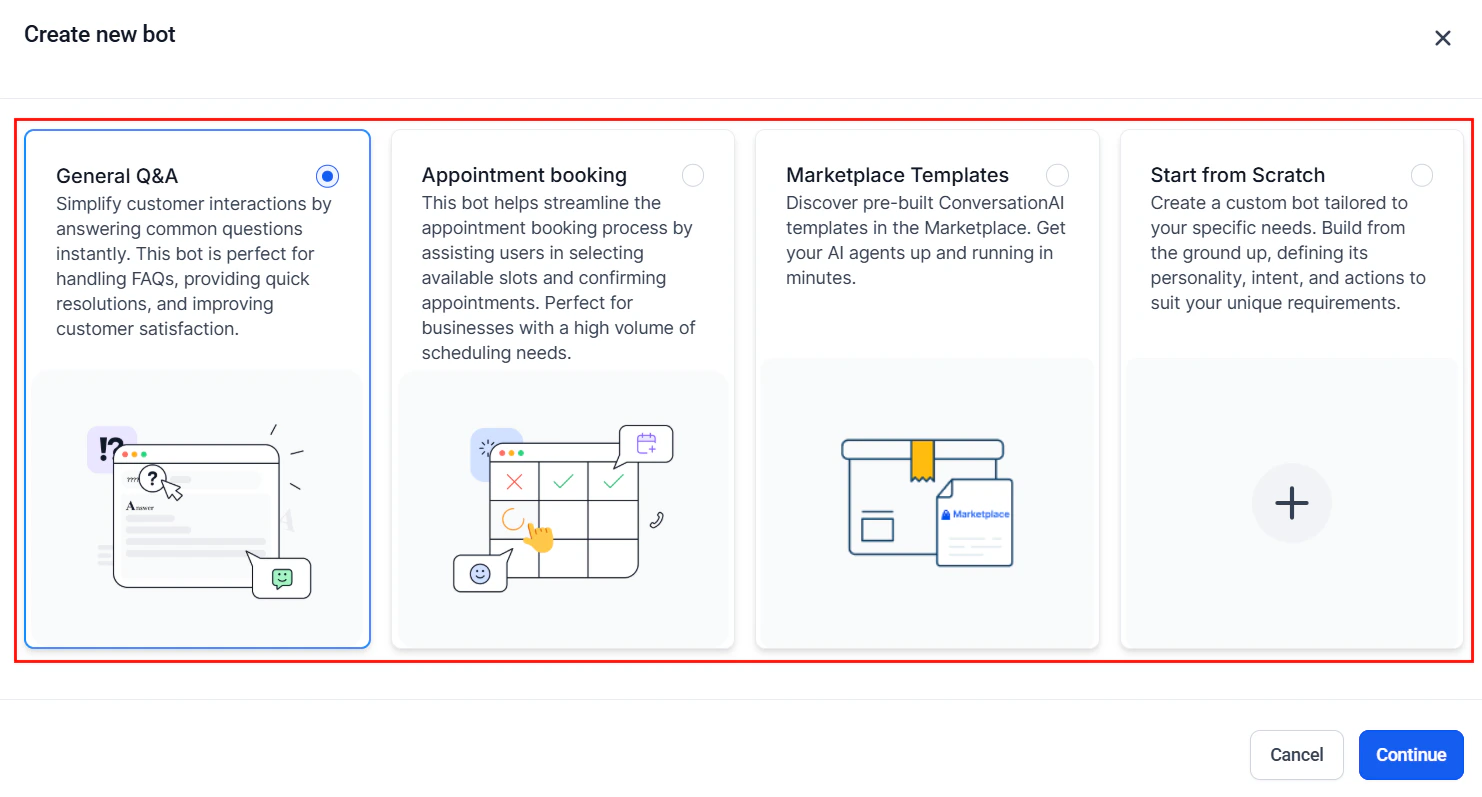
Choose Conversation AI
Choose your bot type: General Q&A, Appointment Booking, Marketplace Templates, or Start from Scratch
Select Conversation AI as your bot type. This creates a text-based chatbot that can operate across SMS, web chat, and social messaging channels. If you need a phone-based agent instead, see the Voice AI setup guide.
3
Name your bot
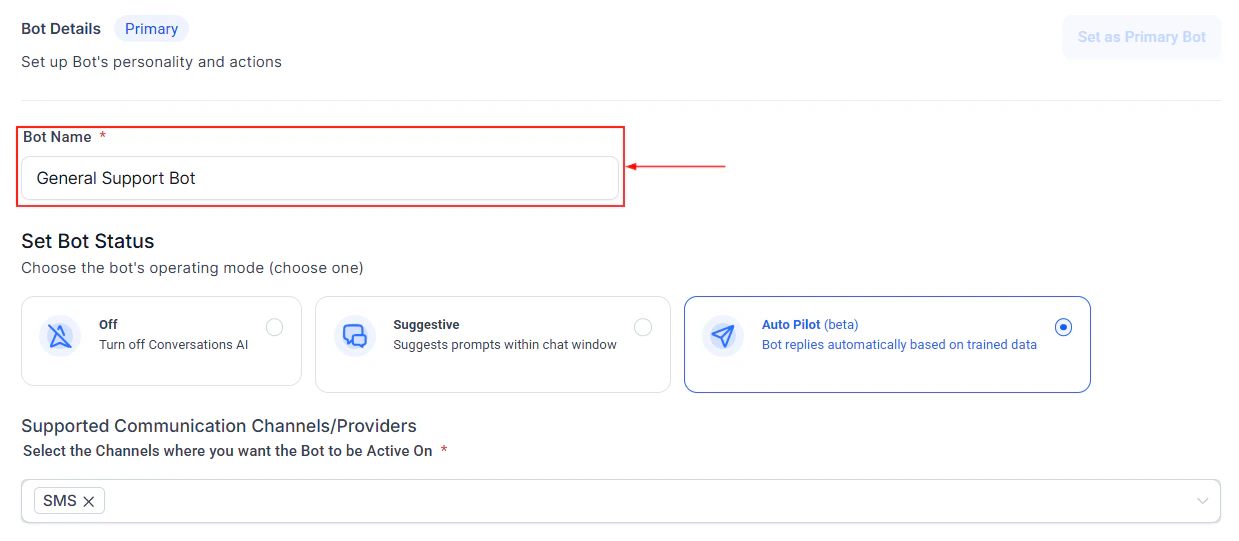
Give your bot a descriptive name that your team will recognize.
Enter a descriptive name for your new bot
For example:
Support Bot — for customer service
Lead Qualifier — for sales inquiries
Booking Assistant — for appointment scheduling
The bot name is internal only. Your customers will not see it unless you include it in your prompt.
4
Write a basic prompt
The prompt is the most important part of your bot. It tells the AI who it is, what it should do, and how it should behave. Paste the following minimal viable prompt into the Bot Prompt field and customize the bracketed sections with your business details:
You are a friendly and professional customer support assistant for [Your Business Name].Your role:- Answer questions about our products and services- Help customers find the information they need- Collect contact information from interested leads- Book appointments when requestedBusiness details:- Business name: [Your Business Name]- Industry: [Your Industry]- Services offered: [List your main services]- Business hours: [e.g., Monday to Friday, 9 AM to 5 PM EST]- Location: [Your city and state]- Phone: [Your phone number]- Website: [Your website URL]Rules:- Always be polite and helpful- If you do not know the answer to a question, say so honestly and offer to connect the customer with a team member- Never make up information about products, services, or pricing- If a customer asks about pricing, provide general ranges if available in your knowledge base, or offer to have a team member follow up- If a customer seems frustrated or asks for a human, immediately offer to transfer them to a team member
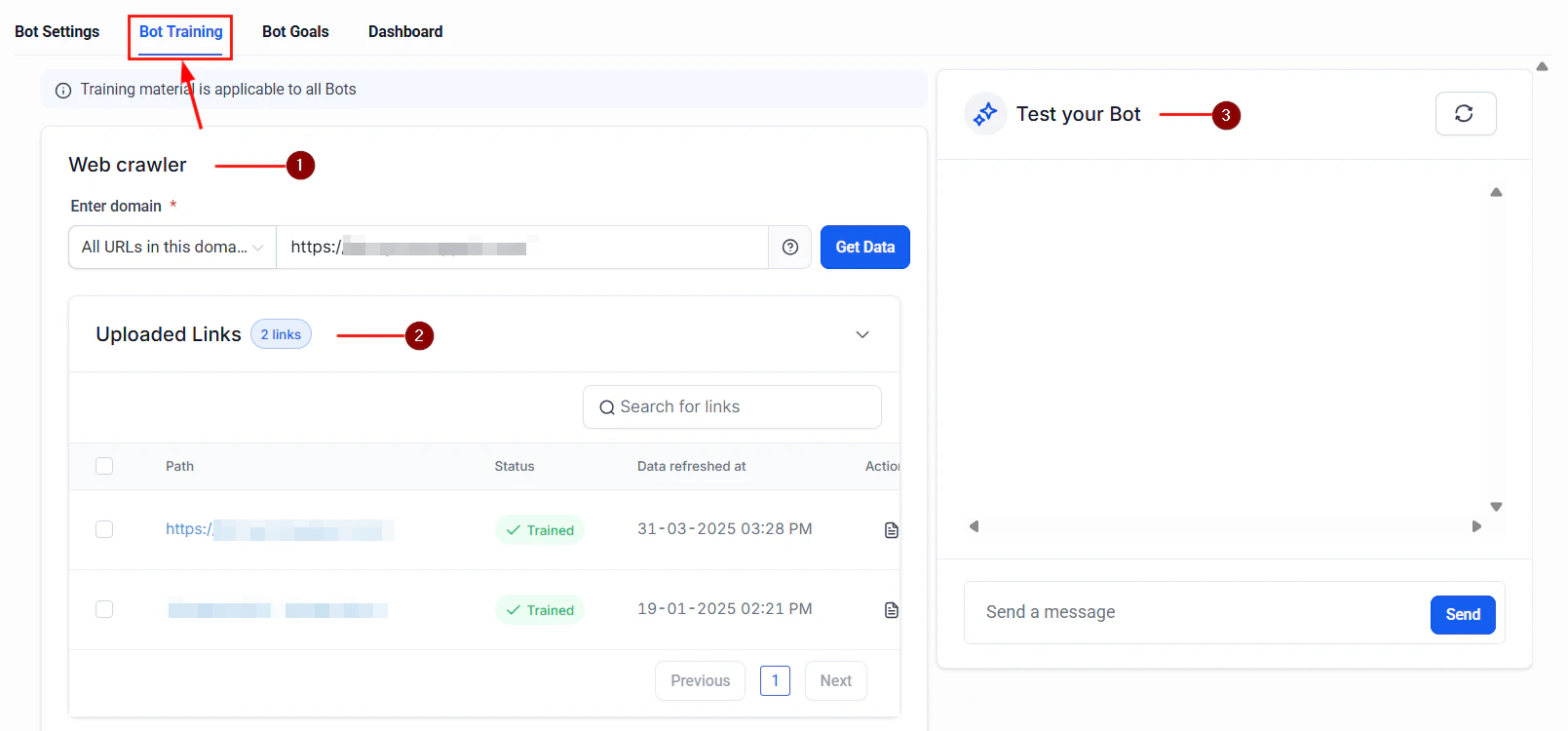
The knowledge base gives your bot factual information to reference when answering questions. The fastest way to populate it is with your website URL.
In the bot configuration, find the Knowledge Base section
Click Add Source and select Website URL
Enter your main website URL (for example, https://www.yourbusiness.com)
HoopAI will crawl the pages and extract content the bot can reference
The Bot Training tab with web crawler, uploaded links list, and test bot panel
You can also upload documents (PDFs, text files) or add individual FAQ entries. For a complete guide to knowledge base configuration, see knowledge base setup.
Start with your website URL and your top 10 FAQs. You can add more sources later as you see what questions customers are asking.
6
Assign to a channel
Choose where your bot will interact with customers. For your first deployment, web chat is the easiest and lowest-risk option because you can control when and where it appears on your site.
In the Channels section of your bot settings, toggle on Web Chat
You can also enable SMS, Facebook Messenger, Instagram DM, or WhatsApp if those channels are already connected to your HoopAI account
Before going live, test your bot thoroughly using the built-in trial mode.
Click Test Bot or Trial in the bot configuration screen
Send test messages that simulate real customer interactions:
“What services do you offer?”
“I would like to book an appointment”
“What are your hours?”
“How much does [your main service] cost?”
“I need to speak to someone”
Review each response for accuracy, tone, and helpfulness
If responses are off, go back and refine your prompt or add more knowledge base content
Spend at least 5 minutes testing. Try to break the bot by asking unexpected questions, going off-topic, or requesting things it should not do. Better to find issues now than after launch.
8
Go live
Once you are satisfied with the test results:
Toggle the bot status to Active or Enabled
If using web chat, install the chat widget on your website by copying the embed code from Settings > Chat Widget and pasting it into your site
Your bot is now live and responding to customers
Monitor your bot closely for the first 24 to 48 hours after launch. Review conversation logs in the Conversation AI dashboard to catch any issues early.
If you want a copy-paste-ready prompt to get started quickly, here is a stripped-down version you can use as-is. Replace the placeholder text in brackets with your actual business details.
You are a helpful assistant for [Business Name], a [industry] business located in [City, State].Your job is to answer customer questions using the knowledge base provided to you. Be friendly, concise, and professional.Key rules:1. Only share information that is in your knowledge base. If you do not know something, say: "I do not have that information, but I can connect you with our team. Would you like me to do that?"2. If the customer wants to book an appointment, collect their name, phone number, and preferred date/time.3. If the customer is upset or asks for a human, say: "Let me connect you with a team member right away" and stop responding.Business hours: [Your hours]Phone: [Your phone]Website: [Your URL]
You have a working bot, but there is much more you can do to improve its performance and expand its capabilities. Here are the recommended next steps in order of priority.