How to purchase, assign, and configure phone numbers for HoopAI Voice AI agents.
Every Voice AI agent needs at least one phone number to make or receive calls. This guide covers purchasing new numbers, assigning existing numbers, forwarding from external providers, configuring working hours, and setting up failover behavior.For general phone number setup across all HoopAI features, see Phone number setup. This page focuses specifically on phone number configuration for Voice AI agents.
HoopAI supports several types of phone numbers for Voice AI:
Type
Best for
Notes
Local numbers
Businesses serving a specific area
Callers see a familiar area code, improving answer rates
Toll-free numbers
National businesses, support lines
800, 888, 877, etc. — no charge to the caller
Existing numbers
Businesses migrating from another system
Forward or port your current number to HoopAI
For outbound Voice AI calls, local numbers with an area code matching your target audience typically achieve the highest answer rates. Toll-free numbers can sometimes be flagged as spam by carrier filtering.
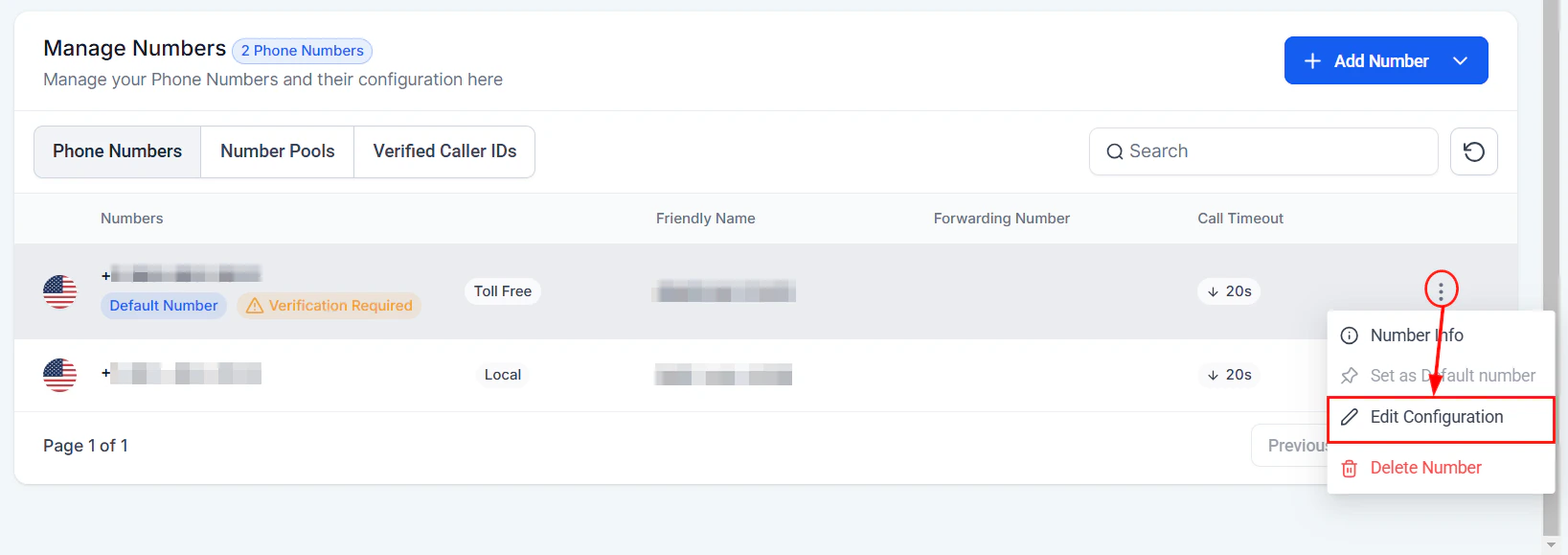
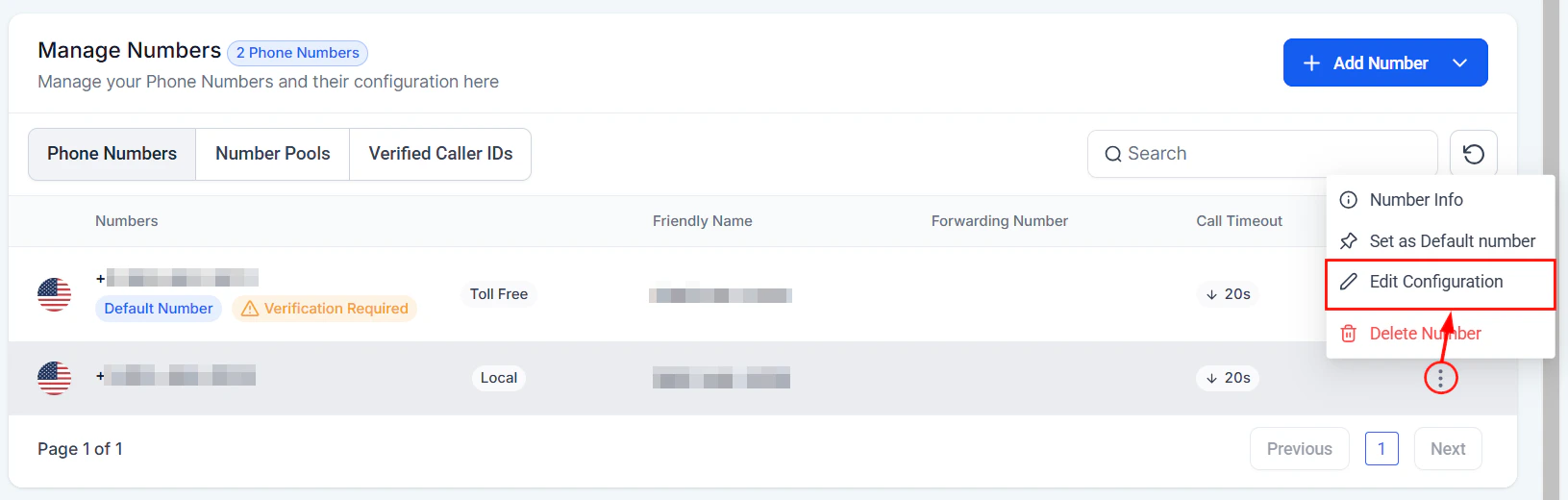
Navigate to Settings in the left sidebar, then select Phone Numbers. Click Add Number or Buy Number in the top-right corner.
2
Search for available numbers
Choose your country and enter a desired area code or city. HoopAI will display a list of available numbers. You can filter by:
Number type — Local or toll-free
Area code — Specific region
Contains — Search for numbers containing specific digits (e.g., numbers ending in 0000)
3
Select and purchase
Click on the number you want and confirm the purchase. The number is immediately added to your account and ready for assignment.
Phone number costs vary by type and country. Local US numbers typically cost a few dollars per month, while toll-free numbers may cost slightly more. Check your billing page for current pricing.
4
Complete regulatory requirements
Some countries and number types require address verification or identity documentation before the number becomes active. If prompted, submit the required information. Approval is usually processed within 24-48 hours.
Once you have a phone number in your HoopAI account, you can assign it to a Voice AI agent.
1
Open your Voice AI agent
Go to AI Agents > Voice AI and select the agent you want to configure. If you have not created an agent yet, see Creating Voice AI agents.
2
Navigate to phone settings
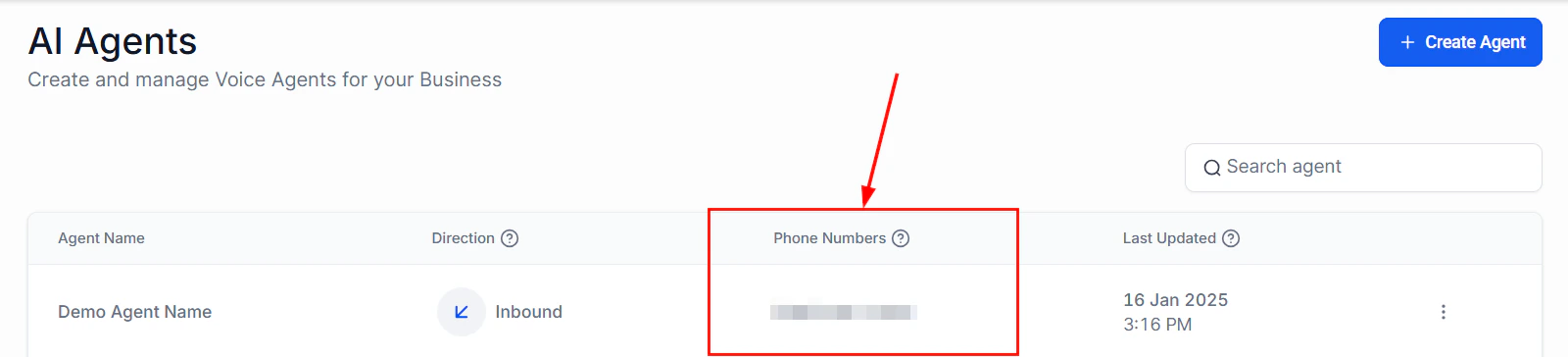
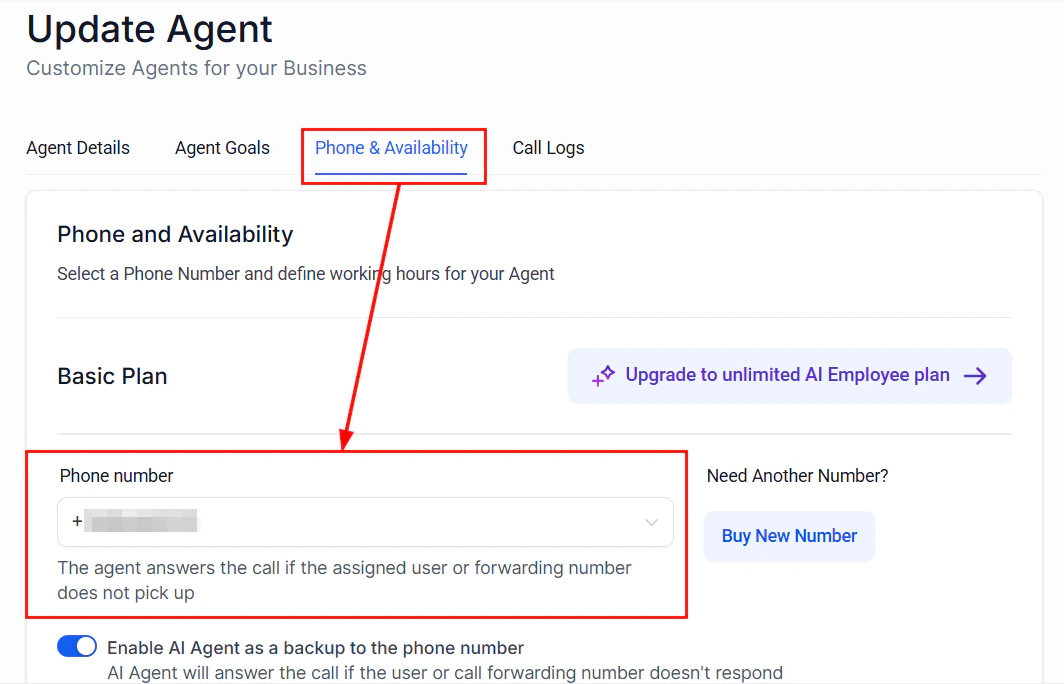
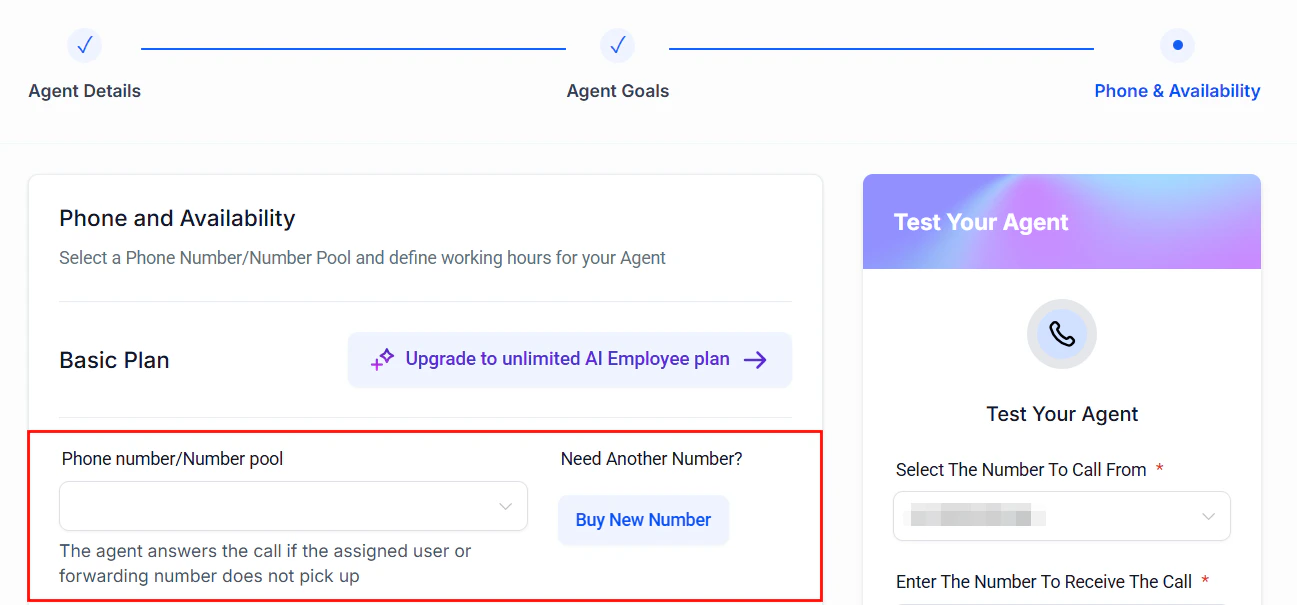
In the agent configuration panel, find the Phone Number section. Click Assign Number.
Phone number settings in the Voice AI agent configuration
3
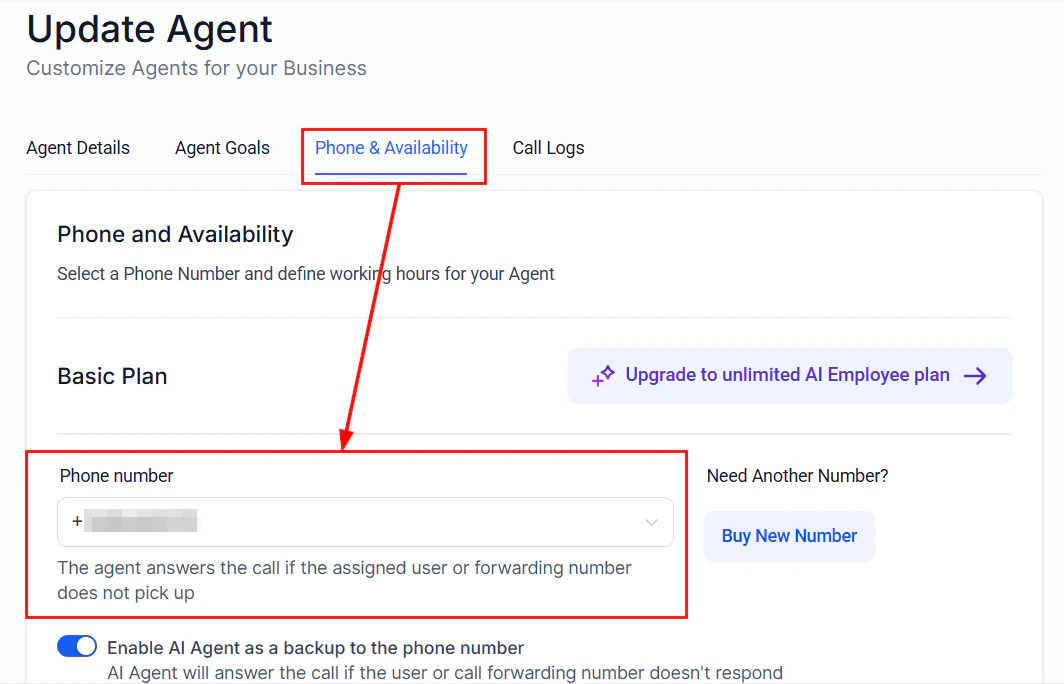
Select a number
Choose from your available numbers. Numbers already assigned to another Voice AI agent will be marked as in use. A single number can only be assigned to one Voice AI agent at a time.
Assigning a number to a Voice AI agent will override any existing call routing for that number. If the number was previously used for a standard IVR or forwarded to a team member, those settings will be replaced by the Voice AI agent.
Select an available phone number to assign to your Voice AI agent
Select your phone number from the available numbers list
4
Save the assignment
Click Save. Inbound calls to that number will now be answered by your Voice AI agent. For outbound agents, this number will appear as the caller ID when the agent places calls.
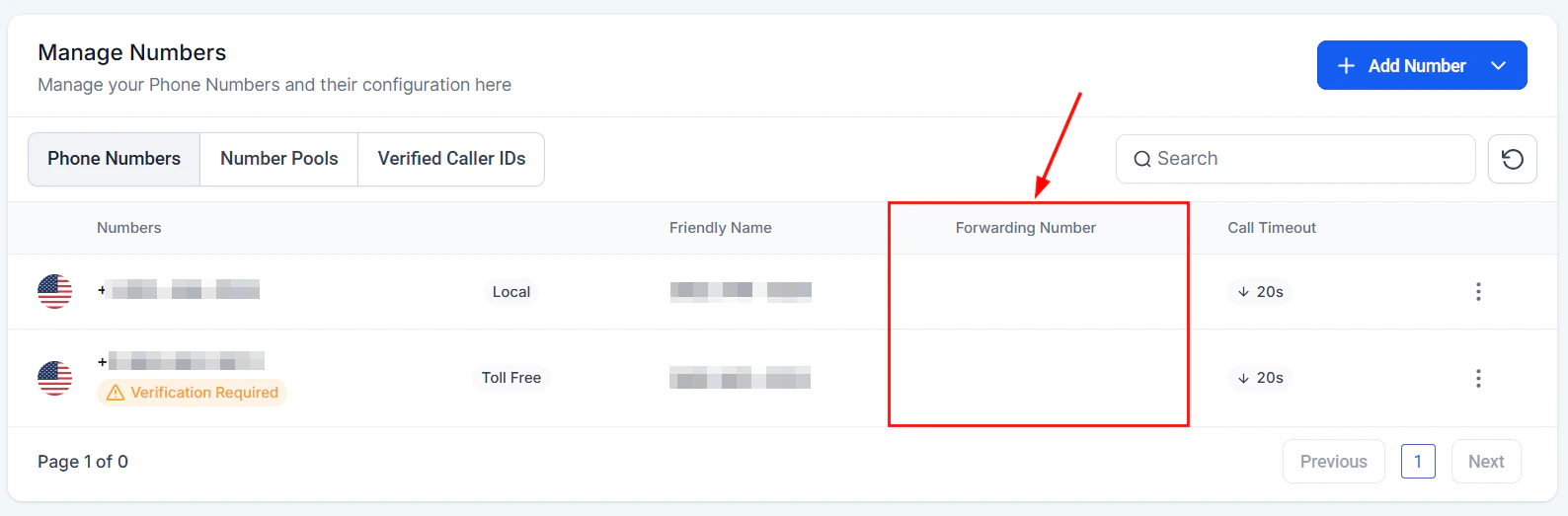
Contact your current phone provider and request unconditional call forwarding (also called “always forward”) to your HoopAI number. The exact steps depend on your provider, but the general process is:
Purchase or identify a HoopAI number to receive forwarded calls.
Assign that HoopAI number to your Voice AI agent.
Configure forwarding on your external provider to point to the HoopAI number.
Test by calling your original business number and verifying the Voice AI agent answers.
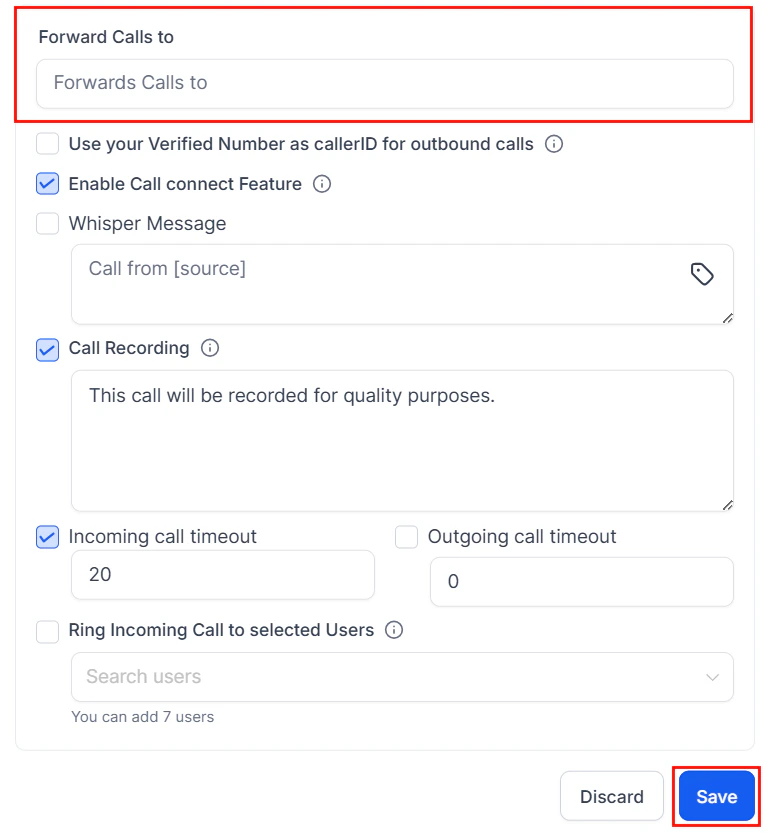
Configure call forwarding settings for your Voice AI number
Configure call forwarding to route calls to your Voice AI agent
Call forwarding may add slight latency (typically 1-2 seconds) to the initial connection as the call routes through an additional hop. This is usually imperceptible to callers but worth noting for time-sensitive applications.
If you want to fully transfer an existing number to HoopAI (rather than forwarding), you can submit a port request.
1
Gather porting information
You will need:
The phone number(s) to port
Your current provider’s name
Account number with the current provider
A recent bill or letter of authorization (LOA)
The authorized name on the account
2
Submit the port request
Go to Settings > Phone Numbers and click Port Number. Fill in the required information and upload your documentation.
3
Wait for processing
Porting typically takes 7-14 business days for US numbers. International ports may take longer. You will receive email updates on the status.
Do not cancel service with your current provider until the port is confirmed complete. Canceling early can cause the port to fail and you may lose the number.
4
Assign to your Voice AI agent
Once the port completes, the number appears in your HoopAI phone numbers list. Assign it to your Voice AI agent as described above.
Forward settings showing the destination number configuration
Open your Voice AI agent settings.
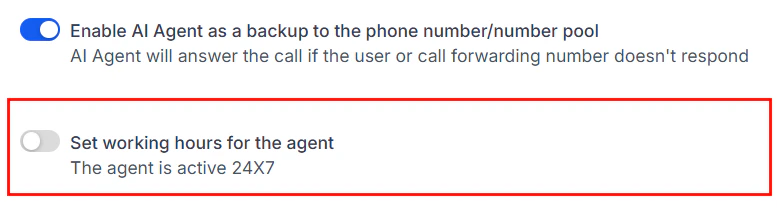
Navigate to the Working Hours section.
Toggle working hours on to enable scheduling.
For each day of the week, set the start and end times.
Select the correct timezone for your business.
Configure working hours and timezone for your Voice AI agent
Phone number assignment in the Voice AI agent setup wizard
Double-check your timezone setting. A common issue is the agent being configured in the wrong timezone, causing it to go offline during business hours or remain active when it should not be. See Troubleshooting Voice AI for more on timezone issues.
When a call comes in outside of working hours, you can configure one of these behaviors:
Behavior
Description
Voicemail
Play a custom message and record the caller’s voicemail. The recording is saved to the contact’s conversation in the CRM.
After-hours agent
Route to a different Voice AI agent with a simplified after-hours prompt (e.g., “We’re currently closed. I can take a message or help you book an appointment for tomorrow.”).
Forward to number
Send the call to an external number, such as an on-call team member’s personal phone.
Hang up with message
Play a brief recorded message with your business hours, then disconnect.
The after-hours agent option is powerful for businesses that want 24/7 AI coverage but with different behavior outside business hours. For example, your daytime agent might transfer to staff, while the after-hours agent only takes messages and books next-day appointments.
In your agent settings, find the Failover section.
Choose a failover destination:
Voicemail — Record a message from the caller.
Forward to number — Route to a backup phone number (human team member, call center, or another line).
Play message and disconnect — Inform the caller of the issue and ask them to call back.
Set a failover timeout — how many seconds to wait before triggering failover (default: 10 seconds).
Failover is a safety net. In normal operation, Voice AI agents connect within 1-2 seconds. If failover triggers frequently, check the Troubleshooting Voice AI guide for diagnosis steps.
Calls from local area codes are answered at significantly higher rates than toll-free or unknown area codes. If you serve multiple regions, consider purchasing a local number for each area.
Register for STIR/SHAKEN compliance
To reduce the chance of your outbound calls being flagged as spam, ensure your numbers are properly registered and have valid caller ID attestation. HoopAI handles STIR/SHAKEN signing automatically for numbers purchased through the platform.
Keep a backup forwarding number
Always configure a failover number that routes to a human. Even the most reliable systems can experience occasional issues, and a missed call could mean a missed customer.
Test after every change
After changing phone assignments, forwarding rules, or working hours, make a test call to verify everything works as expected. A quick 30-second test can prevent hours of missed calls.