

Bulk actions
Select conversations by checking the box at the top to select all (up to 100 at a time), or click individual checkboxes. Then choose an action: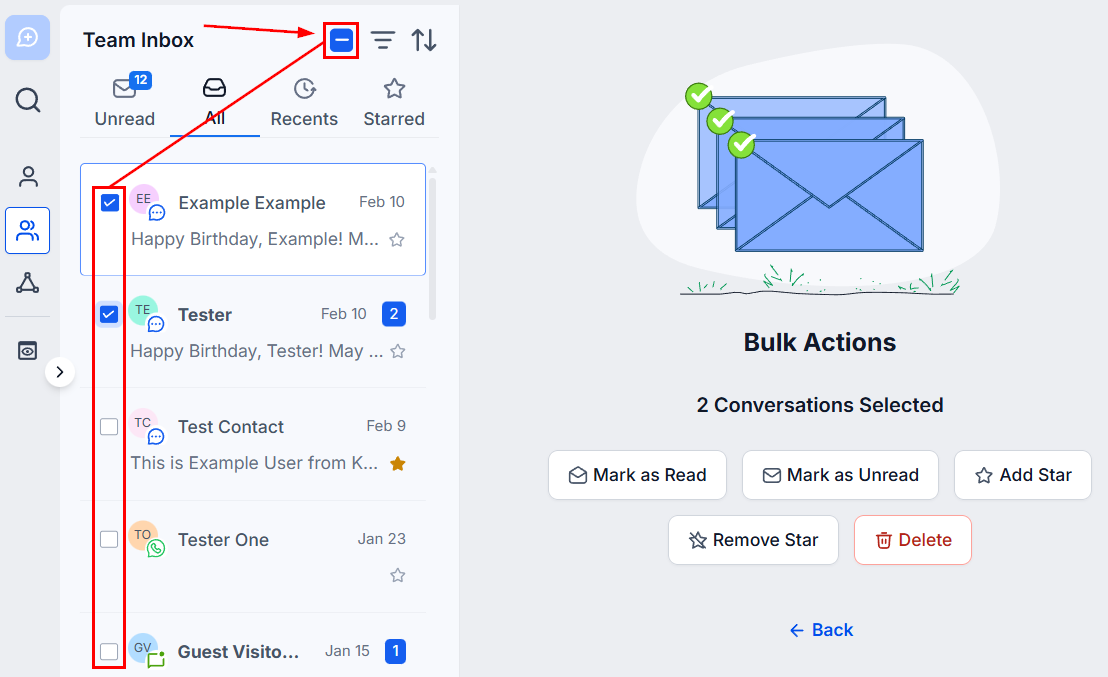
Bulk action controls in the conversation list
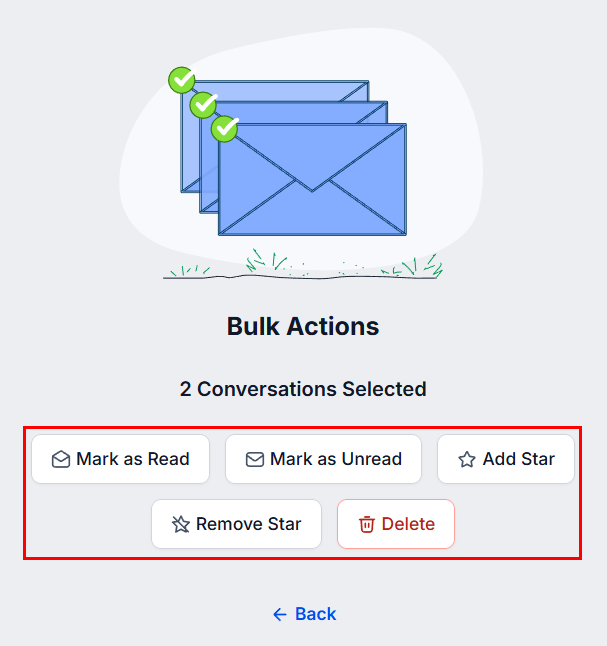
Bulk action menu options
Mark as read / unread
Mark as read / unread
Mark as Read removes the unread notification badge. Mark as Unread re-adds it so you can track conversations for follow-up.
Star / unstar
Star / unstar
Star important conversations to move them into the Starred tab for quick access. Unstar to remove them from that tab.
Delete
Delete
Permanently removes all messages and related activities from Hoop. You will be prompted to confirm before deletion. This action cannot be undone.
Bulk actions apply to a maximum of 100 conversations at a time.
Quick filters
Click the three-line icon to the right of the search bar to open the Quick Filters panel.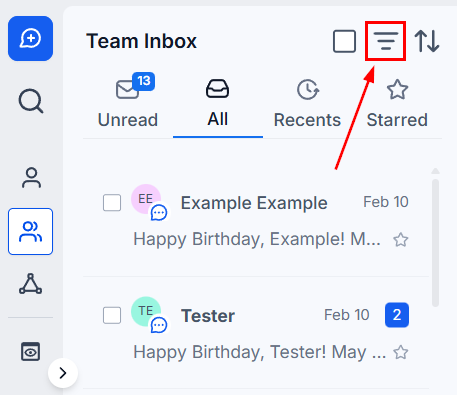
Quick Filters panel
Available filters
Engagement score
Engagement score
Prioritizes conversations based on contact interaction level. Higher scores indicate more active engagement.
Assigned
Assigned
Filters by the team member responsible for the contact.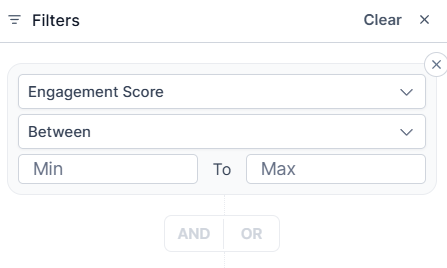
- None — conversations with no assigned user
- Assigned To — conversations assigned to selected team members
- Not To — excludes conversations assigned to selected members
Assigned filter options
Follower
Follower
Filters by who is following the contact.
- Is — conversations followed by a selected team member
- Is not — excludes those followed by a selected member
- Is empty — conversations not followed by anyone
- Is not empty — conversations that have at least one follower
Mentions
Mentions
Finds conversations where specific users are mentioned.
- Is — conversations mentioning a selected user
- Is not — excludes conversations mentioning a selected user
Last message direction
Last message direction
- Inbound — most recent message came from the contact
- Outbound — most recent message was sent by your team
Last outbound message type
Last outbound message type
- Manual — last outbound message was sent by a person
- Automation — last outbound message was sent by a workflow
Last message channel
Last message channel
Filter by the source of the most recent message (e.g., SMS, email, WhatsApp, Instagram). Select multiple channels from the dropdown.
SLA
SLA
Filter conversations by their Service Level Agreement status — overdue, due soon, or on track.
Saved views
Create named views to save your most frequently used filter combinations for instant reuse.1
Apply your filters
Set up the Quick Filters you want to save.
2
Save as a view
Click Create View and give it a name.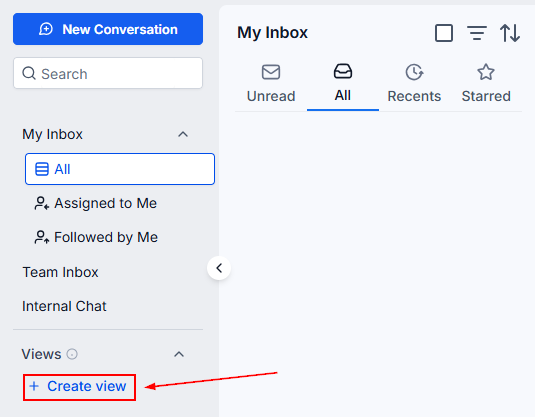
Create a saved view
3
Access your view
Your saved views appear in the left sidebar. Click any view to instantly apply it.
Views are private by default and visible only to the creator. Admins can share views with other users from the view menu.