

Connecting WhatsApp
WhatsApp integration in the HoopAI platform runs through the Meta Business platform. To set it up:- Navigate to Settings → Integrations → WhatsApp.
- Click Connect WhatsApp and follow the Meta sign-in and verification steps.
- Select the WhatsApp Business phone number to link.
- Accept the required permissions and complete the setup wizard.
A verified Meta Business account and an approved WhatsApp Business profile are required before connecting. Personal WhatsApp accounts cannot be integrated.
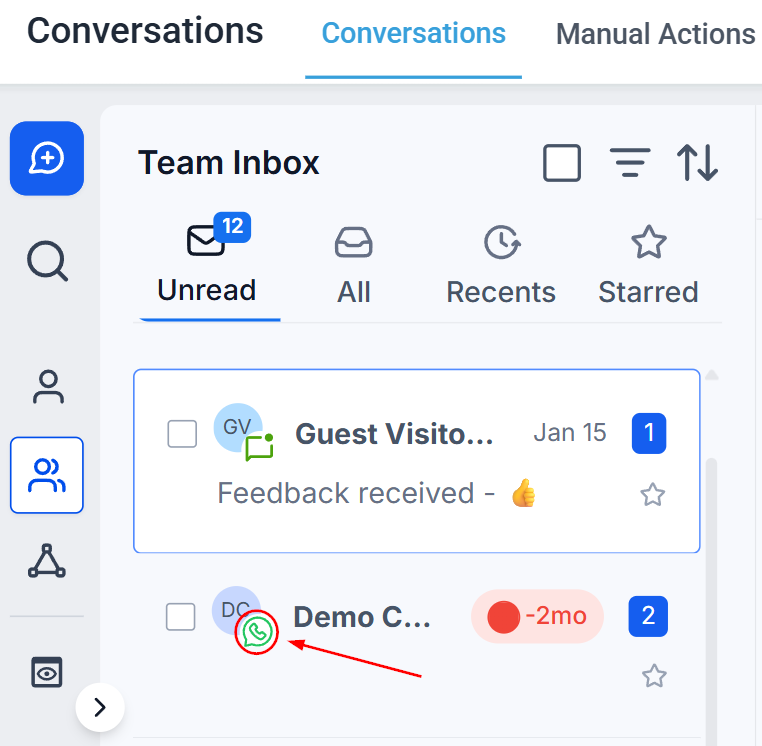
The Conversations inbox showing a WhatsApp conversation identified by the green WhatsApp icon
The 24-hour messaging window
WhatsApp enforces a 24-hour session window from the moment a contact sends your business an inbound message. Within that window, you can reply with any content — text, images, documents, or voice notes — freely. Once the 24-hour window closes, you can only re-open the conversation using an approved WhatsApp message template.Sending a WhatsApp message
1
Open the conversation
Navigate to Conversations and open the contact. If this is the first message to a contact via WhatsApp, click the + icon and choose WhatsApp as the channel.
2
Select the WhatsApp channel
Click the WhatsApp tab in the message composer.
3
Compose your message
Type your message in the text field. Within the active session window, you can write any content. The standard toolbar options are available:
4
Send or schedule
- Click Send to deliver immediately.
- Click the dropdown arrow next to Send and choose Send Later to schedule the message. Note that scheduled messages must fall within 24 hours of the last inbound message from the contact.
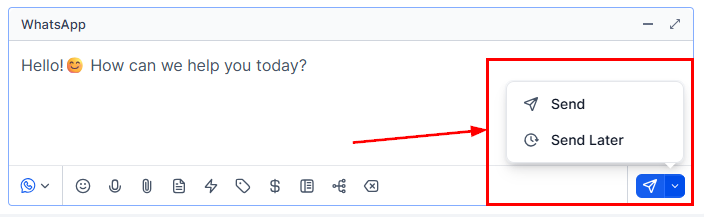
The WhatsApp composer with Send and Send Later options in the send dropdown
Using WhatsApp templates
WhatsApp templates are pre-approved message formats required for initiating conversations and messaging outside the 24-hour window. Templates must be submitted to and approved by Meta before use.1
Access templates
In the WhatsApp composer, click the notebook icon to open the template selector.
2
Choose a template
Browse or search your approved templates. Each template shows its name, category, and preview text.
3
Fill in variables
Many templates contain dynamic fields (e.g., contact name, appointment time). Fill in each variable before sending.
4
Send
Review the completed template and click Send. The message is delivered even if the session window has expired.
Sending voice notes
WhatsApp voice notes let you send audio messages directly in a conversation — ideal for adding a personal touch or explaining something more naturally than text allows.1
Grant microphone permission
The first time you record, the HoopAI platform requests microphone access. Allow it in your browser or device privacy settings.
2
Start recording
Click the microphone icon in the WhatsApp composer toolbar. Speak clearly into your microphone.
The maximum voice note duration is 10 minutes.
3
Send the recording
Click Send when finished. The audio is delivered to the contact in real time.
Microphone not working
Microphone not working
Check your browser or OS privacy settings and confirm the HoopAI platform has permission to access your microphone. In Chrome, go to Settings → Privacy and security → Site settings → Microphone.
Microphone icon not visible
Microphone icon not visible
The microphone icon only appears when there is an active WhatsApp conversation. Voice notes cannot be sent to a contact who has never messaged your business via WhatsApp.
Poor audio quality
Poor audio quality
Reduce background noise and speak directly into the microphone. A headset with a built-in microphone typically produces better quality than a laptop’s built-in mic.
Sending media and attachments
Within the session window, you can attach images, videos, PDFs, and other documents to WhatsApp messages. Click the paperclip icon and select the file from your device. Media received from contacts is stored in the HoopAI platform for up to one year. Inbound files expire on WhatsApp’s servers after 7 days; outbound files after 30 days. To keep media permanently, save it to the contact’s Documents folder.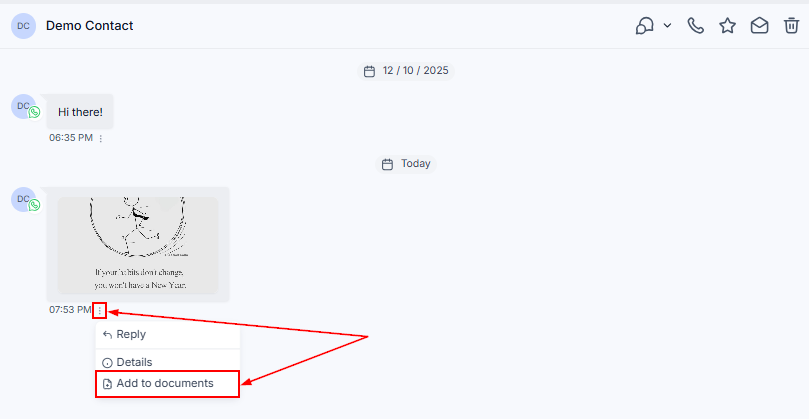
Saving received WhatsApp media to the contact documents folder
Saving received media to documents
1
Click the attachment in the conversation
Open the WhatsApp conversation and click the media file.
2
Save to documents
Select Add to Documents from the actions dropdown.
3
Access anytime
The file is now permanently stored in the contact’s Documents section. Use the three-dot menu beside the file to download or preview it.
WhatsApp snippets
Use saved text snippets to respond quickly and consistently inside WhatsApp conversations.1
Open the snippets panel
In the WhatsApp composer, click the paper icon.
2
Select a snippet
Browse or search your snippet library. Click a snippet to populate the message field automatically.
3
Customize and send
Edit the snippet text if needed, then click Send.
Managing WhatsApp conversations
WhatsApp conversations support all the standard inbox management actions:- Archive — move inactive conversations out of the main inbox view.
- Star — flag high-priority conversations for quick access in the Starred tab.
- Mark as Read / Unread — control the notification badge for follow-up tracking.
- Assign — route the conversation to a specific team member.
- Bot toggle — enable or disable the AI bot for this contact individually.