Configure when and how your Voice AI agent transfers calls to human team members.
Even the best Voice AI agent will encounter situations it cannot handle alone. A frustrated caller, a complex billing dispute, or a VIP client who expects a personal touch — these moments require a seamless handoff to a human team member. HoopAI’s call escalation system lets you define exactly when transfers happen, who receives them, and what the caller experiences during the transition.This guide covers everything you need to configure reliable, professional call transfers that keep your customers satisfied and your team efficient.
Human handover action configuration in Conversation AI bot goals
Define specific words or phrases that immediately trigger a transfer when the caller says them.
Keyword category
Example phrases
Direct requests
”Talk to a person,” “speak to a human,” “transfer me,” “get me a manager”
Frustration signals
”This isn’t working,” “I’m done with this,” “this is ridiculous”
Complex topics
”Cancel my account,” “billing dispute,” “legal question”
VIP identifiers
”I’m a premium member,” “enterprise account,” custom VIP phrases
Include common variations and misspellings of your keywords. Callers might say “talk to someone real” instead of “talk to a human.” The more variations you cover, the fewer missed escalations you will experience.
HoopAI can analyze the caller’s tone and emotional state in real time. When the sentiment score drops below a configurable threshold, the agent automatically initiates a transfer.Sentiment analysis considers:
Tone of voice — Rising volume, rapid speech, or sharp tonal shifts
Word choice — Negative language patterns and repeated complaints
Conversation flow — Repeated questions, circular conversations, or increasing impatience
Any direct request to speak with a human should be honored immediately. HoopAI’s Voice AI agents are pre-trained to recognize common transfer requests, but you can expand recognition by adding custom phrases in your agent’s escalation settings.
In a warm transfer, the Voice AI agent briefs the human team member before connecting the caller. The agent provides context such as the caller’s name, the reason for the call, and a summary of the conversation so far.When to use warm transfers:
High-value or VIP callers who expect personalized service
Complex issues where context prevents the caller from repeating themselves
Situations where the caller is already frustrated
During a warm transfer, the caller hears hold music or a “please hold” message while the AI briefs the team member. This typically takes 5 to 15 seconds.
In a cold transfer, the call is routed directly to the human team member without any briefing. The caller is connected immediately, and the team member sees basic caller information on their screen but does not receive a conversation summary.When to use cold transfers:
Simple routing scenarios (e.g., transferring to a specific department)
When speed matters more than context
Low-complexity calls where the caller can quickly explain their need
Navigate to AI Agents > Voice AI in your HoopAI account. Select the agent you want to configure, or create a new one. If you need help creating an agent, see Creating Voice AI agents.
2
Navigate to escalation settings
In the agent editor, scroll to the Call Escalation section or click the Escalation tab in the sidebar. This is where all transfer rules are managed.
3
Add keyword triggers
Under Keyword Triggers, click Add Keyword and enter the words or phrases that should trigger a transfer. You can add multiple keywords, and each one is matched independently.
Avoid overly common words like “help” or “question” as standalone triggers — they will cause unnecessary transfers. Use specific phrases like “I need help from a real person” instead.
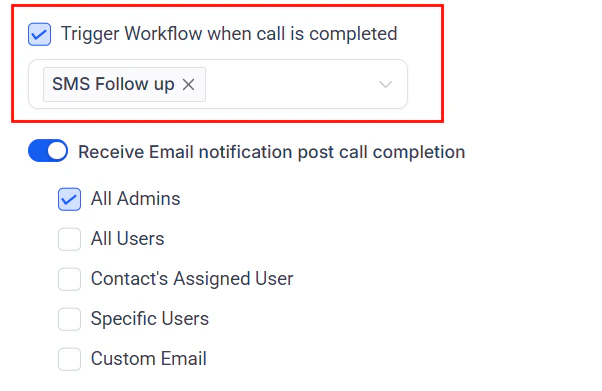
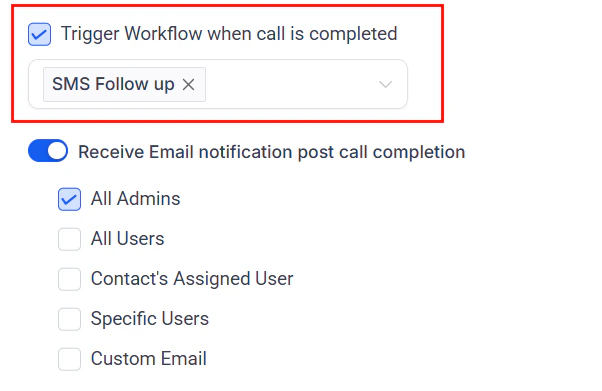
Trigger a workflow when a call is escalated to a team member
4
Configure sentiment threshold
Enable Sentiment-Based Escalation and set the sensitivity level:
Level
Behavior
Low
Only escalates when strong negative sentiment is detected over multiple exchanges
Medium
Escalates when moderate frustration is detected consistently
High
Escalates at the first sign of caller dissatisfaction
For most businesses, Medium provides the best balance between automation and human intervention.
5
Set up transfer destinations
Define where escalated calls should be routed:
Specific user — Route to a named team member (e.g., your office manager)
User group — Route to a team (e.g., “Sales Team” or “Support Team”) and ring all members or use round-robin
External number — Forward to a phone number outside HoopAI (e.g., a personal mobile for after-hours)
Queue — Place the caller in a hold queue if all team members are busy
6
Choose transfer style
Select either Warm Transfer or Cold Transfer as the default style. You can override this per trigger if needed — for example, use warm transfers for VIP escalations and cold transfers for simple department routing.
7
Configure the transfer message
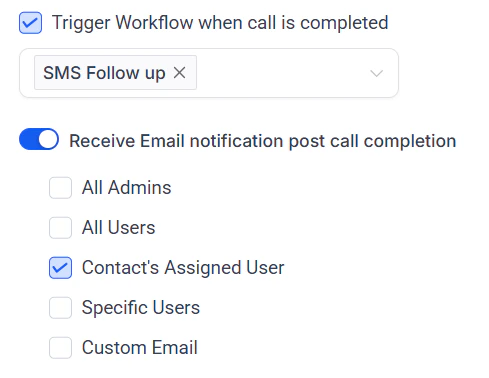
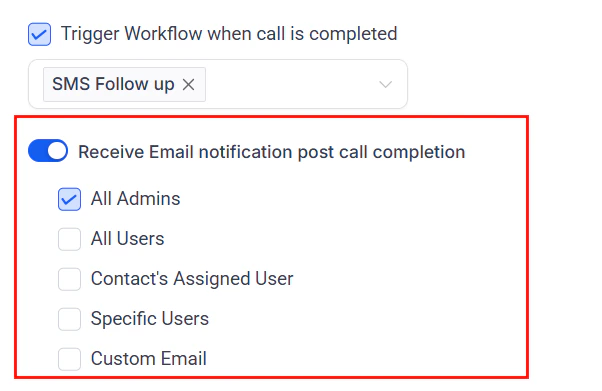
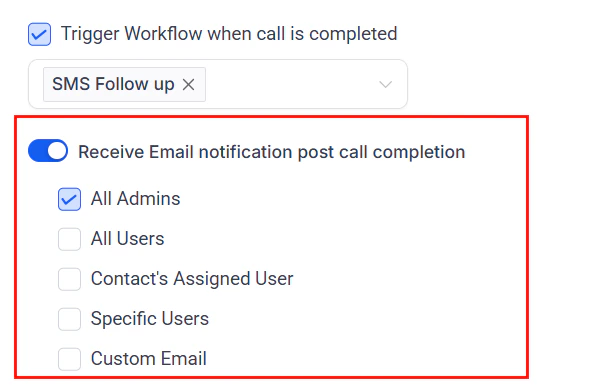
Configure notification settings for when a call is escalated to a team member
Configure email notifications for escalated calls
Customize what the AI says to the caller before transferring. A good transfer message sets expectations:
“I understand you would like to speak with a team member. Let me connect you now — one moment please.”
You can also customize the hold message or music the caller hears during the transfer.
8
Save and test
Click Save to apply your escalation settings. Test the configuration by placing a test call and using your trigger phrases to verify that transfers route correctly.
For businesses with specialized teams, you can route different types of escalations to different people:
Route by topic
Use topic-detection rules to send billing questions to your finance team, technical issues to support, and sales inquiries to your closers. Each topic can have its own transfer destination and style.
Route by schedule
Configure time-based routing so that calls during business hours go to your in-office team, while after-hours calls route to an on-call team member or voicemail.
Route by contact data
Use contact tags, custom fields, or pipeline stage to determine who handles the escalation. A contact in the “Enterprise” pipeline stage might always go to a senior account manager.
Not every transfer will reach a human on the first attempt. Configure failover behavior so callers are never left hanging:
Retry with timeout — Ring the destination for a set number of seconds (e.g., 30 seconds) before moving to the next step
Secondary destination — If the primary team member does not answer, route to a backup person or group
Voicemail — If no one is available, offer to take a voicemail and create a task for follow-up
AI continuation — Return the caller to the Voice AI agent with instructions to collect contact information and schedule a callback
Callback scheduling — Let the AI offer to book a callback at a convenient time using your calendar integration
Always configure at least one failover step. A call that transfers to an unanswered line with no fallback will result in a dropped call and a frustrated customer.
Notification settings to alert team members when a caller needs human assistance