

Why connect AI agents to workflows?
AI agents excel at conversations. Workflows excel at automation. When you connect them, you get the best of both worlds: intelligent, natural conversations that trigger powerful behind-the-scenes automation. A standalone AI agent can answer questions and collect information. A standalone workflow can send emails and update records. Together, they can have a conversation with a lead, qualify them in real time, book an appointment, notify your sales team, add the contact to a nurture sequence, and send a personalized follow-up — all without human intervention.How the connection works
The integration between AI agents and workflows operates in two directions:- Bot to workflow — The AI agent triggers a workflow based on something that happens during the conversation (e.g., the contact expresses interest, provides qualifying information, or requests a callback)
- Workflow to bot — A workflow activates an AI agent to initiate or continue a conversation (e.g., a timed follow-up, a re-engagement message, or a post-purchase check-in)
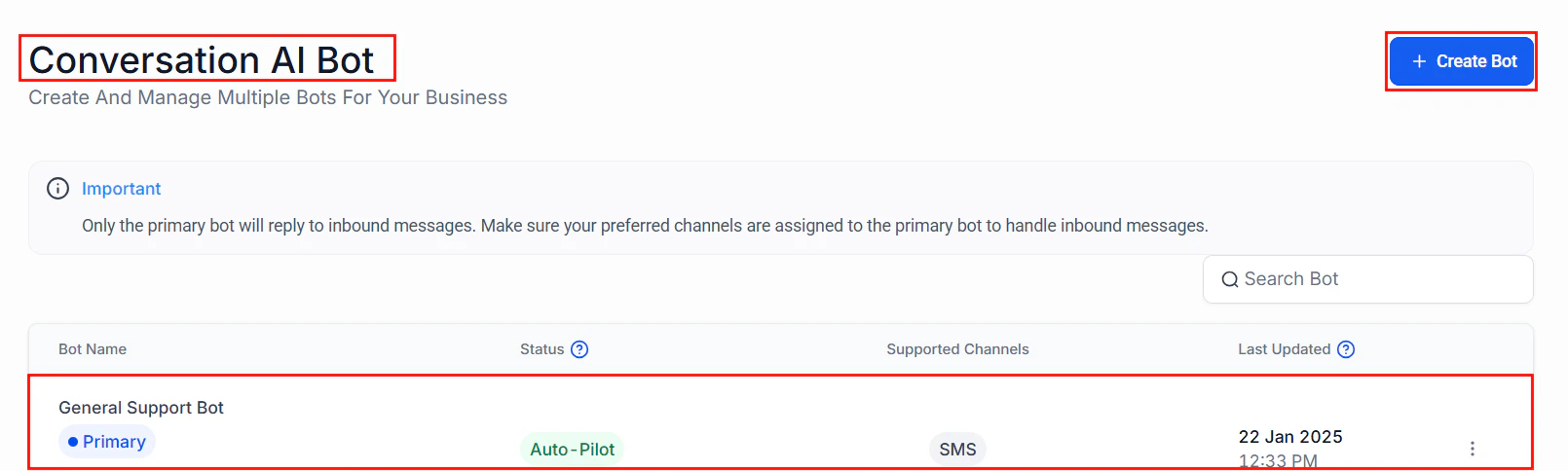
Conversation AI bot configuration showing the connection between AI agents and workflows
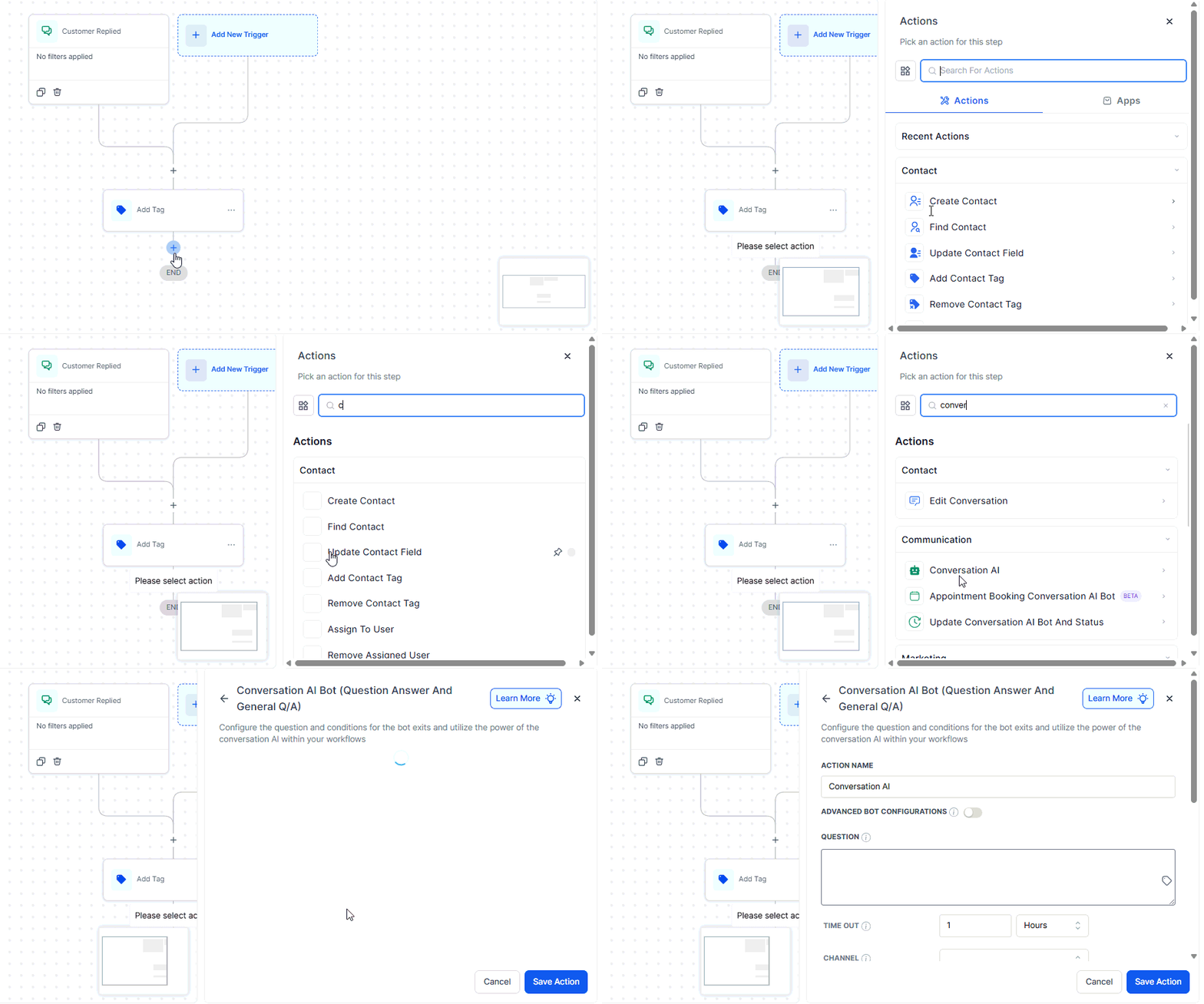
Setting up the Conversation AI workflow action step by step
Triggering workflows from AI agents
Open your AI agent configuration
Add a workflow trigger action
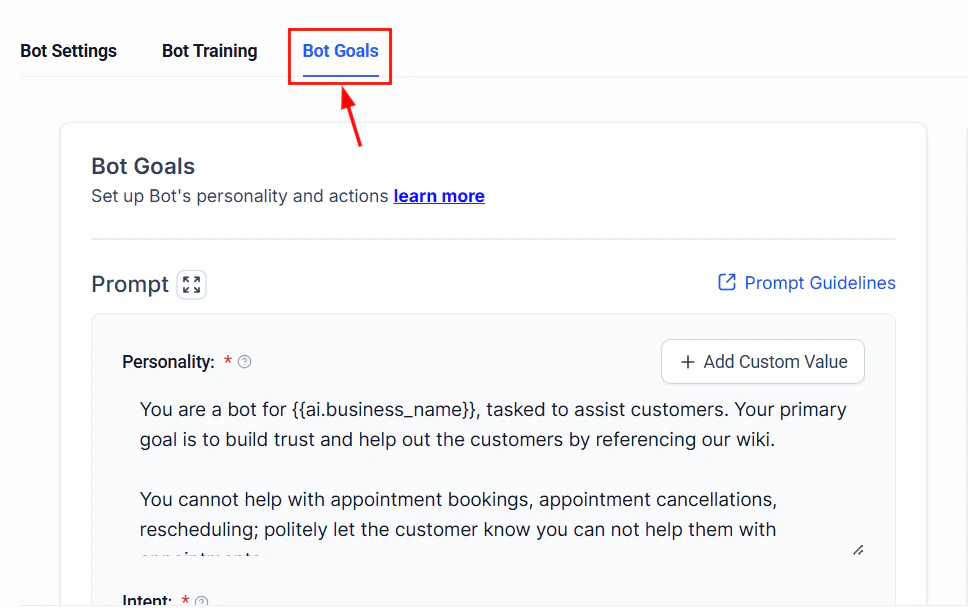
Bot goals configuration for defining when to trigger a workflow
Select the target workflow
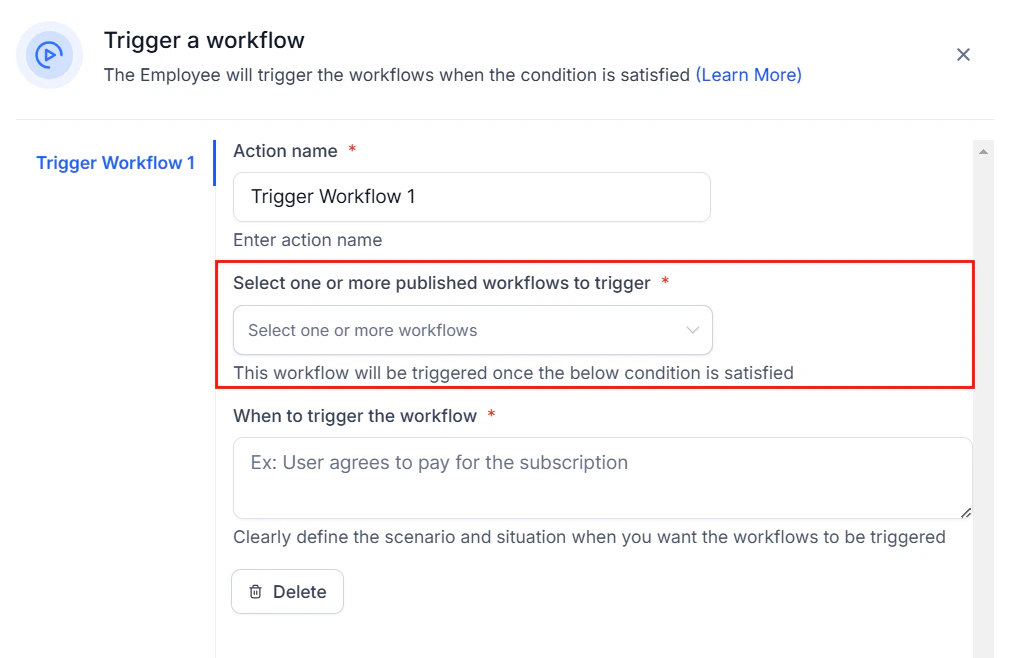
Selecting the target workflow to trigger from the AI agent
Define the trigger conditions
- The contact provides a specific piece of information (email, phone, service need)
- The conversation reaches a particular intent (wants to book, ready to buy, needs support)
- The contact explicitly requests something (callback, pricing, brochure)
Map conversation data to workflow fields
Test the full chain
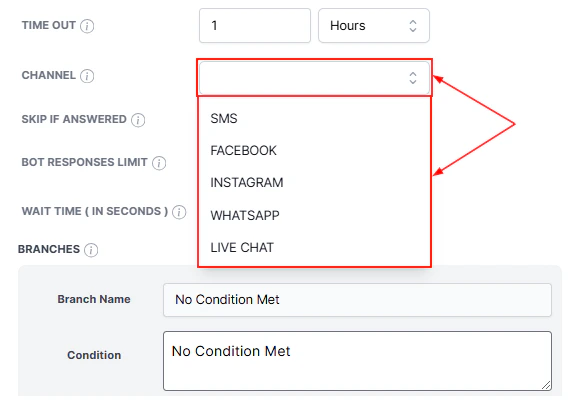
Selecting which messaging channel the Conversation AI action should monitor
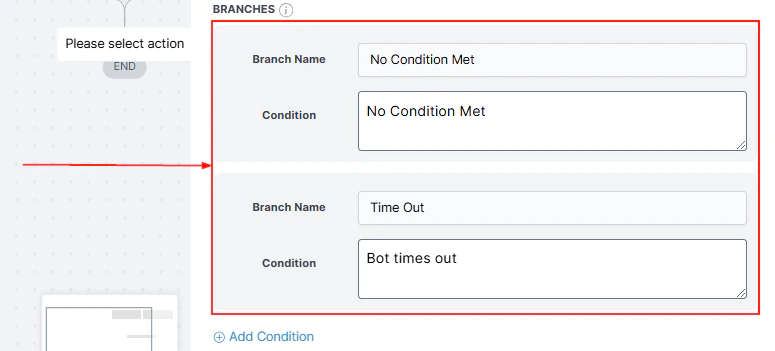
Configuring branch paths based on the AI agent conversation outcomes
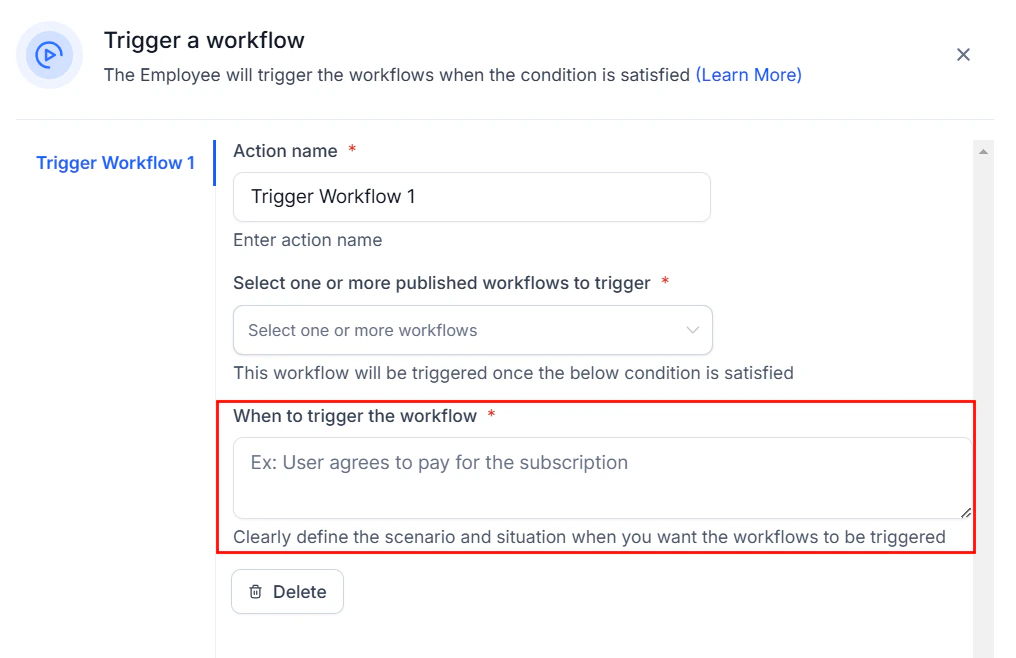
Configuring when the AI agent should trigger the workflow during a conversation
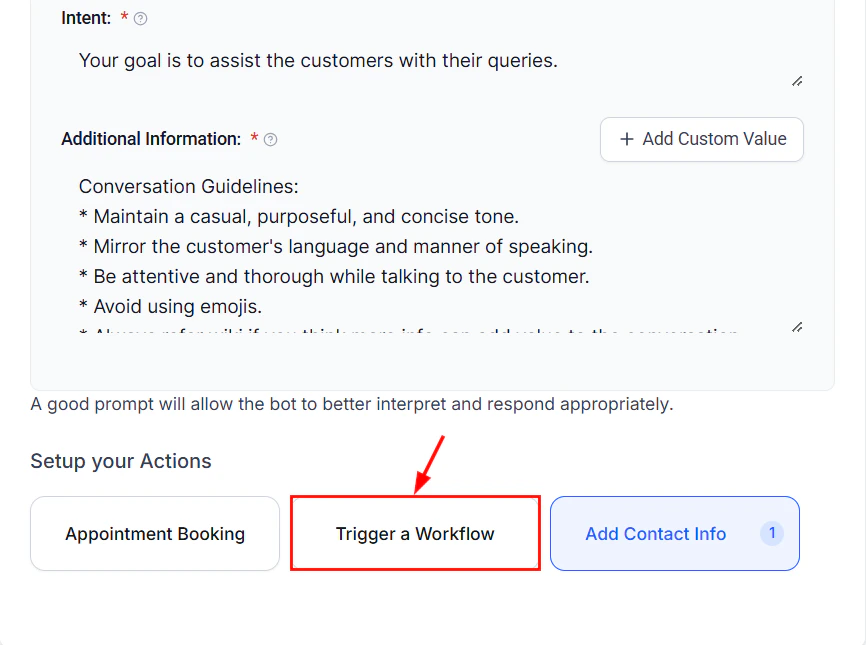
Selecting the workflow trigger from the AI agent action configuration
Passing conversation context
When an AI agent triggers a workflow, you can pass rich conversation context beyond simple field values:Available context data
Mapping conversation data to contact fields
During the AI agent setup, you define which pieces of information the agent should extract. These map directly to HoopAI contact fields:{{contact.custom_field.service_interest}}.
Using workflow results in bot responses
Sometimes you need a workflow to process data and return results to the AI agent. This creates a round-trip: the bot collects information, a workflow processes it, and the bot delivers the result.Common round-trip scenarios
Real-time pricing lookup
Real-time pricing lookup
- Contact asks about pricing for a specific service
- AI agent collects service details and location
- Workflow triggers: looks up pricing from a custom values list or external API via webhook
- Pricing data returns to the conversation
- AI agent presents the quote naturally in conversation
Appointment availability check
Appointment availability check
- Contact wants to book an appointment
- AI agent asks for preferred date and time
- Workflow triggers: checks calendar availability
- Available slots return to the conversation
- AI agent presents options and confirms booking
Account status verification
Account status verification
- Existing customer asks about their account
- AI agent collects identifying information
- Workflow triggers: pulls account details from your system
- Account information returns to the conversation
- AI agent shares relevant details while protecting sensitive data
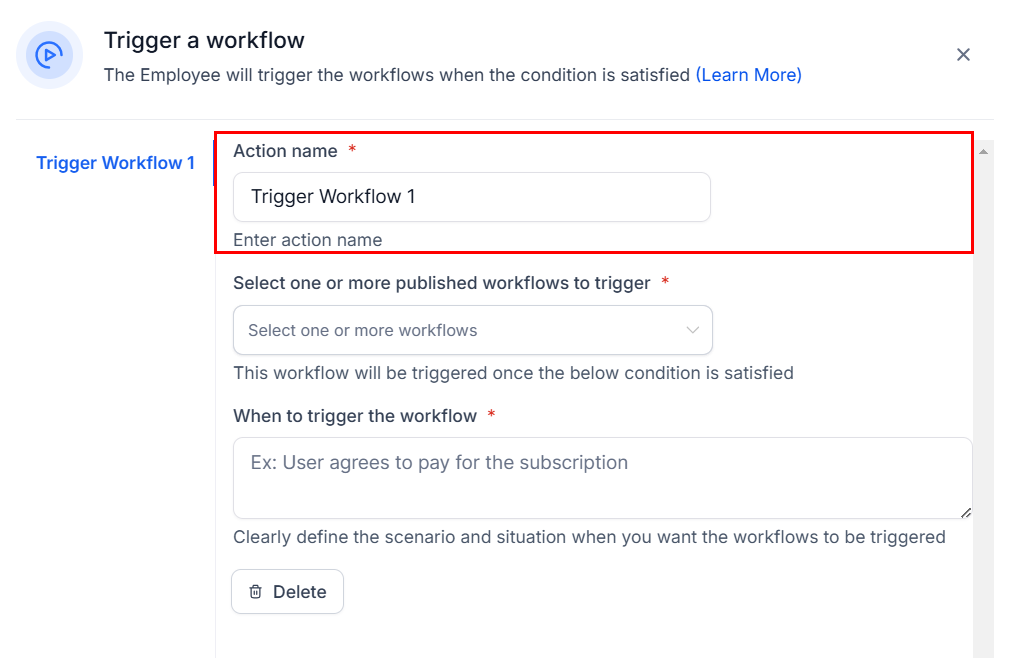
Configuring the action name when connecting an AI agent to a workflow
Bot to workflow to bot chains
The most powerful automation patterns chain multiple handoffs between AI agents and workflows. Here is a complete example:Lead qualification chain
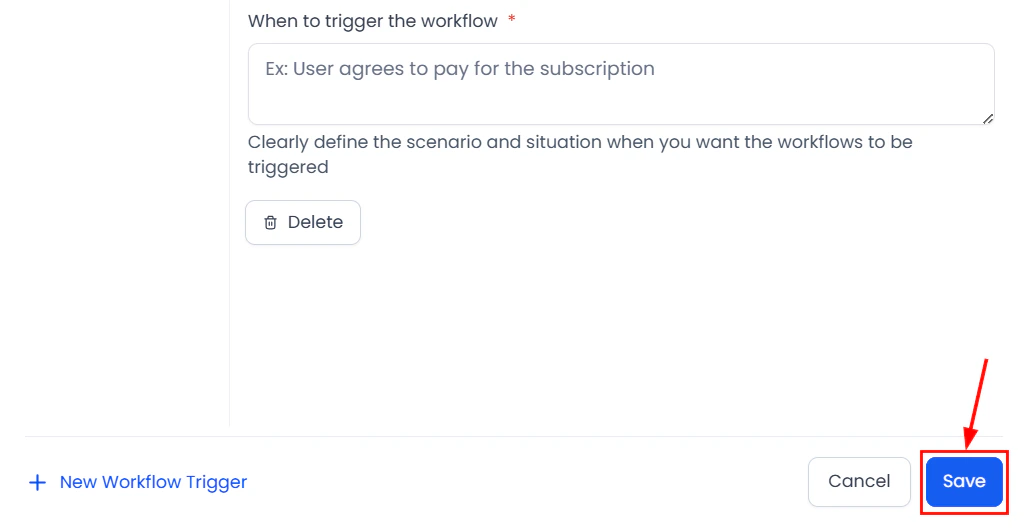
Saving the workflow trigger configuration for your AI agent
Auto follow-up workflows
One of the most valuable patterns is using workflows to follow up after bot conversations end.Post-conversation follow-up
Create a workflow with the trigger 'Conversation ended'
Add a wait step
Add conditional logic
Configure follow-up actions
- Booked appointment: Send confirmation email with details
- Expressed interest but did not book: Send a “still interested?” message with a booking link
- Just browsing: Add to a general nurture sequence
- Negative experience: Alert team for personal outreach
Contact tagging from AI agents
AI agents can apply tags during conversations, which then serve as workflow triggers or conditions.Strategic tagging patterns
Setting up tag-based workflows
- In your AI agent, configure actions to apply specific tags based on conversation context
- In Automation > Workflows, create workflows with the trigger Tag Added
- Filter by the specific tag name
- Build your automation sequence
Complete example showing a Conversation AI action integrated into a lead qualification workflow
Best practices for AI agent and workflow integration
Design principles
- Keep AI agents focused on conversation. Let workflows handle the backend automation. Do not try to make the AI agent do everything.
- Use clear handoff points. Define exactly when and why a workflow should trigger. Ambiguous trigger conditions lead to unreliable automation.
- Always include fallbacks. If a workflow fails or returns unexpected data, the AI agent should have a graceful response rather than breaking the conversation.
- Test the complete chain. Testing the AI agent alone or the workflow alone is not enough. Test them together with realistic data.
Performance tips
- Minimize the number of workflow triggers per conversation to conserve AI credits
- Use tags for simple routing and reserve workflow triggers for complex multi-step processes
- Add short wait steps between bot-to-workflow triggers to prevent race conditions
- Monitor workflow execution logs alongside conversation logs to debug issues