

What labels are for
Labels are applied at the conversation level — not the contact level — which means the same contact can have conversations with different labels applied to each one. Common use cases include:- Marking conversations by pipeline stage (e.g., “New Lead,” “Proposal Sent,” “Closed Won”)
- Flagging urgency (e.g., “Urgent,” “VIP,” “Escalated”)
- Categorizing by topic (e.g., “Billing,” “Support,” “Onboarding”)
- Tracking follow-up state (e.g., “Awaiting Reply,” “Call Back Later”)
Creating labels
Labels are created in account settings and are available to all users once created.1
Open label settings
Navigate to Settings → Conversations → Labels (or Settings → Labels, depending on your account layout).
2
Add a new label
Click Add Label or the + icon.
3
Name the label
Enter a short, descriptive name. Keep names concise — they appear as chips in the conversation list and long names can be truncated.
4
Choose a color
Select a color from the palette. Choose colors that create clear visual contrast between label categories. For example, use red for urgent items and green for completed ones.
5
Save
Click Save. The label is immediately available to all team members.
Applying a label to a conversation
1
Open the conversation
Navigate to Conversations and open the contact’s conversation.
2
Find the Labels control
Labels are accessible from two places:
- The conversation header — look for the label icon or the Labels field near the top of the open conversation.
- The Contact Details panel on the right side — scroll to the Conversation section.
3
Select a label
Click the Labels field to open the dropdown list of available labels. Click a label to apply it. You can apply multiple labels to a single conversation.
4
Remove a label
Click the X on an applied label chip to remove it, or open the label dropdown and deselect it.
Applying labels in bulk
To label multiple conversations at once: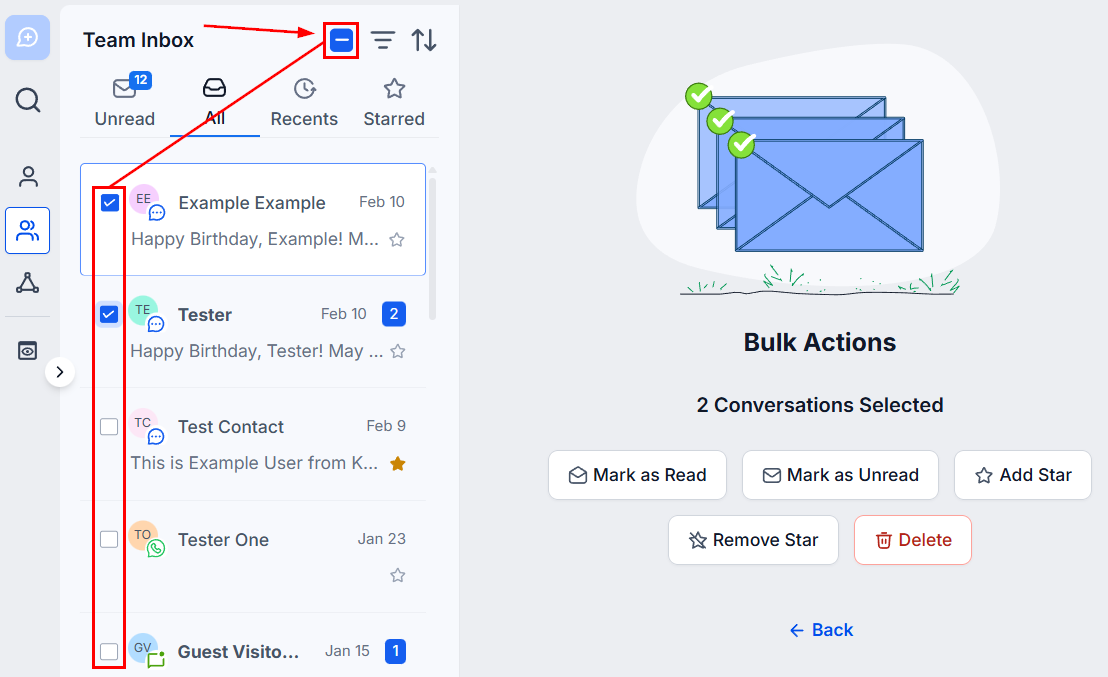
Selecting multiple conversations and using bulk actions
1
Select conversations
In the conversation list, check the boxes next to the conversations you want to label. Check the top box to select all visible conversations (up to 100 at a time).
2
Choose the label action
Click the bulk actions menu that appears and select Add Label.
3
Choose a label
Select the label to apply. The label is added to all selected conversations simultaneously.
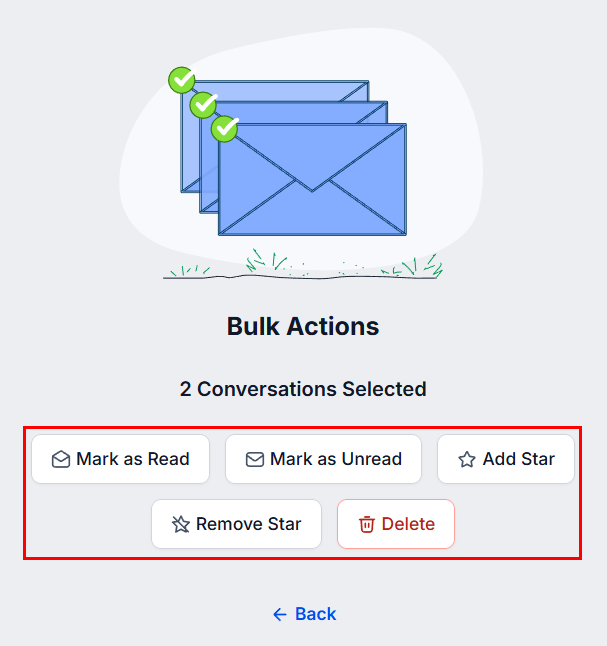
Bulk Actions menu for managing multiple selected conversations at once
Filtering by label
Labels are most powerful when combined with filters to create focused inbox views.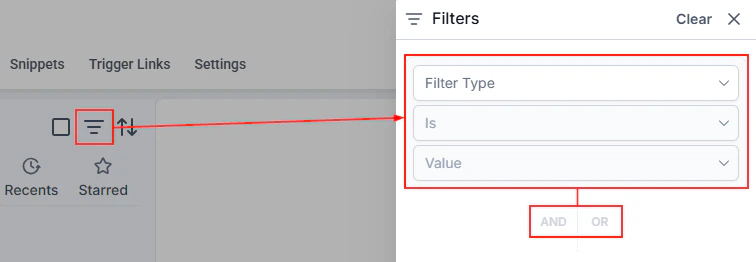
Opening the Filters panel to filter conversations by label, assignee, or channel
1
Open Quick Filters
Click the three-line icon next to the search bar in the Conversations inbox.
2
Select the Labels filter
Scroll to the Labels section in the filter panel.
3
Choose labels to filter by
Select one or more labels. The inbox immediately updates to show only conversations with those labels applied.
4
Combine with other filters
Layer additional filters — such as Assigned To or Last message channel — to narrow results further. Use And / Or logic to control how multiple filters interact.
5
Save as a view
If this filter combination is one you will use regularly, click Create View and give it a name. The view appears in your left sidebar for one-click access.
Quick Filters panel with filter type, operator, and value selectors for narrowing conversations
Automating label application
Labels can be applied automatically through workflows, removing the need for manual tagging when contacts meet specific criteria. To automate label application:- Go to Automation → Workflows.
- Create or edit a workflow.
- Add a Conversation Label action.
- Choose Add Label and select the label to apply.
- Save and publish the workflow.
Workflow-applied labels appear immediately in the conversation and are visible to all team members with access.
Managing labels
Editing a label
Navigate to Settings → Conversations → Labels, click the label you want to update, change the name or color, and save. The change applies everywhere that label is currently in use.Deleting a label
Click the label in settings and choose Delete. Deleting a label removes it from all conversations where it was applied. This action cannot be undone. Before deleting, ensure no active workflows or saved views depend on that label.Renaming for clarity
As your team’s processes evolve, rename labels to reflect updated terminology. Because labels are centrally managed, a rename propagates instantly to every conversation and every user.Labels vs. contact tags
Labels and tags serve different purposes:
Use labels to track conversation state and priority. Use contact tags to classify the contact themselves for segmentation, automation targeting, and reporting.