Set up an AI bot that handles customer inquiries outside business hours and queues urgent issues.
Build an AI bot that takes over when your team clocks out — answering common questions, capturing urgent issues, and queuing everything for morning follow-up so no customer is left waiting.
Overview
Goal
Deploy a Conversation AI bot that handles customer inquiries outside business hours, resolves common questions from the knowledge base, and queues urgent issues for your team
Time to build
30–45 minutes
Prerequisites
Conversation AI enabled, knowledge base populated, workflows configured
AI features used
Conversation AI + Knowledge Base + Workflows
Difficulty
Beginner
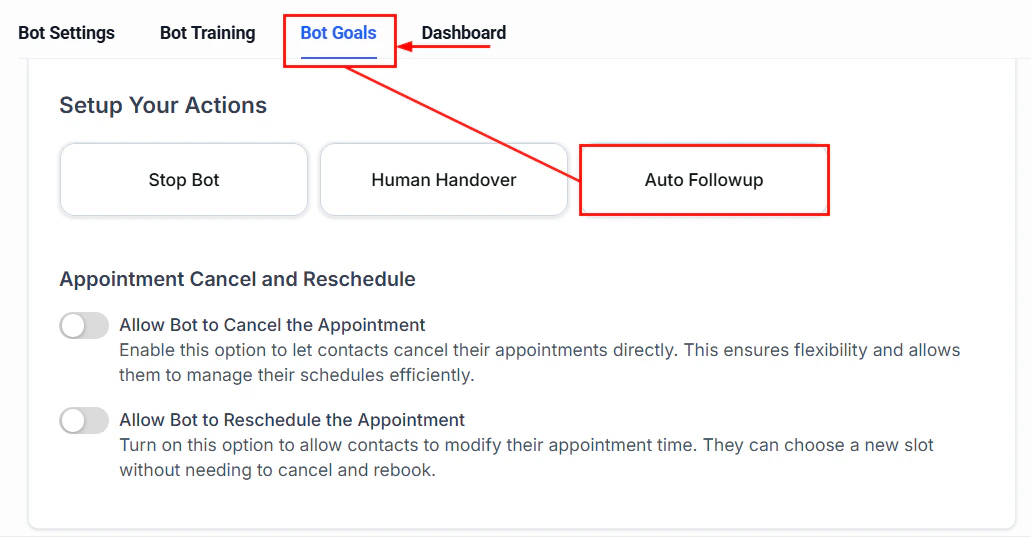
Auto follow-up action configuration for re-engaging after-hours contacts
Working hours detection — A workflow checks whether the incoming message arrives during or outside business hours.
During hours — Messages route to your human team as normal. The bot stays inactive or assists in suggestive mode.
After hours — The bot activates and greets the customer, letting them know it is an AI assistant available outside business hours.
Knowledge base lookup — The bot answers common questions using your knowledge base.
Urgent issue capture — If the issue is urgent (e.g., locked out, emergency, billing problem), the bot collects details and flags it for priority follow-up.
Morning handoff — When business hours resume, your team gets a summary of all after-hours conversations with priority tags.
Review your conversation history for the last 30 days. The questions that come in after 5 PM are the ones your knowledge base needs to answer.
3
Create the after-hours bot
Navigate to AI Agents > Conversation AI and click Create Bot.
Name: “After-Hours Support”
Type: Auto-pilot (this bot needs to work without human oversight)
Channels: Toggle on all channels where customers reach you — SMS, Web Chat, Facebook Messenger, Instagram, WhatsApp
Calendar: Leave unassigned unless you want the bot to book next-day appointments
Set this bot as a non-primary bot. Your primary bot or human team handles daytime conversations. The after-hours bot only activates via workflow trigger.
4
Write the bot prompt
Paste the full prompt from the section below into the System Prompt field. The prompt is designed to:
Clearly identify itself as an after-hours assistant
Set expectations about response times for complex issues
Answer common questions from the knowledge base
Detect and flag urgent issues
Collect contact details for follow-up
5
Build the after-hours activation workflow
Go to Automation > Workflows and create a workflow:Trigger: Inbound message received (any channel)Condition: Check if the current time is outside business hoursIf outside hours:
Enable the “After-Hours Support” bot on this contact
Add tag “after-hours-inquiry”
If during hours:
Disable the “After-Hours Support” bot (let the primary bot or human handle it)
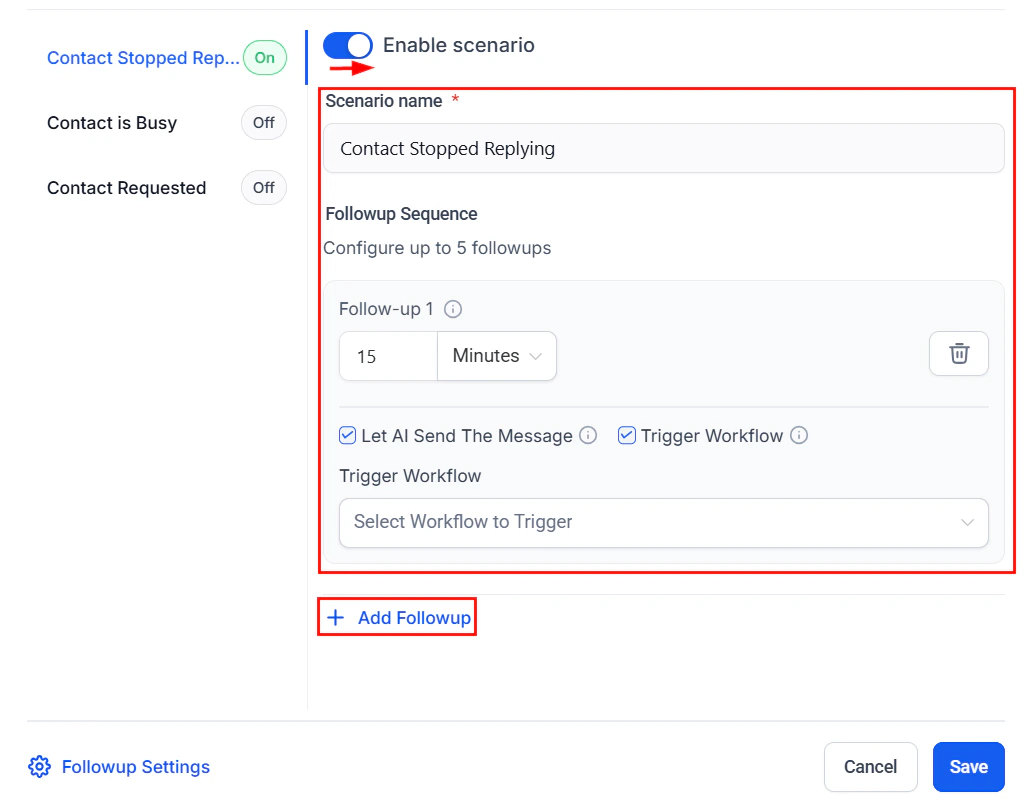
Follow-up scenario configuration for after-hours re-engagement
6
Build the urgent issue workflow
Create a second workflow triggered by Tag Added — “urgent-after-hours” (the bot adds this tag when it detects an urgent issue):
Send internal SMS to the on-call team member with the contact name and issue summary
Send internal email with full conversation transcript
Create task assigned to the on-call person with a 30-minute due time
Move opportunity to an “Urgent” pipeline stage (if applicable)
Only use urgent escalation for truly critical issues. If too many conversations get flagged as urgent, your team will start ignoring the alerts. Define “urgent” clearly in your bot prompt.
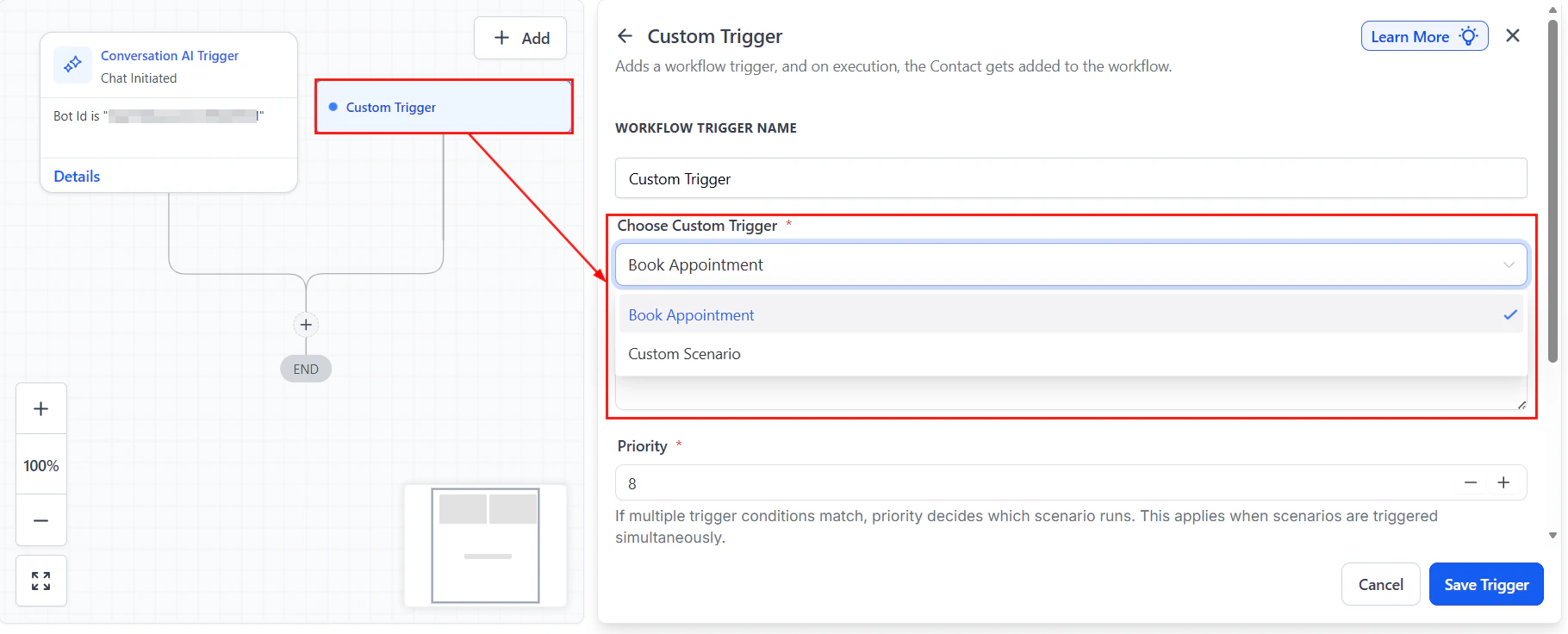
Choosing a custom trigger for the morning handoff workflow
7
Build the morning handoff workflow
Create a daily scheduled workflow that runs at the start of business hours (e.g., 8:55 AM):
Filter contacts tagged “after-hours-inquiry” from the previous night
Send summary email to your team lead with: number of conversations, list of contact names, conversation summaries, and any urgent flags
Create tasks for each conversation that needs follow-up
Remove tag “after-hours-inquiry” after processing
This ensures nothing falls through the cracks between night and morning.
8
Configure the daytime handback
At the start of business hours, the after-hours bot should stop for all active contacts:
In your morning workflow, add an action to disable the after-hours bot on all contacts where it is active
If a conversation was mid-flow, the handback allows a human to pick up where the bot left off
Send the customer a message: “Good morning! Our team is now available. A team member will follow up with you shortly regarding your inquiry.”
You are the after-hours support assistant for [BUSINESS NAME]. Customers are reaching out outside of normal business hours, and your job is to help them as much as possible while setting clear expectations.IDENTITY AND TONE:- You are [BOT NAME], the after-hours assistant for [BUSINESS NAME].- Be warm, helpful, and reassuring. Customers contacting you after hours may be frustrated or anxious.- Keep messages concise — 2-3 sentences per response.GREETING (first message only):"Hi! Thanks for reaching out to [BUSINESS NAME]. Our office is currently closed, but I am here to help with common questions. For anything that needs personal attention, our team will follow up with you first thing in the morning. How can I help?"WHAT YOU CAN DO:1. Answer common questions using the knowledge base — hours, services, pricing, location, policies, FAQs.2. Book appointments for the next available business day (if calendar is connected).3. Collect information for urgent issues so the team can prioritize them in the morning.4. Take messages for specific team members.HANDLING QUESTIONS:- If you can answer the question from the knowledge base, answer it clearly and completely.- If you cannot answer the question, say: "That is a great question. I want to make sure you get an accurate answer, so I will have our team reach out to you during business hours. Can I confirm your best contact number?"- Never guess or fabricate answers. It is always better to say you do not know than to give wrong information.URGENT ISSUE DETECTION:The following are considered urgent:- Account lockouts or access issues- Billing errors or unauthorized charges- Safety or security concerns- Time-sensitive matters with a deadline within 24 hoursWhen you detect an urgent issue:1. Acknowledge the urgency: "I understand this is urgent. Let me make sure our team sees this right away."2. Collect details: the customer's name, phone number, a brief description of the issue3. Reassure them: "I have flagged this as a priority. A team member will reach out to you as soon as possible."4. Tag the conversation as urgent (this triggers the escalation workflow).NON-URGENT ISSUES:- Collect the customer's name and contact information- Summarize their issue- Set expectations: "Our team will be back at [OPENING TIME] and will follow up with you."BOUNDARIES:- Never make changes to accounts, billing, or orders — you can only collect information.- Never provide medical, legal, or financial advice.- Never promise specific resolution times beyond "first thing in the morning."- If a customer is upset, empathize and reassure: "I completely understand your frustration. I am documenting everything so our team can resolve this quickly."- Always offer the option to leave a message for a specific person if the customer asks.CLOSING:"Is there anything else I can help with tonight? Remember, our team will be available starting at [OPENING TIME] tomorrow."
Send a message during business hours and verify the after-hours bot does NOT activate.
2
After-hours activation test
Send a message outside business hours and verify the bot activates and sends the after-hours greeting.
3
FAQ test
Ask five common questions (hours, location, services, policies). Verify the bot answers accurately from the knowledge base.
4
Unknown question test
Ask a question not in the knowledge base. Verify the bot admits it does not know and offers to have the team follow up.
5
Urgent issue test
Describe an urgent issue (e.g., “I was charged twice on my credit card”). Verify the bot flags it as urgent, collects your details, and triggers the escalation workflow.
6
Morning handoff test
Verify the morning summary email arrives at the correct time with a complete list of overnight conversations.
7
Daytime handback test
Verify that when business hours resume, the after-hours bot is disabled and the handback message is sent to customers with active conversations.
Review overnight transcripts weekly. Look for questions the bot could not answer and add them to the knowledge base. After a few weeks, the bot should handle 80%+ of after-hours inquiries without escalation.
Adjust urgent criteria based on data. If too many issues are flagged urgent, tighten the criteria. If your team finds missed urgent issues in the morning, loosen them.
Track resolution by channel. Some channels (like web chat) may have higher resolution rates than others. Focus knowledge base improvements on the weakest-performing channels.
Add appointment booking. If many after-hours contacts want to schedule something, connect a calendar and let the bot book next-day appointments. See appointment scheduler.
Test timezone handling. If you serve customers across timezones, make sure your business hours logic accounts for the customer’s local time, not just yours.