

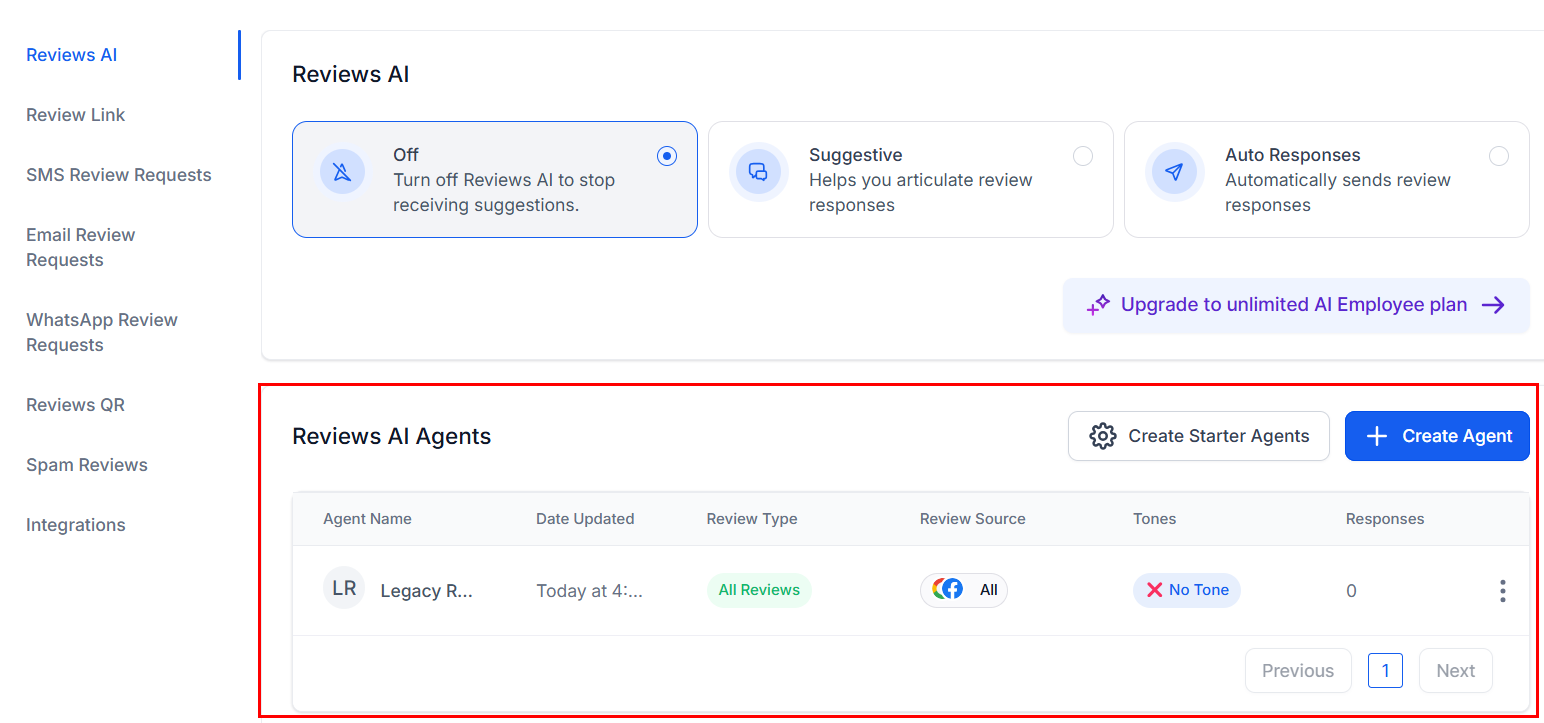
Reviews AI settings showing Off, Suggestive, and Auto Responses modes with the agents list below
Architecture overview
The review automation flow works as follows:- Review received — A customer leaves a review on your Google Business Profile.
- Review synced — HoopAI detects the new review and syncs it to the reviews dashboard.
- AI analysis — Reviews AI analyzes the review’s sentiment, star rating, and content.
- Response generation — The AI drafts a response matching the appropriate tone for the review type.
- Response handling — Depending on your mode (auto-pilot or suggestive), the response is either posted automatically or queued for your approval.
- Follow-up actions — Workflows trigger based on the review rating: thank-you sequences for positive reviews, recovery sequences for negative reviews.
Step-by-step build
Connect your Google Business Profile
- You must have owner or manager access to the GBP listing
- The listing must be verified with Google
- If you have multiple locations, connect each one
Navigate to Reviews AI settings
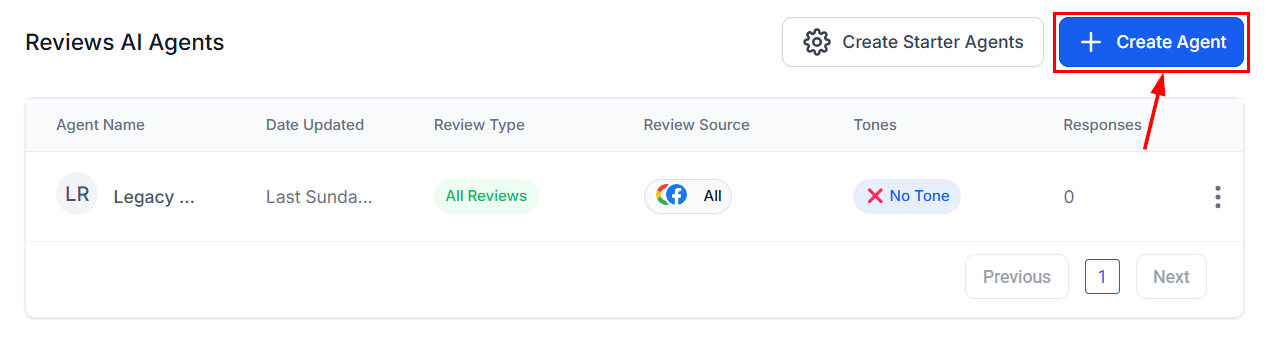
Creating a new Reviews AI agent from the agents dashboard
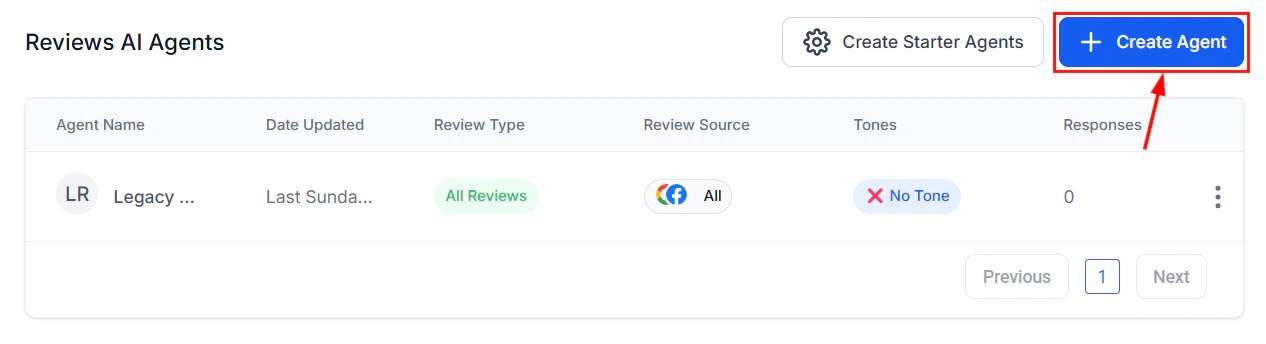
Creating a new Reviews AI agent with template selection
Choose your response mode
- The AI automatically posts responses to reviews without human approval
- Best for businesses that receive many reviews and want instant responses
- You can still edit or delete responses after they are posted
- The AI drafts a response and queues it for your approval
- You review, edit if needed, and then approve to post
- Best for businesses that want to maintain tight control over public responses
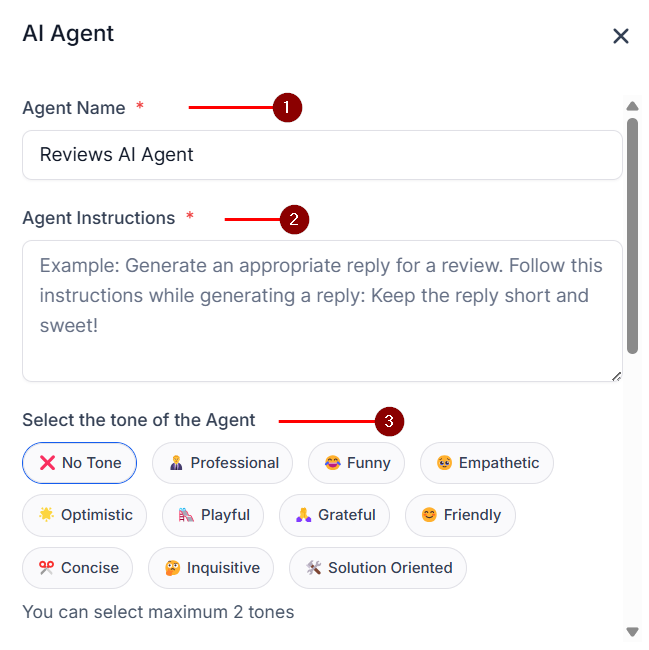
Configuring the Reviews AI agent name and basic settings
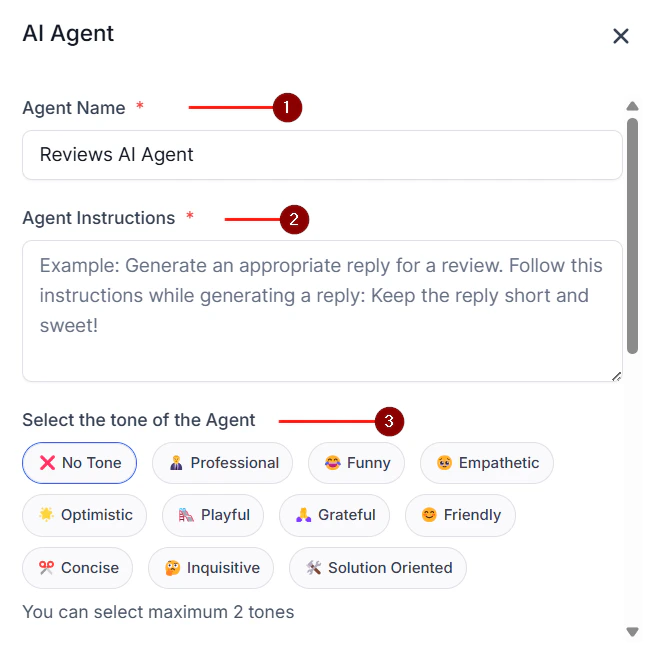
Setting the agent name and response tone for your Reviews AI agent
Configure response tone and style
- Business name (as it should appear in responses)
- Business type and industry
- Key services or products to mention
- Positive reviews (4-5 stars): Warm, grateful, enthusiastic. Thank the reviewer by name, reference specific details from their review, and invite them back.
- Neutral reviews (3 stars): Professional, appreciative, improvement-focused. Thank them for the feedback, acknowledge what went well, and address any concerns.
- Negative reviews (1-2 stars): Empathetic, professional, solution-oriented. Apologize for their experience, do not get defensive, and offer to resolve the issue offline.
- Keep responses to 2-4 sentences
- Always use the reviewer’s name if available
- Reference specific details from their review to show you read it
- Include a call to action (come back soon, call us to resolve, etc.)
- Never argue, make excuses, or blame the customer
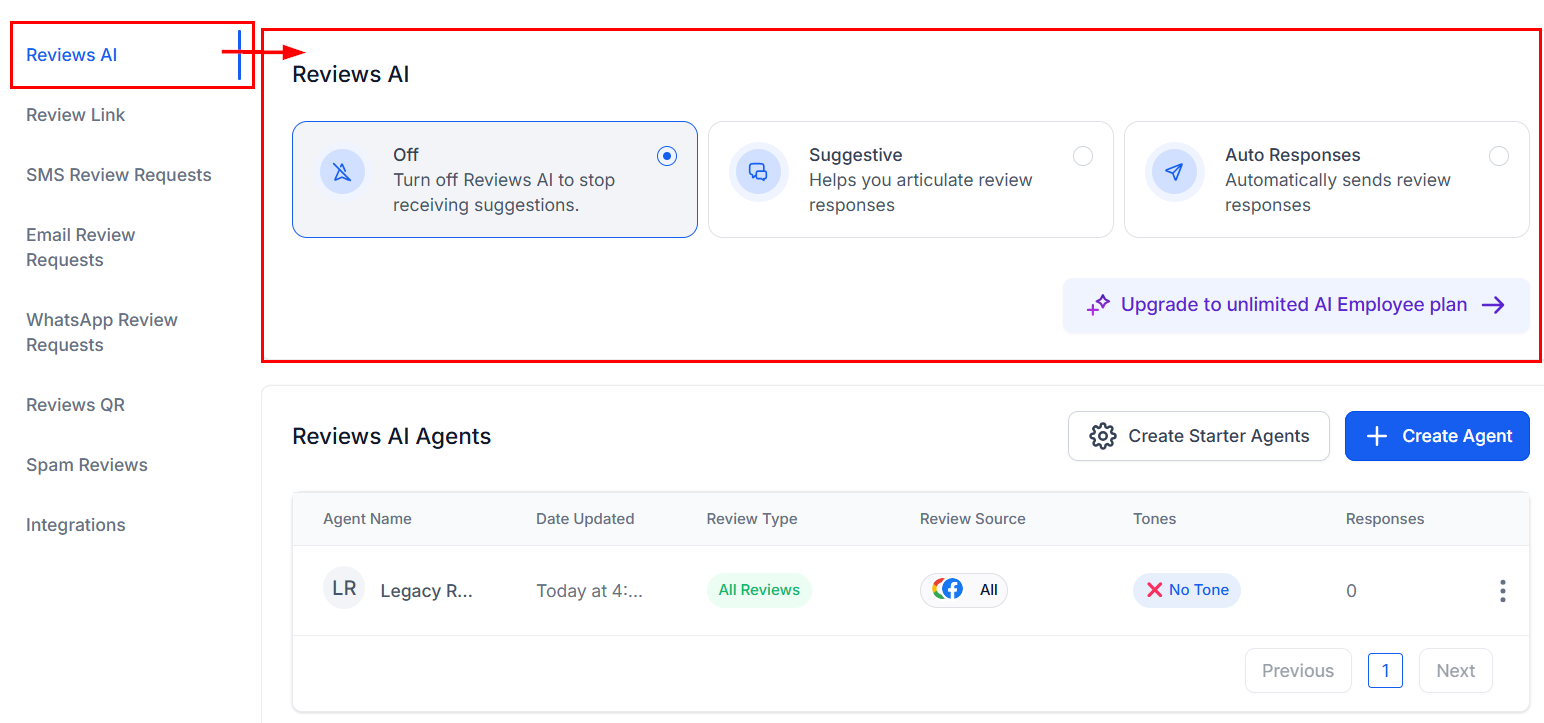
Reviews AI response behavior settings for positive and negative review handling
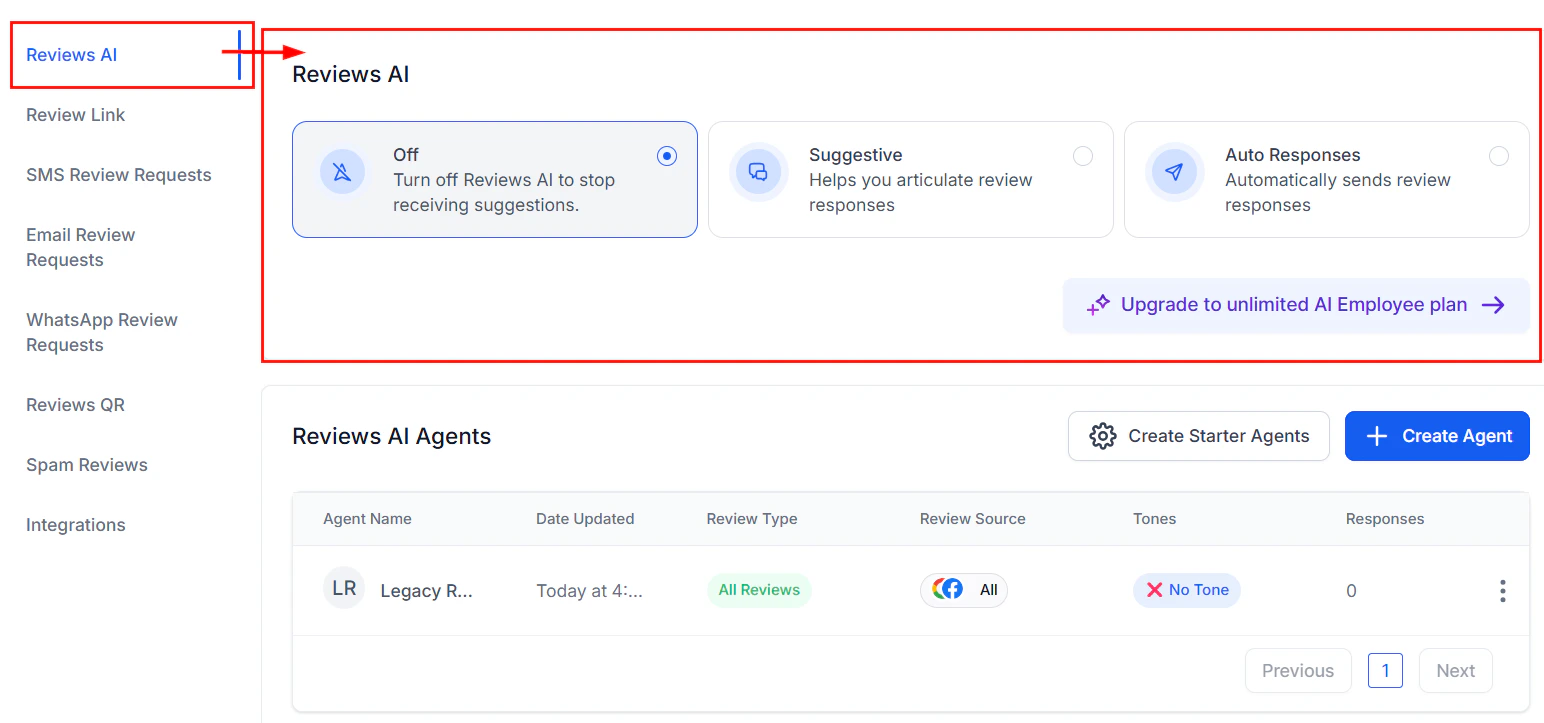
Reviews AI response behavior settings showing how responses are handled by rating
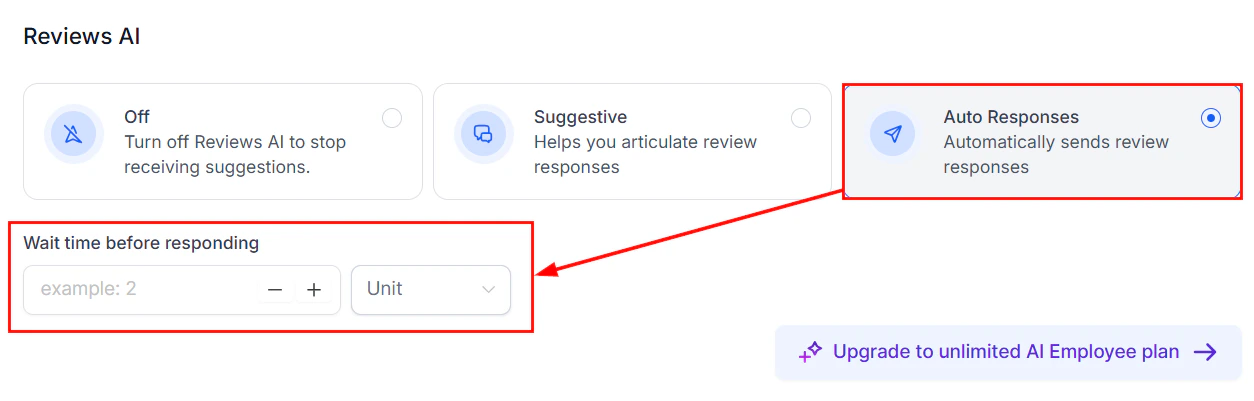
Auto-responses mode showing fully automated review reply settings
Set up rating-based response rules
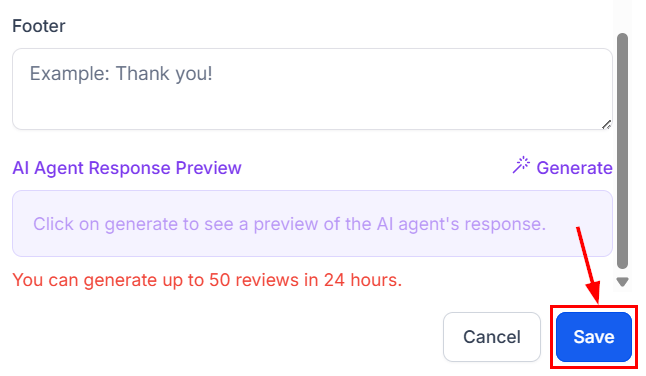
Saving the Reviews AI agent configuration
Build the positive review workflow
- Send thank-you SMS (if you have the reviewer’s phone number): “Hi
{{contact.first_name}}, thank you so much for the wonderful review! It means a lot to our team. We look forward to seeing you again.” - Add to referral campaign: Positive reviewers are your best source of referrals. Add them to a referral request sequence 7 days later.
- Add to loyalty segment: Tag them for exclusive offers or loyalty programs.
- Internal celebration: Send an internal notification to the team so they know they are doing great work.
Build the negative review recovery workflow
- Alert the manager immediately: Internal SMS and email with the review text, reviewer name, and star rating
- Create urgent task: Assigned to the manager with a 2-hour due time — “Contact
{{contact.name}}to resolve their review complaint” - Wait 1 hour (give the manager time to respond publicly first)
- Send private outreach (if you have their contact info): “Hi
{{contact.first_name}}, I saw your recent feedback and I want to make this right. Can we chat about your experience? I am available at [PHONE] or you can reply to this message.” - If resolved (manager marks task complete): Send a gentle follow-up in 7 days asking if they would consider updating their review
- Track resolution: Update a “Review Resolution” custom field
Build the review request workflow (proactive)
- Wait 2 hours after the positive interaction
- Send SMS: “Hi
{{contact.first_name}}, we hope you had a great experience with us today! If you have a moment, we would really appreciate a Google review. It helps other people find us: [REVIEW LINK]” - Wait 3 days: If no review detected, send one follow-up: “Just a friendly reminder — if you enjoyed your experience, a quick Google review would mean the world to us: [REVIEW LINK]”
- Do not send more than 2 requests per interaction
Configure review monitoring alerts
- All negative reviews (1-2 stars): Instant SMS + email to the business owner or manager
- All reviews: Daily summary email with new reviews, average rating, and response status
- Weekly report: Week-over-week review volume, average rating trend, response rate, and resolution rate
Full prompt
Reviews AI uses a configuration-based approach rather than a traditional prompt. However, you can customize the response style by providing guidelines. Here is a configuration template:Testing your review automation
5-star review test
3-star review test
1-star review test
Suggestive mode test
Auto-pilot mode test
Review request workflow test
Notification test
Optimization tips
- Respond to every review within 24 hours. Google’s algorithm favors businesses that respond quickly and consistently. Auto-pilot mode ensures you never miss a response.
- Personalize every response. The AI should reference specific details from the review (the service they used, the team member they mentioned, the outcome they experienced). Generic “Thank you for your review” responses feel robotic and can actually hurt your reputation.
- Track your response rate. Aim for 100% of reviews responded to. Even a simple thank-you on a 5-star review signals to potential customers that you care.
- Monitor sentiment trends. If your average rating drops, investigate immediately. Look at the negative reviews from the past 30 days and identify common themes (wait times, specific services, certain team members).
- Use negative reviews as improvement data. Every negative review is free market research. Track complaint categories and share them with your team weekly. Businesses that act on review feedback see measurable improvement within 90 days.
- Increase review volume with proactive requests. Most happy customers do not leave reviews unless asked. A well-timed review request can double your monthly review volume. More reviews also dilute the impact of occasional negative ones.