

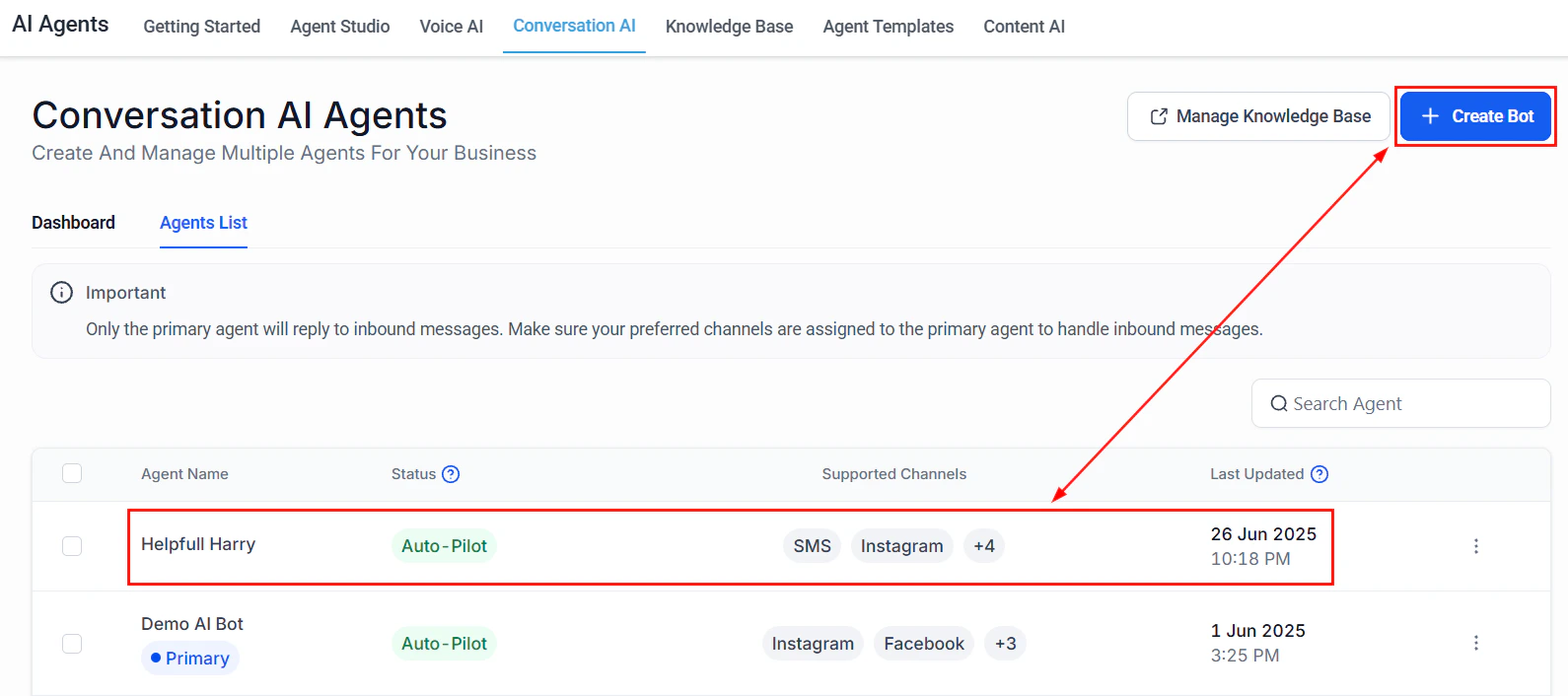
Navigate to Settings then Conversation AI to access your bots
Key capabilities
How it works
Each Conversation AI bot is powered by a system prompt and an optional knowledge base. When a message arrives on an assigned channel, the bot:- Reads the incoming message and conversation history
- Processes it through the AI model with your system prompt and knowledge base
- Generates a contextual response
- Takes actions (booking, tagging, escalating) as configured
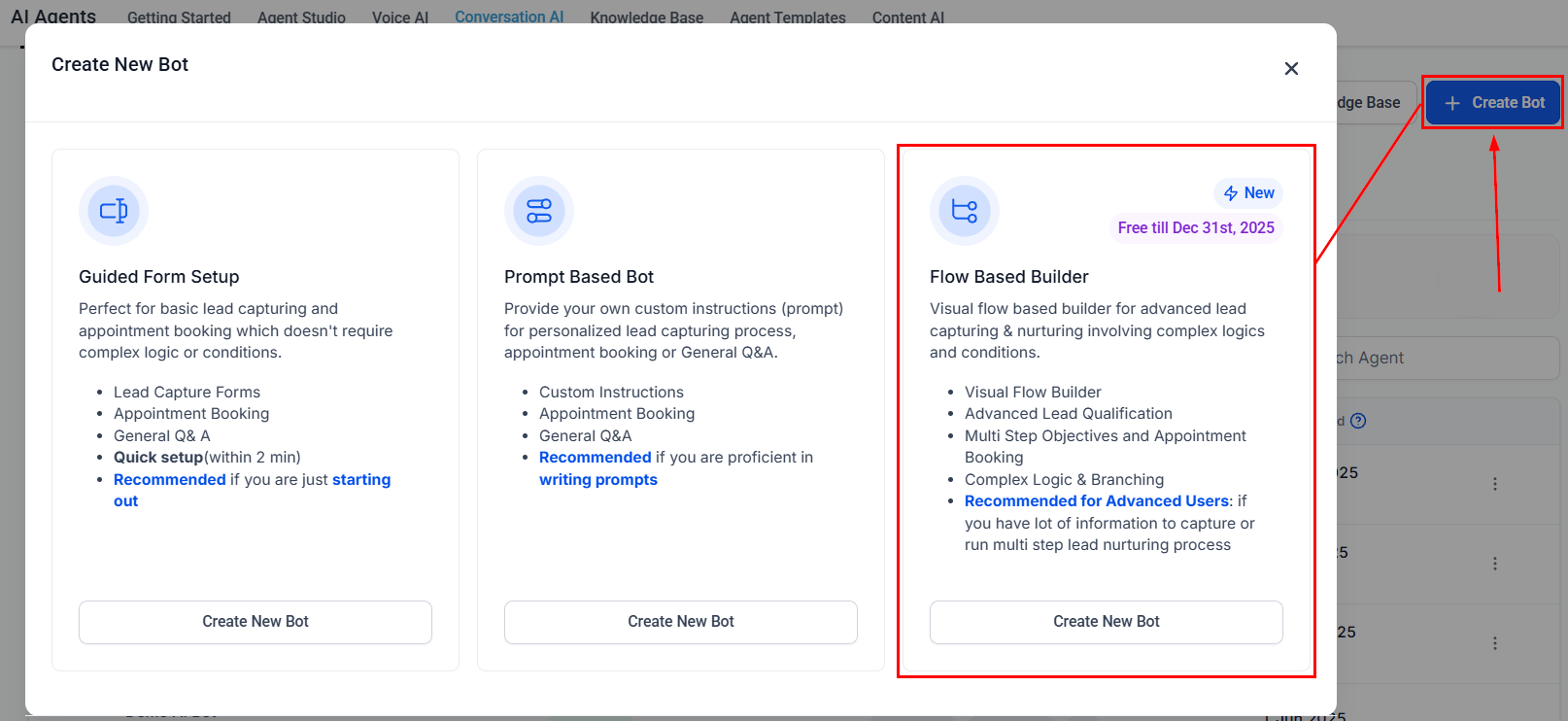
Flow builder interface for designing conversation flows
Flow builder canvas with connected nodes
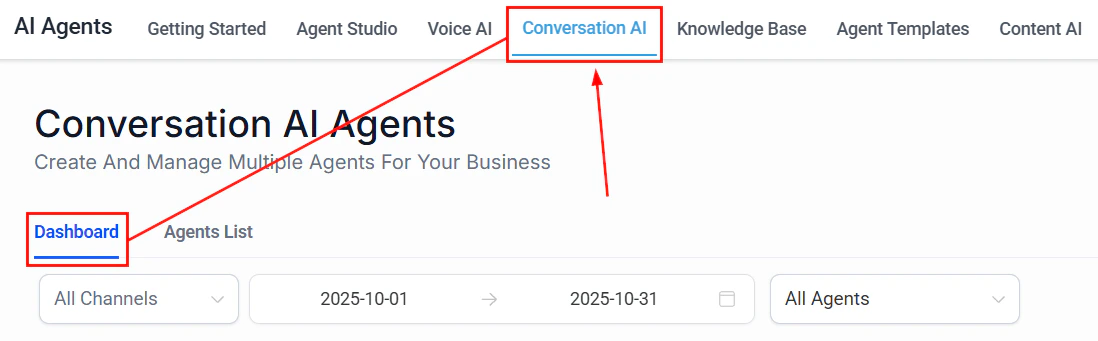
Conversation AI dashboard showing analytics and performance metrics
Bot overview
Once a bot is created, the bot overview screen gives you a summary of its configuration, status, and recent activity.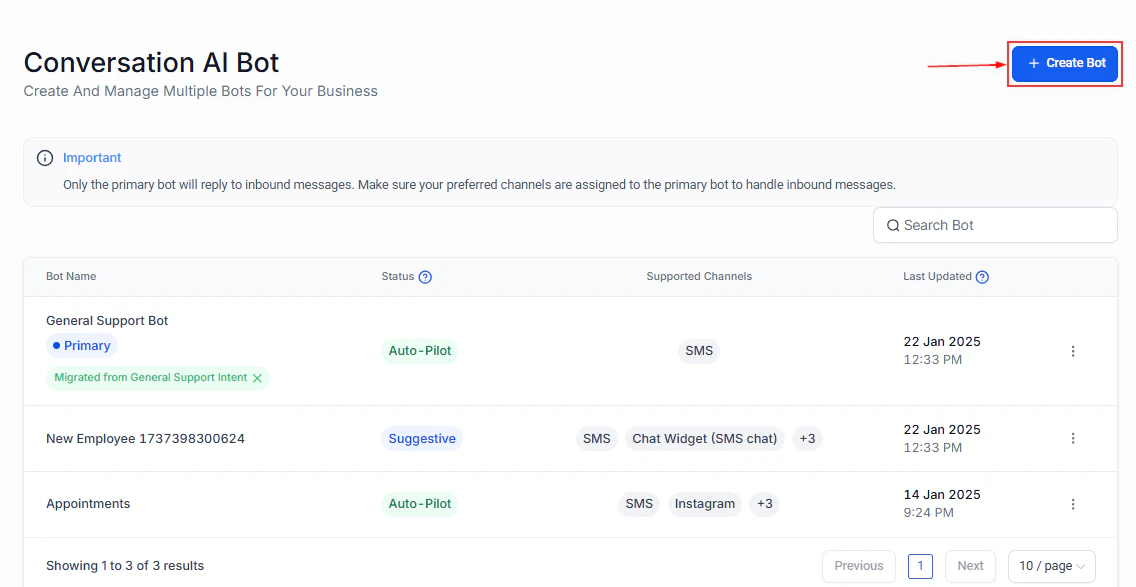
Bot overview screen with configuration summary
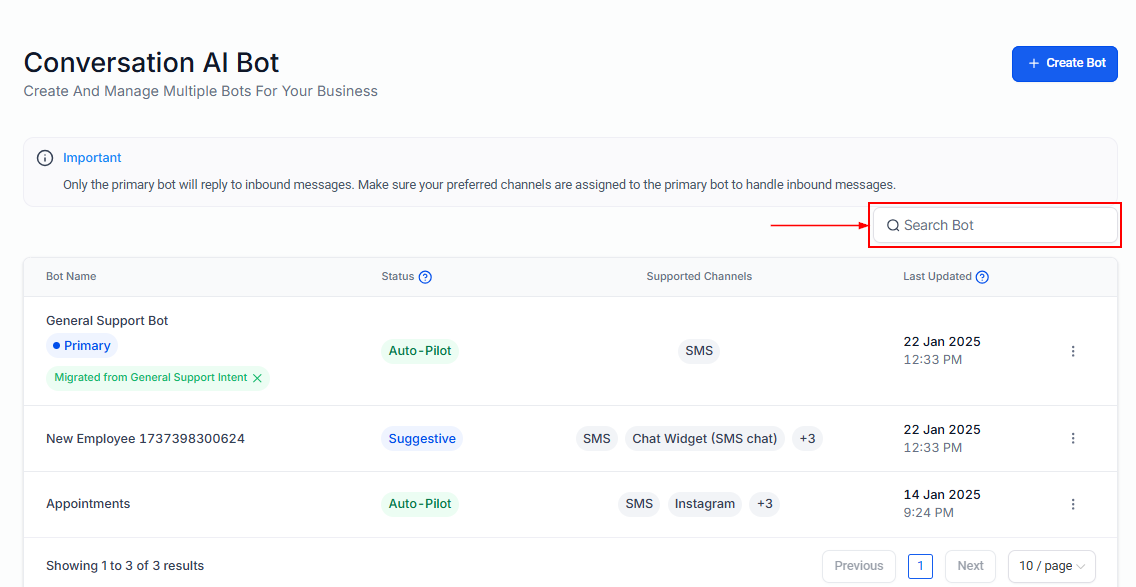
Bot overview detail view
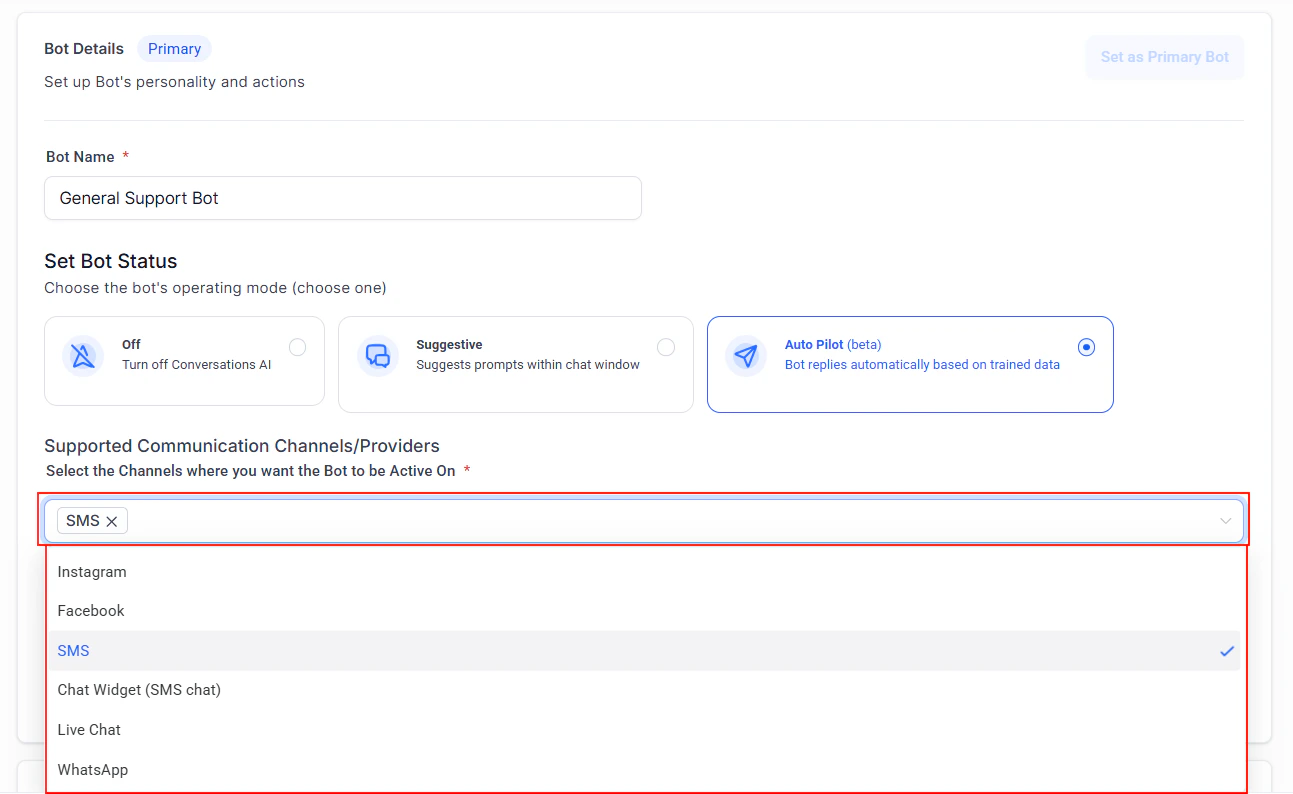
Channel assignment settings for deploying your bot across messaging platforms
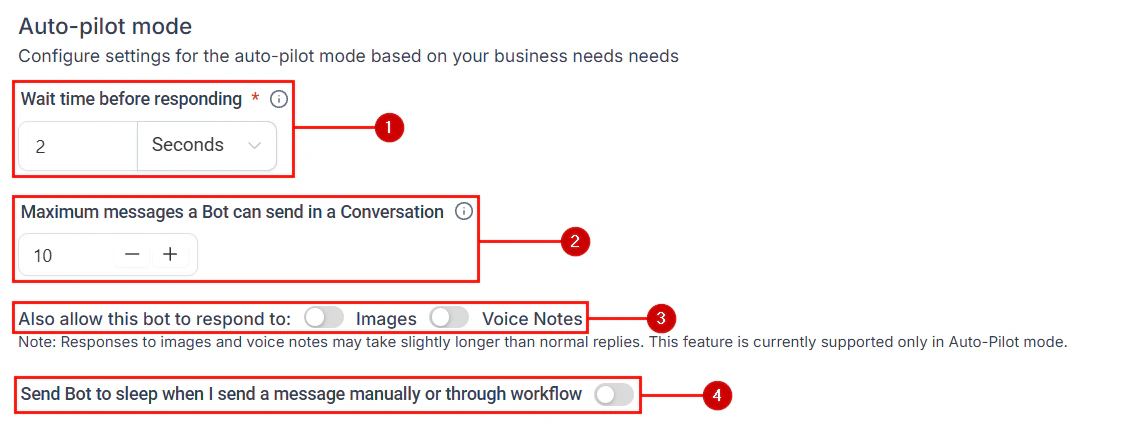
Bot features and capabilities summary
Auto-pilot mode
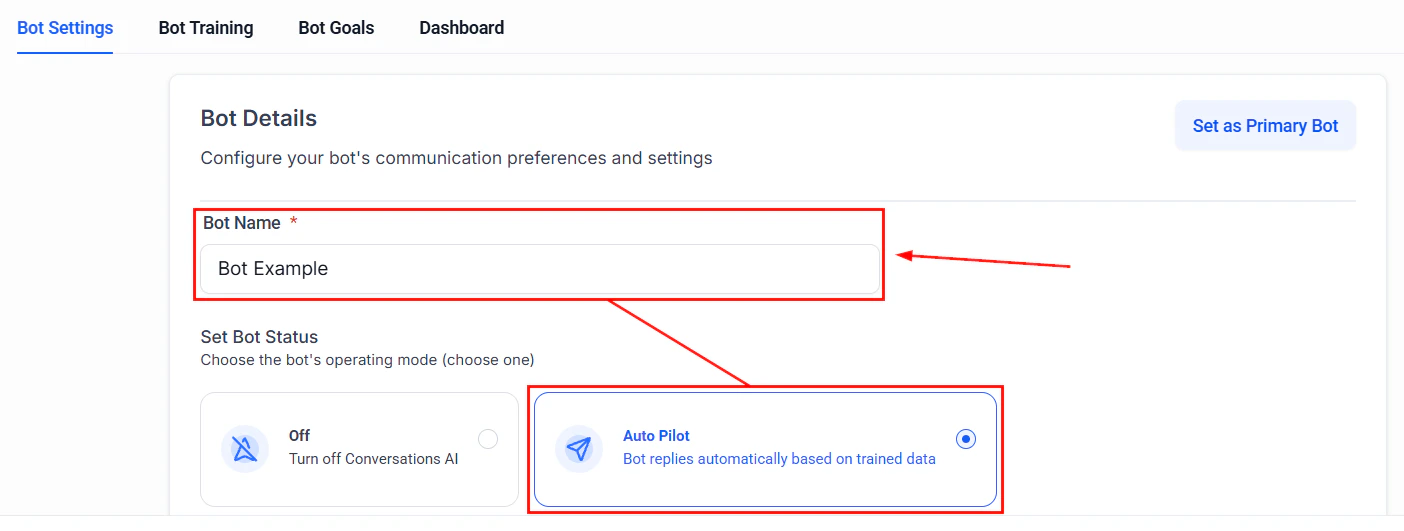
Auto-pilot mode lets your Conversation AI bot operate fully autonomously — handling conversations end-to-end without human intervention. In this mode, the bot responds to every message, executes actions (booking, tagging, workflow triggers), and manages follow-ups independently.Enabling auto-pilot
- Open your bot’s settings in AI Agents > Conversation AI
- Set the bot’s operating mode to Auto-Pilot
- Configure the channels the bot should operate on
- Save
When to use auto-pilot vs. suggestive mode
In suggestive mode, the bot drafts responses that a team member reviews before sending. Use suggestive mode during initial deployment to verify response quality, then switch to auto-pilot once you are confident in the bot’s performance.
Getting started
Bot settings
Configure your bot behavior and channel assignments
Knowledge base
Train your bot with business-specific information
Multi-channel deployment
Deploy your bot across all supported channels
Train your bot
Fine-tune responses with training data