

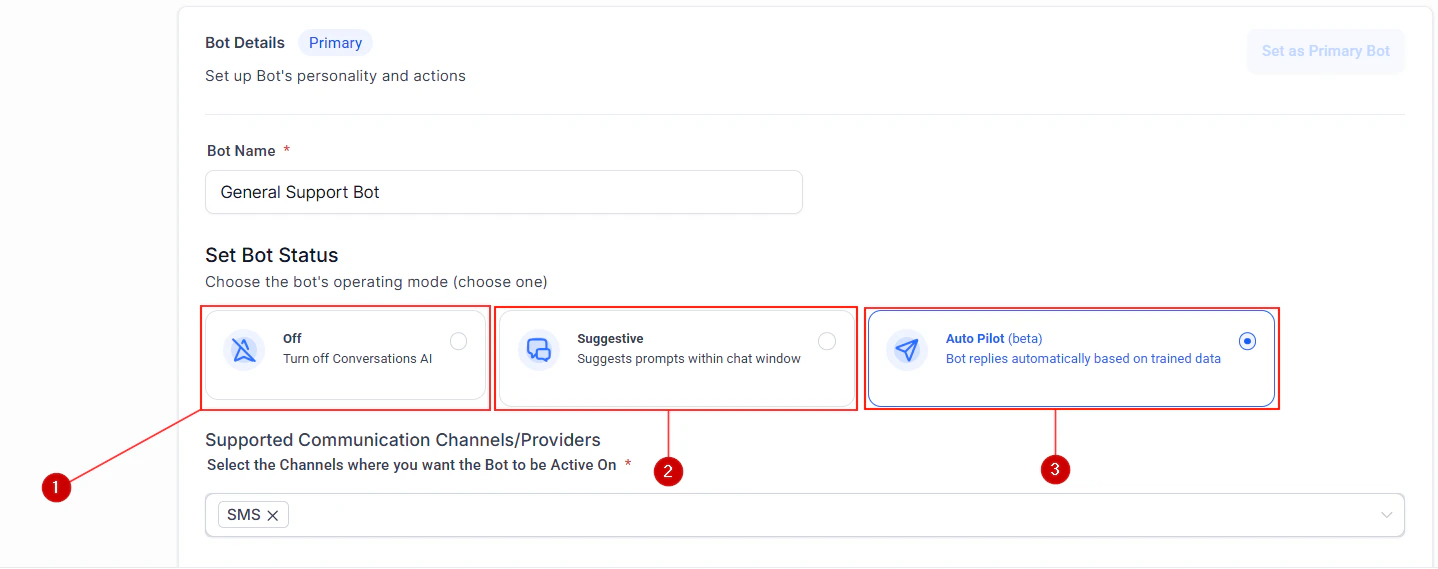
Conversation AI bot settings with status, training, and goals tabs for pre-launch review
Pre-build preparation
Complete these items before you start configuring your bot. The time you invest in preparation directly impacts how well your AI agent performs from day one.Define bot purpose and target audience
Identify top 20 questions your customers ask
Choose your AI feature
Prepare knowledge base content
- Website URL — Your main business website (HoopAI will crawl it automatically)
- FAQ document — A list of questions and answers covering your most common topics
- Service descriptions — Details about what you offer, including pricing ranges if applicable
- Policies — Return policies, cancellation policies, insurance information, etc.
- Business details — Hours, location, phone number, team bios
Bot configuration
These are the core setup tasks that determine how your bot behaves in conversations.Write and refine your prompt
- Start with the minimal viable prompt template
- Follow the guidelines in prompt engineering 101
- Review Conversation AI prompt templates for industry-specific examples
- Browse the prompt library for ready-to-use templates
Upload and connect knowledge base sources
- Website URLs (your main site and any key landing pages)
- FAQ documents (PDF, TXT, or DOCX format)
- Individual FAQ entries for critical questions
- Any product catalogs or service descriptions
Configure channels
- Web chat — Lowest risk for first deployment; install the chat widget on your website
- SMS — Requires an active phone number and A2P 10DLC registration
- Facebook Messenger — Requires a connected Facebook page
- Instagram DM — Requires a connected Instagram business account
- WhatsApp — Requires a connected WhatsApp Business account
Set up calendar connection (if booking appointments)
- Connect your Google Calendar or Outlook Calendar in Settings > Calendars
- Verify available time slots are showing correctly
- Set buffer times between appointments if needed
- Test the booking flow end-to-end by asking the bot to schedule an appointment
Define escalation rules and human handoff triggers
- Customer explicitly asks for a human (“Let me talk to a person”)
- Customer expresses frustration or anger
- Bot cannot find an answer after a set number of attempts
- Conversation involves sensitive topics (billing disputes, complaints, legal questions)
Set max messages and conversation limits
- Max messages — Set a maximum number of AI responses per conversation (recommended: 15 to 25 messages)
- Conversation timeout — Define how long the bot waits before considering a conversation inactive
- Re-engagement rules — Decide whether the bot should follow up if the customer stops responding
Configure working hours behavior
- During business hours — Bot responds and can escalate to live team members
- Outside business hours — Bot responds and collects contact information for follow-up the next business day
- After-hours message — Customize the message the bot sends when no team members are available for escalation
Testing
Thorough testing is what separates a good AI agent from a frustrating one. Do not skip these steps.Run 10+ test conversations covering common scenarios
- General information questions (“What are your hours?”, “Where are you located?”)
- Service inquiries (“How much does X cost?”, “Do you offer Y?”)
- Appointment booking (“I need to schedule a visit”)
- Lead qualification (“I am interested in your services”)
- Follow-up questions (“What about Z?” after an initial answer)
Test edge cases
- Off-topic questions — “What is the weather today?” or “Tell me a joke”
- Hostile or rude messages — Verify the bot stays professional and offers escalation
- Complex multi-part questions — “I need to reschedule my appointment from Tuesday to Thursday and also change the service from X to Y”
- Gibberish or empty messages — Make sure the bot handles non-sensical input gracefully
- Requests the bot should not fulfill — Test with questions about competitors, requests for personal opinions, or topics outside your business scope
Test escalation flow end-to-end
- Bot acknowledges the request
- Conversation is routed to the correct team member or queue
- Team member receives a notification
- Team member can see the full conversation history when they pick up
- Bot stops responding once the human takes over
Test appointment booking (if applicable)
- Ask the bot to book an appointment
- Verify it offers available time slots from your connected calendar
- Confirm the booking
- Check that the appointment appears in your calendar
- Verify the customer receives a confirmation (if configured)
- Test rescheduling and cancellation flows
Review conversation logs for quality
- Responses that are too long or too short
- Moments where the bot missed the intent of the question
- Factual inaccuracies or information not found in your knowledge base
- Awkward phrasing or tone mismatches
- Missed opportunities to collect contact information or book appointments
Go-live
When testing is complete and you are confident in your bot’s performance, follow these steps to launch.Enable bot on selected channels
- Start with web chat only for 24 to 48 hours
- Add SMS after confirming web chat performance
- Add social channels (Facebook, Instagram, WhatsApp) after SMS is stable
Notify your team about AI agent deployment
- Which channels the bot is active on
- How escalated conversations will appear in their queue
- How to pick up conversations from the bot
- Who to contact if the bot is behaving incorrectly
- How to temporarily disable the bot in an emergency
Set up monitoring dashboards
- Total conversations handled by the bot
- Resolution rate (conversations resolved without human intervention)
- Escalation rate (conversations handed off to a human)
- Average conversation length
- Customer satisfaction signals (if feedback collection is enabled)
Schedule first review (48 hours after launch)
- Read through at least 20 real customer conversations
- Identify patterns in questions the bot handles well and poorly
- Note any missing knowledge base content
- Check escalation rate (aim for under 25% for most businesses)
- Decide on any immediate prompt or knowledge base updates
Post-launch optimization
Launching your bot is the beginning, not the end. Continuous optimization based on real data is what turns a decent bot into an excellent one.Review conversation analytics weekly
- Resolution rate (should increase over time as you refine the bot)
- Escalation rate (should decrease over time)
- Conversation volume by channel
- Peak hours and days
Update knowledge base with new FAQs
- New services or products you have launched
- Seasonal information (holiday hours, special promotions)
- Answers to questions you did not anticipate during initial setup
- Updated pricing, policies, or procedures
Refine prompt based on real conversations
- Adding rules for edge cases you discovered (“If someone asks about X, respond with Y”)
- Adjusting tone (too formal? too casual?)
- Adding or removing personality traits
- Tightening guardrails for topics the bot should avoid
- Improving the escalation trigger phrases
Track KPIs and set improvement targets
- Resolution rate — Percentage of conversations resolved without human intervention (target: 70% or higher)
- Escalation rate — Percentage of conversations handed to a human (target: under 25%)
- Response accuracy — Spot-check 10 conversations per week and score accuracy (target: 90%+)
- Customer satisfaction — If you collect post-conversation feedback, track the average score
- Appointments booked — If your bot books appointments, track the weekly count
- Lead capture rate — Number of new contact records created through bot conversations
Quick reference: printable checklist
Here is a condensed version of the full checklist for quick reference. Pre-build:- Defined bot purpose and target audience
- Identified top 20 customer questions
- Chosen AI feature (Conversation AI, Voice AI, or both)
- Prepared knowledge base content
- Written and refined prompt
- Uploaded knowledge base sources
- Configured channels (web chat, SMS, social, phone)
- Set up calendar connection (if booking)
- Defined escalation rules and human handoff triggers
- Set max messages and conversation limits
- Configured working hours behavior
- Completed 10+ test conversations for common scenarios
- Tested edge cases (off-topic, rude, complex, gibberish)
- Tested escalation flow end-to-end
- Tested appointment booking (if applicable)
- Reviewed all conversation logs for quality
- Enabled bot on selected channels
- Notified team about deployment
- Set up monitoring dashboards
- Scheduled 48-hour review
- Reviewing conversation analytics weekly
- Updating knowledge base with new FAQs
- Refining prompt based on real conversations
- Tracking KPIs with monthly targets