

AI Agents — conversation AI, voice AI, knowledge base, and content AI tools
Conversation AI
Deploy chat bots that answer questions, book appointments, and collect contact information automatically
Train your bot
Add knowledge sources, Q&A pairs, and training data to improve bot accuracy
Conversation AI dashboard
Monitor bot performance, conversation volume, and handoff rates across all channels
Flow-based builder
Build structured conversation flows with branching logic and conditional paths
Conversation AI actions
Configure what the bot can do — book appointments, stop the bot, hand off to a human, and more
Bot settings
Set bot name, personality, tone, and channel assignments
Voice AI
AI-powered inbound and outbound calling agents that handle real conversations over the phone
Knowledge base
Train your AI agents with custom knowledge sources so they always give accurate answers
Content AI
Generate on-brand marketing copy, images, and text with AI-assisted content tools
Reviews AI
Automatically respond to Google Business Profile reviews using AI — set tone, guidelines, and choose auto-pilot or human-approval mode
Getting started
1
Create a bot
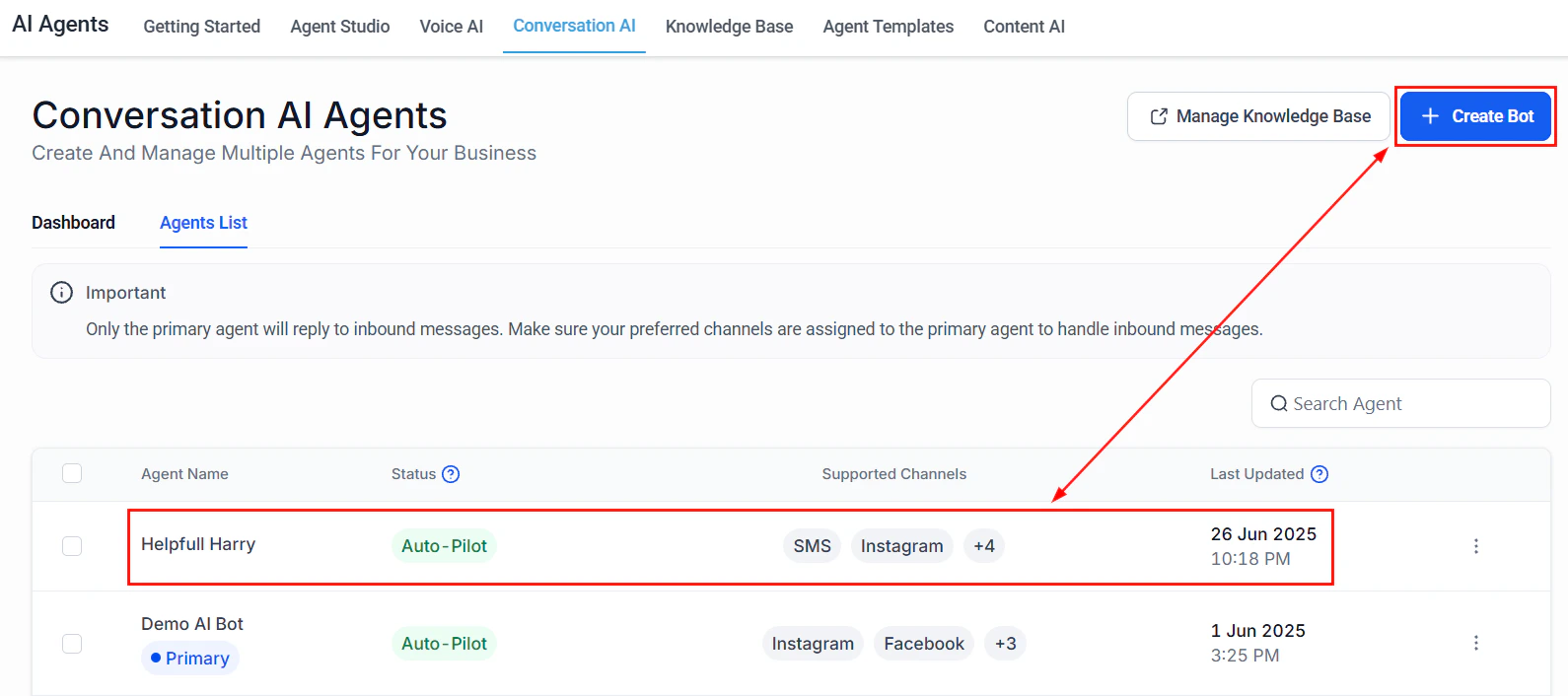
Go to AI Agents > Conversation AI and click Create Bot. Give it a name, set the personality and tone, and select which channels it will operate on (SMS, live chat, Facebook, Instagram).
2
Build your knowledge base
Open AI Agents > Knowledge Base and add knowledge sources — upload documents, paste URLs, or write Q&A pairs. Assign the knowledge base to your bot so it draws on accurate information.
3
Train your bot
Go to AI Agents > Train Your Bot and review suggested Q&A pairs, correct any inaccurate responses, and add edge cases. The more training data you provide, the better the bot performs.
4
Configure bot actions
Open AI Agents > Conversation AI Actions to define what the bot can do mid-conversation — book a calendar appointment, collect contact information, stop the bot and hand off to a human, or fire a workflow.
5
Go live and monitor
Publish your bot and monitor performance in AI Agents > Conversation AI Dashboard. Review conversation logs, handoff rates, and adjust training data based on real interactions.
Frequently asked questions
What is the difference between Suggestive mode and Auto-Pilot mode?
What is the difference between Suggestive mode and Auto-Pilot mode?
In Suggestive mode, the bot drafts a reply that a human agent reviews and sends. In Auto-Pilot mode, the bot sends replies automatically without human review. Suggestive mode is a good starting point when setting up a new bot so you can review its accuracy before enabling full automation.
Which channels does Conversation AI support?
Which channels does Conversation AI support?
Conversation AI supports SMS, live chat (website widget), Facebook Messenger, and Instagram Direct Messages. Each channel can be configured independently so you can run the bot on some channels while keeping human agents on others.
How does Voice AI differ from Conversation AI?
How does Voice AI differ from Conversation AI?
Conversation AI handles text-based channels. Voice AI handles phone calls — it can answer inbound calls, conduct outbound calls, and hold natural voice conversations using speech-to-text and text-to-speech. Both types of agents draw on the same knowledge base.
Can the bot book appointments?
Can the bot book appointments?
Yes. Add the Book Appointment action in Conversation AI Actions. The bot will check calendar availability and create an appointment directly in the platform, sending confirmation to the contact.
How do I hand off from the bot to a human agent?
How do I hand off from the bot to a human agent?
Configure a Stop Bot action in your Conversation AI Actions. You can trigger it based on contact keywords, sentiment, or when a contact requests a human. The conversation moves to your team’s inbox for manual follow-up.
What does the Reviews AI agent do?
What does the Reviews AI agent do?
The Reviews AI agent monitors incoming Google Business Profile reviews and posts AI-generated responses automatically. You set the tone, guidelines, and which star ratings trigger an auto-response. You can also run it in approval mode so responses are drafted but require a human to publish.