

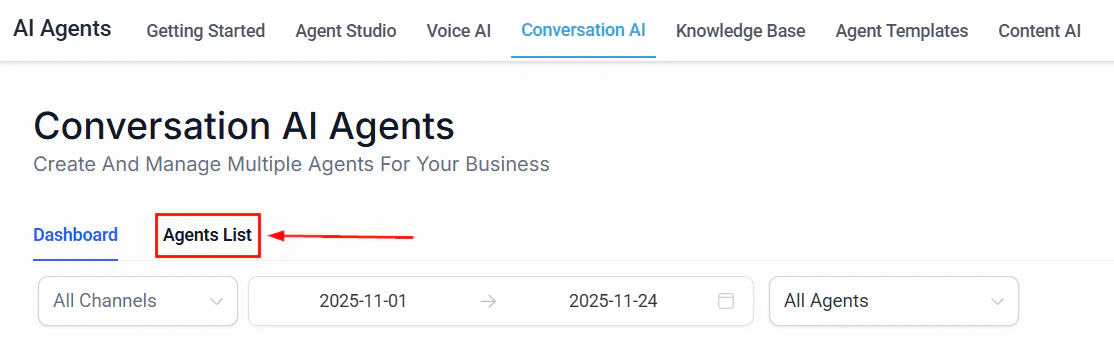
Flow-based builder interface for constructing AI-powered workflow automations
Recipe 1: Lead qualification with AI scoring and sales routing
Goal: Automatically score inbound leads based on their form submission data and route high-quality leads to your sales team instantly.Trigger
Form Submitted — fires when a contact submits your lead capture form.Workflow steps
Trigger: Form submitted
AI action: Score the lead
If/Else branch: Route by category
- If the response contains “Hot” — proceed to the hot lead path
- Else if the response contains “Warm” — proceed to the warm lead path
- Else — proceed to the cold lead path
Hot lead path
- Add tag: hot-lead
- Send internal notification to the sales team via email or Slack: “Hot lead alert:
{{contact.name}}scored as Hot.” - Send SMS to the contact: “Thanks for reaching out,
{{contact.first_name}}! A member of our team will call you within the hour.” - Create task assigned to the sales manager with a 1-hour deadline
Warm lead path
- Add tag: warm-lead
- Send email with a calendar link to book a discovery call
- Add to nurture campaign for follow-up in 48 hours if no booking
Cold lead path
- Add tag: cold-lead
- Send email with helpful resources and a soft CTA
- Add to long-term drip sequence
Expected outcome
Every lead is scored within seconds of form submission. Hot leads get immediate attention from your sales team, warm leads receive a booking link, and cold leads enter a nurture sequence — all without manual triage.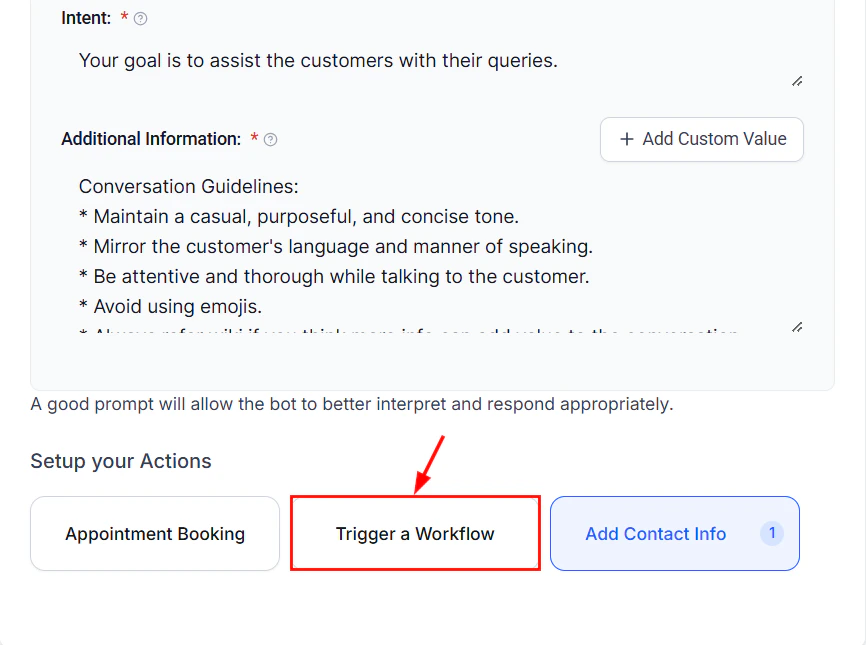
Workflow trigger configuration for connecting AI actions to automation sequences
Recipe 2: After-hours inquiry with bot handoff and morning follow-up
Goal: Handle inquiries that arrive outside business hours with an AI bot, then trigger a personalized follow-up from a team member the next morning.Trigger
Customer Replied — fires when a contact sends a message via SMS, email, or web chat.Workflow steps
Trigger: Customer replied
Condition: Check business hours
- If within business hours — exit workflow (let your team handle it normally)
- Else — continue to after-hours path
Enable Conversation AI bot
Wait until business hours
AI action: Summarize the conversation
Send internal notification
Expected outcome
After-hours inquiries get an immediate, helpful response from your AI bot. The next morning, your team receives a concise summary and can follow up personally — no inquiry falls through the cracks.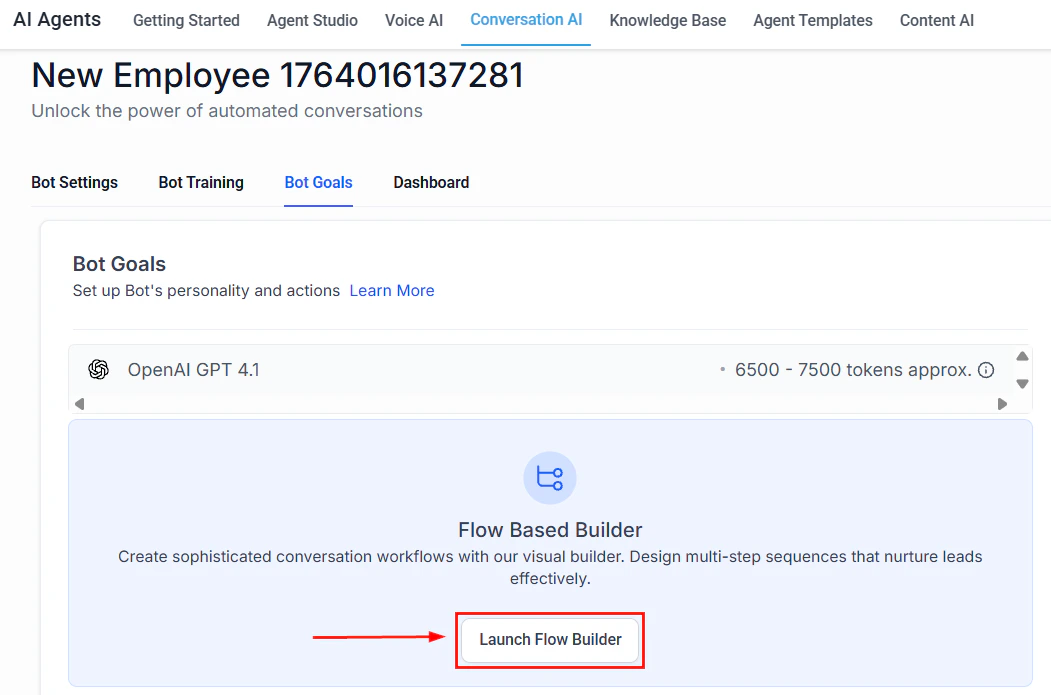
Conversation AI flow builder showing bot response logic and branching paths
Recipe 3: Appointment no-show re-engagement
Goal: When a contact misses an appointment, use AI to craft a personalized re-engagement message that acknowledges the missed appointment and offers to reschedule.Trigger
Appointment Status Changed — fires when an appointment status changes to “No Show.”Workflow steps
Trigger: Appointment status changed to No Show
Wait 30 minutes
AI action: Draft re-engagement message
Send SMS
Wait 24 hours, then follow up
Expected outcome
Missed appointments get a timely, empathetic follow-up that feels personal rather than automated. Rebooking rates improve because the message is tailored to the specific appointment and contact.Recipe 4: Review response with AI draft and human approval
Goal: When a new review comes in, have AI draft a response for your team to review and approve before posting.Trigger
Review Received — fires when a new Google or Facebook review is detected.Workflow steps
Trigger: Review received
If/Else: Check star rating
- 5 stars — Positive response path
- 3-4 stars — Neutral response path
- 1-2 stars — Negative response path
AI action: Draft the response
Send for approval
Expected outcome
Every review gets a thoughtful, on-brand draft response within minutes. Your team reviews and posts it, ensuring quality control while saving 80% of the time it takes to write responses from scratch.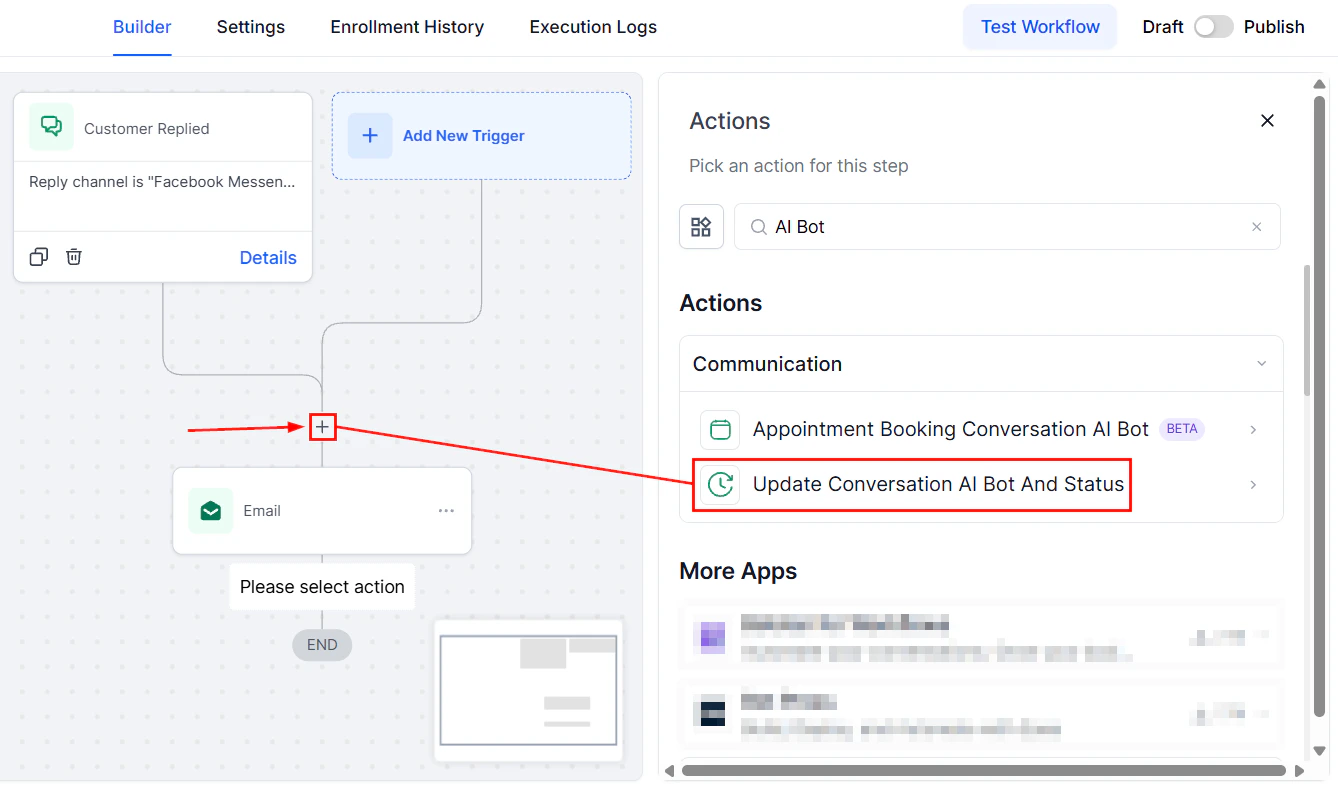
Update Conversation AI bot workflow action for managing bot behavior in automations
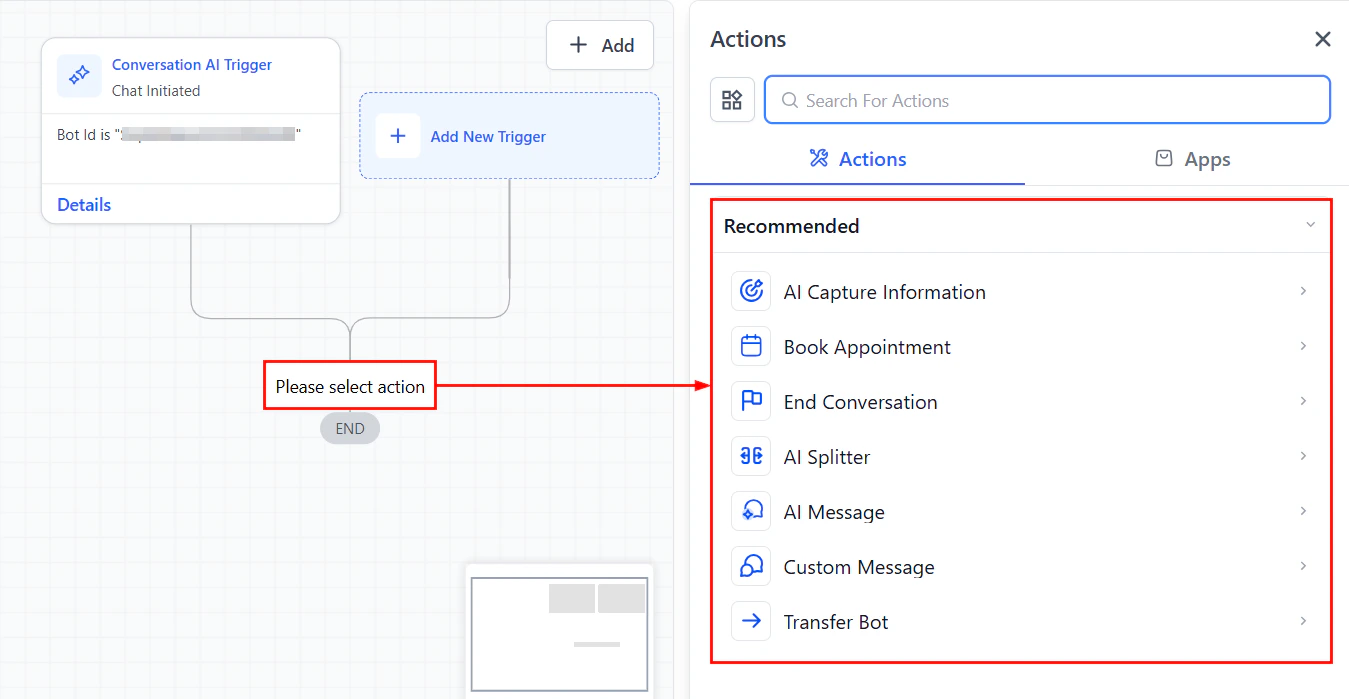
Workflow builder interface showing the auto follow-up action configuration
Recipe 5: New contact AI welcome with drip sequence
Goal: Send a personalized AI-generated welcome message to new contacts and enroll them in a targeted drip sequence based on their interests.Trigger
Contact Created — fires when a new contact is added to HoopAI.Workflow steps
Trigger: Contact created
Wait 2 minutes
AI action: Generate welcome message
Send welcome SMS
AI action: Classify interest
If/Else: Route to drip sequence
Expected outcome
New contacts receive a personalized welcome within minutes. Their first reply is automatically classified and used to enroll them in the most relevant nurture sequence, ensuring they receive content that matches their interests from day one.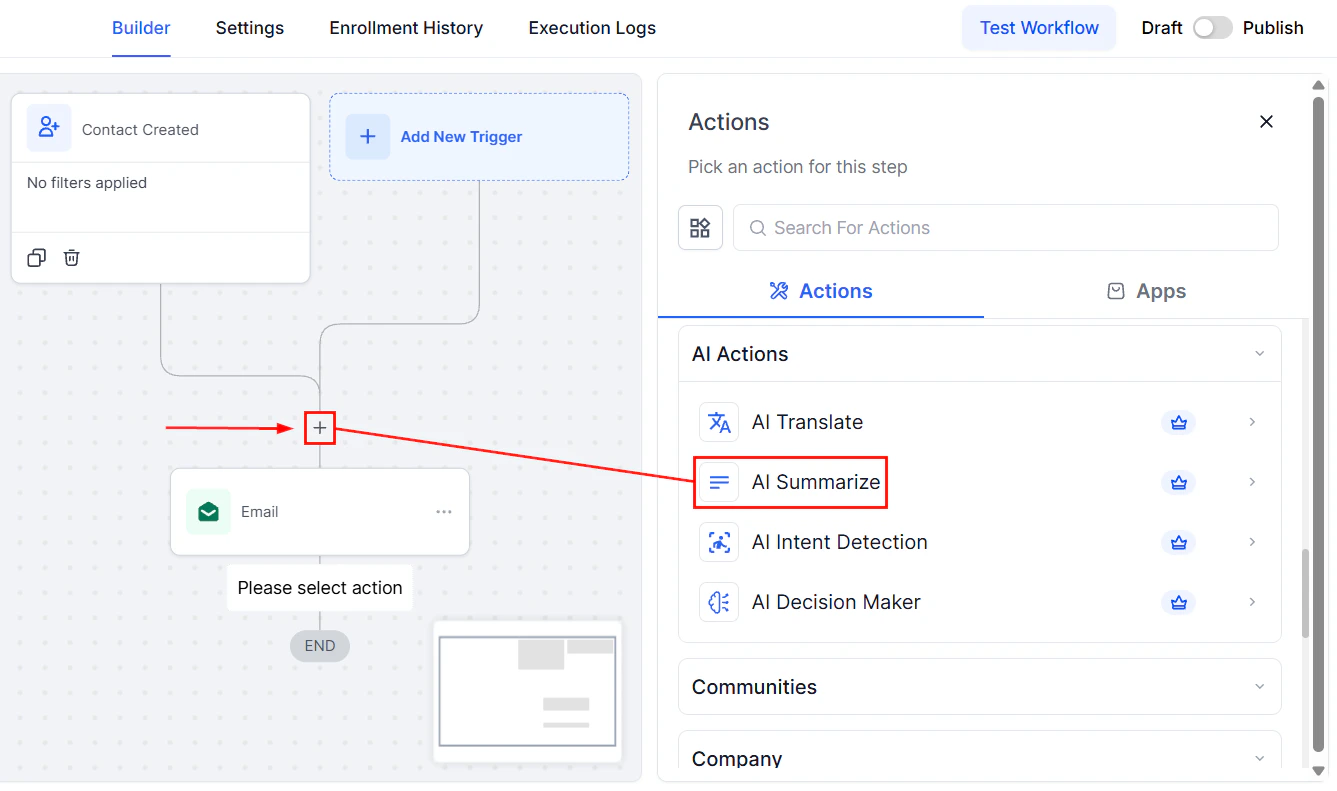
Adding the AI Summarize action to condense conversation history into key points
Recipe 6: Support ticket AI classification and team routing
Goal: Automatically classify incoming support requests by urgency and topic, then route them to the correct team member with full context.Trigger
Customer Replied — fires when a contact sends a message tagged as a support request (or from a support-specific channel).Workflow steps
Trigger: Customer replied
AI action: Classify the ticket
If/Else: Route by urgency
- Critical — Immediate notification to team lead plus auto-assign
- High — Assign to next available senior support agent
- Medium — Add to support queue with standard SLA
- Low — Auto-respond with knowledge base article if relevant, queue for batch review
Critical path actions
- Send internal notification to the support team lead with the full classification
- Create task with a 1-hour deadline
- Send SMS to contact: “We’ve received your message and a senior team member is reviewing it now. We’ll get back to you shortly.”
- Add tag: critical-support
Low urgency path: AI auto-response
Expected outcome
Every support request is classified within seconds. Critical issues get immediate human attention, while routine questions receive instant AI-powered answers. Your team focuses their energy where it matters most.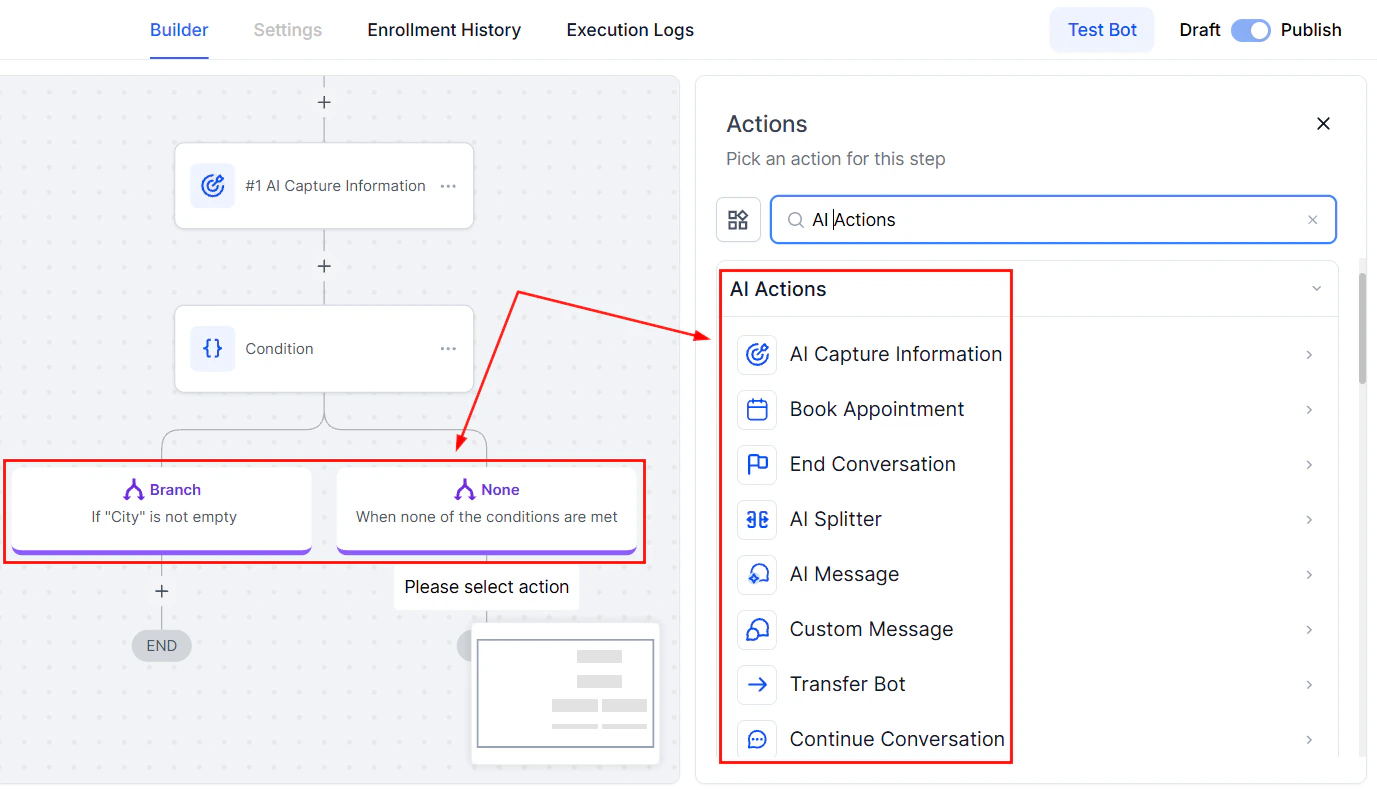
Conversation AI flow builder with multiple connected nodes and decision paths
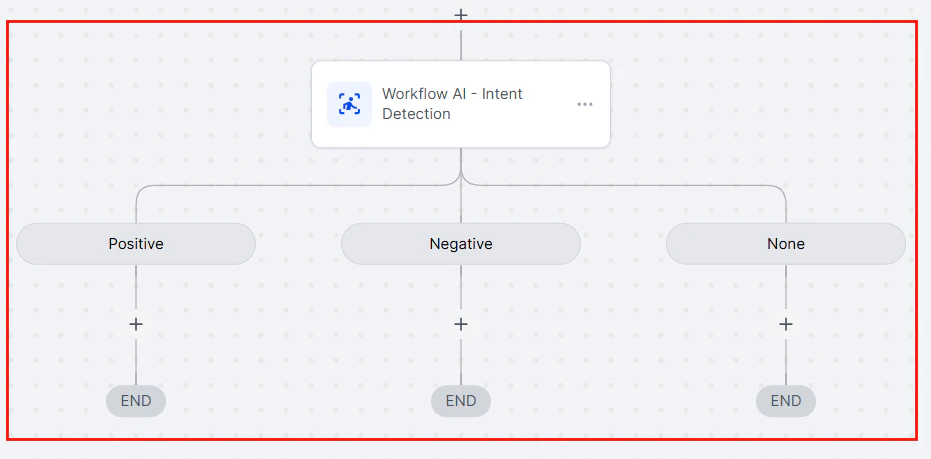
Complete workflow example showing AI Intent Detection routing messages to different paths
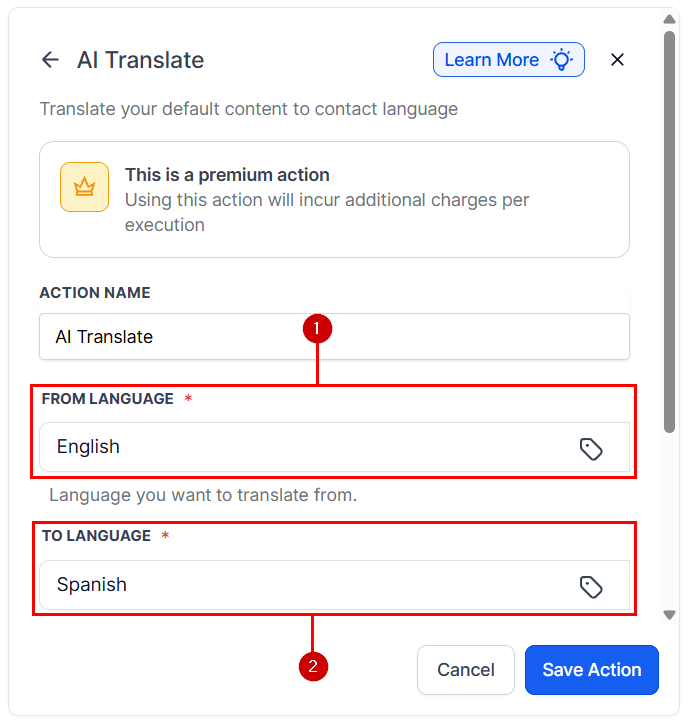
Configuring source and target languages for AI-powered translation in workflows
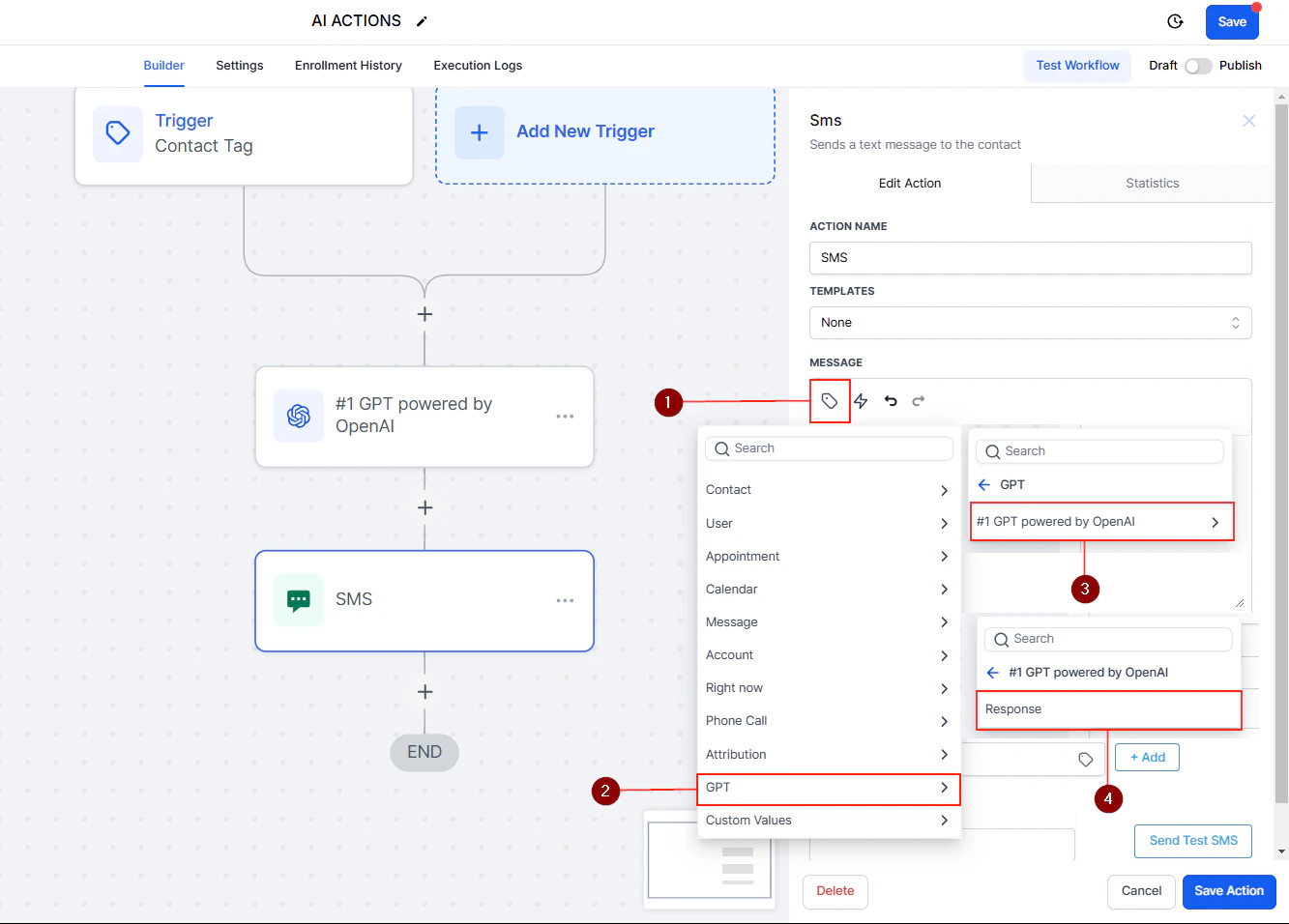
Common GPT action use cases including summarization, translation, sentiment analysis, and FAQ responses
Customizing these recipes
Each recipe is a starting point. Here are common ways to adapt them:- Swap channels — Replace SMS with email, WhatsApp, or web chat depending on your audience
- Adjust timing — Change wait durations to match your business cadence
- Add conditions — Layer in additional If/Else branches for more granular routing
- Combine recipes — Chain multiple recipes together (e.g., lead qualification followed by welcome followed by drip)
- Refine prompts — Iterate on AI prompts based on real conversation data to improve accuracy