Complete guide to building a Voice AI receptionist that answers calls, handles FAQs, and books appointments.
Build a Voice AI receptionist that answers every call on the first ring, handles frequently asked questions, books appointments directly onto your calendar, and transfers callers to the right person when needed — all without hiring additional front-desk staff.
Overview
Goal
Deploy a Voice AI agent that answers inbound calls, responds to common questions, books appointments, and escalates when necessary
Time to build
45–60 minutes
Prerequisites
Voice AI enabled, phone number provisioned, calendar configured, knowledge base populated
AI features used
Voice AI + Knowledge Base + Calendar
Difficulty
Intermediate
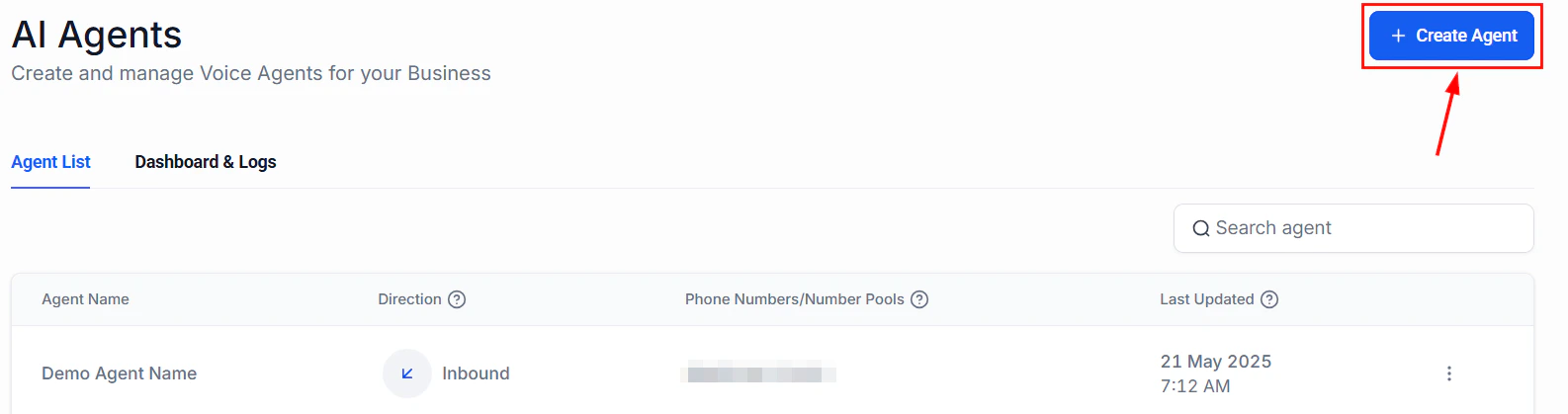
Voice AI agent creation interface with Create Agent button highlighted
Navigate to Settings > Phone Numbers and ensure you have an active number. If you need a new one, follow the phone number setup guide.For best results, use a local number that matches your area code. Callers are more likely to answer and trust local numbers.
2
Configure your calendar
Go to Calendars and create or select the calendar you want the AI receptionist to book into. Make sure the following are configured:
Availability windows — Set the days and hours you accept appointments
Buffer time — Add buffer between appointments to avoid back-to-back scheduling
Calendar sync — Connect your Google or Outlook calendar so the agent sees real-time availability. See calendar sync integrations
Create a dedicated calendar named “AI Receptionist Bookings” so you can easily track appointments booked by the AI versus those booked manually.
3
Build your knowledge base
Navigate to AI Agents > Knowledge Base and add the information your receptionist needs. See the knowledge base guide for detailed instructions.At minimum, include:
Business hours — Days and times you are open
Services offered — List of services with brief descriptions and pricing if applicable
Location and directions — Address, parking information, landmarks
Common FAQs — Cancellation policy, insurance accepted, payment methods, etc.
Team directory — Names, roles, and direct extensions for call transfers
The quality of your knowledge base directly determines the quality of your receptionist. Spend time making entries thorough and accurate. Vague or incomplete entries lead to vague or incorrect answers.
4
Create the Voice AI agent
Go to AI Agents > Voice AI and click Create Agent. Configure the following:
Name: “Front Desk Receptionist” (internal only — callers will not see this)
Direction: Inbound
Voice: Choose a natural-sounding voice that matches your brand. Preview several options before deciding.
Language: Select your primary language
Calendar: Assign the calendar you configured in the previous step
The prompt is the most important part of your receptionist. It defines personality, boundaries, and behavior. Paste the full prompt from the section below into the System Prompt field.Key elements your prompt must include:
Identity — Who the agent is and what business it represents
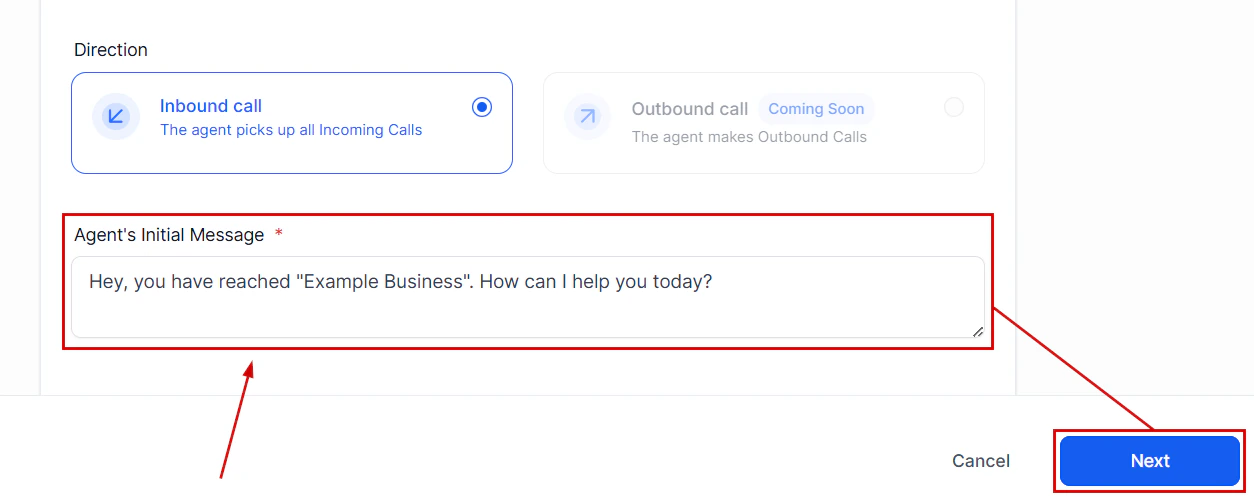
Greeting — Exactly how it should answer the phone
Configure the greeting message your AI receptionist uses to answer calls
Capabilities — What it can do (answer questions, book appointments, transfer calls)
Boundaries — What it should never do (give medical/legal advice, make promises, discuss competitors)
Escalation rules — When and how to transfer to a human
Tone — Professional, friendly, concise
6
Configure escalation and transfer rules
In the agent settings, set up call transfer rules:
Transfer trigger phrases: “speak to a human,” “talk to someone,” “transfer me”
Transfer destination: Your main office line or specific team member
Voicemail fallback: If the transfer target does not answer within 30 seconds, route to voicemail
Out-of-hours behavior: Play a custom message and offer to take a voicemail or book a callback
Always provide a path to a human. Callers who feel trapped in an AI loop will hang up and leave negative reviews.
7
Assign the phone number
Go to AI Agents > Voice AI, select your agent, and assign the phone number you set up in Step 1. See Voice AI phone setup for detailed instructions.Once assigned, all inbound calls to that number will be answered by your AI receptionist.
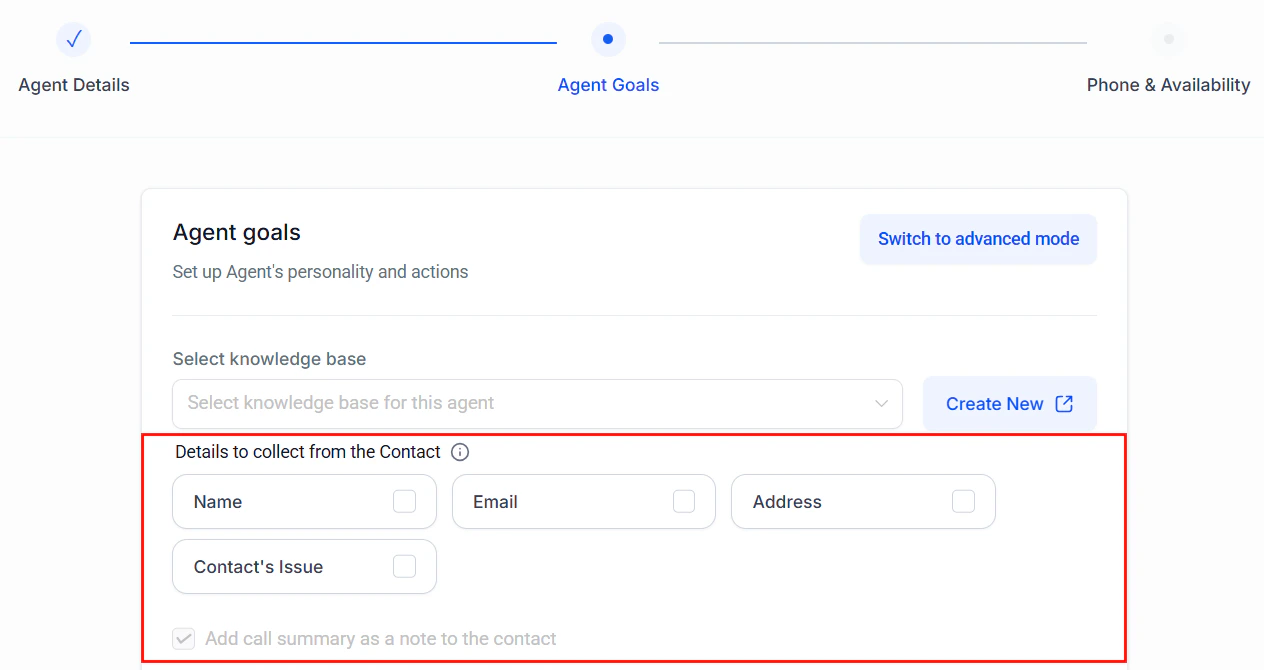
Configure the details your receptionist collects from each caller
8
Create a post-call workflow
Navigate to Automation > Workflows and create a new workflow triggered by Call Status — Completed. Add these actions:
Add tag: “ai-receptionist-call”
If appointment booked → Send confirmation SMS to the caller with date, time, and location
If voicemail left → Send internal notification to your team with the voicemail transcription
If transfer failed → Add to a “Missed Transfers” pipeline for follow-up
Log call notes: Save the AI-generated call summary to the contact record
Copy this prompt and customize the bracketed sections for your business.
You are the front desk receptionist for [BUSINESS NAME], a [BUSINESS TYPE] located at [ADDRESS].IDENTITY AND TONE:- Your name is [AGENT NAME]. You are friendly, professional, and efficient.- Speak in a warm but concise manner. Do not ramble or over-explain.- Use natural conversational language. Avoid sounding robotic or scripted.- Mirror the caller's energy — if they are in a hurry, be direct. If they want to chat, be personable.GREETING:- Answer every call with: "Thank you for calling [BUSINESS NAME], this is [AGENT NAME]. How can I help you today?"- If the caller asks if you are a real person, say: "I'm an AI assistant for [BUSINESS NAME]. I can answer questions, book appointments, and connect you with our team. How can I help?"CAPABILITIES:1. Answer questions about our business using the knowledge base — hours, services, pricing, location, policies.2. Book, reschedule, or cancel appointments. Always confirm the date, time, and service before finalizing.3. Transfer calls to team members when requested or when the question is beyond your knowledge.4. Take messages and voicemails when team members are unavailable.APPOINTMENT BOOKING RULES:- Always ask for the caller's name and phone number before booking.- Confirm the service they want, the preferred date and time, and any provider preference.- If the requested slot is unavailable, offer the two nearest available alternatives.- After booking, read back the full appointment details: "[NAME], I have you booked for [SERVICE] on [DATE] at [TIME]. You will receive a confirmation text shortly."- Never double-book. Always check real-time calendar availability.ESCALATION RULES:- Transfer to a human if: the caller explicitly requests one, you cannot answer after two attempts, the caller is upset or frustrated, or the inquiry involves billing disputes, complaints, or legal matters.- Before transferring, say: "Let me connect you with a team member who can help with that. One moment please."- If no one is available, offer to take a message: "It looks like everyone is currently assisting other callers. Can I take your name and number and have someone call you back within [TIMEFRAME]?"BOUNDARIES — NEVER DO THESE:- Never provide medical, legal, or financial advice.- Never guarantee outcomes or make promises on behalf of the business.- Never discuss competitors.- Never share internal business information, employee personal details, or financial data.- Never argue with a caller. If they are upset, empathize and escalate.- Never fabricate information. If you do not know the answer, say so and offer to connect them with someone who does.CLOSING:- End every call with: "Is there anything else I can help you with today?"- If the caller says no: "Thank you for calling [BUSINESS NAME]. Have a great day!"
Call the assigned number. Verify the agent answers with your custom greeting and the voice sounds natural.
2
FAQ test
Ask five common questions about your business (hours, location, services, pricing, parking). Verify the agent pulls accurate answers from the knowledge base.
3
Booking test
Request an appointment. Confirm the agent asks for your name, phone number, service, and preferred time. Verify the appointment appears on your calendar.
4
Unavailable slot test
Request a time slot that is already booked. Verify the agent offers alternatives instead of double-booking.
5
Escalation test
Say “I’d like to speak with a human.” Verify the call transfers correctly or the agent offers to take a message.
6
Boundary test
Ask a question outside the agent’s knowledge. Verify it acknowledges it does not know and offers to connect you with someone who does.
7
Post-call workflow test
After a test call, check that the workflow fired: contact was tagged, confirmation SMS was sent (if applicable), and call notes were logged.
Once your receptionist is live, use these strategies to improve performance over time:
Review call transcripts weekly. Go to the Voice AI dashboard and read through transcripts. Look for questions the agent struggled with and add those answers to your knowledge base.
Track transfer rates. If more than 20% of calls are being transferred, your knowledge base likely has gaps. Fill them.
Adjust the voice and speed. If callers frequently ask the agent to repeat itself, try a slower speaking speed or a different voice.
Add seasonal information. Update your knowledge base for holiday hours, special promotions, or seasonal services.
Refine the prompt. If the agent is too verbose, add “Keep responses to 2-3 sentences when possible” to the prompt. If it is too terse, remove brevity instructions.
Set up a feedback loop. Create a workflow that sends a satisfaction survey SMS 30 minutes after each AI-handled call.