

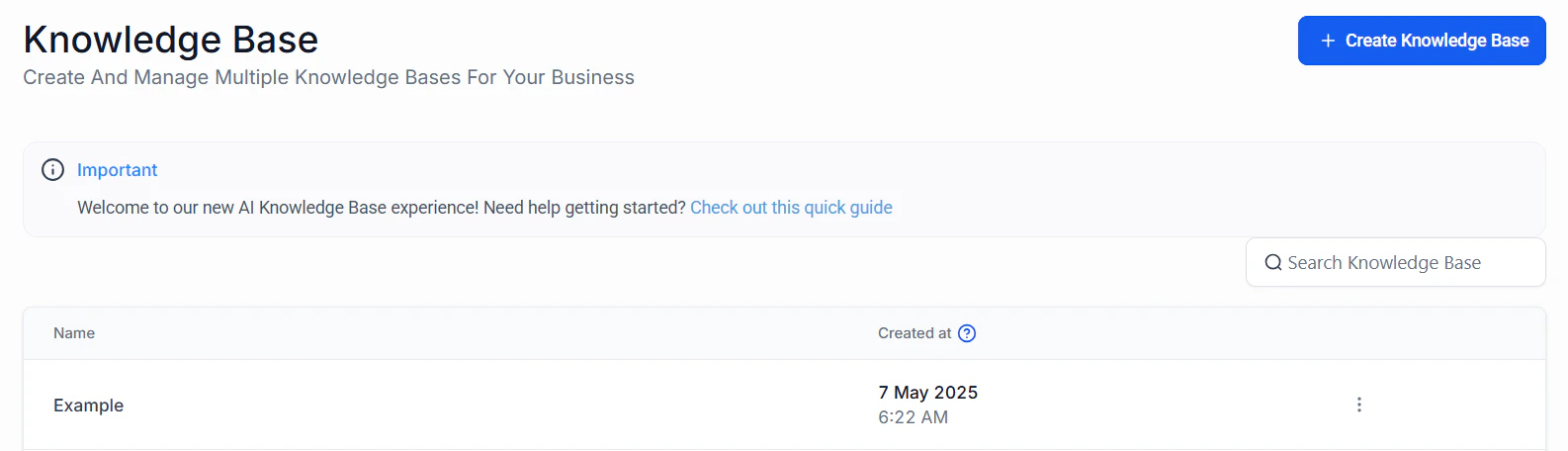
Knowledge Base management for transferring AI training data between platforms
Migration from other chatbot platforms
If you are currently using an external chatbot or AI platform, migrating to HoopAI’s built-in AI agents consolidates your tech stack and gives you tighter integration with your CRM, workflows, and communication channels.Pre-migration checklist
Before you begin, gather these assets from your current platform:1
Export your conversation data
Most chatbot platforms allow you to export conversation logs as CSV or JSON files. Download all historical conversations you want to preserve. These serve as training reference for your new AI agent’s tone and style, performance benchmarks to compare against after migration, and customer context that your team can reference during the transition.
2
Document your bot configuration
Create a detailed record of your current bot’s setup:
3
Audit your knowledge base
Review all knowledge base content for accuracy and relevance before migrating it. Migration is the perfect opportunity to remove outdated articles and FAQs, consolidate duplicate content, update pricing, policies, and contact information, and fill gaps in coverage that your old bot struggled with.
4
Identify integration dependencies
List every external service your bot connects to and verify that HoopAI supports the same integrations — either natively or via webhooks and Zapier.
Step-by-step migration process
1
Create your HoopAI AI agent
Set up a new Conversation AI or Voice AI agent in your HoopAI account. Start with the system prompt and personality from your documentation in the previous step. Do not try to replicate your old bot exactly. Instead, use this as an opportunity to improve. Review your conversation logs to identify where your old bot fell short and address those gaps in your new prompt.
2
Rebuild your knowledge base
Upload your knowledge base content to HoopAI. Add documents (PDFs, text files, or Word documents) via the knowledge base section. Add website URLs for the AI to crawl and index. Create FAQ-style manual entries for common questions.
3
Recreate escalation and routing rules
Configure your call escalation, transfer triggers, and human handoff rules in the new agent. See your documentation from the audit step and adapt the rules to HoopAI’s escalation framework.
4
Rebuild workflow integrations
If your old bot triggered automations (sending emails, updating CRM records, booking appointments), recreate these as HoopAI workflows. Use AI actions in workflows to replicate any AI-powered automation steps.
5
Test thoroughly
Before going live, test every scenario your bot handles: common questions from your top 20 FAQs, edge cases that caused issues on your old platform, escalation triggers and transfer routing, workflow integrations and data flow, and multi-language interactions if applicable. Use test contacts and internal team members to simulate real conversations.
6
Run in parallel (optional but recommended)
If possible, run both your old and new bots simultaneously for one to two weeks. Route a percentage of traffic to the new HoopAI agent while keeping the old bot as a fallback. Compare response quality, resolution rates, and customer satisfaction.
7
Cut over and decommission
Once you are confident in the new agent’s performance, disable the old bot and route all traffic to HoopAI. Keep your old platform account active for 30 days in case you need to reference historical data.
Migrating between HoopAI accounts
When you need to move an AI agent from one HoopAI account to another — for example, when reorganizing your accounts or consolidating locations — follow this process.What transfers and what does not
Migration steps
1
Export the bot configuration
In the source account, navigate to AI Agents and open the agent you want to migrate. Copy the system prompt (full text), model selection and temperature settings, all knowledge base entries and documents, and escalation rules and transfer destinations.
2
Create a snapshot (for workflows)
If the agent is connected to workflows, create a Snapshot of the account. Snapshots capture workflow configurations that you can import into the destination account.
3
Import into the destination account
In the destination account, create a new AI agent with the same type (Conversation AI or Voice AI), paste the system prompt and configure model settings, re-upload knowledge base documents, import the workflow snapshot if applicable, and configure escalation rules for the new account’s team members.
4
Update references
After importing, update any account-specific references: phone numbers (Voice AI agents need new number assignments), calendar links and booking URLs, team member assignments for escalation, and custom field mappings.
Handling model updates
HoopAI periodically updates the AI models available to your agents. These updates can improve response quality, speed, and capabilities, but they may also change how your agent responds to certain prompts.Preparing for model updates
- Monitor announcements — HoopAI notifies you of upcoming model changes via email and in-app notifications
- Test before switching — When a new model becomes available, test it with your existing prompts before making it your default
- Document your current performance — Record baseline metrics (response accuracy, escalation rate, customer satisfaction) so you can compare after the update
- Review prompt sensitivity — Some prompts behave differently across models. Test your most critical conversation flows after any model change
Model update checklist
Post-update verification steps
Post-update verification steps
- Test your top 10 most common customer questions
- Verify escalation triggers still fire correctly
- Check that knowledge base retrieval returns relevant results
- Confirm response tone and length match your expectations
- Review any multi-language interactions for accuracy
- Run your standard test scenarios from the testing playbook
- Monitor live conversations for the first 48 hours after switching
You are never forced to adopt a new model immediately. HoopAI allows you to select your preferred model in the agent settings, and older models remain available during transition periods.
Backup best practices
Protect your AI agent configurations with regular backups.What to back up
- System prompts — Copy the full text to a document or version-controlled repository
- Knowledge base content — Keep source files organized in a shared drive
- Workflow configurations — Export snapshots periodically, especially before making major changes
- Custom prompt templates — Store reusable prompt patterns in a team-accessible location
- Performance data — Export conversation analytics monthly for trend tracking
Backup schedule
Export and import bot configurations
While HoopAI does not have a native bot export/import feature for individual agents, you can use these workarounds:- account snapshots — Capture the entire account configuration, including AI agents, workflows, and settings. Import the snapshot into a new or existing account.
- Manual documentation — Maintain a structured document (or spreadsheet) with every configuration field for each agent. This is your source of truth for recreating agents.
- API-based backup — Use the HoopAI API to programmatically retrieve agent configurations and store them externally. See the AI API reference for available endpoints.
Next steps
AI models
Understand the models available in HoopAI and their capabilities.
AI API reference
Programmatically manage AI agents and configurations via the API.
Creating Voice AI agents
Build a new Voice AI agent from scratch after migration.
Conversation AI
Set up text-based AI agents in your migrated account.