

This overview covers the main sections accessible from the left sidebar. Your available features depend on your subscription plan.
Navigation sidebar
The left sidebar is your central navigation hub, offering access to all platform sections. If you manage multiple accounts, switch between them using the drop-down menu in the upper section of the navigation sidebar.Search bar
Located below the account selector, the search bar lets you quickly find contacts by name and access related opportunities or payment information.Quick actions
The green lightning bolt icon on the right side of the search bar opens the Quick Actions menu — a set of shortcuts for common tasks.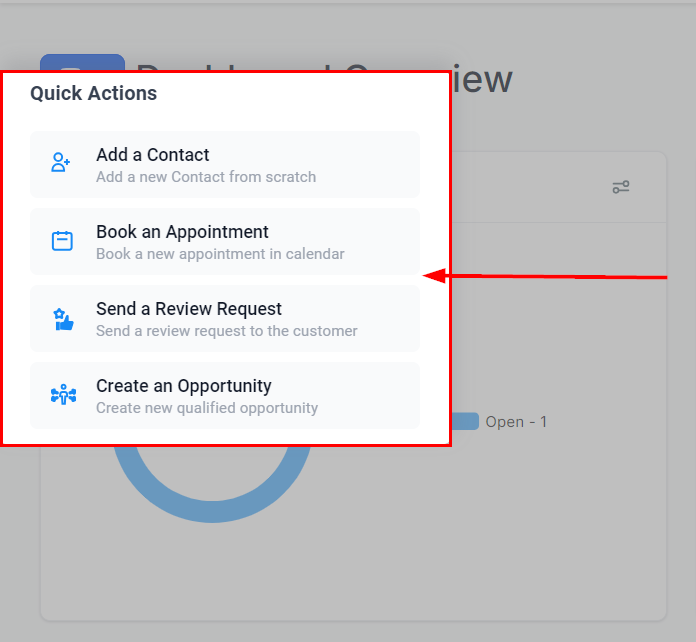
Quick actions menu with shortcuts for adding contacts, scheduling appointments, sending review requests, and creating opportunities
- Add a new contact
- Schedule an appointment
- Send a review request
- Create an opportunity
Dashboard
The Dashboard displays general reports on contacts, pipelines, and other key business metrics. It is the default page shown after logging into your account.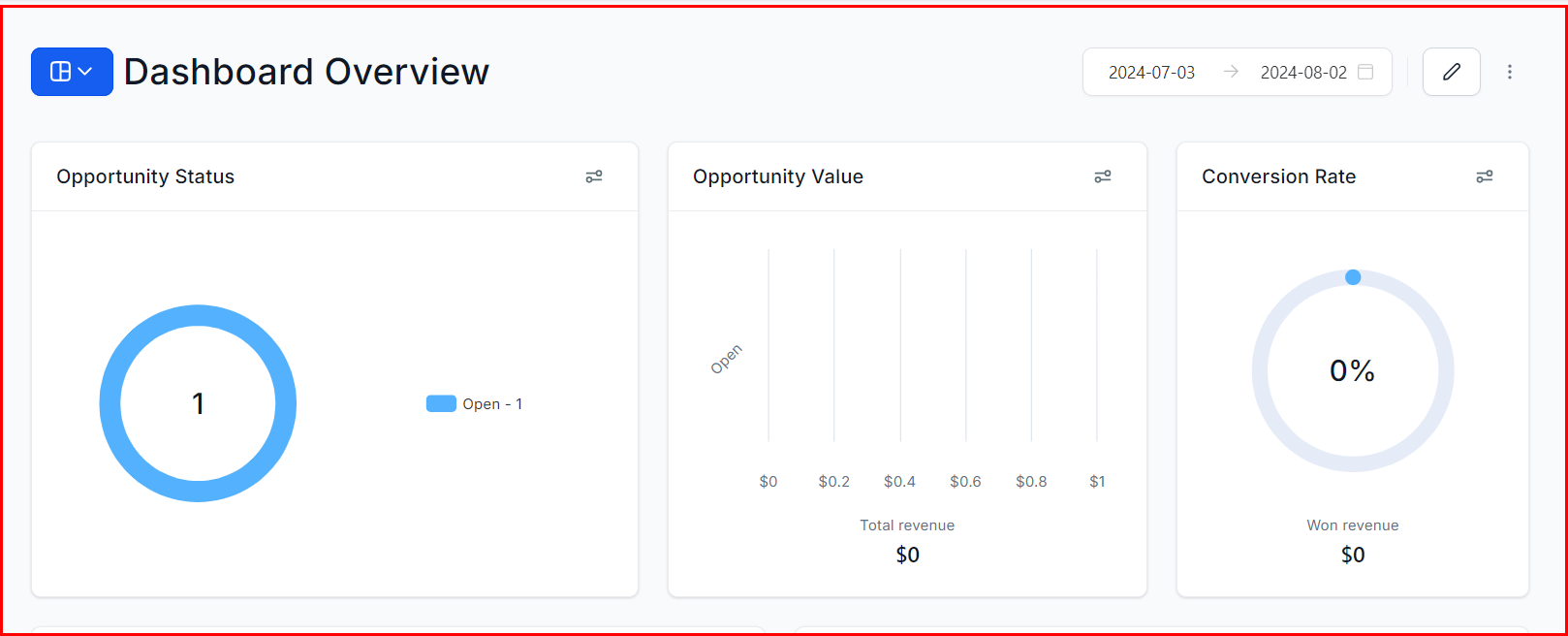
Dashboard showing contact and pipeline reports at a glance
Conversations
The Conversations section is a unified communications center consolidating all interactions with your contacts, including emails, SMS, and other communication channels.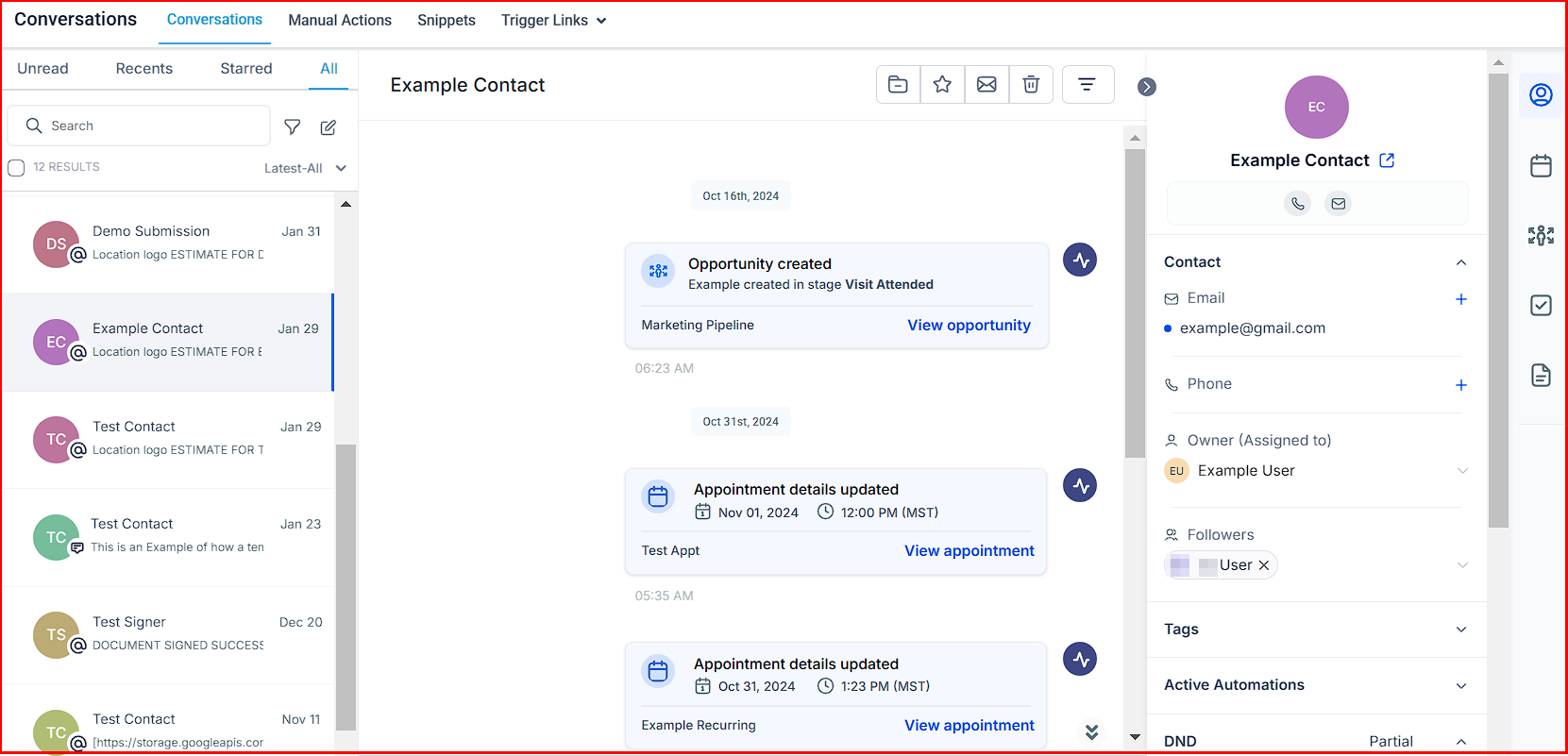
Conversations interface with unified messaging across channels
Manual actions
Manual actions
Set up and manage manual tasks like calls. Pending calls are listed automatically, and the next task triggers on completion.
Templates
Templates
Create reusable email and SMS templates for consistent, time-saving messaging.
Trigger links
Trigger links
Use custom links in campaigns to automatically trigger specific actions when contacts click them.
Calendar
The Calendar section provides an overview of all calendars and upcoming events. The Appointments tab displays all booked appointments in a centralized view.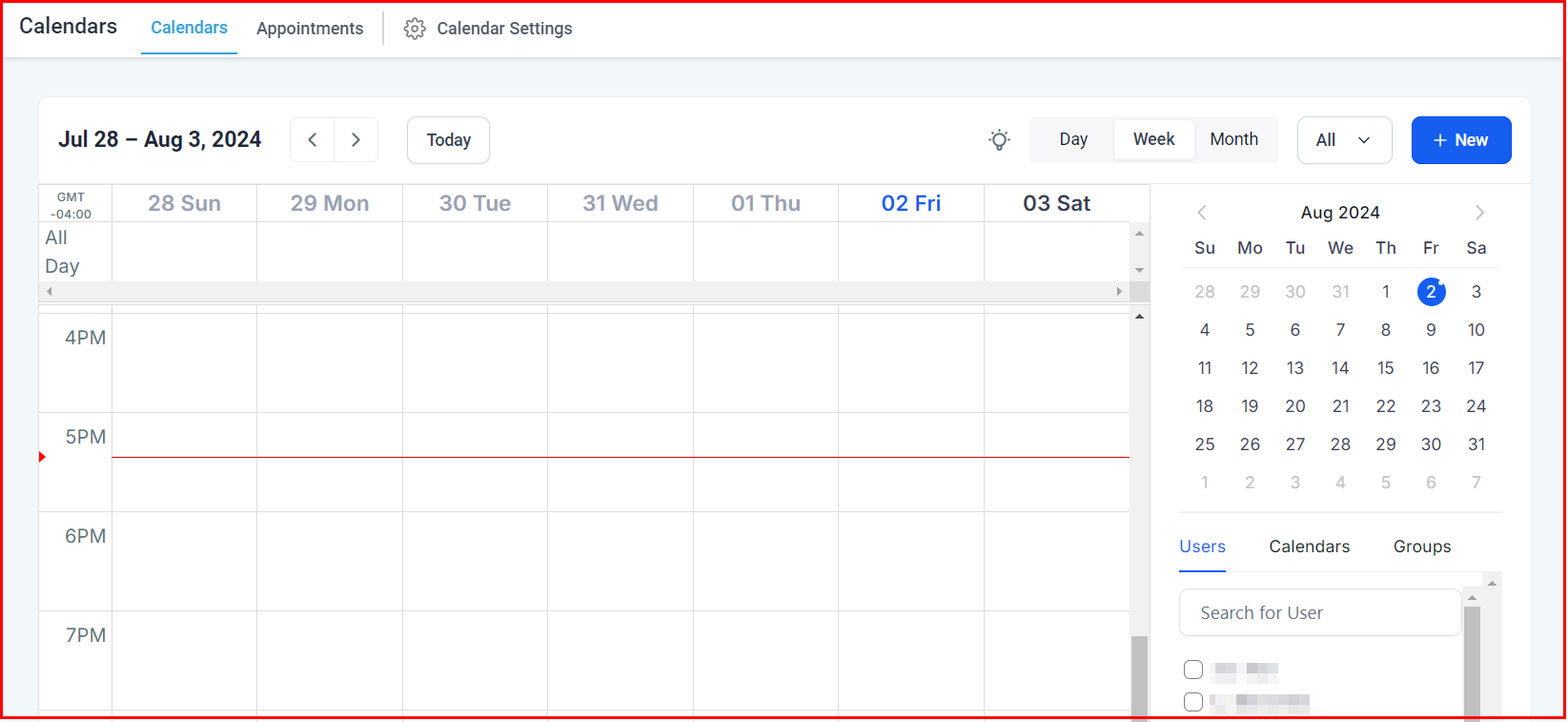
Calendar with appointment scheduling and upcoming events
Contacts
The Contacts section allows you to store and manage all contacts. You can add contacts individually, import in bulk, or collect them through marketing forms.Bulk actions
Bulk actions
Apply campaigns to large contact groups, streamlining your marketing efforts.
Restore
Restore
Recover contacts that were previously deleted.
Tasks
Tasks
Create, assign, and monitor tasks linked to specific contacts.
Companies
Companies
Manage and store information about companies or organizations associated with your contacts.
Smart lists
Smart lists
Create dynamic contact lists using saved filter rules, simplifying contact segmentation.
Opportunities
Track and manage contacts through pipeline stages. The Opportunities, Pipelines, and Bulk Actions tabs provide an overview of your entire deal flow.Payments
Manage products, transactions, and integrations with payment processors like Stripe or PayPal.Available payment tabs
Available payment tabs
Invoices, Documents & Contracts, Orders, Subscriptions, Payment Links, Transactions, Products, Coupons, Settings, and Integrations.
Marketing
Tools for managing your marketing activities across channels.Social planner
Schedule and create social media posts across connected platforms.
Emails
Design and send targeted email campaigns.
Ad manager
Launch and manage ad campaigns directly from the platform.
Affiliate manager
Automate the tracking of referrals, commissions, and payouts.
Automation
Design and implement automated workflows to replace manual campaigns and triggers, streamlining tasks that previously required manual intervention. Navigate to Automation from the sidebar to access Workflows and Content AI.Sites
Build and manage your digital assets from one place.Funnels and websites
Build multi-page funnels and full websites.
Forms and surveys
Collect visitor information and feedback.
Blogs
Publish and organize blog content.
Client portal
Set up and customize client-facing portals.
Membership
Create and manage online courses with structured learning experiences. Tools include course building, content organization, performance tracking, certificate issuance, and access to the Gokollab Marketplace.Media storage
A centralized repository for organizing and accessing your digital assets such as images and videos. Click Media Storage from the sidebar to access it.Reputation
Manage your online reputation by sending review requests, responding to reviews, and managing your business listings and profile visibility.Reporting
Access detailed insights and analytics across the platform.Custom reports
Build tailored reports with specific metrics and KPIs.
Ads reporting
Monitor Google Ads and Facebook Ads campaign performance.
Attribution
Track lead conversion paths and traffic sources.
Agent reports
Review individual user and team performance.