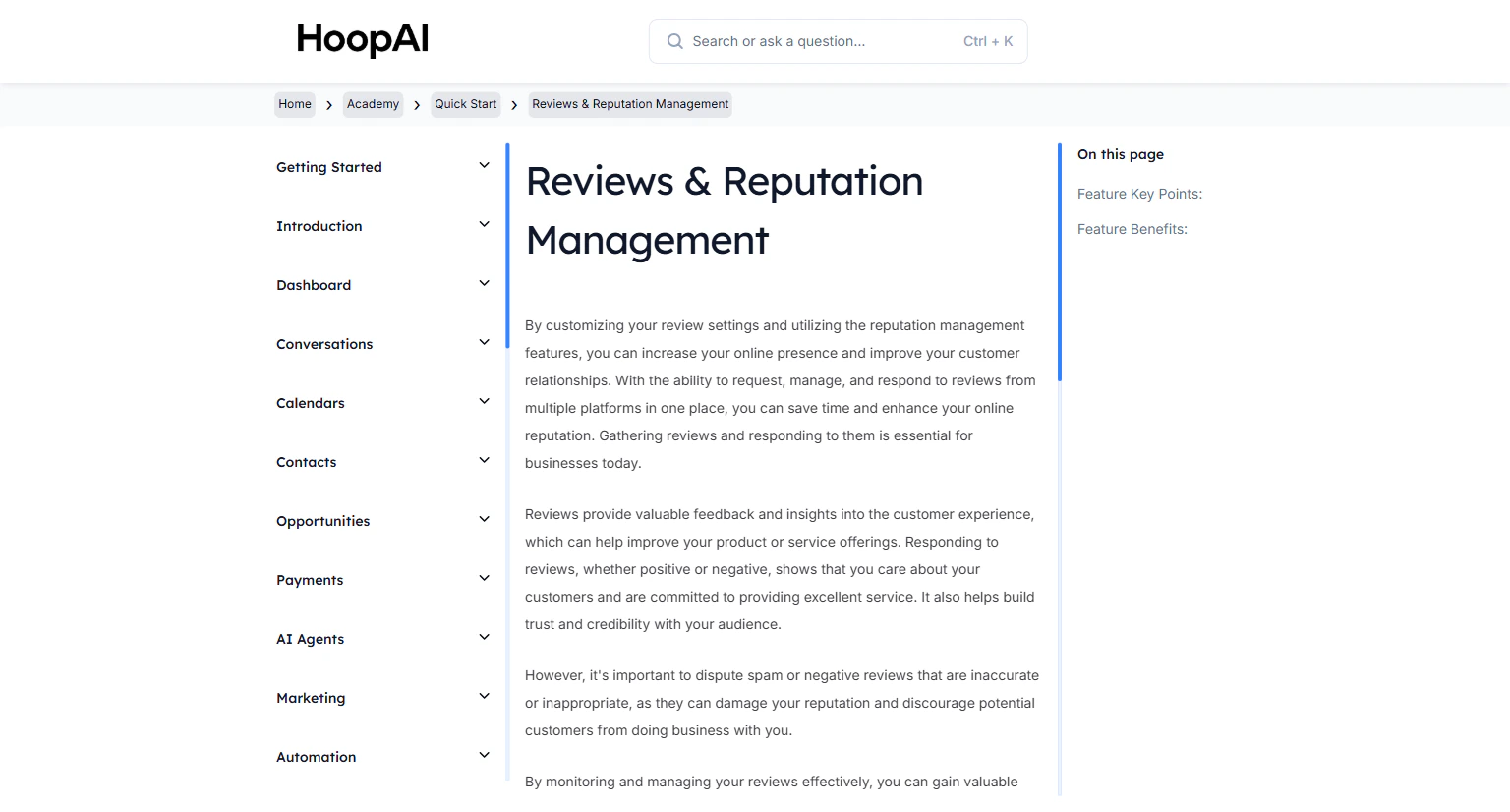
Request, manage, and respond to Google and Facebook reviews from one place — and build a stronger online reputation with the HoopAI Platform.
Your online reviews are one of the most powerful factors in whether a potential customer chooses your business. Positive reviews can increase the likelihood of customers using your business by 94%, and 89% of consumers are more likely to choose a business that responds to reviews. The HoopAI Platform lets you manage your entire review presence from a single dashboard.
The Reviews and Reputation Management lesson in the HoopAI Academy Quick Start
Most businesses have more happy customers than reviews. The gap between how good a business actually is and how it appears online is a reputation gap — and it costs you new customers every day. Proactively requesting reviews from satisfied clients closes that gap systematically, and responding to every review signals that you are engaged and trustworthy.
Go to Settings > Integrations and connect your Google Business Profile and Facebook Business Page. Once connected, the platform automatically pulls in your existing reviews from both platforms.
Connecting Google and Facebook profiles in Integrations settings
2
Configure your review settings
Go to Reputation in the left sidebar, then open Settings. Configure:
Review request link: Customize the direct link sent to contacts when requesting a review
Automated review request messages: Set up the email and SMS templates used for review requests
Review widget: Configure the website widget that displays your reviews as social proof
3
Send review requests
Request reviews from individual contacts or in bulk:
Individual: From any contact profile or active conversation, click Request Review
Bulk: From the Contacts section, select a list or smart list and use the Bulk Action to send review requests to all selected contacts at once
Sending review requests from the Reputation section of the HoopAI Platform
Timing matters. Send the review request within 24 hours of a completed service or positive interaction while the experience is still fresh in the customer’s mind. Automated workflow-triggered requests are the most effective approach.
4
View and manage reviews
In the Reputation tab, view all your Google and Facebook reviews in one place. See the review text, star rating, date, platform, and response status at a glance.
5
Respond to reviews
Click any review to open a response editor. Write your reply and submit — your response is published directly to Google or Facebook without leaving the HoopAI Platform.
Responding to a Google or Facebook review from within the HoopAI Platform
Responding to both positive and negative reviews shows responsiveness, builds trust with potential customers, and encourages more customers to leave reviews of their own.
6
Dispute negative or spam reviews
For reviews that are inaccurate, inappropriate, or spam, use the Dispute option within the review details. This flags the review for removal consideration by Google or Facebook.
Responding to reviews — both positive and negative — signals to potential customers that you are engaged and care about their experience. It also signals to Google’s algorithm that your listing is active, which can improve your local search ranking over time.
Setting up automated review requests
You can trigger automatic review requests through workflows. After a client completes an appointment, or a job is marked as done, a workflow can automatically send them a review request — capturing feedback while the experience is fresh.
The review widget
The review widget can be embedded on your website to display your Google and Facebook reviews automatically. This builds social proof for new visitors without any ongoing manual work required.
Bulk review requests
If you have an existing customer list, consider sending a one-time bulk review request campaign. Even a modest response rate from a large list can significantly increase your review count and average rating.