Learn what workflow triggers are, how to configure them with filters, and how to use multiple triggers in the HoopAI Platform.
A workflow trigger is the event or condition that starts an automation. When the trigger fires, the workflow executes its sequence of actions. Choosing the right trigger — and configuring it with precise filters — ensures your automation reaches exactly the right contacts at exactly the right time.
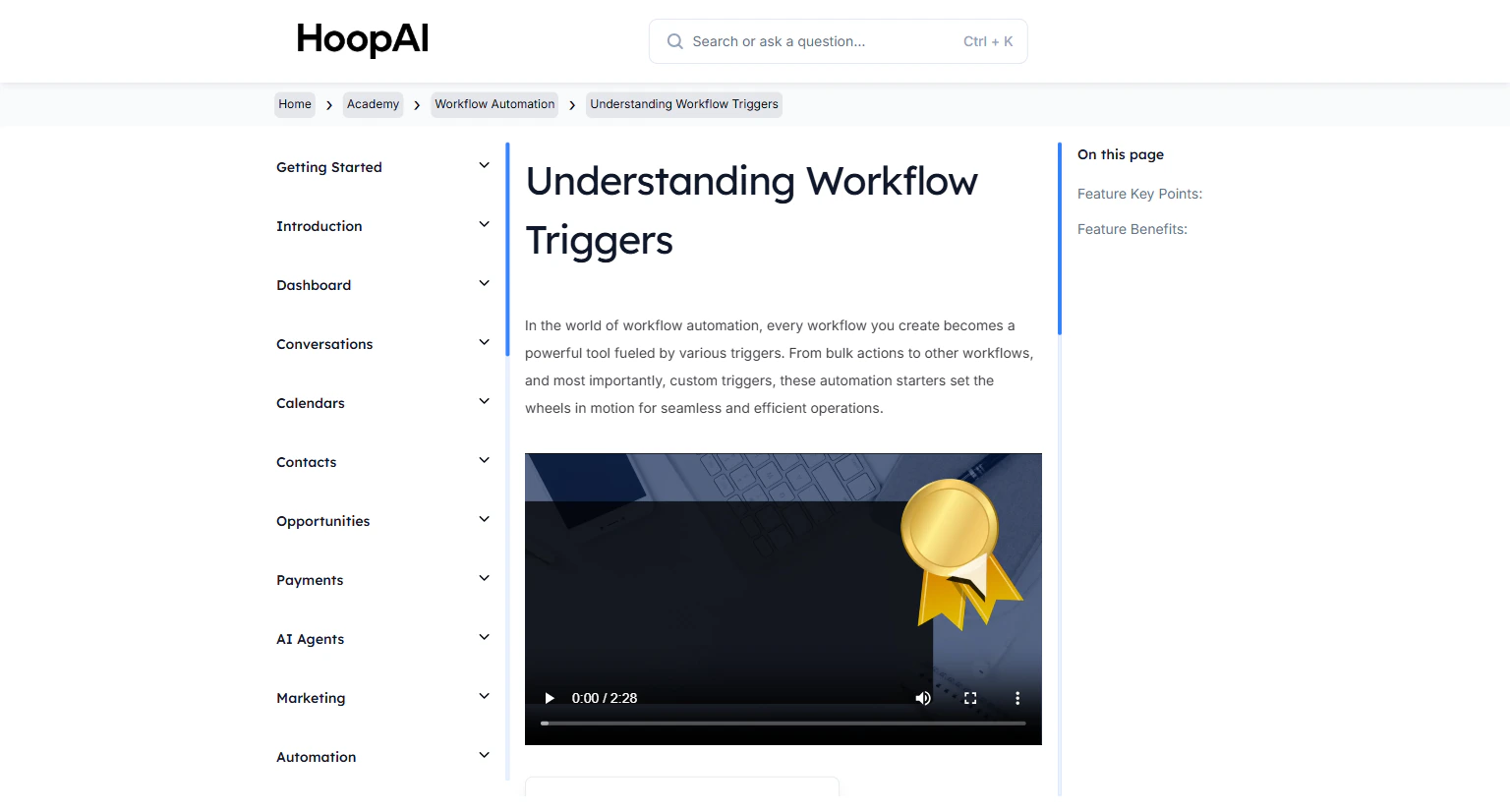
The Understanding Workflow Triggers lesson in the HoopAI Academy
Every workflow must start somewhere. Triggers are the “if this happens” part of the automation — the starting gun. Without a well-configured trigger, your automation either never fires, or fires at the wrong time for the wrong people. A properly filtered trigger is the difference between a workflow that runs precisely and one that spams contacts or misses its mark.
Go to Automation > Workflows and open or create a workflow. You will see the workflow canvas with the trigger area at the top.
The Workflow Automation builder in the HoopAI Platform
2
Click Add Trigger
In the workflow builder, click the Add Trigger button at the top of the canvas.
3
Select a trigger type
Browse or search the trigger library and select the trigger that matches the event you want to respond to.
Selecting a trigger type from the workflow trigger library
4
Add filters to the trigger
Click Add Filter within the trigger configuration to narrow down which contacts or events activate the workflow.For example, if using Customer Replied as your trigger:
Channel: SMS (fires only for text message replies)
Reply Type: Exact Match — KEYWORD (fires only when the message matches your exact keyword)
Always use trigger filters when possible. An unfiltered “Contact Created” trigger will fire for every single new contact — which is usually not what you want. Filters ensure precision.
5
Add multiple triggers (optional)
A single workflow can have multiple triggers. Click Add Trigger again to add a second entry point. This is useful when the same automation should fire in response to different events — for example, both a form submission and a tag being added.
6
Test the trigger
Use a test contact to simulate the trigger condition and confirm the workflow starts as expected before publishing.
Testing a workflow trigger with a test contact before publishing
A trigger is any event or condition that starts a workflow. It is the “if this happens” component of automation — when the trigger fires, the workflow begins executing its action sequence. Without a trigger, a workflow never runs.
Why trigger filters matter
Filters narrow down which specific contacts or events activate the automation. An unfiltered trigger like “Contact Created” fires for every single new contact. Adding a filter — for example, “Tag Added = VIP Customer” — ensures the workflow only runs for the right people in the right context.
Multiple triggers in one workflow
A single workflow can have multiple triggers for different entry points. This is useful when the same automation should fire in response to different events — for example, both a form submission and a tag being added. Each trigger is an independent entry point into the same action sequence.
Trigger and filter combinations
The most effective automations use precise trigger plus filter combinations. For example: trigger = “Customer Replied,” filter = “Channel: SMS, Reply Type: Exact Match, Value: GUIDE.” This ensures the workflow fires only when someone texts your exact keyword — not for every SMS reply.