

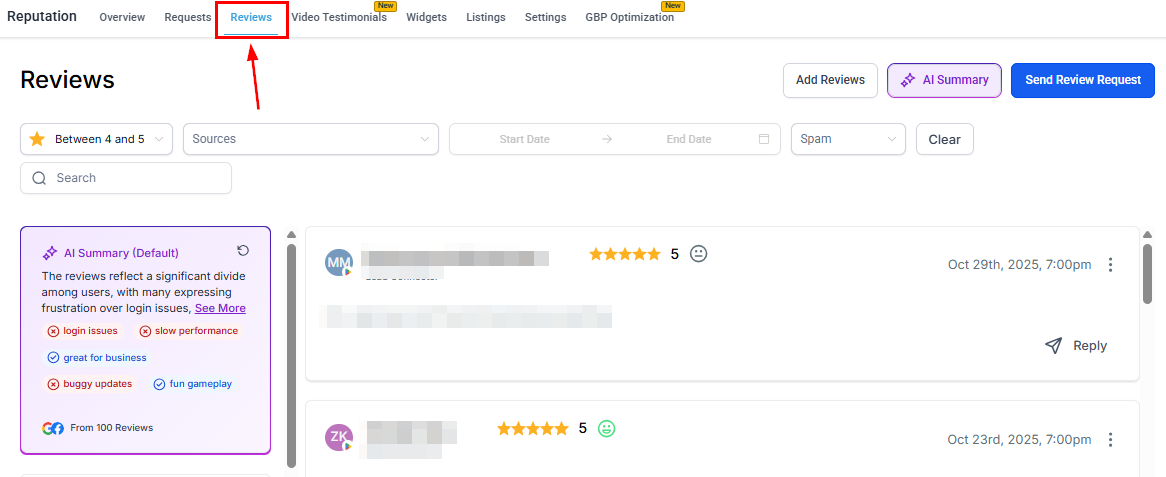
The Reviews tab showing customer feedback from all connected platforms
Getting started
If you encounter the “No Reviews Yet” message, it indicates that your business has not gathered any reviews or that no review platform is connected yet. Connect your Google Business Profile and Facebook page in Reputation > Settings to start pulling in reviews automatically.
Key features
Add reviews
The Add Reviews button allows you to upload a CSV file containing customer testimonials collected offline or from platforms without a direct integration. You may also manually enter a review if it was previously documented elsewhere.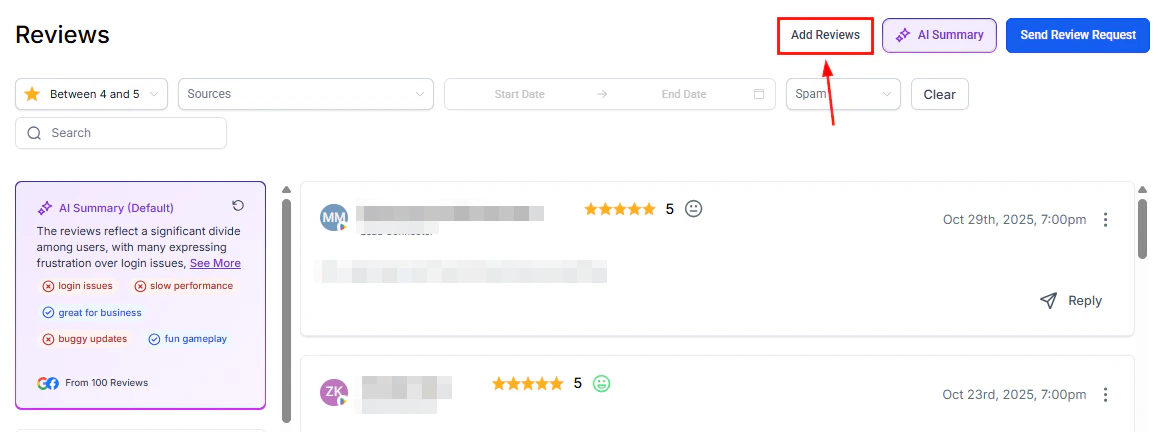
Adding reviews manually or via CSV import
AI summary
Click AI Summary to narrow down the summary using filters for specific review pages and custom date ranges for more focused insights. The system provides a combined AI-generated summary of reviews from all connected pages, automatically pointing out recurring themes and popular topics with highlight tags.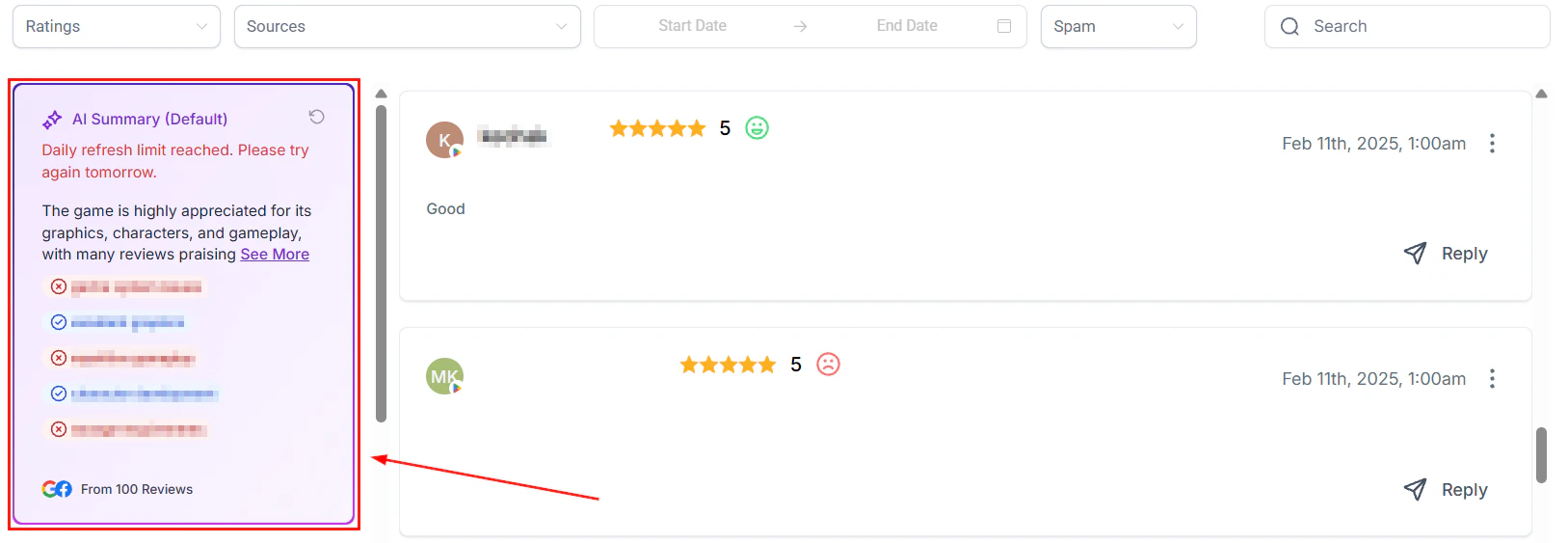
AI Summary panel providing an overview of review themes and sentiment
Sending review requests
In addition to automatic review requests through workflows and manual requests from the Contacts tab, you can also send requests directly from the Reviews section. Click the Send Review Request button and enter the necessary contact details.Ensure that SMS and email review requests are enabled and configured in your Reputation Management Settings before sending from this section.
Filtering reviews
Use the filter options to view reviews based on star ratings or other categories.Ratings
Ratings
Filter reviews by star rating to quickly focus on feedback with high or low ratings. Useful for identifying both satisfied customers and those whose concerns need to be addressed.
Sources
Sources
Filter reviews based on their origin — Google or Facebook. This lets you analyze customer feedback from each platform separately.
Date range
Date range
Narrow your review list to show feedback within a specific date range to track customer sentiment over time.
Spam
Spam
Choose between reviews that are marked as Spam or Not Spam. The system uses an advanced algorithm that flags potentially fraudulent or irrelevant reviews to protect your online presence.
Search
Search
Quickly locate specific feedback by entering the customer’s name in the search bar.
Managing reviews
Review cards
Customer feedback is presented in a visually organized card format. Each card includes:- Reviewer name
- Star rating
- Submission date
- Review platform
- Any additional comments
Responding to reviews
1
Open the review
Click the reply button on the review card you want to respond to.
2
Write your response
Type your reply in the designated field. Engaging with both positive and negative reviews demonstrates your commitment to customer satisfaction. See Review response templates for ready-to-use replies for every scenario.
3
Send
Click Send to post your response publicly on the review platform.
Delete or mark as spam
Hover on the three-dot icon on any review card to:- Delete a review from your display
- Mark as spam to flag a suspicious review
Smart spam detection
The HoopAI Platform uses an advanced algorithm to automatically identify and flag suspicious or irrelevant reviews.What is smart spam detection?
What is smart spam detection?
Smart spam detection uses an advanced algorithm to identify and flag suspicious or irrelevant reviews, keeping your online reputation protected from fraudulent feedback.
What happens to flagged reviews?
What happens to flagged reviews?
Flagged reviews are held in the system for you to review. You can mark them as “Not Spam” if you determine they are genuine, giving you full control over what remains visible.
Will flagged reviews receive automated responses?
Will flagged reviews receive automated responses?
No — AI-generated replies are disabled for flagged reviews to prevent unnecessary engagement with spam.
Can I manually adjust flagged reviews?
Can I manually adjust flagged reviews?
Yes. You can unflag genuine feedback by marking it as “Not Spam” at any time, maintaining accurate and trustworthy review records.
Handling negative reviews
Negative reviews are an opportunity to demonstrate responsiveness and build trust. Addressing them professionally often matters more to potential customers than the negative review itself.Respond promptly and professionally
Respond promptly and professionally
Aim to respond to negative reviews within 24–48 hours. Acknowledge the customer’s experience, apologize where appropriate, and avoid defensive language. Keep the response concise and invite the customer to continue the conversation privately.
Take the conversation offline
Take the conversation offline
Include a direct contact method (phone number or email) in your response and invite the customer to reach out to resolve their concern. This shows other readers you are committed to resolution without airing details publicly.
Use the AI agent for consistent tone
Use the AI agent for consistent tone
Configure a dedicated Reviews AI agent for 1–3 star reviews to ensure every negative review receives a timely, empathetic response even outside business hours.
Flag truly fraudulent reviews as spam
Flag truly fraudulent reviews as spam
If you believe a review is fraudulent or from someone who was never a customer, use the Mark as spam option. The HoopAI Platform’s spam detection algorithm will evaluate it, and flagged reviews will not receive automated AI responses.
FAQs
Which platforms are supported for review management?
Which platforms are supported for review management?
The HoopAI Platform aggregates reviews from Google and Facebook when those accounts are connected in Reputation > Settings. Manually added reviews from other platforms (Yelp, Amazon, Airbnb, etc.) also appear in the Reviews section and widgets.
Why do I see 'No Reviews Yet'?
Why do I see 'No Reviews Yet'?
This message appears when no review platform is connected or when no reviews have been collected yet. Connect your Google Business Profile and Facebook Page in Reputation > Settings to start pulling in reviews automatically.
Can I respond to reviews from inside the platform?
Can I respond to reviews from inside the platform?
Yes. Click the reply button on any review card, type your response, and click Send to post the reply publicly on the connected platform (Google or Facebook).
Can I send review requests directly from the Reviews tab?
Can I send review requests directly from the Reviews tab?
Yes. Click the Send Review Request button within the Reviews section. Ensure that SMS and email review requests are enabled and configured in Reputation Settings first.