

Prerequisites
Before embedding a widget on your website, make sure you have:- At least one connected review platform (Google or Facebook) in Reputation > Settings
- A widget created and configured in Reputation > Widgets
Getting your embed code
1
Navigate to your widget
Go to Reputation > Widgets and locate the widget you want to embed. Click the three-dot actions menu and select Edit, or click on the widget name to open it.
2
Open the Settings tab
Inside the widget builder, click the Settings tab.
3
Copy the embed code
Click Copy Code to copy the widget’s embed snippet to your clipboard. The snippet is a short JavaScript embed code unique to that widget.
Embedding on a standard website
Paste the embed code into the HTML of the page where you want the widget to appear. The code can be placed:- Directly in the
<body>of the page at the location where the widget should render - Inside a custom HTML block in your website builder (WordPress, Wix, Squarespace, Webflow, etc.)
The widget renders on page load. It may take a moment to display if the page is loading a large number of reviews. For best performance, place the widget below the fold rather than at the very top of the page.
Embedding on a HoopAI funnel or website page
You can embed the review widget directly on funnel and website pages built within the HoopAI platform:1
Open your funnel or website
Navigate to Funnels & Websites > Funnels (or Websites) and open the page where you want to add the widget.
2
Add a Custom Code element
In the page builder, drag a Custom Code element onto the page canvas and position it where you want the widget to appear.
3
Paste the embed code
Click on the Custom Code element to open its settings. Paste the widget embed code copied from Reputation > Widgets.
4
Save and preview
Save the page and use the preview function to verify that the widget renders correctly before publishing.
Choosing the right widget type for each page
Different widget layouts serve different purposes. Match the widget type to the context of the page it appears on: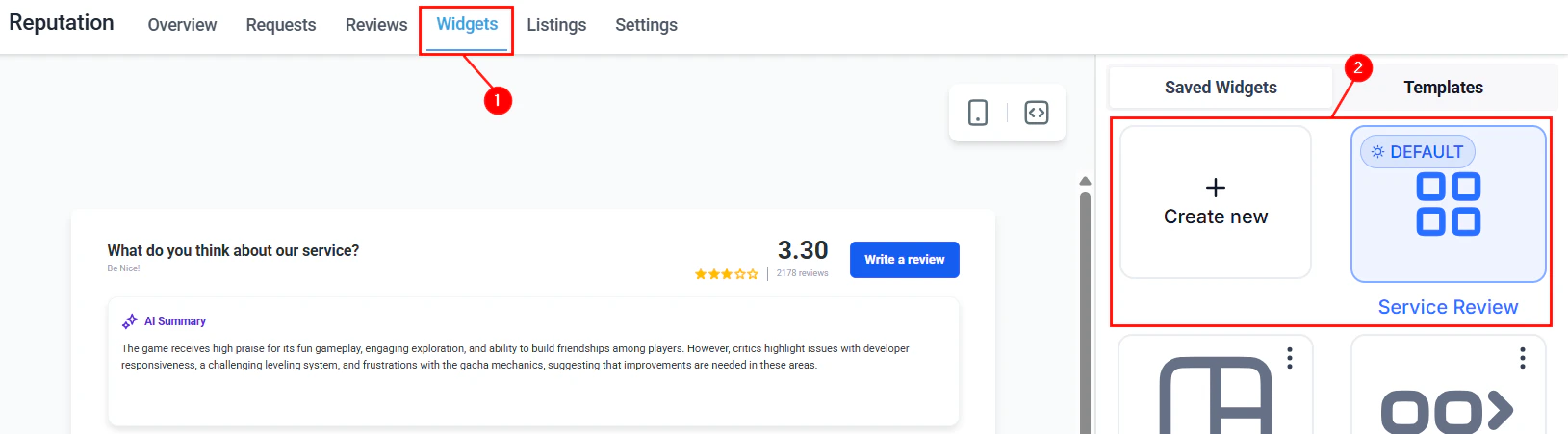
Available review widget types for different page layouts
Keeping widget reviews current
The widget automatically pulls in new reviews as they are synced from Google and Facebook — you do not need to regenerate or re-embed the code when new reviews arrive. The embed code is permanent; what changes is the review content it displays. If you want the widget to show more recent reviews more prominently, configure the sorting options in the widget builder’s Settings tab (newest first vs. highest rated first).Widget display options
Several display behaviors can be configured in the widget builder:- Maximum reviews displayed — set how many reviews appear at once (e.g., show your best 10 or latest 20)
- Minimum star rating — optionally filter out reviews below a certain rating (note: check local regulations before enabling rating filters — this may be prohibited in some jurisdictions including the United States)
- Show/hide dates — toggle whether review submission dates appear on each card
- Show/hide reviewer profile photos — toggle reviewer avatars
- Exclude reviews with no text — hide star-only reviews that have no written comment
- AI summary — display a brief AI-generated summary of your overall review sentiment above the individual review cards
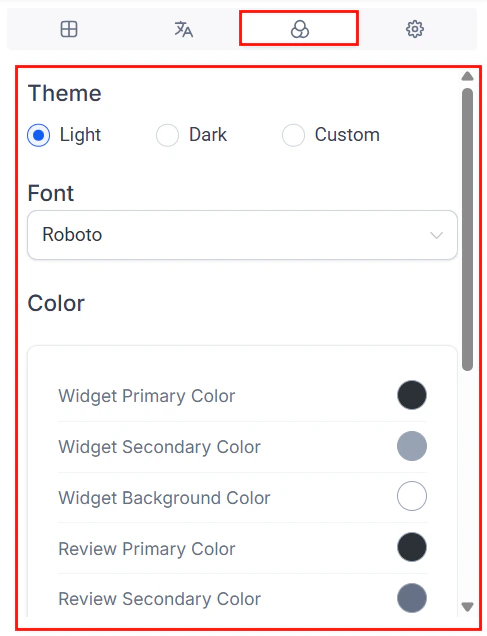
Widget appearance and display options in the builder
Multiple widgets on the same site
You can embed multiple widgets on a single website — each one pulling from a different source (Google vs. Facebook) or using a different layout for different pages. Each widget has its own unique embed code; copy and paste each code to the appropriate page independently.Troubleshooting the embedded widget
The widget is not appearing on my website
The widget is not appearing on my website
Confirm that the embed code was pasted correctly and that the page element containing the code is set to visible. Some website builders require you to enable JavaScript embeds or disable script blocking. Check your browser’s console for any JavaScript errors.
The widget shows 'Powered By' with a broken link
The widget shows 'Powered By' with a broken link
This is typically caused by a misconfigured sub-domain or custom domain setting. Ensure your account’s custom domain is properly configured. You can also toggle off the “Powered by” attribution in the widget builder’s Layout tab.
Reviews are not updating in the widget
Reviews are not updating in the widget
The widget pulls reviews from the platform’s sync data. If new reviews are not appearing, check that your Google or Facebook integration is still active in Reputation > Settings and that reviews are appearing correctly in Reputation > Reviews. If reviews appear in the platform but not the widget, clear your browser cache and reload.
Can I use the same embed code on multiple pages?
Can I use the same embed code on multiple pages?
Yes. The same embed code can be pasted on as many pages as needed. Each instance will display the same widget configuration.
FAQs
Do I need to know how to code to embed the widget?
Do I need to know how to code to embed the widget?
No. The embed code is a copy-paste snippet. As long as your website builder allows custom HTML or custom code blocks — which virtually all modern builders do — you can embed the widget without any coding knowledge.
Will manually added reviews appear in the widget?
Will manually added reviews appear in the widget?
Yes. Reviews imported via CSV or added manually appear in your widget alongside organic reviews from Google and Facebook.
Can I show reviews from both Google and Facebook in one widget?
Can I show reviews from both Google and Facebook in one widget?
No. Each widget is configured for a single review source. Create two separate widgets — one for Google and one for Facebook — if you want to display both on your site.
Does the widget affect my website's page load speed?
Does the widget affect my website's page load speed?
The widget loads asynchronously, which means it does not block the rest of the page from rendering. For pages where load speed is critical (such as high-traffic landing pages), place the widget below the fold so it loads after the primary content.