

How RSS email campaigns work
- You configure a campaign with an RSS Feed URL and a send schedule (daily, weekly, or monthly)
- At the scheduled time, the platform fetches the feed and populates the RSS blocks in your email with the latest content
- The email is delivered to your recipient list with dynamically generated content
- If no new feed items are found since the last send, the campaign does not send (optional behavior depending on your settings)
Generating an RSS feed from your blog
If your website is built on the HoopAI platform’s blog feature, you can generate a feed URL for use in RSS campaigns:1
Open your blog settings
Navigate to Sites > Blogs and select the blog you want to create a feed from.
2
Create the RSS feed
Look for the RSS Feed option in the blog settings. Configure:
- Feed name
- Number of posts to include
- Content type (full content or summary)
3
Copy the feed URL
Copy the generated RSS URL. You will use this when setting up your email campaign.
Creating an RSS email campaign
1
Create a new campaign
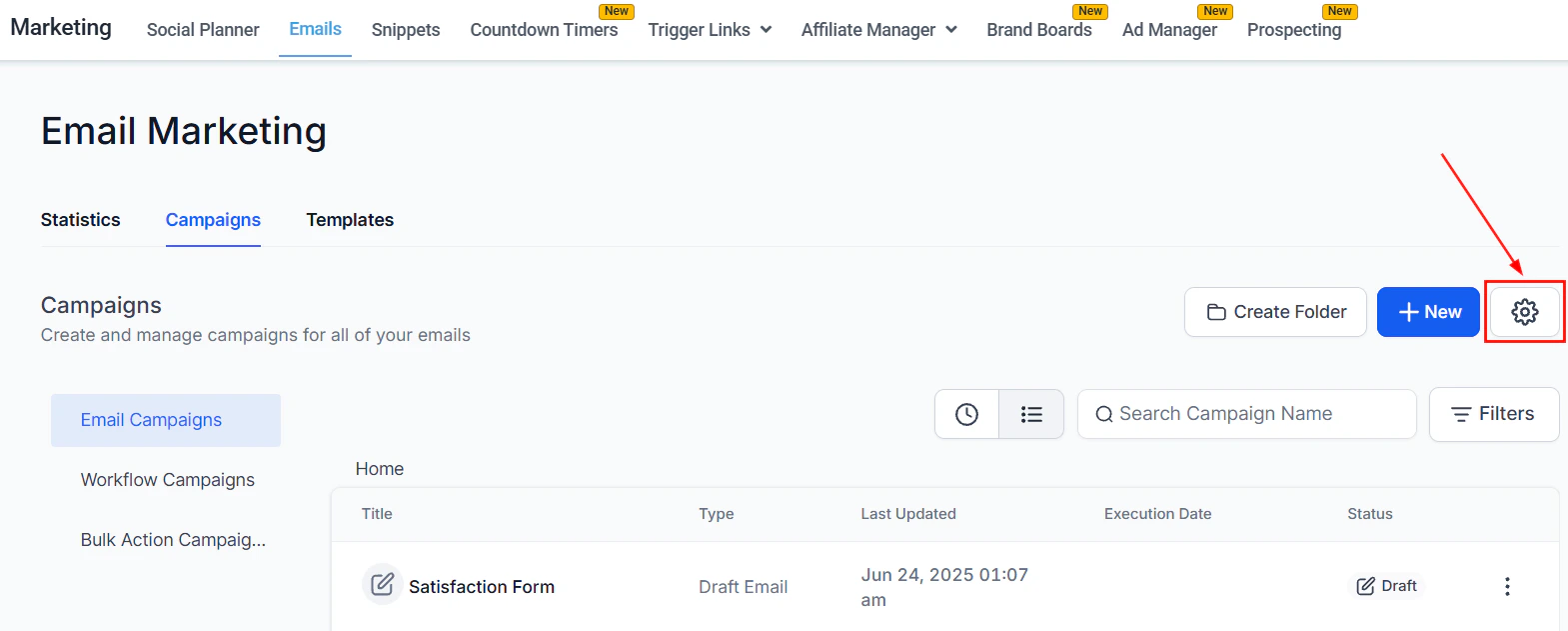
Go to Marketing > Emails > Campaigns and click + New. Select a template or start from blank.
2
Add RSS blocks to your template
In the email builder, drag in an RSS Header block and one or more RSS Items blocks from the Add Elements panel. These blocks will dynamically populate with feed content at send time.
3
Configure the RSS Header block
The RSS Header block shows feed-level information. Choose between:
- Basic mode — displays feed title and description automatically
- Custom mode — editable layout with variables for title, description, URL, and date
4
Configure the RSS Items block
The RSS Items block displays individual feed entries. Choose between:
- Basic mode — shows title (linked), summary, and a “Read more” link
- Custom mode — includes author, publication date, full article content, and thumbnail image
5
Design the rest of your email
Add your header, logo, footer, and any static content sections above or below the RSS blocks. Static content stays the same every send; RSS blocks update automatically.
6
Send or Schedule — choose RSS Schedule
On the Send or Schedule screen, select RSS Schedule as the delivery method. Enter your RSS Feed URL and set the frequency (daily, weekly, or monthly) and delivery time.
7
Select your recipients
Choose a smart list, tag, or segment as your recipient audience. This remains the same for all future sends of this campaign.
RSS block variables
The following merge tags are available inside RSS block templates and the email subject line:RSS Header variables
RSS Items variables
Use triple braces
{{{rss_item.content}}} only when your feed outputs properly encoded HTML. Double braces {{rss_item.content}} are safer for feeds that may contain raw or inconsistent markup, as they prevent unescaped HTML from breaking the email layout.Sending schedule options
You can also restrict sends to specific days of the week. For example, set a weekly send to go out only on Tuesday and Thursday.
Subject line for RSS campaigns
Your campaign subject line can include RSS variables to make each send feel unique:New post: {{rss_item.title}}— uses the first post’s title as the subject{{rss_feed.title}} — {{rss_feed.date}}— uses the feed name and date
Email campaign schedule options including RSS schedule for automated content delivery
Managing active RSS campaigns
Active RSS campaigns appear in the Campaigns list with the type designation RSS. From the three-dot menu you can:- Pause — temporarily stops future sends
- Cancel — permanently stops the campaign
- Update Email Content — edit the email template used by the RSS campaign without changing the feed URL or schedule
Frequently asked questions
Does the campaign send if there are no new items in the feed?
Does the campaign send if there are no new items in the feed?
If no new items have been published since the last send, the campaign does not send. This prevents your audience from receiving duplicate content or empty emails. Check your feed publishing cadence to ensure it aligns with your email schedule.
Can I include static content alongside the RSS blocks?
Can I include static content alongside the RSS blocks?
Yes. Add any static elements (header image, introductory text, footer CTA, unsubscribe link) above and below the RSS blocks. Static content is the same in every send; only the RSS blocks update dynamically.
Can I preview what the email will look like before it sends?
Can I preview what the email will look like before it sends?
Yes. Use the Send Test Email feature and enter your RSS Feed URL in the provided field. The test email will pull in the latest feed items and render them in the email so you can verify the layout before the first scheduled send.
How many feed items are shown per email?
How many feed items are shown per email?
The number of items displayed depends on how many RSS Items blocks you add to the template. Add one block per article you want to show. For a weekly roundup with five articles, add five RSS Items blocks.
Can I use an RSS campaign for a podcast or YouTube channel?
Can I use an RSS campaign for a podcast or YouTube channel?
Yes. Any valid RSS or Atom feed works, including podcast feeds and YouTube channel feeds. Use the
{{rss_item.imageUrl}} variable to pull in episode artwork or video thumbnails, and {{rss_item.url}} to link to the episode or video.