

How review request automation works
The Automation module in HoopAI uses a trigger-action model:- A trigger is a specific event that starts the workflow (e.g., appointment status changes to “Showed Up”)
- An action is what happens next (e.g., wait 2 hours, then send a review request via SMS)
Review request automation workflow with trigger and action steps
Building a review request workflow
1
Navigate to Automation
Go to Automation > Workflows and click + Create Workflow.
2
Choose a starting point
Select Start from Scratch or choose an existing template. If using a template, look for review-related options in the template library.
3
Add a trigger
Click Add Trigger and select the event that should initiate the review request. Common triggers for review collection:
- Appointment status is updated — set the condition to “Showed Up” or “Completed”
- Invoice paid — fires when a payment is recorded
- Form submitted — use after a job completion or satisfaction survey form
- Tag added to contact — fires when a specific tag (e.g., “job-complete”) is applied manually or by another workflow
4
Add a wait step (recommended)
Click + to add a step and select Wait. Configure a delay of 1–4 hours after the trigger — this gives the customer time to form an opinion about their experience before receiving the request. A delay of 24 hours is appropriate for service industries where the customer needs time to assess results.
5
Add the Send Review Request action
Click + to add another step and select Send Review Request. Configure:
- Channel — SMS, Email, or WhatsApp (select one or multiple)
- Template — choose the SMS or email template configured in Reputation > Settings
- Review that the correct review link destination is set in your Reputation Settings
6
Add optional follow-up steps
To send a follow-up request if the first one goes unresponded:
- Add another Wait step (e.g., 3 days)
- Add an If/Else condition — check whether the contact has already left a review or clicked the review link
- Add a second Send Review Request action on the “No” branch only
7
Activate the workflow
Toggle the workflow to Published status. It will now fire automatically whenever a contact meets the trigger criteria.
Recommended triggers by business type
Timing best practices
Send too early — the customer hasn’t experienced the full value of the service yet and is less motivated to leave a positive review. Send too late — the experience fades from memory and the emotional momentum dissipates. The sweet spot for most service businesses is 1–4 hours after a completed interaction. For products that require time to evaluate, wait until after a reasonable use period (3–7 days for most goods).Configuring review request templates for automation
Automated review requests use the templates configured in Reputation > Settings:- SMS template — a short message with a review link. Customize the text and optional image in the SMS review requests section.
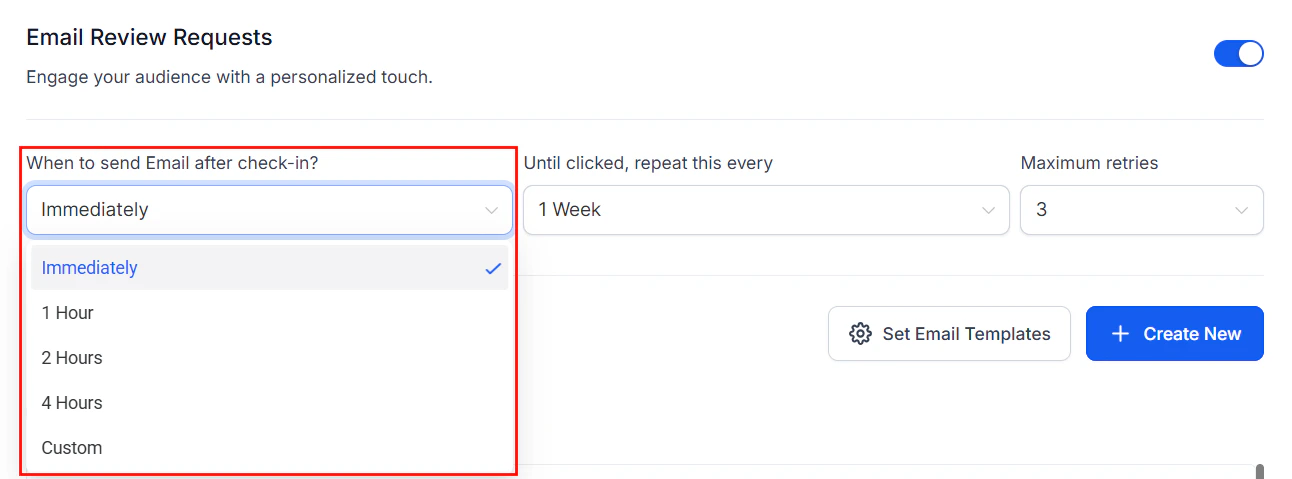
- Email template — a fully designed email. Select or build templates in the Email review requests section. See Email templates for review requests for full details.
- WhatsApp template — a Meta-approved template. Set up and submit for approval in the WhatsApp review requests section.
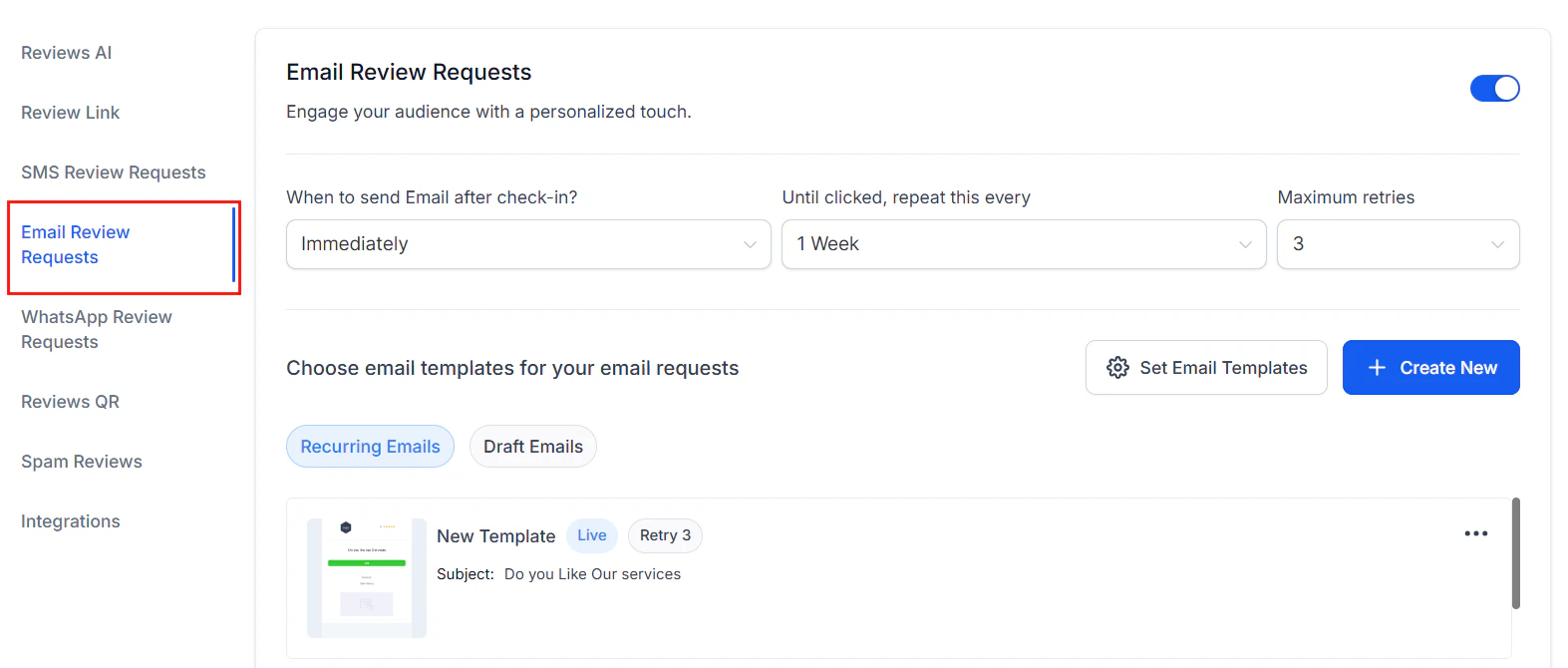
Email template configuration for automated review requests
Enrolling contacts automatically vs. manually
Review request workflows can be configured to enroll contacts automatically (via the trigger) or manually:- Automatic enrollment — every contact who meets the trigger condition is enrolled without any manual action
- Manual enrollment — use the “Add to Workflow” action in another workflow or manually add a contact from the contact record
Monitoring automated review request performance
After activating your workflow, track its performance in two places:- Reputation > Requests — shows every request sent, including automated ones, with status (Queued, Sent, Delivered, Failed) and retry count
- Automation > Workflows > [Workflow name] — shows enrollment count, completion rate, and which contacts are currently active in the workflow
FAQs
Can I use automation to send requests via SMS and email simultaneously?
Can I use automation to send requests via SMS and email simultaneously?
Yes. Add two Send Review Request action steps to the same workflow — one set to SMS and one to email — with a short wait between them if desired. Both will fire in sequence for each enrolled contact.
How do I prevent the same contact from receiving multiple review requests?
How do I prevent the same contact from receiving multiple review requests?
Add an If/Else condition before the Send Review Request action that checks whether the contact has already been tagged as having left a review, or use a workflow goal that stops contacts who complete a review action. You can also limit enrollment to once per contact in the workflow settings.
What happens if a contact's SMS fails to deliver?
What happens if a contact's SMS fails to deliver?
Failed SMS requests appear in Reputation > Requests with a Failed status. The workflow does not automatically retry failed SMS delivery — you can manually resend from the Requests tab or add an email fallback step in the workflow using an If/Else condition.
Can I pause the workflow without deleting it?
Can I pause the workflow without deleting it?
Yes. Toggle the workflow to Draft status to pause it. Contacts currently active in the workflow will not advance to the next step while the workflow is in draft. Switch back to Published to resume.
Do I need to set up the review links in Settings before automation works?
Do I need to set up the review links in Settings before automation works?
Yes. The review link destination is configured in Reputation > Settings > Review link management. Automated review requests will use whichever link is configured there. Ensure at least one review link is saved before activating your workflow.