

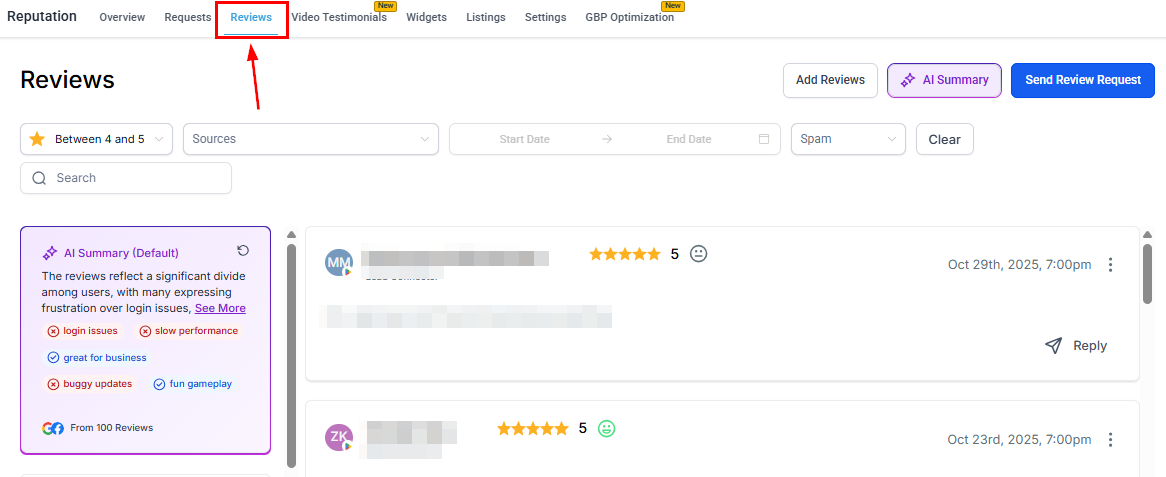
Review QR code — branded code linking customers directly to your review page
Creating a review QR code
1
Navigate to settings
Go to Reputation > Settings and select the Review QR tab.
2
Generate the QR code
Click + Create a QR Code to generate your code.
3
Customize your QR code
Adjust the appearance — add your logo, colors, text, and other branding elements. Save your changes.
4
Download as PDF
Click the three-dot icon and select Download as PDF to get a print-ready version of your QR code.
5
Monitor performance
Once you start distributing the QR code, track scan metrics in real time from the same settings panel.

QR code customization — add your logo, brand colors, and text for a professional look
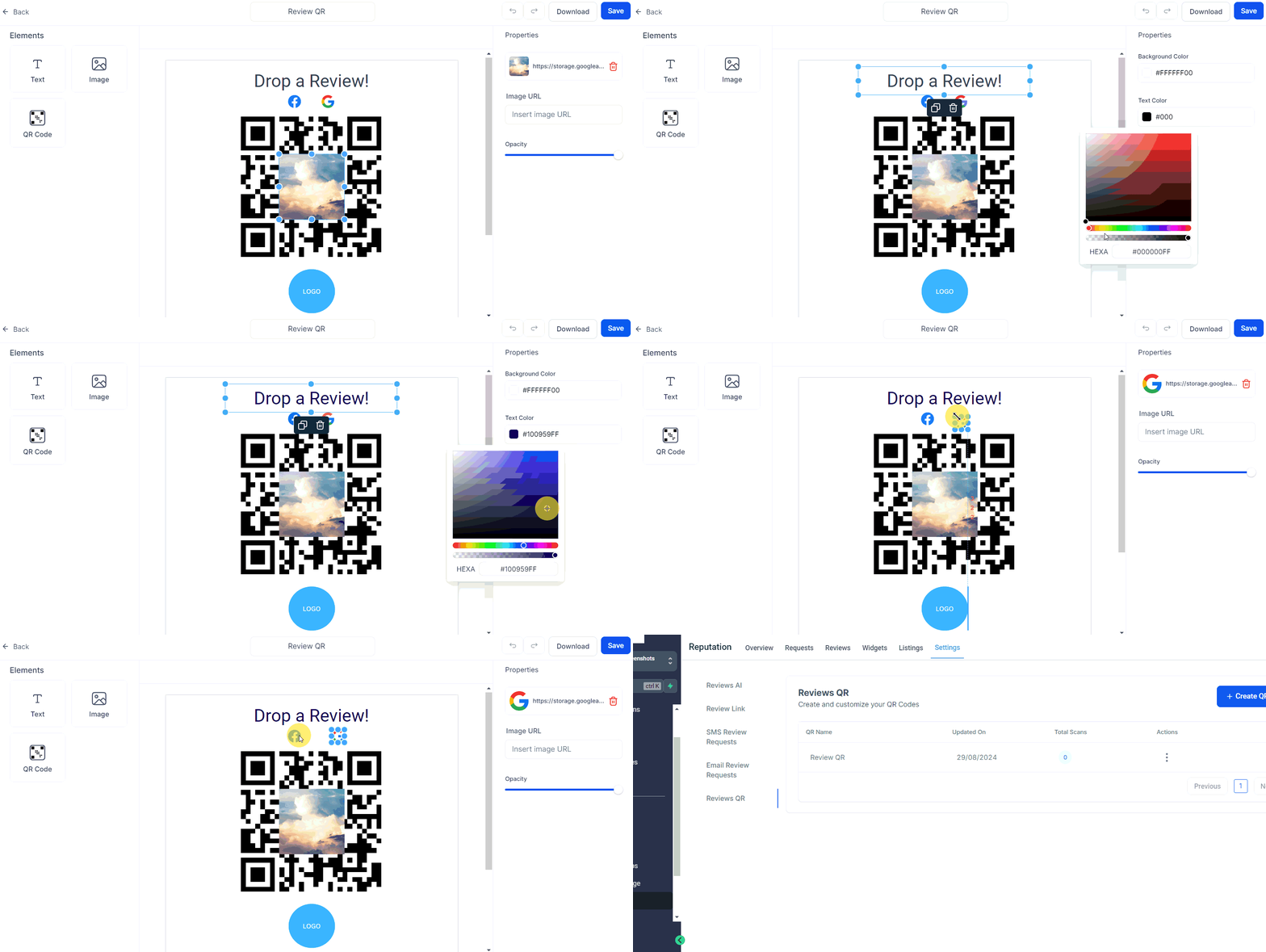
Creating and customizing a review QR code — end-to-end walkthrough
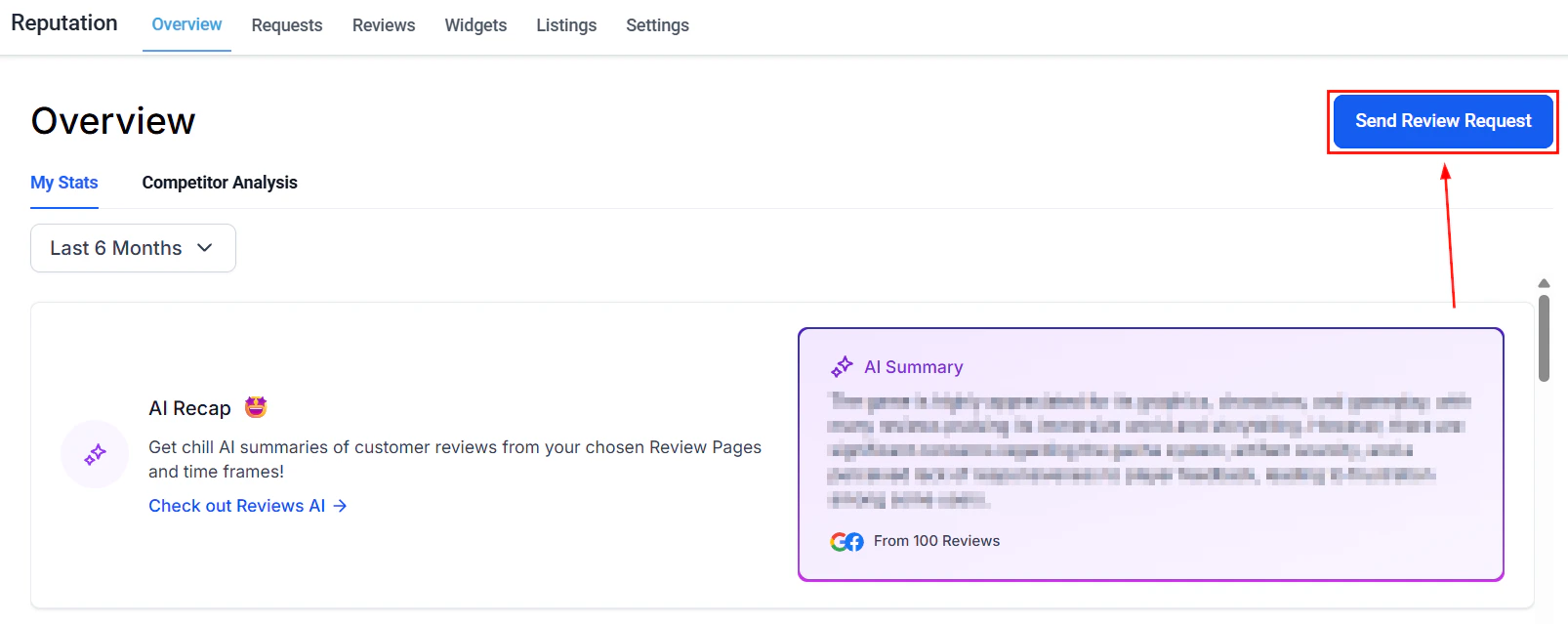
QR code scan metrics — track distribution performance by channel or location
Benefits
- Marketing flexibility — embed QR codes in printed materials, storefronts, invoices, or email signatures
- Frictionless reviews — customers scan and land directly on your review page with no searching required
- Trackable — real-time scan metrics let you measure the effectiveness of each distribution channel
- Branded — customize colors and add your logo for a professional look
FAQs
Where do QR codes link customers?
Where do QR codes link customers?
The QR code links directly to the review page you configured in Reputation Settings — typically your Google or Facebook review page. Customers who scan it are taken straight there with no additional steps.
Can I track how many times a QR code has been scanned?
Can I track how many times a QR code has been scanned?
Yes. Scan metrics are tracked in real time within Reputation > Settings > Review QR. You can see total scans per code, making it easy to compare performance across locations or campaigns.
Can I create multiple QR codes?
Can I create multiple QR codes?
Yes. Click + Create a QR Code as many times as needed. Creating separate codes for different locations, events, or print runs lets you attribute scan volume to each source independently.
What file format is the QR code downloaded in?
What file format is the QR code downloaded in?
QR codes are downloaded as a PDF, which is print-ready and works at any size without quality loss.
Can I edit a QR code after creating it?
Can I edit a QR code after creating it?
Yes. Click the three-dot icon next to any existing QR code and select Edit to update the logo, colors, or text. The underlying review link remains the same.